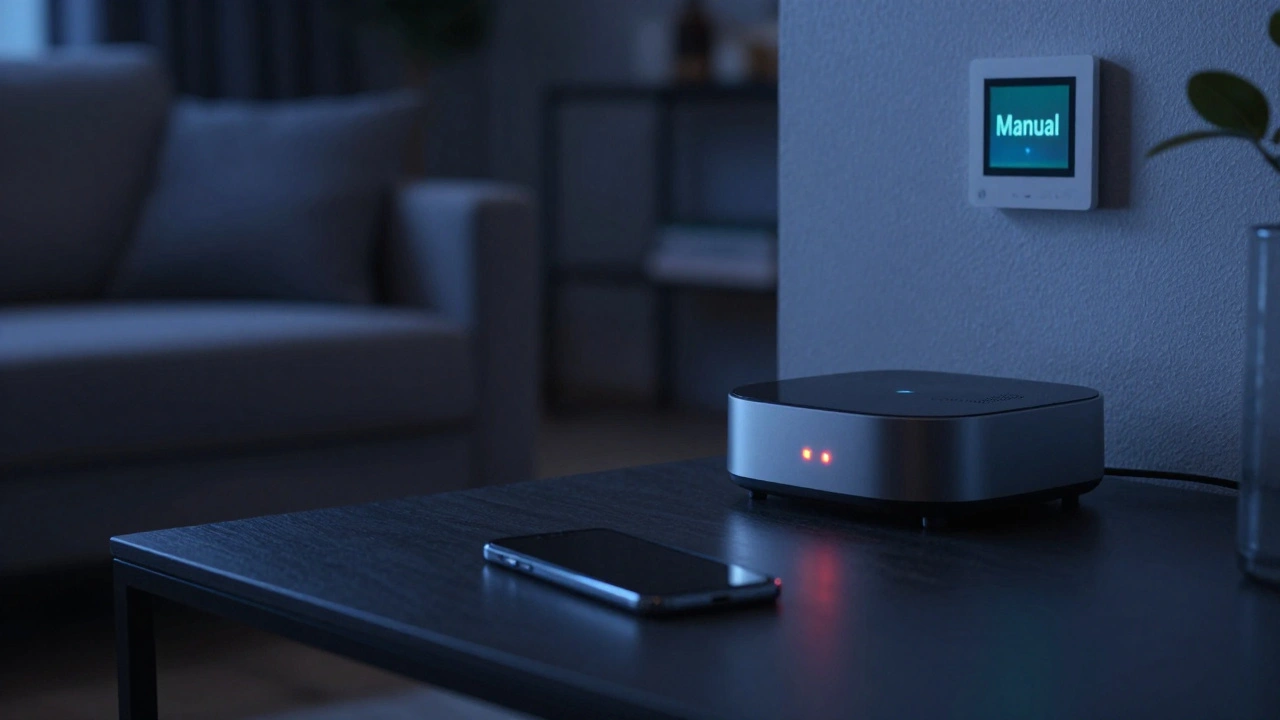
Your lights just stopped responding. Your thermostat is stuck on 'manual.' You didn’t touch anything-you just updated the app on your phone or let your smart hub download its latest firmware. Suddenly, the seamless routine you built over months is broken. This happens more often than we’d like to admit, and it’s incredibly frustrating.
When a smart home hub or a companion mobile app updates, it often resets local configurations, changes API endpoints, or introduces stricter security protocols. The result? Your automations vanish or fail to trigger. The good news is that this is rarely permanent data loss. Usually, it’s a connectivity hiccup or a configuration mismatch that can be fixed in minutes if you know where to look.
Why Updates Break Your Smart Home Routines
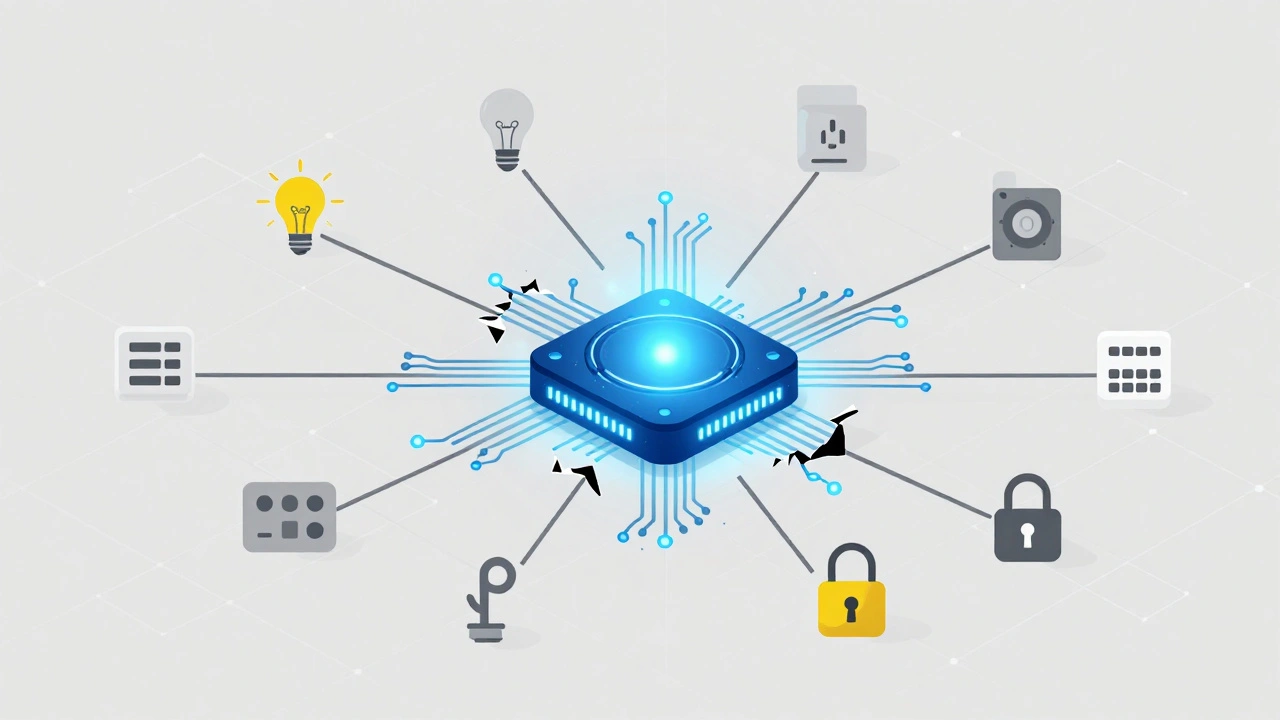
Before diving into the fix, it helps to understand what actually broke. It’s not magic; it’s software architecture. When you push an update to a device like a Samsung SmartThings Hub, Hubitat Elevation, or even a cloud-based service like IFTTT, the system often performs a 'clean slate' operation for certain modules.
Here are the three most common culprits:
- API Changes: Developers change how devices talk to each other. If your automation relies on an old command structure (like 'turnOn' vs. 'setPower(true)'), the new version won't recognize it.
- Certificate Rotation: Security updates often rotate encryption keys. If your hub hasn't re-authenticated with the cloud server after the update, it appears offline, killing all cloud-dependent automations.
- Device Re-enrollment: Some major firmware updates require devices to re-pair. If a sensor drops off the network during this process, any automation linked to that sensor fails silently.
Understanding this distinction-whether the issue is connectivity or configuration-saves you hours of guessing. Most post-update issues are configuration mismatches, not dead hardware.
The First Line of Defense: Check Connectivity
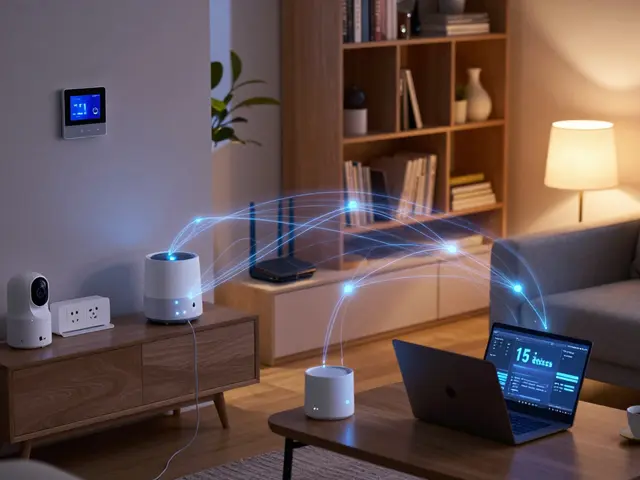
Don’t jump straight into rebuilding rules. First, verify that the foundation is still standing. An automation cannot run if the brain (the hub) can’t hear the limbs (the sensors).
- Restart the Hub: It sounds cliché, but a hard reboot forces the hub to re-scan its local network. Unplug it, wait 10 seconds, and plug it back in. Wait for the status light to return to normal (usually solid blue or white).
- Check Device Status in the App: Open your control app. Are your devices showing as 'Online'? If they show as 'Offline' or 'Unresponsive,' the update likely dropped their connection. You may need to manually re-pair them using the 'Add Device' function.
- Verify Internet Access: Ensure your router hasn’t blocked the hub due to MAC address filtering changes sometimes triggered by network stack updates. Ping your hub’s IP address from your computer to confirm it’s reachable.
If your devices are online but automations still don’t fire, the problem is logical, not physical. Move to the next step.
Restoring Lost Automations: Platform-Specific Fixes
Different platforms handle updates differently. Here is how to restore your routines based on the ecosystem you use.
For Local Hubs (Hubitat, Home Assistant)
Local hubs are generally more resilient because your automations live on the device, not in the cloud. However, UI updates can sometimes disable rules.
- Hubitat: Go to Automation > Rules. Look for rules marked with a red warning icon. These usually indicate a missing device reference. Click the rule, check the 'Conditions' tab, and ensure the referenced devices still exist. If a device was renamed, update the rule to point to the new name.
- Home Assistant: If you use YAML files, check your logs (Settings > System > Logs). Look for syntax errors introduced by deprecated components. If you use the UI editor, go to Automations & Scenes and toggle the problematic automation off and on again. This often refreshes the binding between the trigger and action.
For Cloud-Based Systems (SmartThings, Apple Home, Google Home)
Cloud systems are trickier because the logic lives on remote servers. When the app updates, it might sync incorrectly with the cloud database.
- SmartThings: Navigate to Automation > Routines. If a routine shows 'Error' or doesn’t trigger, tap it. Check the 'When' section. Sometimes, the update resets the trigger type (e.g., from 'Sensor Motion' to 'Any Sensor'). Re-select the specific sensor. Also, check if the routine is toggled 'On.'
- Apple Home: Go to the Automation tab. Tap an automation that isn’t working. Check the 'Trigger' settings. iOS updates sometimes reset location-based triggers. Re-confirm your 'Arrive' or 'Leave' zones. For time-based automations, ensure the 'Repeat' setting hasn’t been cleared.
- Google Home: Open the Routines menu. If a routine is grayed out, it’s likely disconnected from a device. Tap the routine, then tap 'Edit.' Remove the affected device and add it back. This forces Google to re-index the device capability.
Using Backups to Recover Complex Configurations
If manual tweaking doesn’t work, or if you have dozens of complex automations, backups are your best friend. Did you know many hubs allow you to export your entire configuration?
| Platform | Backup Type | Recovery Steps |
|---|---|---|
| Hubitat | Full System Backup | Go to Settings > Backup & Restore. Upload your pre-update backup file. Select 'Restore Rules Only' to avoid overwriting firmware. |
| Home Assistant | Snapshots | In the Supervisor panel, go to Snapshots. Click the three dots next to your pre-update snapshot and select 'Restore.' Choose 'Partial Restore' for just automations. |
| SmartThings | Community Export | If you used a third-party tool like 'SmartThings Community' to export routines, re-import the JSON file via the developer tools or community importer. |
| IFTTT | Manual Recreate | IFTTT does not support bulk exports. Use the 'My Applets' list to identify inactive ones and rebuild them using the template library. |
Pro Tip: Always create a backup before clicking 'Update' on any hub or major app. Make it a ritual. It takes ten seconds and saves hours of headache.
Troubleshooting Specific Error Messages
Sometimes the app gives you a clue. Here’s what those cryptic messages really mean:
- 'Device Not Found': The automation is looking for a device ID that no longer exists. This happens if you removed and re-added a device. The new device has a new ID. You must edit the automation and select the device again.
- 'Invalid Trigger': The condition you set is no longer valid. For example, if you updated a thermostat app, the temperature scale might have switched from Fahrenheit to Celsius in the backend, causing a threshold mismatch. Check your unit settings.
- 'Sync Failed': This is a cloud communication error. Turn off Wi-Fi on your phone, wait 10 seconds, and turn it back on. Then open the app. This forces a fresh handshake with the server.
Preventing Future Disasters
You’ve restored your automations. Now, how do you keep them safe? The key is isolation and documentation.
First, separate your critical automations from experimental ones. Create a folder or tag called 'Critical' for things like heating, cooling, and security. Test updates on non-critical devices first. If you have a spare smart bulb, update its driver or firmware before touching your whole house.
Second, document your complex logic. Screenshots are great, but text is better. Keep a simple note file describing your most important routines. "If motion detected in hallway after 10 PM, turn on porch light for 5 minutes." If everything breaks, you can rebuild this core functionality quickly without digging through menus.
Finally, consider moving critical automations to a local hub if possible. Cloud dependencies introduce points of failure. A local hub like Hubitat or Home Assistant continues to run even if your internet goes down or a cloud service pushes a bad update. It’s the ultimate insurance policy for your smart home.
Did I lose my automations permanently after the update?
In most cases, no. Updates rarely delete data; they usually disconnect references or disable rules due to compatibility checks. Your automations are likely still stored in the system but marked as inactive or erroneous. Check your automation list for warnings or disabled toggles.
Why did my Hubitat rules turn red after a firmware update?
Red icons in Hubitat usually indicate that a device referenced in the rule is no longer available or has changed its capabilities. Open the rule and inspect the conditions. You may need to re-select the device or adjust the attribute being monitored if the device driver was also updated.
Can I restore SmartThings routines from a previous version?
SmartThings does not offer a native 'undo' button for app updates. However, if you used third-party tools to export your routines as JSON files, you can re-import them. Otherwise, you will need to manually re-enable or recreate the routines within the app's Automation section.
Should I update all my smart devices at once?
It is safer to stagger updates. Update one category of devices at a time (e.g., lights, then sensors, then locks). This allows you to isolate which update caused any potential issues. If everything breaks, you’ll know exactly which device driver or firmware version is at fault.
What should I do if my automations work in the app but not in real life?
This often indicates a latency or connectivity issue. Check if your devices are reporting state changes correctly. For example, if a motion sensor isn't triggering, test if the app sees the motion event in real-time. If the app sees it but the automation doesn't fire, the rule logic might be flawed or disabled. Try deleting and recreating the automation.