
It’s 2026, and the phone rings. It’s your mom, sounding frustrated. She can’t see her video call with you because the screen is frozen, or maybe she accidentally deleted an important photo album. In the past, this meant scheduling a weekend trip, sitting in traffic, and spending three hours explaining how to click 'undo.' Today, it doesn't have to be that way.
We are living in a shift where remote support tools are becoming the primary bridge between older adults and the digital world they rely on. For many families, the goal isn't just fixing a glitch; it's preserving independence. When we talk about helping seniors without a home visit, we’re talking about dignity, speed, and safety. You don't need to be a certified IT professional to help your parents stay connected. You just need the right approach and the right software.
The Shift from Physical to Virtual Assistance
For decades, the standard model for helping older adults with technology was physical presence. A child would come over, fix the printer, update the antivirus, and leave. While well-intentioned, this model had flaws. It was slow, expensive (in terms of travel time), and often created dependency. The senior learned nothing; they just waited for the next rescue mission.
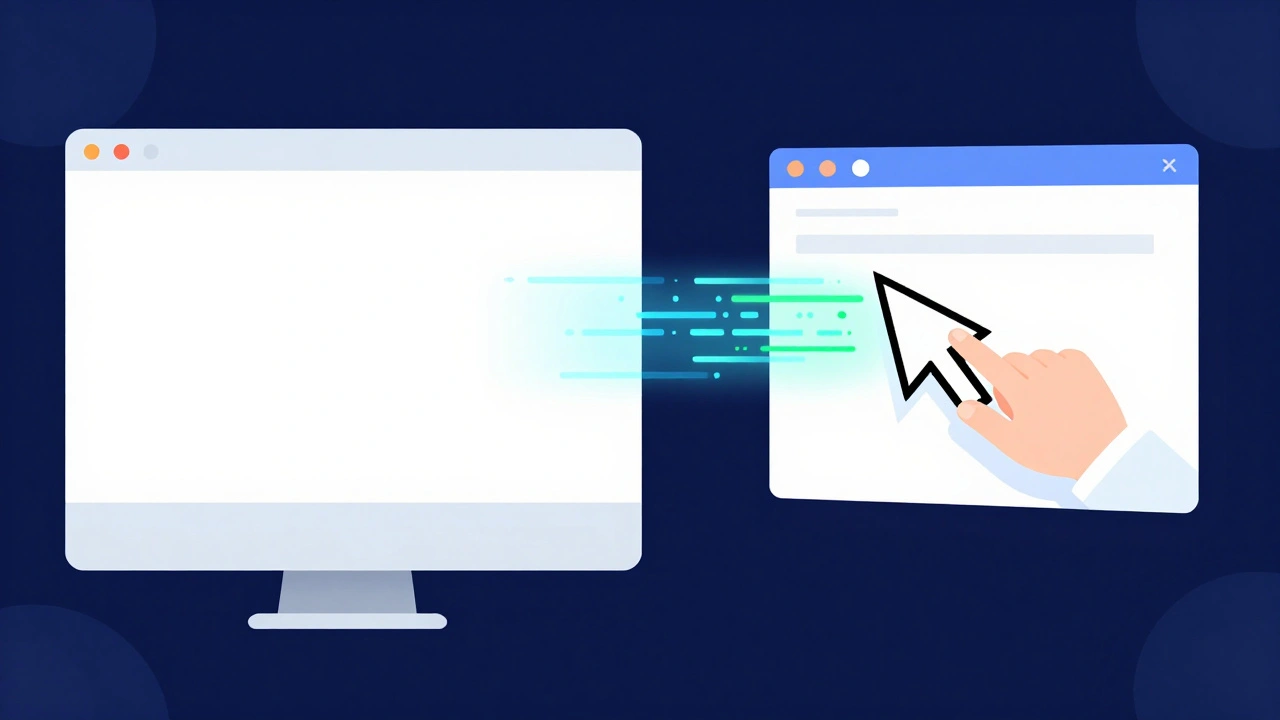
In 2026, the landscape has changed. High-speed internet is ubiquitous, even in rural areas thanks to newer satellite and 5G fixed wireless options. More importantly, operating systems like Windows 11 and macOS Sonoma have built-in accessibility features that make remote access smoother than ever. Remote support allows you to take control of their mouse and keyboard securely, guiding them through steps in real-time. This transforms the interaction from a lecture into a collaborative problem-solving session.
This method also reduces stress. Many seniors feel anxious when someone stands behind them watching every click, fearing judgment if they make a mistake. Remote sessions allow them to keep their composure while you handle the technical heavy lifting. You can pause, explain, and let them try again without the pressure of an audience.
Choosing the Right Tool for the Job
Not all remote desktop software is created equal. When selecting a tool for a senior user, complexity is the enemy. You want something that requires minimal setup on their end and offers robust security on yours. Here are the top contenders in the current market:
| Tool Name | Best For | Setup Difficulty | Cost | Key Feature |
|---|---|---|---|---|
| TeamViewer | General use & cross-platform | Medium | Free for personal use | Long-standing reliability |
| AnyDesk | Speed & low bandwidth | Low | Free for personal use | Lightweight client |
| Chrome Remote Desktop | Simplicity & Google users | Very Low | Free | No separate app download needed |
| Microsoft Quick Assist | Windows-only households | Low | Built-in (Free) | Pre-installed on Windows 10/11 |
If your parents use Windows, Microsoft Quick Assist is often the best starting point. It comes pre-installed, so there’s no risk of them downloading malware from a shady website. They just press the Windows key, type "Quick Assist," and give you a code. It’s seamless.
For Mac users, Chrome Remote Desktop is a strong contender. Since most seniors already use Chrome for browsing, adding the extension feels familiar. It connects via their Google account, which they likely already know how to log into. The interface is clean, and the connection is stable.
Avoid overly complex enterprise-grade tools unless you are managing multiple devices for a care facility. For individual family support, simplicity wins every time.
Security First: Protecting Their Digital Life
Seniors are disproportionately targeted by cyberattacks. Scammers know that older adults may be less familiar with modern phishing tactics or social engineering. Therefore, any remote support strategy must prioritize security above convenience.
Never share passwords via email or text message. These channels are not secure. Instead, use the one-time codes generated by remote support apps. These codes expire after a few minutes or after a single use, minimizing the risk of interception.
Before connecting, ensure their device is up to date. Outdated operating systems are full of vulnerabilities. If they are running an old version of Windows or macOS, schedule a dedicated session just for updates. Explain why it matters: "Updating keeps the door locked against thieves." Use analogies they understand.
Also, check their browser extensions. Adware and malicious plugins are common culprits for slow performance and pop-ups. During your remote session, review their installed extensions and remove anything unfamiliar. Teach them to look out for unexpected pop-ups asking for personal information.
Building Confidence Through Education
The ultimate goal of remote support is not to create a permanent dependency but to build confidence. Every time you fix a problem remotely, you have an opportunity to teach. Don't just click the button for them; narrate what you're doing.
"I'm going to right-click here to open the menu," you might say. "Then I'll select 'Properties' to change the settings." By verbalizing your actions, you reinforce the mental model of how the computer works. Over time, they will start to recognize these patterns.
Create a simple cheat sheet. Print out large-font instructions for common tasks like restarting the router, clearing cache, or using Quick Assist. Keep it near their computer. Visual aids work wonders. A diagram showing where the 'Start' button is located can prevent countless calls.
Encourage small wins. If they successfully send an email attachment or resize a window on their own, celebrate it. Positive reinforcement builds the neural pathways associated with tech usage, reducing anxiety and increasing engagement.

Troubleshooting Common Issues Remotely
Some problems are easier to solve remotely than others. Here’s how to handle the most frequent scenarios:
- Frozen Screen: Often caused by a hung application. Guide them to press Ctrl+Alt+Delete (or Cmd+Option+Esc on Mac) to force quit the program. If that fails, a remote restart is usually quick and effective.
- Slow Internet: Check if other devices in the house are streaming video. Suggest moving the router closer or rebooting it. Remote tools can help you run a speed test to verify the issue.
- Misplaced Files: Use the search function together. Type in keywords and filter by date modified. Show them how to pin frequently used folders to the taskbar for easy access.
- Software Updates: Schedule these during off-hours if possible, or walk them through the process step-by-step. Emphasize that updates improve security and performance.
If the issue seems hardware-related-like a broken hinge on a laptop or a dead battery-you’ll need to pivot. Acknowledge the limitation early. "This looks like a physical part needs replacing. Let me order a repair kit or find a local technician." Don't waste time trying to fix hardware issues via software.
Maintaining Connection Beyond Tech
Remote support sessions shouldn't feel like clinical interactions. Take the first five minutes to chat. Ask about their day, their grandchildren, or their garden. This humanizes the experience and reduces the stigma of needing help.
Remember that technology is a means to an end. The end is connection. Whether it’s joining a Zoom book club, ordering groceries online, or video-calling with distant relatives, your role is to clear the path. By mastering remote support tools, you’re not just fixing computers; you’re expanding their world.
Is remote support safe for seniors?
Yes, when done correctly. Using reputable software like Microsoft Quick Assist or Chrome Remote Desktop ensures encrypted connections. Always avoid sharing passwords and use one-time codes. Ensure their antivirus is active and their OS is updated before connecting.
What if my parent doesn't have high-speed internet?
Tools like AnyDesk are designed to work well on lower-bandwidth connections. If the connection is very poor, consider switching to a phone call for basic troubleshooting steps instead of visual remote control.
How do I convince my hesitant parents to try remote help?
Frame it as a convenience rather than a necessity. Offer to do it once to show how easy it is. Emphasize that it saves them from waiting for a visit. Start with a low-stakes task, like finding a recipe online, to build trust.
Can I control their mouse and keyboard simultaneously?
Most tools allow you to request input control. However, it's best practice to ask permission before taking full control. Some tools offer 'view-only' mode, which lets you guide them without moving the mouse yourself, fostering learning.
What should I do if the remote connection drops?
Stay calm. Switch to a voice call immediately. Guide them to reconnect using the same code or re-initiate the session. If it persists, troubleshoot their internet connection or try a different remote support tool.