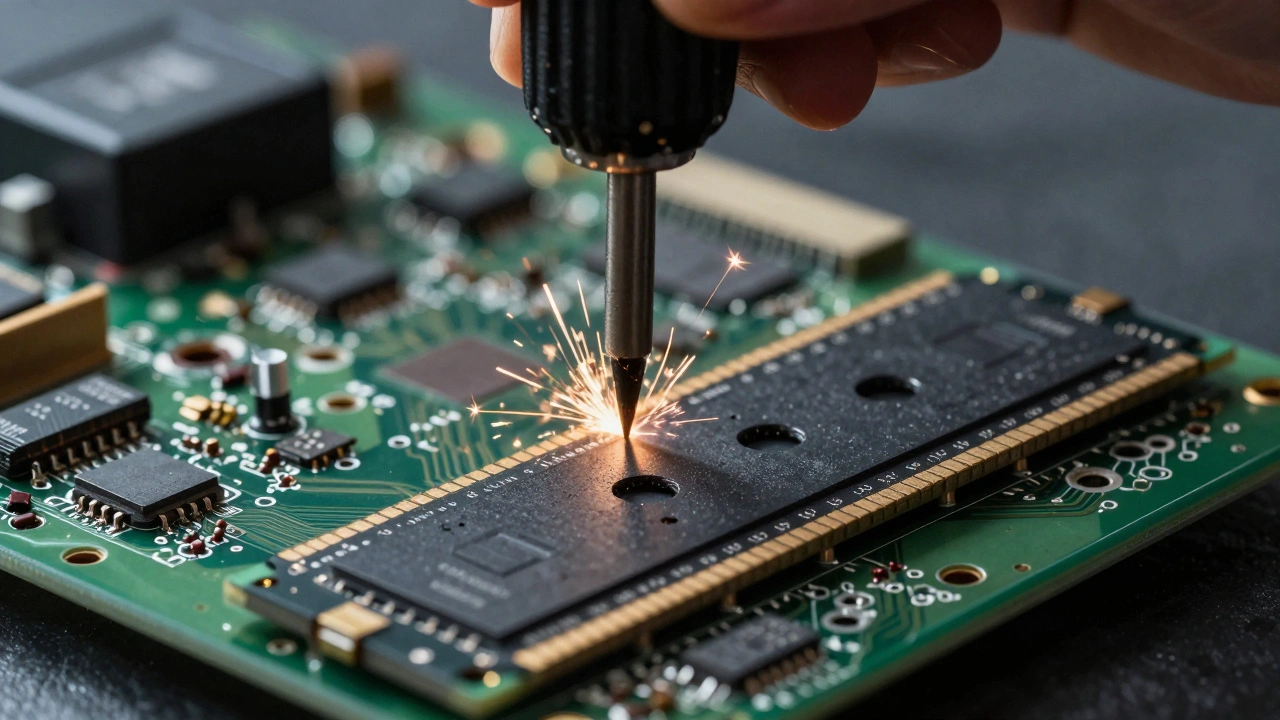
When you throw away an old phone, laptop, or tablet, you’re not just tossing out hardware-you’re risking your personal data. Millions of discarded devices end up in landfills or resale markets every year, and too many still hold login details, photos, financial records, and work files. A 2025 study by the National Cybersecurity Alliance found that 38% of secondhand electronics bought online contained recoverable personal data. That’s not a glitch. That’s negligence. You don’t need to be a tech expert to stop this. You just need to know three steps: wipe, destroy, and recycle.
Step 1: Wipe the Data Properly
- Back up anything you still need. Use an external drive or encrypted cloud storage. Don’t skip this-you’ll regret it later.
- Log out of all accounts. On smartphones, go to Settings > Accounts and remove every linked service: Google, Apple, Microsoft, banking apps.
- Reset the device to factory settings. This isn’t enough on its own, but it’s the first layer. On iPhones, go to Settings > General > Transfer or Reset iPhone > Erase All Content and Settings. On Android, use Settings > System > Reset Options > Erase all data.
- For laptops and desktops, use a dedicated data-wiping tool. Windows users can run DBAN (Darik’s Boot and Nuke), a free open-source tool that overwrites every sector of the drive. Mac users should use Disk Utility’s “Erase” function with “Security Options” set to the highest level (7-pass overwrite).
Don’t trust simple deletion. Deleting files or formatting a drive doesn’t remove the data-it just hides it. Recovery software can pull back everything in minutes. Real wiping means overwriting the storage with random data multiple times. A single pass isn’t enough. Three passes is the minimum for personal use. For sensitive work data, go with seven passes.
Step 2: Destroy What You Can’t Wipe
Some devices can’t be wiped cleanly. Think of old hard drives with broken firmware, SSDs with controller failures, or phones with cracked screens that won’t boot. In these cases, wiping doesn’t work. You need physical destruction.
- Drill holes through the storage chip. Use a 1/4-inch drill bit. Focus on the NAND flash memory chips-usually small black rectangles on the circuit board. Two or three holes per chip will make recovery impossible.
- Use a degausser. These tools generate a powerful magnetic field that scrambles data on traditional hard drives. They’re common in offices but can be rented for under $50 from local electronics recyclers.
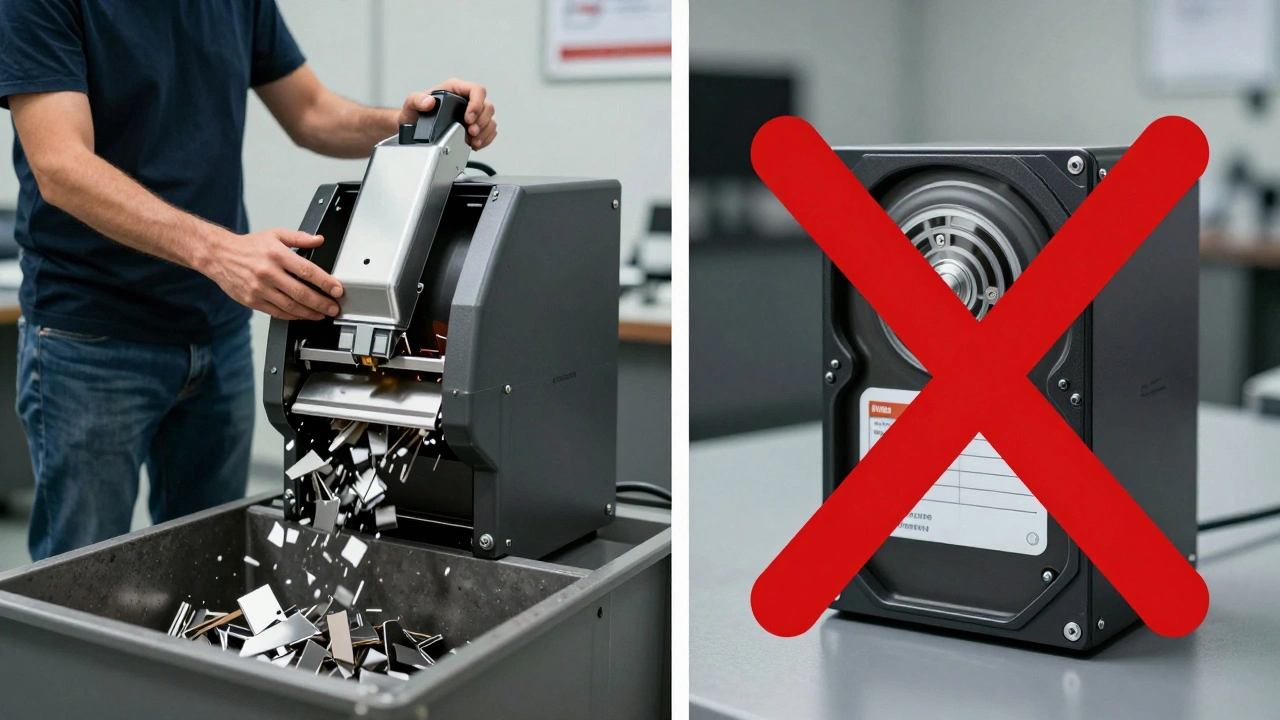
- Crush it. A hydraulic press can flatten a hard drive in seconds. Some recycling centers offer this service for free. If you’re doing it yourself, place the drive in a sturdy metal container and use a sledgehammer. Wear safety goggles.
- Shred it. Professional shredders designed for hard drives can reduce them to metal dust. Companies like Iron Mountain and Staples offer this as a paid service. It’s worth it if you’re disposing of 10+ drives.
Never just smash a device with a hammer and toss it. You might break the screen, but the memory chips stay intact. A determined thief with $20 in tools can still recover your data. Destruction has to be thorough.
Step 3: Recycle Responsibly
Once data is gone, the device still shouldn’t go in the trash. Electronics contain lead, mercury, lithium, and other toxins. The U.S. Environmental Protection Agency estimates that 75% of e-waste ends up in landfills or shipped overseas-often to countries with no safety rules. That’s why recycling matters.
- Find an e-Steward certified recycler. This is the gold standard. These recyclers are audited annually to ensure they don’t export waste illegally or use unsafe labor. You can search for one near you at esteward.org.
- Use manufacturer take-back programs. Apple, Dell, HP, and Samsung all have free recycling programs. Some even give you store credit. Just visit their website and enter your device model.
- Check with your city. Many municipalities hold free e-waste collection days. Portland, for example, accepts all electronics at its transfer stations year-round. No appointment needed.
- Never hand your device to a random “recycler” at a flea market. They often resell devices with data still inside. Ask for a certificate of destruction. A legitimate recycler will provide one.
Recycling isn’t charity. It’s a legal and ethical obligation. In Oregon, it’s required by law under the Electronic Products Recycling Act. Failing to recycle properly can mean fines-and a guilty conscience.
What Not to Do
Here are the biggest mistakes people make:
- Thinking “I’ll just delete everything.” Deleted ≠ gone.
- Using a magnet to wipe data. Magnets don’t work on SSDs or phones. They only affect old spinning hard drives, and even then, inconsistently.
- Donating a device without wiping it. Charity is great, but not if the next user can access your bank statements.
- Leaving a device in a drawer for years. Data doesn’t disappear with time. It just sits there, waiting for someone to find it.
Real-World Example: What Happened to Sarah
Sarah, a teacher from Portland, traded in her old MacBook Pro for a new one. She thought wiping the drive was enough. She didn’t use a tool-just reset it. Three months later, she got a call from her bank: someone had accessed her online account using login credentials found on her old laptop. The buyer had found her tax documents, medical records, and even her daughter’s school login. Sarah lost $4,200 to fraud before the bank reversed the charges. She never recovered the emotional cost.
Sarah’s story isn’t rare. It’s routine. Every year, over 150,000 cases of data theft from discarded electronics are reported in the U.S. alone. You don’t have to be a target. You just have to be careless once.
How Often Should You Do This?
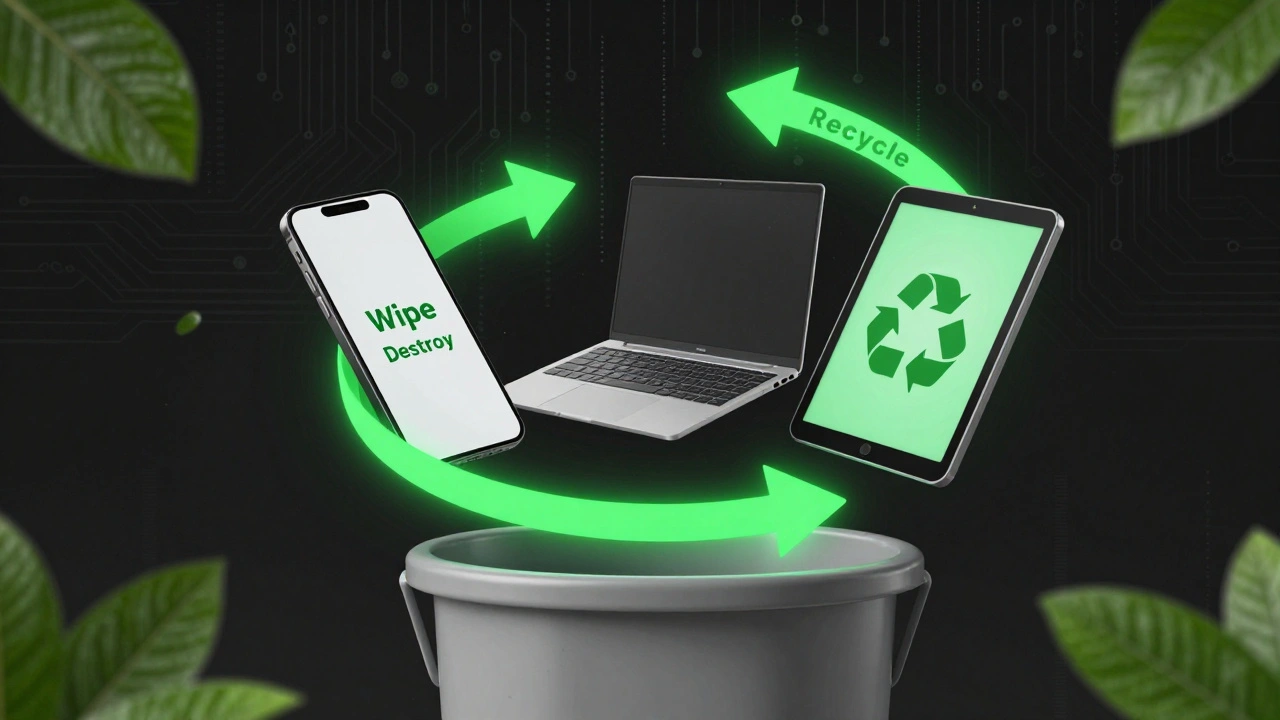
Replace your devices every 3-5 years. That’s the average lifespan for phones, laptops, and tablets. Each time you upgrade, go through the wipe-destroy-recycle process. Keep a checklist taped to your desk:
- Backup data
- Log out of accounts
- Factory reset
- Use wiping tool
- Physically destroy if needed
- Recycle at certified center
Make it part of your routine-like changing your smoke detector batteries. It takes an hour. But it saves you from years of stress.
Final Thought
Your data isn’t just information. It’s your identity. Your privacy. Your security. Throwing away a device without securing it is like leaving your front door open and saying, “I hope no one walks in.”
Wipe it. Destroy it. Recycle it. Three simple steps. One big difference.
Can I just throw my old phone in the trash?
No. Throwing electronics in the trash is illegal in many states, including Oregon, and dangerous for the environment. Even if the phone looks dead, its storage chip still holds data. Always wipe, destroy, and recycle properly.
Is factory reset enough to erase data?
No. A factory reset only removes file references-it doesn’t overwrite the data. Recovery tools can restore photos, messages, and login info within minutes. Always follow up with a dedicated wiping tool like DBAN for computers or use the built-in secure erase option on phones.
What’s the difference between HDD and SSD wiping?
Hard drives (HDDs) store data magnetically, so wiping tools overwrite sectors directly. SSDs use flash memory and have built-in wear-leveling, which makes some wiping methods less effective. For SSDs, use the manufacturer’s secure erase tool or a tool that supports the ATA Secure Erase command. Physical destruction is often the safest option for SSDs.
Can I wipe data from a broken device?
If the device won’t power on or boot, wiping software won’t work. Your only option is physical destruction. Drill holes through the memory chips, use a degausser for HDDs, or take it to a certified recycler that offers shredding. Don’t assume a broken device is safe.
How do I know a recycler is legitimate?
Look for e-Steward or R2 certification. These organizations audit recyclers to ensure they don’t export waste or use child labor. Ask for a certificate of destruction. If they refuse or can’t provide one, walk away. Legitimate recyclers are transparent.