The Quick Start Guide to Log Collection
Before you go hunting through menus, you need to know what you're actually looking for. Most support teams want a "system log" or a "debug log." A standard log shows general events, but a debug log records the granular details-like the exact packet of data sent from your phone to a light bulb. If you're in a rush, follow this general path: Open your hub's admin panel, look for "Settings" or "Advanced," find "System Logs," and hit "Export" or "Download."
- Check the timeframe: Only export logs from the window when the problem actually happened. Sending a month of data just slows down the review process.
- Format matters: Always send logs as .txt, .csv, or .log files. Avoid taking screenshots of the log screen; support agents can't search or filter an image.
- Privacy check: Some hubs allow you to scrub personal data like your email or GPS coordinates before exporting. Use this feature if you're concerned about privacy.
Gathering Logs from Major Hubs
Different ecosystems handle data differently. If you're using Home Assistant, you're in luck because you have total control. Navigate to the "Configuration" tab, select "Logs," and you can either view them in the browser or download the full home-assistant.log file from your storage directory. Because it's an open-source platform, the logs are incredibly detailed, often showing the specific Python error that caused a crash.
For those using Samsung SmartThings, the process is more hidden. You usually need to enter the "Advanced User Console" or use the "Contact Support" menu within the app, which triggers a diagnostic bundle. This bundle packages your device list, network status, and recent event history into one encrypted file that only Samsung can read.
If your home is built on Amazon Alexa or Google Home, you won't find a "Download Log" button in the app. These are cloud-based systems. In these cases, the "logs" are actually internal server records. To get these, you must provide the support agent with the exact time (including time zone) and the specific device name. They then pull the logs from their own servers using your account ID.
| Log Type | What it Records | Best For... |
|---|---|---|
| Event Log | High-level actions (e.g., "Door opened") | Checking if a trigger fired |
| Debug Log | Low-level communication (e.g., "Z-Wave ACK timeout") | Finding connectivity drops |
| Error Log | Critical failures and crashes | Fixing system reboots |
| Network Log | IP assignments and DNS lookups | Solving "Device Offline" issues |

Dealing with Z-Wave and Zigbee Mesh Issues
If your problem is that a switch in the garage is intermittently unresponsive, a standard system log might not be enough. You need a network map or a mesh log. Z-Wave and Zigbee are mesh protocols, meaning devices talk to each other to pass signals back to the hub. When a device drops, the log will often show a "Route Error."
To collect this, look for a "Network Heal" or "Mesh Map" option in your hub settings. Before running a heal, export the current network topology. This tells the support team exactly which device was acting as the "repeater" and where the signal chain broke. If you see a lot of "Retries" in the log, it usually means you have physical interference-like a big mirror or a thick concrete wall-blocking the signal.
The Danger of "Log Spam" and How to Avoid It
One common mistake is leaving "Debug Mode" on for weeks. Debugging creates a massive amount of data-sometimes gigabytes of text-which can actually slow down your hub's performance and wear out the SD card in devices like a Raspberry Pi. This is called log spam.
The right way to do it is the "Isolate and Capture" method:
- Turn on Debug logging.
- Trigger the specific error (e.g., press the button that isn't working).
- Wait 30 seconds.
- Immediately turn off Debug logging and export the file.
How to Send Logs Without Getting Blocked
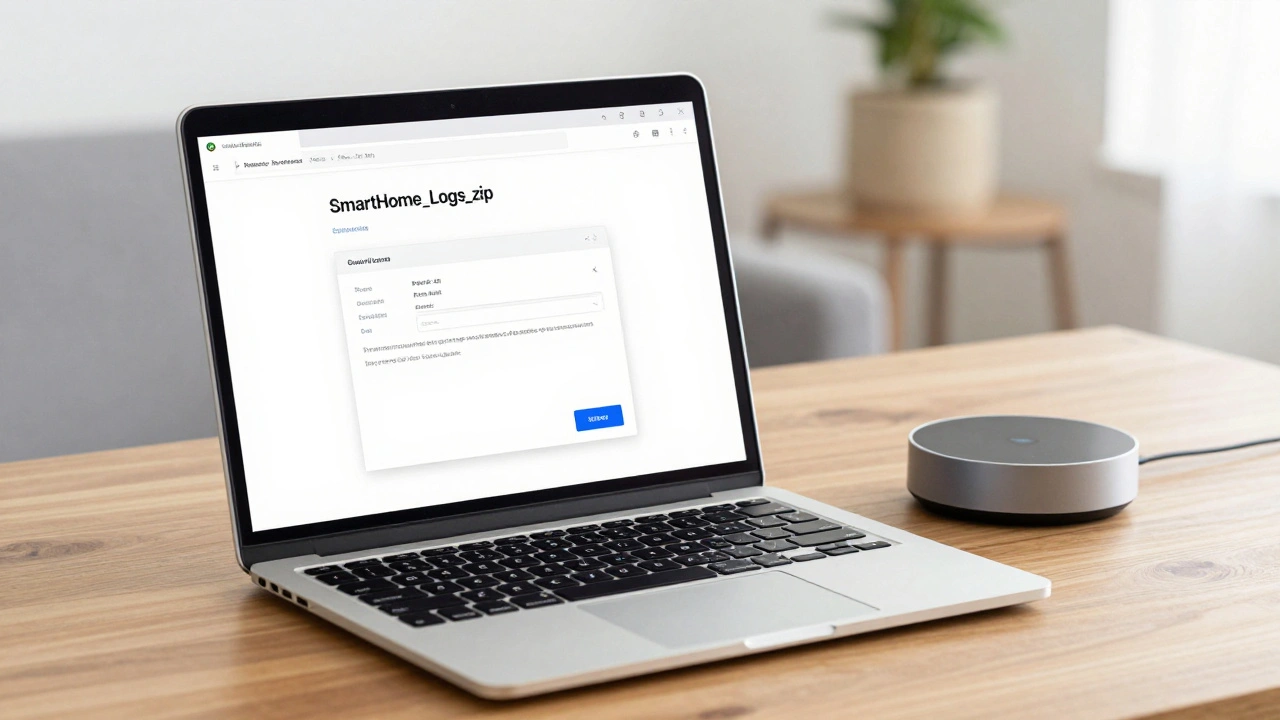
Log files are often flagged by email filters because they contain strings of code that look like viruses or scripts. If you try to attach a .log or .txt file to an email, it might get bounced. The best way to send these is to compress them into a .zip folder. If that still doesn't work, upload the file to a secure cloud drive like Google Drive or Dropbox and send the link to the support ticket.
When you send the file, don't just say "here are the logs." Provide a timestamped narrative. For example: "I triggered the 'Goodnight' scene at 10:15 PM EST; the bedroom light worked, but the hallway light failed. Please see the logs around 22:15." This turns a 2-hour investigation into a 5-minute fix for the engineer.
Will collecting logs reset my smart home settings?
No. Collecting or exporting logs is a read-only action. It simply copies a record of what has already happened. It does not change your automations, device pairings, or system configurations.
Is it safe to send logs to a third-party support team?
Generally, yes, provided the company is reputable. However, logs can contain your internal IP addresses and device names (like "Master Bedroom Camera"). If you are uncomfortable with this, check if your hub has a "privacy scrub" option or manually redact your public IP address using a text editor before sending.
What is the difference between a system log and a debug log?
A system log records major events like "Hub started" or "Device disconnected." A debug log records every single tiny interaction, including the specific data packets being sent. System logs are for general health; debug logs are for finding the exact line of code that failed.
Why can't I find a log export option in my app?
Many consumer-grade apps (like Philips Hue or TP-Link Kasa) hide logs to keep the interface simple. In these cases, you may need to log into the device's web-based admin panel via its IP address in a browser, or the support team must pull the logs from the cloud side.
Do I need to be a coder to understand logs?
Not at all. You don't need to understand the code; you just need to be able to capture it. The support engineers are the ones who will read the technical jargon. Your only job is to provide the file and the time the error occurred.
Next Steps and Troubleshooting
If you've sent your logs and the support team says they "can't find the error," it usually means you didn't capture the event in Debug mode. Try the process again, but this time, perform the action that causes the failure three times in a row. This creates a pattern in the logs that is much easier for an engineer to spot than a single random glitch.
If your hub is completely frozen and you can't access the menu to export logs, check if there is a physical USB port on the device. Some hubs can be configured to write logs to an external drive, which you can then plug into your computer. If the device is totally unresponsive, avoid rebooting it immediately-sometimes the logs are stored in temporary RAM (volatile memory) and are wiped the moment the power cycles, destroying the evidence of the crash.