The 2.4 GHz Battleground
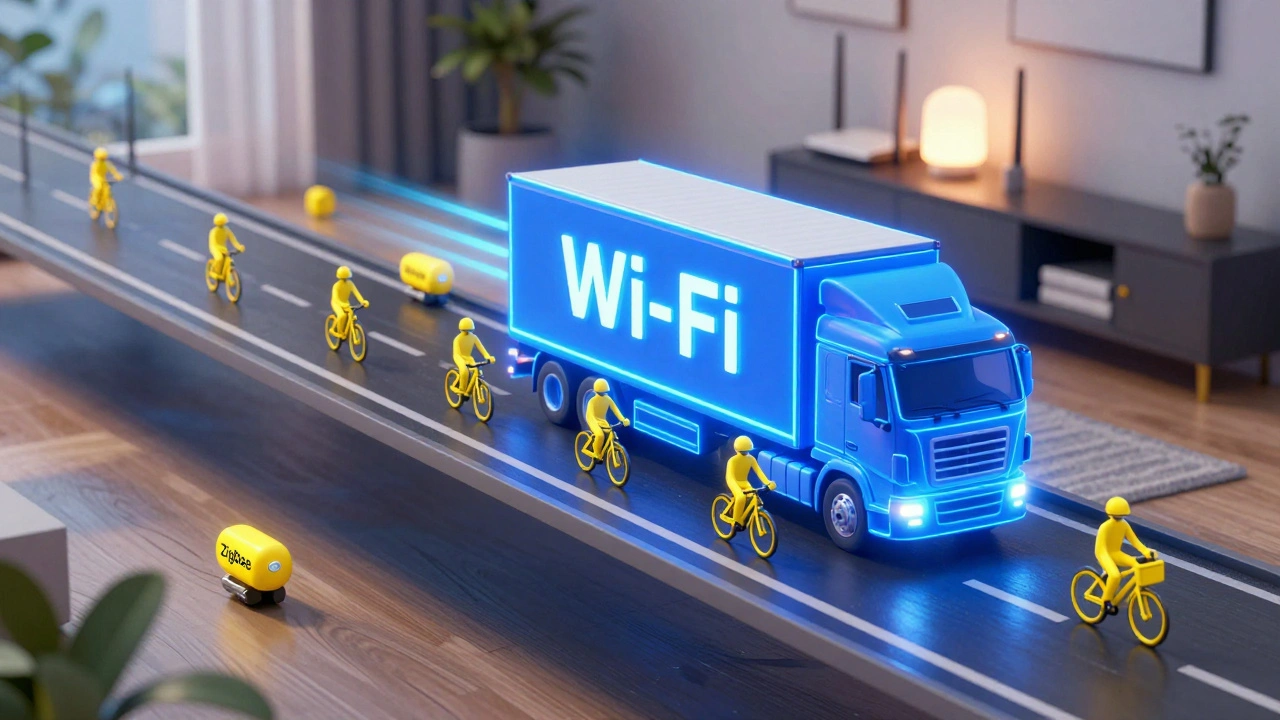
To understand why your lights are lagging, you have to understand that Wi-Fi is a wireless networking technology based on the IEEE 802.11 standards used for local area networking and Zigbee is a low-power wireless mesh networking standard designed for carrying small packets of data are essentially speaking the same language on the same frequency. Specifically, they both live in the 2.4 GHz band. Think of this band like a highway. If you have one or two cars, it is smooth sailing. But once you add a smart plug in every outlet and a bulb in every socket, you have a massive traffic jam.
Wi-Fi is like a semi-truck-it carries a lot of data (like a Netflix stream) and takes up a lot of space on the highway. Zigbee is like a bicycle-it carries very little data (just a "turn on" command) and takes up very little space. The problem? The semi-truck doesn't care about the bicycle. When a high-bandwidth Wi-Fi signal blasts through the air, it can effectively drown out the tiny Zigbee packets, leading to those annoying "Device Unreachable" messages in your app.
How to Spot Congestion
You can't see radio waves, but you can definitely see the symptoms. If your smart lights respond instantly at 3 AM but struggle at 7 PM when everyone is home and on their devices, you are dealing with congestion. Other red flags include bulbs that randomly disconnect from the hub or a noticeable delay (latency) between a switch press and the light actually turning on.
One specific thing to look for is the "popcorn effect." This is when you trigger a group of lights to turn on, and they don't fire all at once. Instead, they pop on one by one over two or three seconds. This happens because the hub is struggling to push the command through the interference, and the mesh network is spending too much time retrying failed transmissions.
| Feature | Wi-Fi Lighting | Zigbee Lighting |
|---|---|---|
| Power Consumption | High | Very Low |
| Network Load | Heavy on Router | Light (via Hub) |
| Range | Stronger per device | Mesh (extents itself) |
| Interference Risk | High (Self-congestion) | High (Wi-Fi overlap) |
Mapping Your Channels for Peace
The secret to fixing this is channel separation. Channel Mapping is the process of assigning specific frequency sub-bands to different wireless protocols to avoid overlap . Most Wi-Fi routers are set to "Auto," which sounds convenient but is actually a nightmare for smart homes. Your router might jump to a channel that completely overlaps with your Zigbee hub, killing your connection.
Wi-Fi channels 1, 6, and 11 are the only non-overlapping channels in the 2.4 GHz spectrum. If your router is on channel 6, it creates a wide bubble of interference. Zigbee channels are narrower. For example, Zigbee channel 25 usually sits comfortably outside the range of Wi-Fi channel 11. If you can lock your router to channel 1 and your Zigbee hub to channel 25, you have essentially created two separate lanes on the highway.
To do this, log into your router's admin panel (usually by typing 192.168.1.1 or similar into your browser). Find the Wireless Settings, change the 2.4 GHz band from "Auto" to a fixed channel-try 1 or 11. Then, if your hub (like a Philips Hue Bridge or a Samsung SmartThings Hub) allows it, change the Zigbee channel to 25 or 26.
The Mesh Network Advantage and Pitfall
Zigbee uses a Mesh Network, which means every mains-powered bulb acts as a repeater. In a perfect world, this makes your signal stronger as you add more bulbs. However, if a bulb is sitting right next to a powerful Wi-Fi router, that bulb can become a "noise amplifier." It tries to repeat the signal, but it's fighting through a wall of Wi-Fi noise.
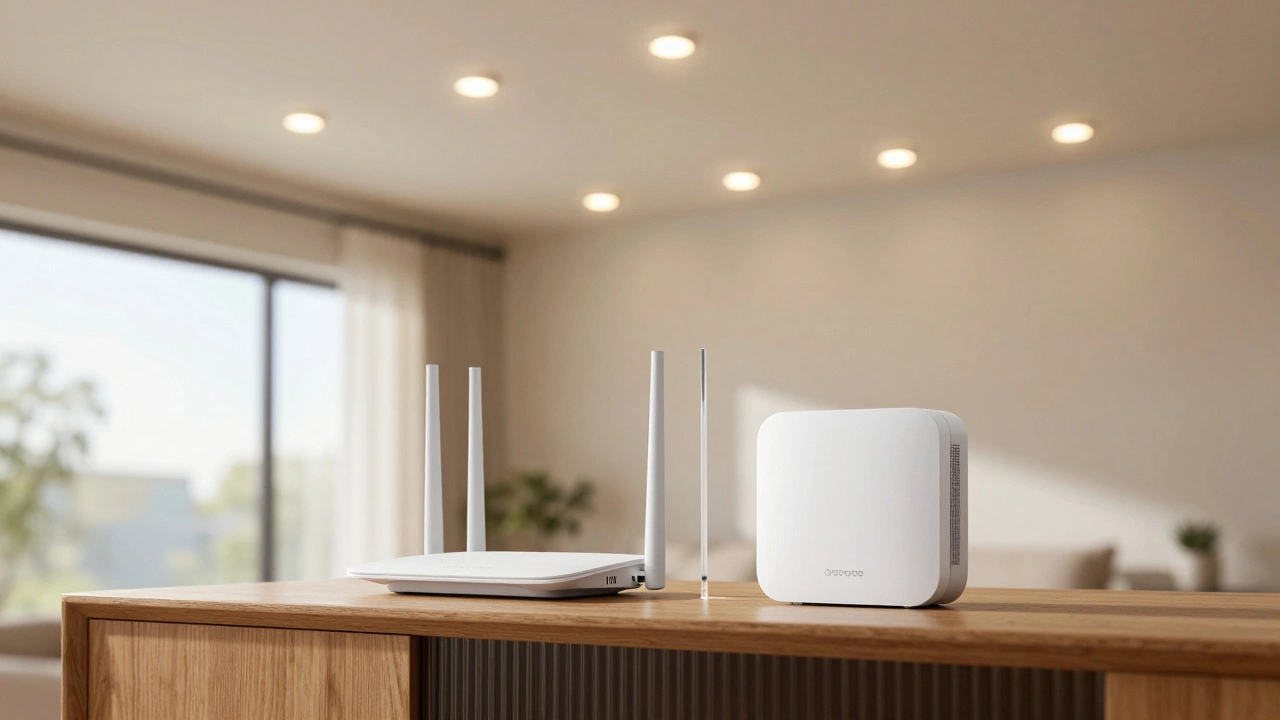
A common mistake is placing the hub directly on top of the router. I have seen setups where the hub is practically touching the router's antennas. This creates a "near-field' interference zone where the hub is essentially deafened by the router's loudness. Move your hub at least 3 to 6 feet away from your router. It sounds simple, but it's the single most effective physical fix for signal drops.
Practical Steps to Decongest Your Home
If you are still seeing lag, it is time to audit your hardware. Not all smart bulbs are created equal. Cheap, no-name Wi-Fi bulbs are the worst offenders because they don't use a hub; they connect directly to your router. If you have 30 Wi-Fi bulbs, your router is managing 30 separate IP addresses just for lights. Most consumer-grade routers start to choke after 20-30 active wireless devices.
- Offload the Router: Switch from Wi-Fi bulbs to Zigbee or Z-Wave (which operates on a completely different frequency, around 900 MHz, avoiding 2.4 GHz entirely).
- Clear the Path: Ensure your hub isn't hidden inside a metal cabinet. Metal blocks radio waves, forcing the devices to increase their power and create more noise.
- Update Firmware: Manufacturers often release updates that improve how devices handle interference or how they "hop" between channels.
- Use 5 GHz for High-Bandwidth: Move your phones, tablets, and laptops to the 5 GHz Wi-Fi band. This clears the 2.4 GHz lane for the devices that actually need it, like your smart lights.
When to Give Up on the 2.4 GHz Band
Sometimes, your environment is just too noisy. If you live in a dense apartment complex, your neighbors' Wi-Fi is bleeding into your home. In this case, no amount of channel switching will fully solve the problem because you don't control the other "trucks" on the highway.
The ultimate solution here is to transition to Matter over Thread. Thread is a newer networking protocol that is more robust than Zigbee and designed to work seamlessly with Matter. While it still uses 2.4 GHz, it handles congestion and routing much more intelligently. If you are buying new gear in 2026, look for Thread-enabled devices to future-proof your setup.
Does using a Wi-Fi extender help with smart light lag?
Usually, no. In fact, it can make it worse. Extenders often create more "noise" on the 2.4 GHz band and can increase latency. If you have range issues, a wired access point or a Zigbee mesh (adding more bulbs) is a better choice.
Which is better for a large house, Wi-Fi or Zigbee?
Zigbee is significantly better for large homes because of its mesh capability. Every bulb acts as a signal booster, allowing the network to stretch far beyond the reach of a single hub. Wi-Fi bulbs depend on the router's reach, which often leaves dead spots in far bedrooms.
Can I use both Wi-Fi and Zigbee lights in the same room?
Yes, but you must be careful with your channel settings. If your Wi-Fi router is on "Auto," it might eventually overlap with your Zigbee channel, causing both types of lights to experience lag or disconnects.
Why does my Zigbee light say "Unreachable" even if it's close to the hub?
This is often due to temporary interference. A microwave oven or a baby monitor operating on 2.4 GHz can create a "blind spot." Try powering the bulb off and on again to force it to find a cleaner route through the mesh.
Will switching to a Mesh Wi-Fi system fix Zigbee interference?
It might help the Wi-Fi side, but it can actually increase Zigbee interference because you now have multiple powerful Wi-Fi nodes broadcasting across your home. Ensure the mesh nodes are not placed directly next to your Zigbee hub.
Final Troubleshooting Checklist
If your lights are still acting up, run through this quick list:
- Is the hub at least 3 feet away from the router?
- Is the router set to a fixed channel (1, 6, or 11) instead of "Auto"?
- Is the Zigbee channel set to 25 or 26?
- Are your high-bandwidth devices (laptops, TVs) on the 5 GHz band?
- Do you have more than 30 Wi-Fi-only smart devices on a standard consumer router?