Stop playing Russian Roulette with your data
Imagine waking up tomorrow to a flashing folder icon or a blue screen that refuses to budge. You've got three years of family photos, a half-finished project for work, and a dozen spreadsheets you can't recreate. For most of us, the thought of losing everything is a nightmare, yet we treat backups like that gym membership-we know we need one, but we never actually get around to it. You don't need to buy expensive third-party software to protect your life's work. Both Apple and Microsoft have already built powerful, automated tools directly into your operating system. They just aren't always turned on byTime Machine and File History are designed to run in the background so you can forget they exist until the moment you actually need them.Key Takeaways for Your Backup Strategy
- Time Machine (macOS) creates full system snapshots, allowing you to restore your entire computer or a single file from a specific date.
- File History (Windows) focuses on versioning your personal folders, letting you roll back a document to an earlier version without restoring the whole OS.
- External drives are non-negotiable for both; cloud storage is a great secondary layer but not a replacement for a local physical backup.
- Automation is the secret sauce-set it up once and let the OS handle the scheduling.
Mastering Time Machine on macOS
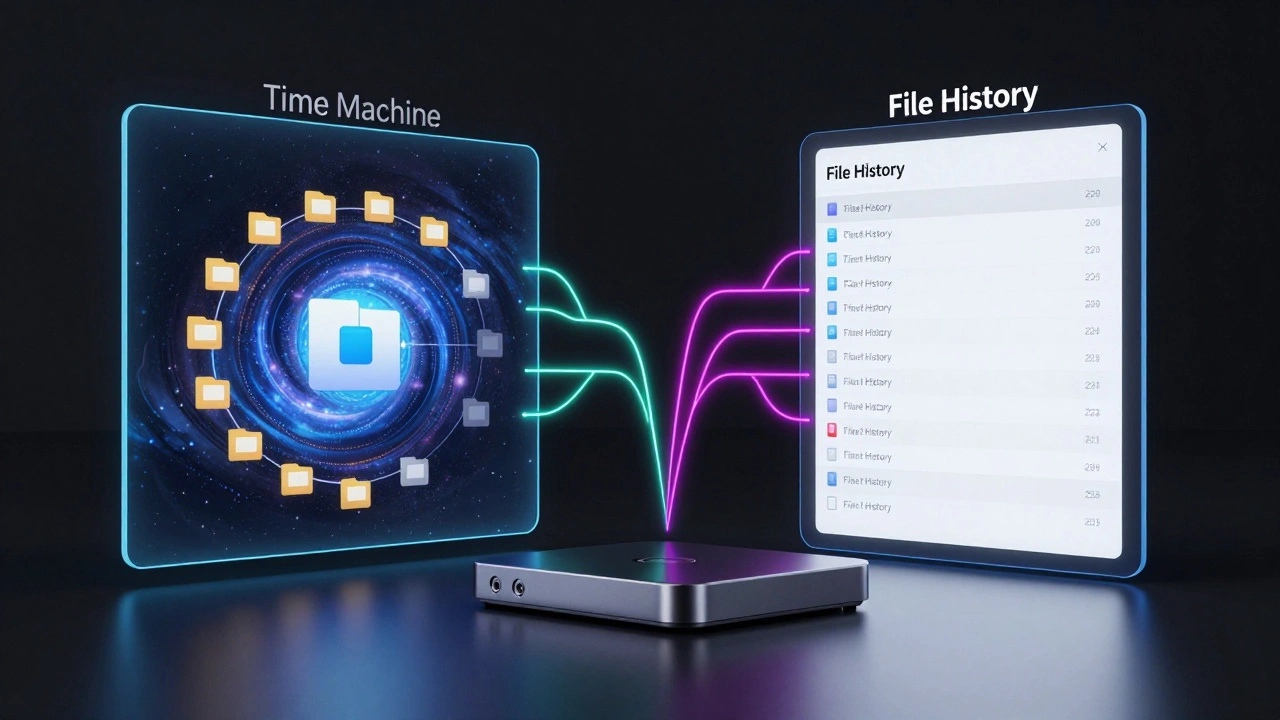
If you're using a Mac, Time Machine is a built-in backup utility in macOS that automatically backs up files, folders, and system settings to an external drive. It doesn't just copy your files; it creates a historical record of your system. This means if you accidentally deleted a paragraph in a document three days ago, you can literally "travel back in time" to retrieve that specific version.
To get started, you'll need an external hard drive or a network-attached storage (NAS) device. When you plug in a drive, macOS usually asks if you want to use it for Time Machine. If you missed that prompt, head to System Settings, find General, and click Time Machine. From there, select your disk. One pro tip: use a drive that is at least twice the size of your Mac's internal storage. If you have a 512GB SSD, go for a 1TB or 2TB external drive. This gives Time Machine enough room to store multiple versions of your files over several months.
The magic happens in the background. Time Machine performs hourly backups for the past 24 hours, daily backups for the past month, and weekly backups for everything else. If your drive fills up, it intelligently deletes the oldest backups to make room for new ones. To restore a file, you just open the Time Machine interface, which looks like a cosmic timeline of your folders. You scroll back, find the file, and click Restore. It's a lifesaver when you've spent four hours editing a video and suddenly realize the version from Tuesday was actually better.
Setting Up Windows File History
On the Windows side, we have File History, which is a Windows feature that automatically backs up versions of your personal files in the Documents, Music, Pictures, Videos, and Desktop folders. Unlike Time Machine, which takes a snapshot of the whole system, File History is more targeted. It focuses on your data-the stuff that actually matters-rather than the Windows system files themselves.
To turn this on, open the Control Panel and search for "File History." You'll need an external drive or a network location. Once you select your drive, Windows starts copying your files. The real value here is versioning. Let's say you're working on a complex Excel budget. You make a series of changes, save the file, and then realize you messed up a formula ten steps back. Instead of hitting Undo a hundred times, you can right-click the file in File Explorer, select "Restore previous versions," and pick the exact timestamp from an hour ago.
One quirk of File History is that it only protects the folders it's told to watch. By default, it grabs your user profile folders. If you've installed a specialized app that saves data in a weird folder on your C: drive, you'll need to manually add that folder to the backup list. If you don't, that data is essentially invisible to the backup tool.
| Feature | Time Machine (macOS) | File History (Windows) |
|---|---|---|
| Backup Scope | Full system image + Files | Selected user folders/files |
| Recovery Style | Timeline-based visual interface | Version list in File Explorer |
| Automation | Hourly / Daily / Weekly | Configurable (e.g., every hour) |
| Storage Req. | External HDD/SSD or NAS | External HDD/SSD or Network Share |
| OS Restore | Can restore entire OS to new Mac | Focused on data; use System Image for OS |
The Hardware Reality: What Drive Should You Buy?
You can't run these tools with a cheap thumb drive you found in a drawer. For a reliable backup, you need a dedicated external drive. You have two main choices: Hard Disk Drives (HDD) and Solid State Drives (SSD).
HDDs are the budget-friendly choice. They offer massive amounts of storage (like 4TB or 8TB) for relatively little money. Since backups happen in the background, you don't necessarily need the blistering speed of an SSD. An HDD is perfect for a "set it and forget it" Time Machine setup. However, if you're a power user who moves hundreds of gigabytes of data daily, an SSD will significantly reduce the time it takes for the initial backup to complete.
Another option is Network Attached Storage (NAS), which is essentially a hard drive connected to your Wi-Fi. This is the gold standard for homes with multiple computers. Instead of having five different USB drives dangling from five different laptops, every device in the house sends its backups to one central hub. Just be aware that NAS setups are more expensive and require a bit more technical know-how to configure.
Avoiding Common Backup Pitfalls
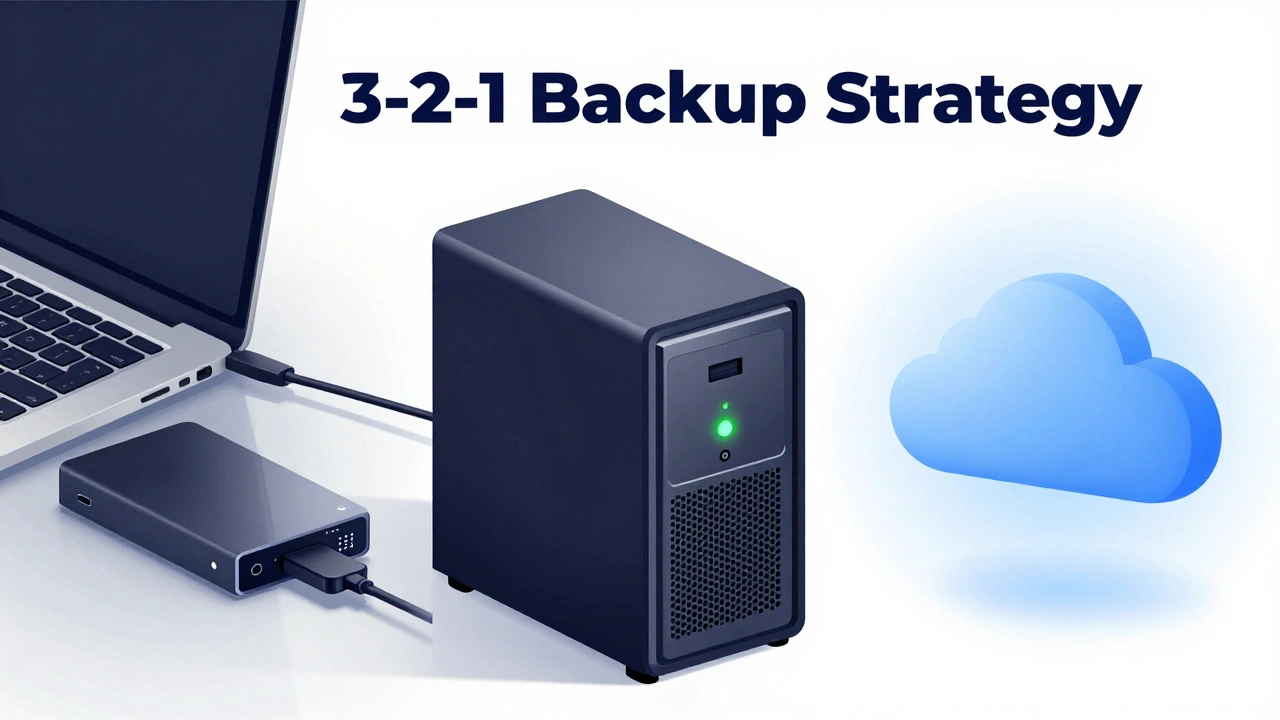
The biggest mistake people make is trusting a single backup. There is a rule in the IT world called the 3-2-1 backup strategy. It means you should have three copies of your data, on two different types of media, with one copy located off-site. Using Time Machine or File History satisfies the first two requirements, but it doesn't help if your house floods or a power surge fries both your computer and your external drive.
This is where Cloud Storage like iCloud or OneDrive comes in. These services are not "backups" in the traditional sense-they are synchronization services. If you delete a file on your laptop, it often disappears from the cloud immediately. However, they provide that essential off-site copy. The best workflow is to use Time Machine or File History for local, fast recovery, and a cloud service for disaster recovery.
Another trap is neglecting the "health check." Every few months, try to restore a single random file from your backup. There is nothing worse than realizing your backup software has been reporting "Successful" for six months, but the drive has actually been corrupted and the files are unreadable. A backup is only as good as its ability to actually restore data.
Which One is Right for Your Workflow?
If you are a creative professional-someone using Adobe Photoshop or Final Cut Pro-you need the deep versioning that Time Machine provides. The ability to go back to a version of a project from three days ago without affecting the rest of your system is invaluable. You're not just backing up data; you're backing up your creative process.
For the average office worker or student on Windows, File History is usually enough. It keeps your Word docs and PDFs safe without the overhead of a full system image. If you're worried about a total hard drive failure on Windows, you might want to pair File History with a "System Image" backup, which is a separate tool in Windows that saves a complete snapshot of your C: drive, including the OS and all installed apps.
Does Time Machine slow down my Mac?
Hardly ever. Time Machine is designed to run with low priority. It waits until your computer is idle to perform the heavy lifting. If you notice a slowdown, it's usually only during the very first backup, which has to copy everything on your drive. After that, it only saves the changes (incremental backups), which is much faster.
Can I use a USB flash drive for File History?
Technically yes, but it's a bad idea. Flash drives use a type of memory that wears out quickly with frequent writes. Since File History writes to the drive every hour, you'll likely kill the flash drive in a short amount of time. Use a proper external HDD or SSD instead.
What happens if I unplug my backup drive?
Nothing catastrophic. Both Time Machine and File History will simply wait until the drive is plugged back in. Once reconnected, they'll scan for what changed while the drive was gone and catch up. Just don't leave it unplugged for weeks, or you'll lose those hourly snapshots.
Do I need to format my drive before using it?
For Time Machine, macOS will often ask to erase and format the drive to APFS (Apple File System), which is required for the best performance. For Windows File History, NTFS is the standard. It's best to let the backup tool handle the formatting to ensure the drive is compatible with the specific way these tools store versioned data.
Can I backup to a network drive?
Yes, both support this. On a Mac, you can designate a shared folder on a Mac or a NAS as a Time Machine destination. On Windows, you can point File History to a network location. Just keep in mind that network backups are slower than USB backups and depend entirely on your Wi-Fi stability.
Next Steps for a Bulletproof Setup
If you've never backed up your computer, start today. Don't wait for a "convenient" time because hardware failure doesn't check your calendar. Buy a 2TB external drive, plug it in, and follow the prompts for Time Machine or File History. Once that's running, check your cloud settings to make sure your most critical documents are syncing to a second location.
For those who want to go pro, look into automated backup scheduling or investing in a RAID-configured NAS. This ensures that even if one of the disks inside your backup server fails, your data remains safe. The goal is to reach a point where a total computer crash is merely a minor inconvenience-a few hours of downtime-rather than a life-changing disaster.