When ransomware hits, it doesn’t just lock your files-it erases your backups. Many businesses think they’re safe because they back up daily. But if those backups are editable, they’re just as vulnerable as your main system. The real question isn’t whether you back up. It’s whether your backups can survive an attack.
Why regular backups fail against ransomware
Most backup systems work like a copy-paste loop. You run a backup, and the system saves a new version over the old one. Sounds fine-until ransomware encrypts your files and then hunts down every backup copy to lock it too. This isn’t hypothetical. In 2024, a healthcare provider in Oregon lost 18 months of patient records because their backup software allowed deletion. The attacker didn’t need to break in again-they just wiped the backups after encrypting live data.
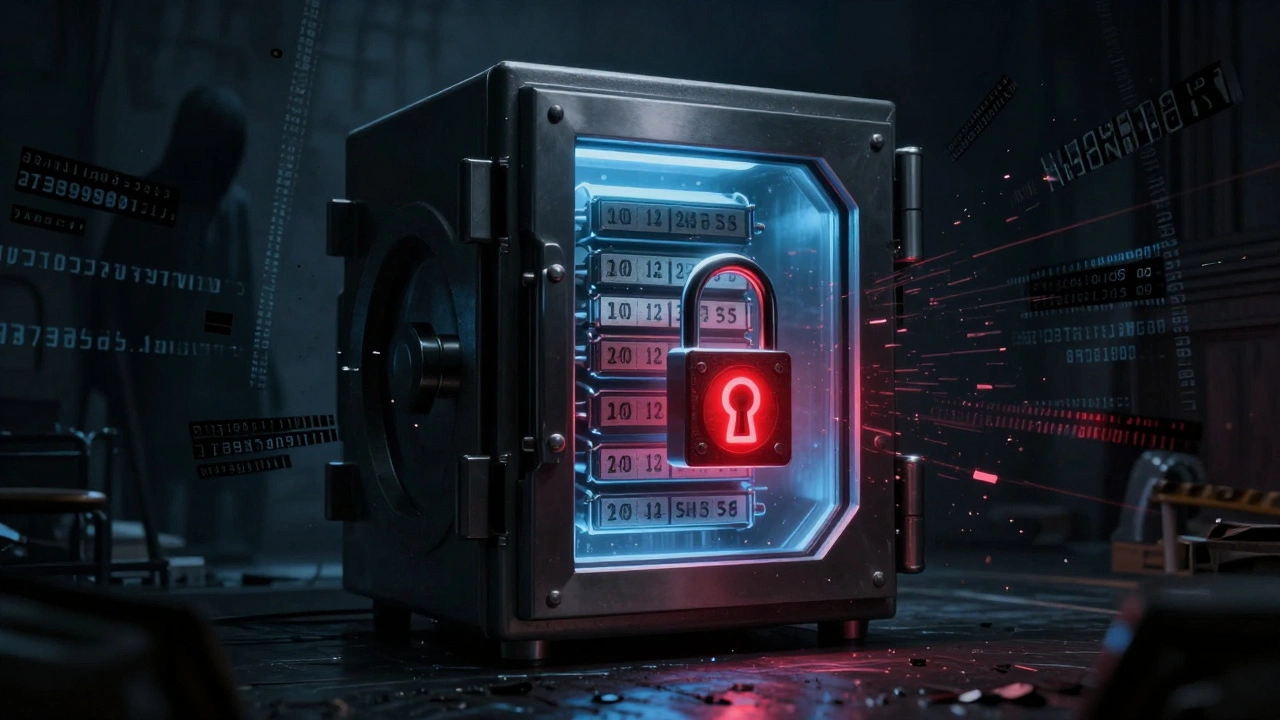
Traditional backups treat data like a document you can edit. But in a ransomware world, you need something closer to a sealed vault. That’s where immutability and versioning come in.
What immutable backups actually mean
Immutable means unchangeable. An immutable backup can’t be altered, overwritten, or deleted-even by someone with full admin access. It’s locked in place, like a digital time capsule.
How does this work? Cloud providers like AWS Backup, Veeam, and Backblaze now offer object lock technology. Once a backup is written, it’s frozen for a set period-say, 30, 90, or even 365 days. During that time, no user, script, or malicious process can touch it. Even if ransomware takes over your entire network, it can’t reach these backups.
Think of it like a safety deposit box with a physical seal. You can’t open it without the right authority. And even then, you can’t remove the contents-you can only view them.
Versioning: The backup that remembers every change
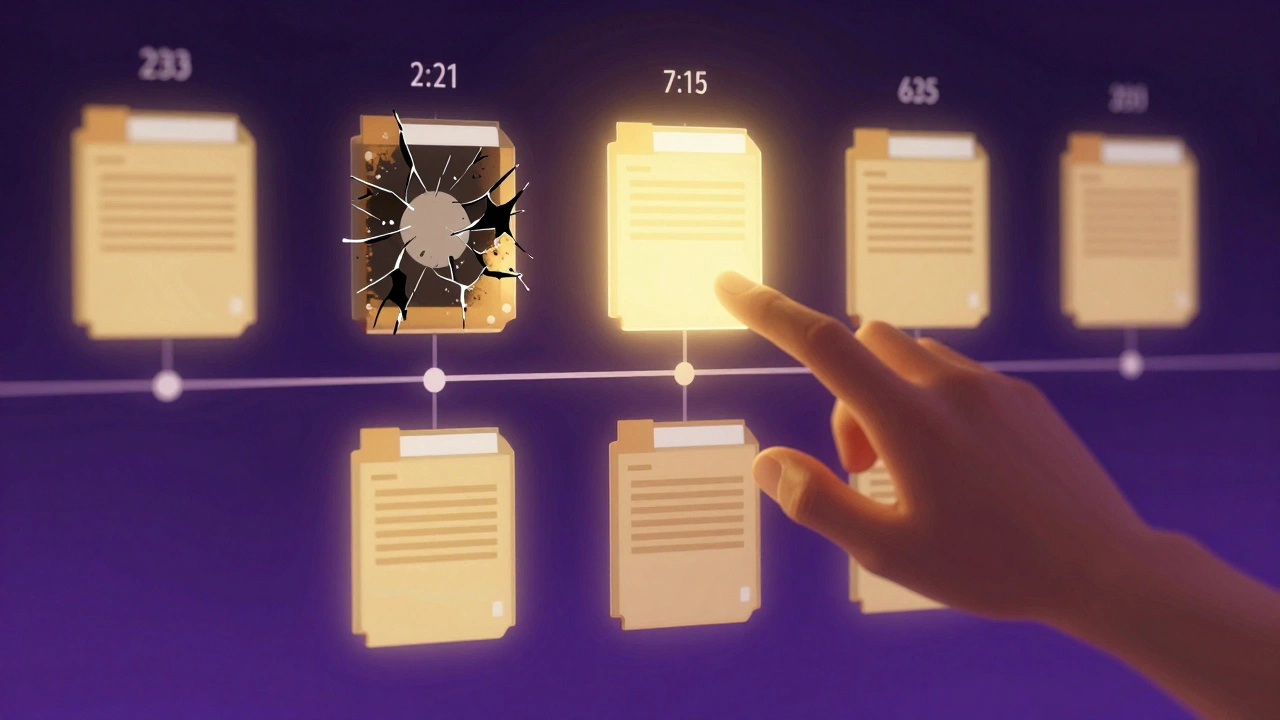
Versioning doesn’t just store your latest file. It keeps every version, every time a change was made. So if ransomware encrypts your file on Monday, you can roll back to the version from Sunday-or Friday-or last month.
Unlike traditional backups that overwrite, versioned backups create a timeline. Each snapshot is stored separately. This means:
- You can restore a file from before the attack-even if you don’t know exactly when it happened
- You can compare infected files with clean versions to spot subtle changes
- You avoid the "last backup before infection" dilemma
For example, a small design studio in Portland lost a client project to ransomware. Their versioned backup showed 17 changes in the last week. They restored the version from 48 hours before the attack. No data loss. No negotiation. No payment.
How immutability and versioning work together
Immutability protects your backups from deletion. Versioning gives you options. Together, they form a two-layer defense.
Imagine this scenario:
- Ransomware encrypts your live files on February 10.
- It tries to delete or overwrite backups-but can’t, because they’re immutable.
- You check your version history and find the last clean version from February 8.
- You restore it. Operations resume in hours.
Without immutability, the attacker could’ve wiped all backups by February 11. Without versioning, you’d have only one backup-likely the infected one. With both? You’re not just recovering. You’re winning.
What to look for in a ransomware-resilient backup system
Not all "backup" services are created equal. Here’s what actually matters:
- Object Lock (immutability): Must be enabled by default. Look for AWS S3 Object Lock, Azure Blob Immutability, or Backblaze B2 Immutable Buckets.
- Version retention: Must keep at least 30 days of versions. Some providers offer unlimited versions-ideal for compliance.
- Separate access controls: Backup storage should have different credentials than your main system. No shared admin accounts.
- Automated air-gapping: The best systems isolate backups in a separate network zone, so even internal threats can’t reach them.
- Test restores: If you haven’t restored from backup in the last 90 days, you’re not ready.
Many cloud providers offer these features, but they’re often turned off by default. You have to enable them. Don’t assume they’re on.
Real-world impact: Numbers that matter
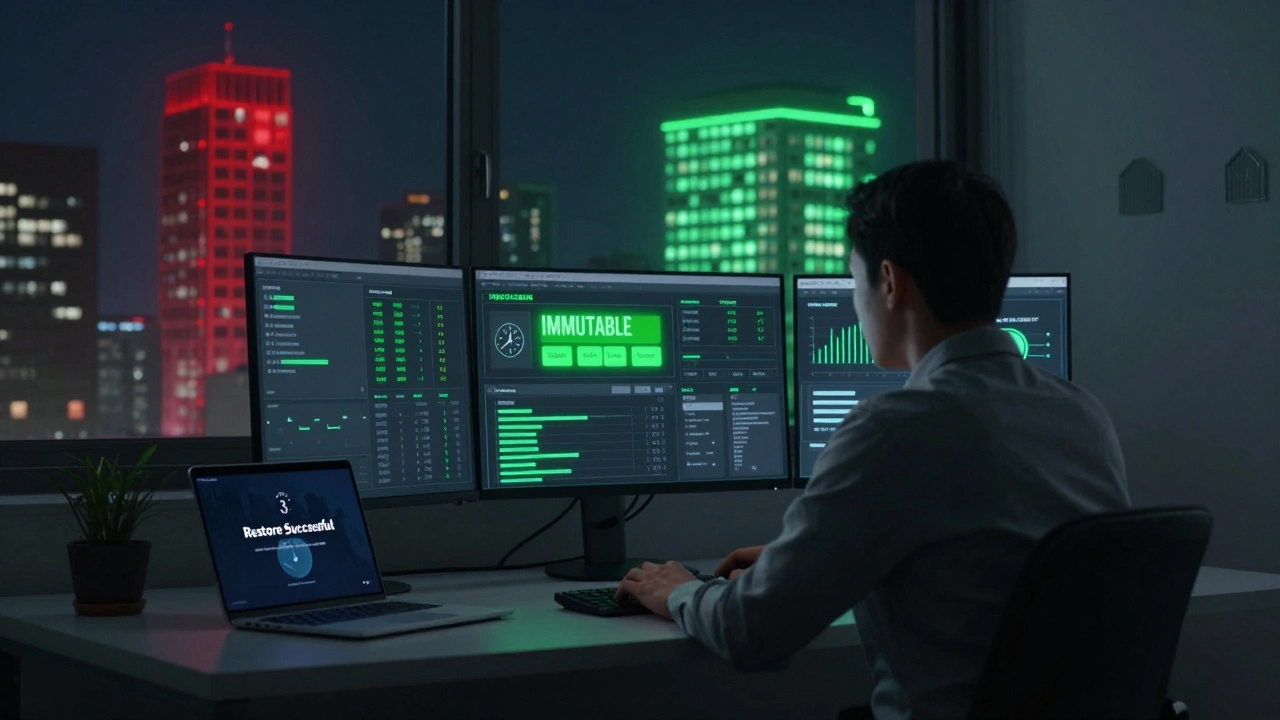
A 2025 report from the Cybersecurity & Infrastructure Security Agency (CISA) found that organizations using immutable, versioned backups recovered from ransomware in under 4 hours on average. Those without them took 72+ hours-or never recovered.
Cost matters too. The average ransomware payment in 2025 was $1.2 million. The average cost of downtime? $1.5 million. But companies with resilient backups paid $0 in ransoms and lost less than $50,000 in recovery time.
This isn’t about being paranoid. It’s about being prepared.
Setting up your own ransomware-resilient backup
Here’s how to get started:
- Choose a provider: Pick one with built-in immutability and versioning (AWS, Azure, Backblaze, Wasabi).
- Enable object lock: Set a retention period of at least 30 days. Longer is better.
- Turn on versioning: Make sure every file change is saved, not overwritten.
- Use separate credentials: Create a backup-only user with no delete or overwrite rights.
- Test monthly: Restore a file. Check if it’s clean. Time how long it takes.
- Monitor alerts: Set up notifications for any backup deletion attempts-even if they fail.
It takes less than a day to set up. The cost? Often under $100/month for small businesses. The alternative? Losing everything.
What happens if you skip this
If you’re still using basic, overwrite-style backups, you’re playing Russian roulette with your data. Ransomware doesn’t care if you’re small, local, or "not a target." It scans for weak backups like a predator looking for an open door.
One Oregon-based HVAC company didn’t think they were at risk. They backed up to a shared drive. When ransomware hit, it encrypted their files-and then deleted every backup copy. They lost 12 years of client records. No insurance covered it. They shut down six months later.
You don’t need to be a tech expert. You just need to know what to ask for.
Are cloud backups automatically immune to ransomware?
No. Most cloud backups aren’t immune unless you specifically enable immutability and versioning. Just storing data in the cloud doesn’t protect it. If the backup can be deleted or overwritten, ransomware can still destroy it. You must configure these features manually.
Can I use my existing backup software?
Maybe. Older backup tools like Windows Server Backup or basic NAS systems don’t support immutability. You’ll need software built for modern threats-like Veeam, Acronis, or cloud-native tools from AWS, Azure, or Backblaze. Check your software’s documentation for "object lock," "immutable storage," or "version history retention." If it’s not listed, it’s not safe.
How long should I keep backup versions?
At least 30 days. But 90 to 365 days is better. Ransomware attacks can lie dormant for weeks before activating. If you only keep 7 days of versions, you might restore from a backup that was already infected. Longer retention gives you breathing room to detect and respond.
Do I still need antivirus if I have immutable backups?
Yes. Immutable backups protect you after an attack. Antivirus helps stop the attack before it starts. Think of them as seatbelts and airbags. One prevents injury, the other saves you when the first fails. Use both.
Can ransomware attack backups stored offline?
Only if they’re connected. Offline backups-like tapes or disconnected external drives-are immune to network-based attacks. But if you plug them in to restore, and your system is still infected, the malware can spread to the backup. That’s why immutable cloud backups are better: they’re always offline, always protected, and always accessible without physical access.