If your Wi-Fi works fine in the living room but dies halfway down the hallway, you’re not alone. Millions of homes have dead zones-spots where the signal is so weak that streaming stops, video calls drop, and smart devices go offline. The problem isn’t your internet plan. It’s how your network is set up. Fixing this isn’t about buying the most expensive router. It’s about understanding how signals travel and where they get blocked.
Why Wi-Fi Dead Zones Happen
Wi-Fi signals are radio waves. They don’t punch through walls like a bullet. They weaken when they hit dense materials. Concrete, metal, and even thick plaster absorb signals. Water-like in fish tanks or pipes behind walls-also blocks them. And let’s not forget the old-school problem: your router is stuck in the corner, buried behind a TV or in a closet.A typical home router has a range of about 150 feet indoors. But that’s under perfect lab conditions. In real life, with two walls, a metal-framed window, and a microwave running? You’re lucky to get 50 feet of usable signal. That’s why bedrooms on the other side of the house or the basement feel like they’re on another planet.
Step 1: Find Your Router’s Sweet Spot
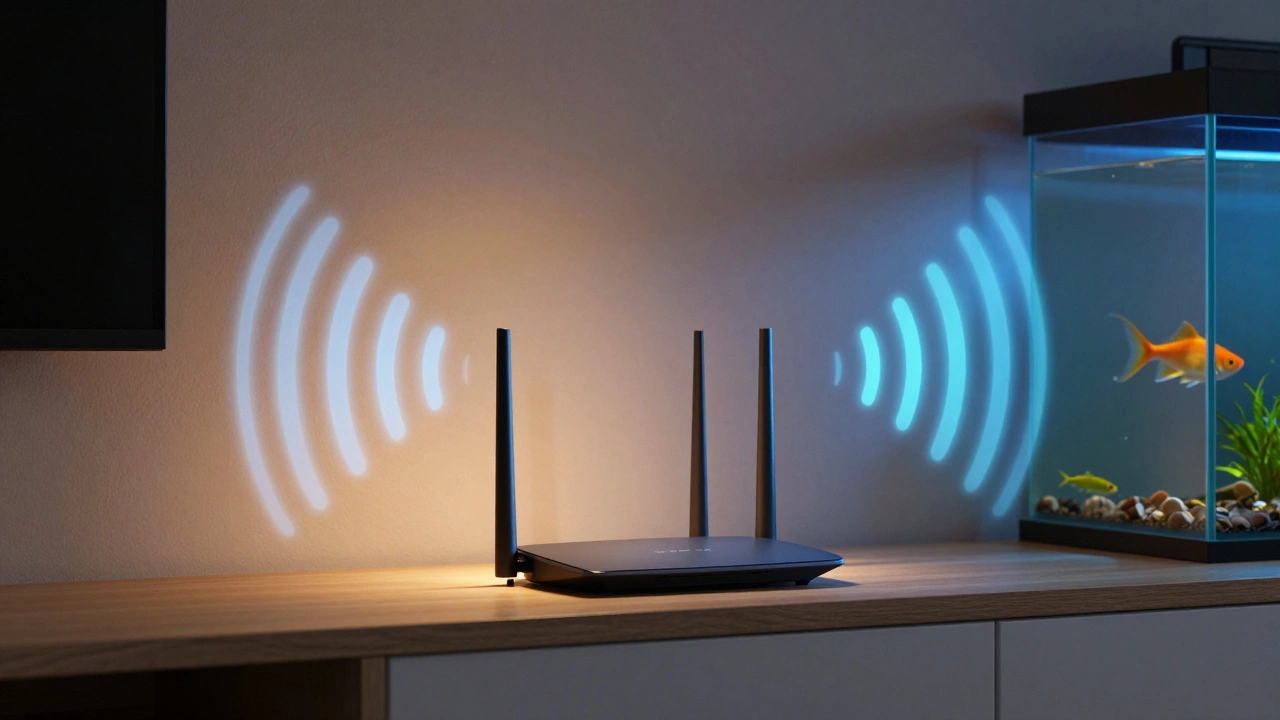
The first fix costs nothing. Move your router.Place it high up-on a shelf, not on the floor. Signals spread out better from above. Keep it central. If your house is L-shaped, put it near the center of the longest leg. Avoid hiding it behind electronics. TVs, cordless phones, and baby monitors all interfere with 2.4 GHz signals. Even a fish tank can mess with your signal if it’s right next to the router.
Test the signal with your phone. Walk around your home and check the Wi-Fi icon. No bars? That’s a dead zone. If you see signal strength drop sharply after passing through a wall, that’s your problem area. Many phones now show signal strength in dBm. Anything below -70 dBm is weak. Below -80? You’re in trouble.
Step 2: Upgrade Your Router
If your router is older than 2020, it’s probably stuck in the past. Newer routers use Wi-Fi 6 (802.11ax). They handle more devices, reduce interference, and transmit data more efficiently. A Wi-Fi 6 router can improve coverage by 30-40% compared to older models, even in the same spot.Look for routers with multiple antennas. More antennas mean better signal direction. Dual-band (2.4 GHz and 5 GHz) is basic. Tri-band? Even better. The extra 5 GHz band lets you offload heavy traffic like video streaming from your main network.
Brands like TP-Link, Netgear, and ASUS have models under $150 that work well for homes up to 2,500 square feet. Don’t fall for marketing buzzwords like “gigabit speed.” Focus on real-world coverage reviews.
Step 3: Use a Mesh Network
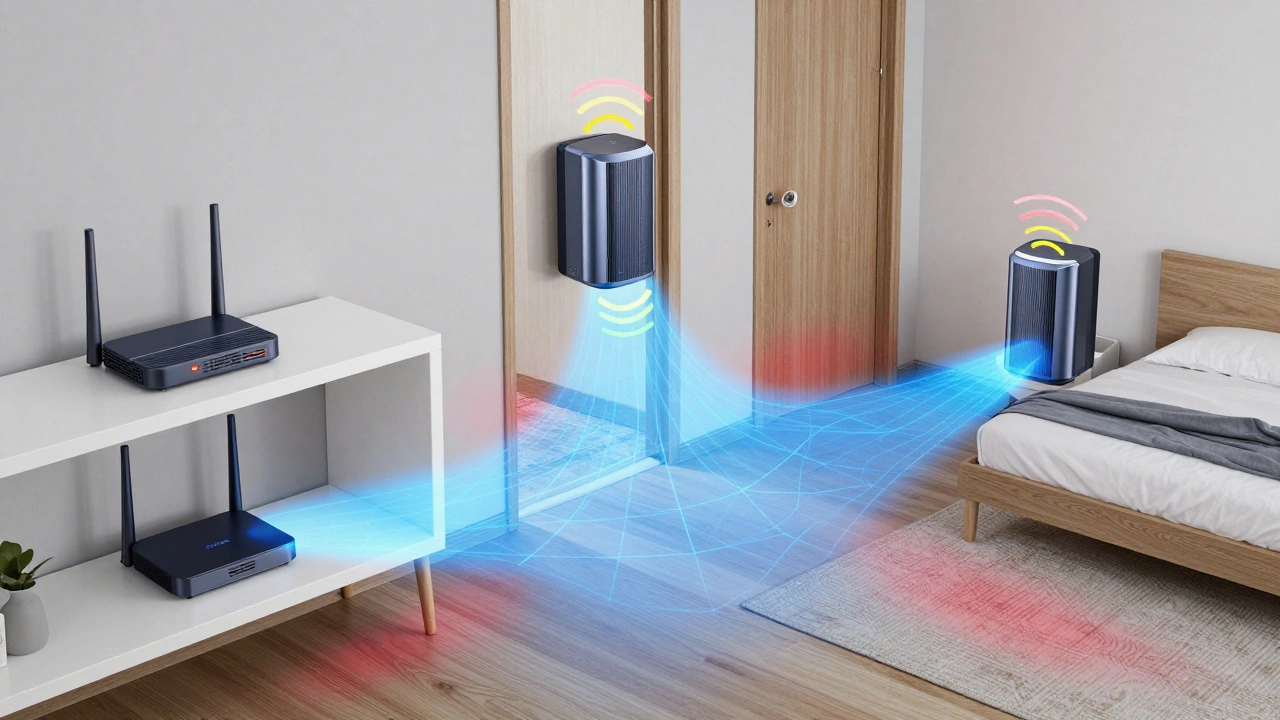
This is the most reliable fix for homes over 2,000 square feet or with thick walls. A mesh system uses two or more units placed around your home to create one seamless network.Unlike old extenders-which create a second network name and force you to manually switch between them-mesh systems let your phone hop between nodes automatically. It’s like having a team of Wi-Fi routers working together.
Popular mesh systems like Eero, Google Nest WiFi, and TP-Link Deco all work similarly. You plug one unit near your modem, then place others in dead zones. Most come with apps that show signal strength across your home. You can even see which devices are using which node.
For a 2,000-square-foot home, a two-pack costs around $200-$300. Three-pack for 3,000 square feet? Around $350. It’s more than a single router, but it’s the only solution that actually eliminates dead zones.
Step 4: Avoid Wi-Fi Extenders (Unless You Have to)
Extenders are cheap. They look tempting. But they often make things worse.They work by rebroadcasting your router’s signal. But they use the same radio channel, so they cut your bandwidth in half. Your phone connects to the extender, but the extender has to talk back to the router. That creates lag. Video calls stutter. Downloads slow down.
Only use an extender if you can’t install a mesh system-like in a rented apartment where you can’t drill holes or run cables. Even then, place it halfway between the router and the dead zone. Not right in the dead zone. That’s useless.
Step 5: Check for Interference
Your neighbor’s Wi-Fi might be crowding your channel. In dense neighborhoods, dozens of networks overlap on the same frequency. Use a free app like Wi-Fi Analyzer (Android) or NetSpot (Mac) to see which channels are crowded.On 2.4 GHz, channels 1, 6, and 11 are the only non-overlapping ones. Pick the least used. On 5 GHz, there are 25+ channels. Most modern routers auto-select the best one. If yours doesn’t, switch manually.
Also, turn off unused devices. Smart bulbs, thermostats, and security cameras all connect to Wi-Fi. Too many devices on one network can slow everything down. Consider moving some to a 5 GHz band or using Zigbee/Z-Wave for smart home gear instead of Wi-Fi.
Step 6: Wired Access Points for the Best Results
If you’re tech-savvy or remodeling, run Ethernet cables. A wired access point (WAP) connected to your router via cable delivers full speed and zero lag. Place it in a dead zone, and boom-you’ve got router-level performance.This isn’t for everyone. It requires drilling, running wires, and maybe hiring an electrician. But if you have a home office in the basement or a media room far from the router, it’s the gold standard. You’ll get faster speeds than any wireless solution.
What Doesn’t Work
Don’t waste money on these:- Wi-Fi boosters that plug into outlets - they’re just weak extenders with a fancy shape.
- Aluminum foil reflectors - they might help a little, but not enough to matter.
- Router antennas rotated randomly - try vertical, horizontal, or angled-but don’t expect miracles without proper placement.
- Buying a router with “10,000 sq ft range” - that’s marketing fiction. Real-world range is half that.
Quick Checklist: Fix Your Dead Zones
- Move your router to a central, elevated spot.
- Replace routers older than 2020 with a Wi-Fi 6 model.
- For homes over 2,000 sq ft, install a mesh system (two or three nodes).
- Use Wi-Fi analyzer apps to pick the least crowded channel.
- Reduce Wi-Fi load by moving smart devices to Zigbee or Ethernet.
- Run Ethernet cables to key rooms if possible.
Real-World Example: A Portland Home Fix
A friend in Portland had dead zones in the basement and the back bedroom. Her router was in the front closet. She tried a $40 extender. It made the basement worse. She bought a TP-Link Deco XE75 mesh system for $280. She placed one unit near the modem, one in the hallway, and one in the back bedroom. Within 10 minutes, her phone showed full signal everywhere. Her smart thermostat stopped dropping off. Her kids could stream without buffering. Total cost? $280. Total frustration? Gone.Why does my Wi-Fi work fine in the living room but not in the bedroom?
It’s likely because the bedroom is on the other side of a thick wall, metal framing, or a large appliance. Wi-Fi signals weaken when they pass through concrete, metal, or water pipes. Moving your router to a more central location or adding a mesh node near the bedroom usually fixes this.
Can I use my old router as a Wi-Fi extender?
Yes, but only if it supports repeater mode. Most older routers do. However, it will cut your bandwidth in half because it uses the same radio to talk to your main router and your devices. It’s better than nothing, but a dedicated mesh system gives you faster, more reliable performance.
Do Wi-Fi extenders really work?
They work in limited cases-if your dead zone is close to the router and you don’t need high-speed connections. But they create lag and reduce bandwidth. For streaming, gaming, or video calls, they’re not reliable. Mesh systems are far better.
How many mesh nodes do I need?
For homes under 2,000 sq ft, two nodes are usually enough. For 2,000-3,500 sq ft, use three. For larger homes or homes with thick walls, you may need four. Most mesh systems come with apps that show coverage maps-use them to decide where to place each node.
Is Wi-Fi 6 worth it for home use?
Yes, especially if you have 10+ devices connected at once. Wi-Fi 6 routers handle congestion better, reduce lag, and improve battery life on phones and laptops. Even if you don’t have Wi-Fi 6 devices yet, the router’s efficiency improves overall network performance.