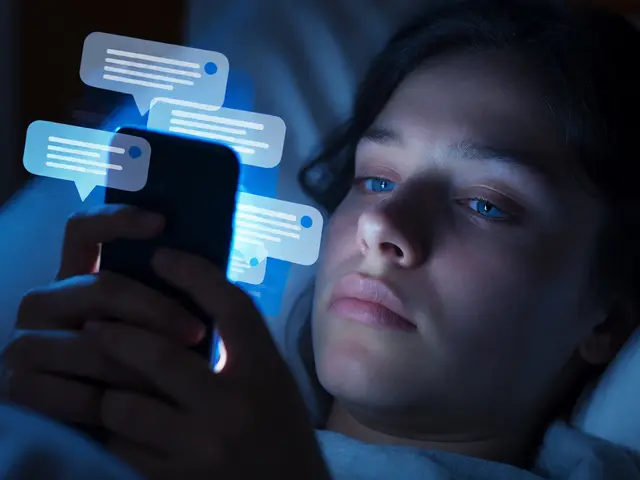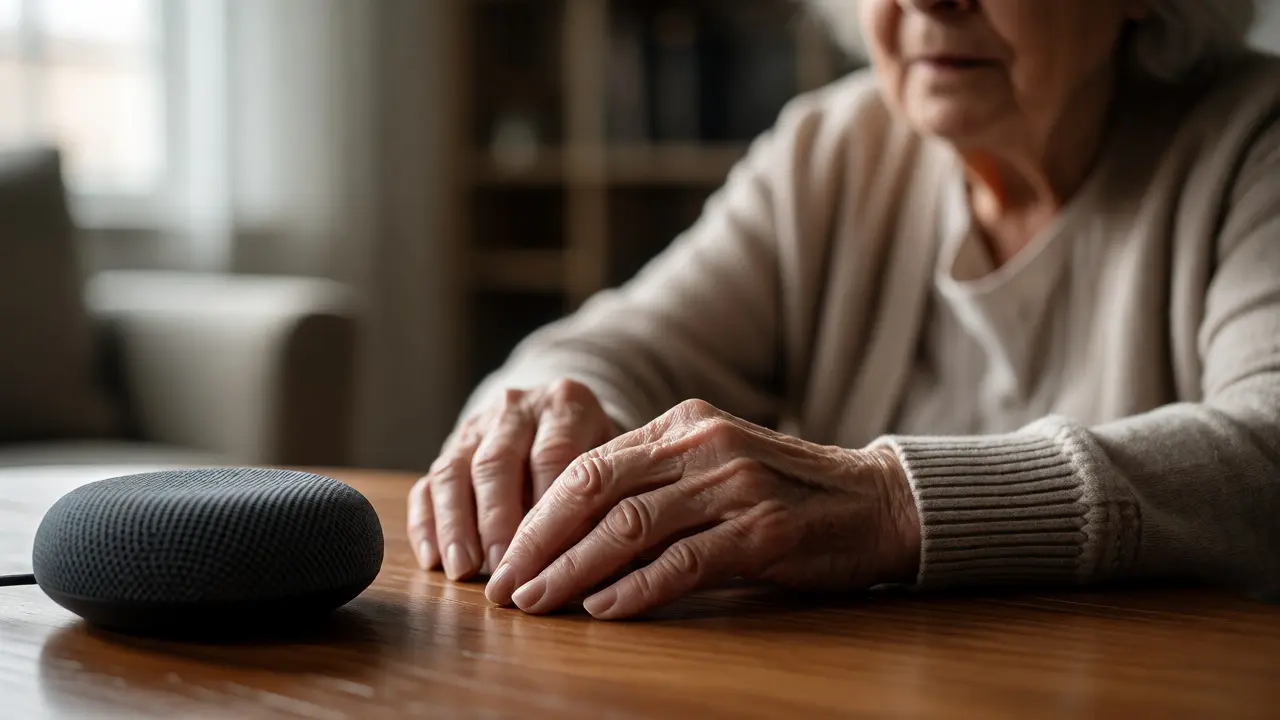
Imagine trying to send a text message with hands that shake from Parkinson’s disease. Or picture an elderly person struggling to find the right app on a smartphone screen because their vision isn’t what it used to be. For millions of people, standard touch interfaces are barriers, not bridges. This is where voice control becomes more than just a convenience-it becomes a lifeline. It allows users to navigate digital spaces using only their speech, bypassing the need for fine motor skills or perfect eyesight.
But here’s the catch: most voice assistants are designed for able-bodied, tech-savvy users who speak clearly and know exactly what to say. Seniors and people with disabilities often face different challenges. Maybe they have a heavy accent, maybe they struggle with short-term memory, or perhaps they live in a noisy environment. If you’re helping a parent or caring for someone with limited mobility, you need a strategy that goes beyond saying "Hey Siri." You need to understand how to tailor these tools for real-world limitations.
Why Voice Control Changes Everything
Voice control removes the physical friction of interacting with technology. For someone with arthritis, typing is painful. For someone with low vision, reading small icons is exhausting. By shifting the input method from fingers to voice, we change the entire user experience. According to recent data from the National Institute on Disability, Independent Living, and Rehabilitation Research, assistive technologies can increase independence by up to 40% for individuals with mobility impairments. Voice interfaces are at the forefront of this shift.
The core benefit isn't just speed; it's autonomy. When a user can turn on lights, lock doors, or call family members without needing assistance, their sense of self-worth improves significantly. It’s not about replacing human interaction; it’s about removing the dependency on others for basic tasks. However, this autonomy only exists if the system works reliably for them. A voice assistant that misunderstands commands ten times out of ten is worse than no assistant at all.
Choosing the Right Hardware Ecosystem
You might think any smart speaker will do, but compatibility matters. The three major players-Amazon Alexa, Google Assistant, and Apple Siri-each have strengths depending on the user’s existing setup. If your loved one already uses an iPhone, sticking with Apple HomeKit ensures seamless integration. If they use Android, Google Assistant offers deeper customization for accessibility features.
| Feature | Amazon Alexa | Google Assistant | Apple Siri |
|---|---|---|---|
| Ease of Setup | High (Plug and Play) | Moderate (Requires App Linking) | Low (Deep iOS Integration) |
| Custom Commands | Excellent (Routines) | Good (Shortcuts) | Limited (Shortcuts App) |
| Hearing Impairment Support | Visual Cues via Echo Show | Live Transcribe | Spoken Content |
| Best For | Smart Home Beginners | Android Users & Search Queries | iOS Users & Privacy Concerns |
For seniors who are new to tech, Amazon Echo devices are often the easiest entry point. They don’t require pairing with a phone initially. You plug them in, connect to Wi-Fi, and start talking. Google Assistant is powerful for information retrieval, which helps those with memory issues ask questions like "What did I take my medication with?" or "Who called me yesterday?" Apple’s ecosystem is robust but assumes the user is already comfortable within the Apple universe, which can be a hurdle for some older adults transitioning from Windows or simple phones.
Tuning Voice Recognition for Specific Needs
Out-of-the-box settings rarely work perfectly for everyone. Speech patterns vary wildly among seniors and disabled users. Some may speak softly due to respiratory conditions. Others may have slurred speech from strokes or ALS. Most assistants allow you to adjust sensitivity and language models, but few people know how to tweak them.
Start by adjusting the wake word sensitivity. In quieter homes, lower sensitivity reduces false triggers. In noisy households, higher sensitivity ensures the device hears the command. Next, consider the response style. Can the user hear the assistant’s reply clearly? If hearing loss is present, pair the smart speaker with Bluetooth hearing aids or use devices with built-in amplification, like the JBL Flip series paired with Alexa. For visual impairments, ensure the device provides audible feedback for every action, such as confirming "Lights are on" rather than just silently executing the command.
Another critical setting is the timeout duration. How long does the assistant wait after you stop speaking before it assumes you’re done? Standard settings are often too short for users who pause frequently to think or breathe. Extending this window prevents the frustration of having sentences cut off mid-thought.
Creating Simple, Consistent Routines
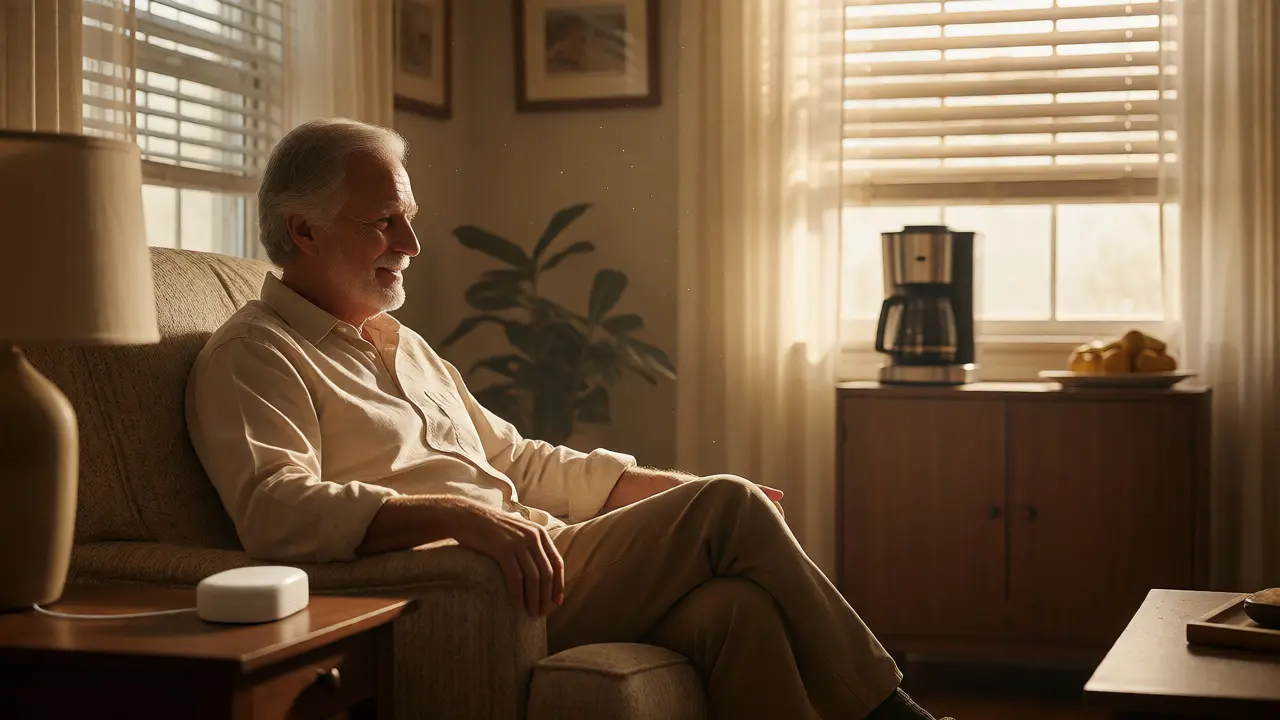
Complexity kills adoption. If a user has to remember five different phrases to perform one task, they won’t use the system. Instead, create broad, intuitive routines. Instead of teaching them to say "Turn on living room lamp," teach them "Good morning." This single phrase can trigger a sequence: open blinds, turn on coffee maker, read the weather, and announce the date.
Use natural language. Avoid technical jargon. Don’t say "Execute scene 'Evening Relaxation'." Say "It’s time to relax." The goal is to map voice commands to daily habits, not to computer functions. Involve the user in naming these routines. If they choose the names, they are more likely to remember them. For example, if they always call their evening tea time "Tea o'clock," make that the trigger for dimming lights and playing soft music.

Overcoming Common Barriers
Not every problem is solved by software updates. Physical and environmental factors play huge roles. Background noise from TVs, fans, or street traffic can confuse microphones. Position the device away from direct sound sources. If the user lives alone and falls, many smart speakers offer fall detection add-ons or emergency calling features. Test these thoroughly. Does the device pick up a shout for help from across the room?
Privacy concerns also deter usage. Many seniors worry about being recorded. Explain that recordings are stored locally or encrypted, depending on the provider. Show them how to delete history easily. Knowing they have control over their data reduces anxiety. Additionally, battery life is crucial for portable devices. Ensure charging docks are easy to reach and visually distinct, perhaps marked with bright tape, so users never lose power during critical moments.
Training and Patience Are Key
Technology fails when humans give up. Introduce voice control gradually. Start with one function, like controlling lights. Once mastered, add another, like making calls. Celebrate small wins. If the assistant misunderstands a command, don’t blame the user. Blame the training data. Rephrase together. Find the words that work best for their specific speech pattern.
Remember, the goal isn’t perfection; it’s empowerment. Even if the assistant only works 80% of the time, that 80% represents significant freedom. Keep manuals simple. Create a large-print cheat sheet with the top five commands taped next to the device. Update it as needs change. Voice control is a partnership between the user and the machine, requiring ongoing adjustment and empathy.
Can voice control work for people with severe speech impediments?
Yes, but it requires specialized setups. Standard assistants may struggle with unintelligible speech. Solutions include using eye-tracking devices combined with voice synthesis apps, or custom-trained models available through enterprise solutions. For less severe cases, adjusting microphone sensitivity and allowing longer pauses between words can significantly improve accuracy.
Is voice control secure for seniors living alone?
Generally, yes. Modern systems use encryption for data transmission. However, privacy risks exist if devices are hacked. To mitigate this, disable third-party skills unless necessary, keep firmware updated, and use strong Wi-Fi passwords. For peace of mind, look for devices with hardware mute switches that physically disconnect the microphone.
What if my relative refuses to talk to a machine?
This is common. Frame it as a tool, not a companion. Focus on tangible benefits like safety (emergency calls) or ease (turning off lights from bed). Let them control the volume and tone. Sometimes, starting with a screen-based assistant like an iPad with Siri feels less intrusive than a floating orb in the kitchen. Respect their pace.
Do smart speakers require internet access?
Most advanced features do. Basic commands like turning on local smart plugs might work offline via Zigbee or Z-Wave hubs, but cloud processing handles complex queries and natural language understanding. If internet reliability is poor, consider local-processing devices or hybrid systems that cache frequent commands.
How much does a voice-controlled setup cost?
Entry-level smart speakers cost $50-$100. Smart bulbs range from $15-$30 each. Smart locks can be $100-$200. Total costs vary based on scope. Starting with one speaker and two smart bulbs allows testing for under $100. Monthly subscriptions for premium features are usually optional and cost $5-$10 per month.