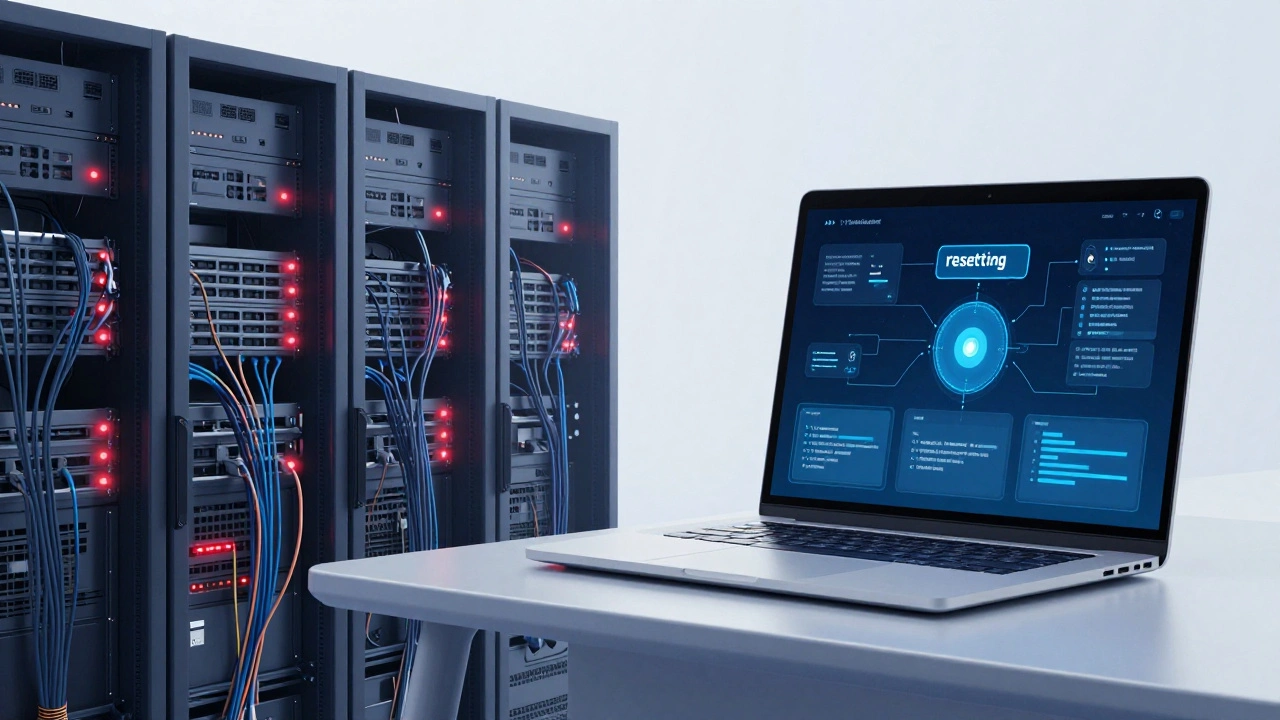
Imagine breaking a production server or misconfiguring a router that handles thousands of users. In the real world, that mistake costs money, reputation, and sleepless nights. In a virtual lab is a simulated environment that allows IT professionals to practice networking and cloud configurations without risking live infrastructure., it’s just another Tuesday. You click “reset,” wipe the slate clean, and try again. This safety net is why virtual labs have become the backbone of modern tech training.
The days of needing expensive hardware racks in your basement are gone. Today, you can spin up complex topologies involving routers, switches, firewalls, and cloud instances from your laptop. Whether you are studying for a certification like CCNA or AWS Solutions Architect, or just trying to understand how Kubernetes pods talk to each other, virtual environments provide the hands-on experience that reading books simply cannot match.
Why Virtual Labs Beat Physical Hardware
Years ago, if you wanted to learn networking, you bought Cisco routers and connected them with cables. It was messy, loud, and incredibly expensive. Now, software-defined networking (SDN) has changed the game. Virtualization technology allows us to emulate physical hardware using code. This shift brings three massive advantages: cost, scalability, and instant recovery.
First, let’s talk about money. A single enterprise-grade switch can cost thousands of dollars. A virtual instance of that same switch? Often free or included in a monthly subscription. For students and self-taught engineers, this removes the biggest barrier to entry. Second, scalability is effortless. Need ten servers? Click a button. Need one hundred? Drag and drop. In the physical world, that means buying racks, cooling systems, and power supplies. Finally, the ability to snapshot and revert is a superpower. You can test a risky configuration change, see what breaks, and then roll back to a previous state in seconds. This encourages experimentation, which is where real learning happens.
Top Tools for Network Simulation
Not all simulators are created equal. Some are lightweight and easy to use, while others are heavy-duty emulators that run actual operating systems. Choosing the right tool depends on your goals. Here is a breakdown of the most popular options used by professionals in 2026.
| Tool Name | Type | Best For | Learning Curve | Cost |
|---|---|---|---|---|
| EVE-NG is a powerful network emulation platform that runs full IOS images. | Emulator | Advanced certifications (CCNP/CCIE) | Steep | Free (Community Edition) |
| GNS3 is a graphical network simulator that integrates with virtual machines. | Emulator/Simulator | Mixed topology testing | Medium | Free / Paid Pro version |
| Cisco Packet Tracer is a network simulation tool designed for beginners. | Simulator | CCNA basics and students | Low | Free (with Cisco NetAcad account) |
| PNETLab is a web-based network emulation platform similar to EVE-NG. | Emulator | Web-based access and multi-vendor labs | Medium | Free |
Cisco Packet Tracer is the go-to for beginners. It doesn’t run real IOS; it simulates the behavior. This makes it fast and lightweight, perfect for understanding basic concepts like subnetting, VLANs, and OSPF routing. However, once you move into advanced topics like MPLS or complex firewall rules, Packet Tracer falls short because it doesn’t support full feature sets.
For serious learners, EVE-NG and GNS3 are the industry standards. These are emulators, meaning they run actual vendor images (like Cisco IOS, Juniper Junos, or Palo Alto PAN-OS). This means the CLI commands behave exactly as they would on real hardware. If you are preparing for professional certifications, you need an emulator. The downside? They require a decent computer. Running multiple virtual machines simultaneously eats up RAM and CPU cycles. Most pros recommend at least 16GB of RAM, though 32GB is ideal for larger topologies.
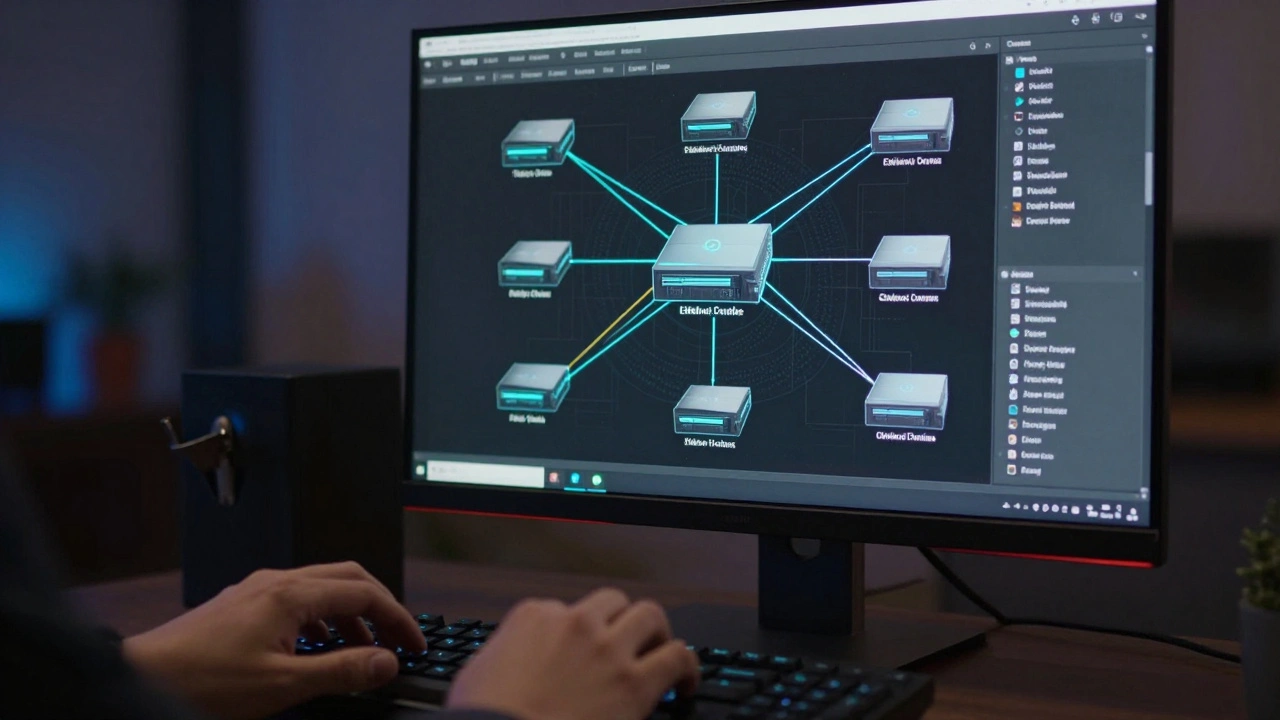
Cloud Sandboxes: Practicing Without the Bill Shock
Networking isn’t just about cables and routers anymore. It’s about cloud infrastructure. Learning AWS, Azure, or Google Cloud Platform (GCP) carries a financial risk. Leave a large EC2 instance running overnight, and your credit card takes a hit. This is where cloud sandboxes come in.
A cloud sandbox is a temporary, isolated environment provided by the cloud provider or a third-party training platform. It gives you root access and resources to experiment, but with strict limits. Time limits (usually 4-8 hours), resource caps (limited CPU/RAM), and no-persistence policies ensure you don’t accidentally rack up huge bills. When the session ends, everything is wiped clean.
Major providers offer their own free tiers and sandbox environments. For example, AWS offers AWS Educate and free tier accounts that allow limited usage for new users. Microsoft Learn provides interactive labs directly within their documentation portal. These platforms often include guided exercises where you follow step-by-step instructions to deploy a web server, configure a load balancer, or set up a database. This is crucial for understanding Infrastructure as Code (IaC) tools like Terraform or Ansible, which automate the deployment process.
Third-party platforms like Killer.sh or Cloud Academy (now part of A Cloud Guru) take this further. They provide pre-built scenarios. Instead of starting from scratch, you might be given a broken VPC (Virtual Private Cloud) and asked to fix the connectivity issues. This problem-solving approach mirrors real-world troubleshooting scenarios much better than building something from zero.
Building Your First Home Lab
If you want more control than a browser-based sandbox offers, setting up a home lab is the next logical step. You don’t need a dedicated server. You can run these simulations on your existing PC or Mac. Here is a simple path to get started.
- Choose your hypervisor: VMware Workstation Player (free for personal use) or Oracle VirtualBox are great starting points. They allow you to create virtual machines (VMs) that act as your lab hosts.
- Install the emulation software: Download EVE-NG Community Edition. It requires a Linux VM to run. Many tutorials guide you through importing a pre-configured EVE-NG appliance image.
- Get your images: This is the tricky part. Emulators need ISO files or binary images of the operating systems you want to simulate. While some vendors provide trial images for evaluation, others require you to have a valid license to legally download them. Always respect licensing agreements. Open-source alternatives like VyOS (for routing) or pfSense (for firewalls) are free and legal to use.
- Connect and configure: Once your images are uploaded, you can drag and drop nodes onto the canvas. Connect them with virtual cables and start configuring IP addresses, routing protocols, and security groups.
This setup gives you a persistent environment. You can work on it over weeks or months. You can save snapshots before major changes. It becomes your personal playground for mastering technologies like BGP, VXLAN, or Docker containers.
Bridging the Gap Between Theory and Practice
Reading about Subnetting is one thing. Configuring a router interface with a /24 mask and watching two PCs ping each other is another. Virtual labs bridge this gap by providing immediate feedback. When a command fails, the error message teaches you more than any textbook could. You learn not just the syntax, but the logic behind the protocol.
Moreover, modern labs often integrate with DevOps workflows. You can practice writing scripts in Python or Bash to automate configuration changes across multiple virtual devices. This skill is highly sought after in the job market. Employers want candidates who can not only configure a device manually but also automate repetitive tasks. Virtual labs allow you to build this muscle memory safely.
Another benefit is collaboration. Many online lab platforms allow multiple users to join the same topology. You can pair-program with a colleague, troubleshoot together in real-time, or even teach a class remotely. This collaborative aspect mimics the teamwork required in actual network operations centers (NOCs).
Pitfalls to Avoid in Virtual Training
While virtual labs are powerful, they aren’t perfect. One common pitfall is becoming too reliant on the GUI. In the real world, especially in high-pressure situations, you often need to rely on the Command Line Interface (CLI). Make sure you spend time typing commands rather than clicking buttons. Another issue is performance. If your host machine is struggling, the lab will lag, making debugging frustrating. Ensure your hardware meets the minimum requirements and close unnecessary applications while running heavy emulations.
Also, beware of “tutorial hell.” This is when you follow along with every step of a guide without truly understanding why you’re doing it. Challenge yourself. Break things intentionally. Try to connect two networks without looking at a tutorial. The frustration you feel when it doesn’t work is the moment learning begins.
Do I need a powerful computer to run virtual labs?
It depends on the complexity. Simple simulators like Cisco Packet Tracer run on almost any laptop. However, emulators like EVE-NG or GNS3 that run full operating systems require significant resources. We recommend at least 16GB of RAM and a multi-core processor (i5 or Ryzen 5 or better) for a smooth experience. If you have limited hardware, consider using cloud-based lab services instead.
Is it legal to use vendor images in virtual labs?
This is a gray area. Generally, you must own a valid license for the software to download and use its images, even for personal study. Some vendors, like Cisco, provide specific trial images for educational purposes. Others do not. Using pirated images violates copyright laws. To stay safe, use open-source alternatives like VyOS, FRRouting, or pfSense, or stick to official trial programs offered by vendors.
Which is better: Simulator or Emulator?
A simulator (like Packet Tracer) mimics behavior and is faster but less accurate. An emulator (like EVE-NG) runs the actual OS and is 100% accurate but slower and more resource-intensive. For beginners, simulators are fine. For professional certifications and realistic troubleshooting, emulators are essential.
Can I use virtual labs to prepare for cloud certifications?
Absolutely. Cloud providers like AWS, Azure, and GCP offer free tiers and sandbox environments specifically for this purpose. Additionally, platforms like A Cloud Guru provide hands-on labs that guide you through exam-relevant scenarios. Combining these with IaC tools like Terraform will give you a comprehensive preparation experience.
What should I do if my virtual lab crashes?
Always take snapshots before making significant changes. If your lab crashes, you can revert to the last stable snapshot instantly. If you didn’t take a snapshot, check your host system’s resources. Low RAM or disk space often causes virtual machines to freeze. Restarting the emulation service or the host VM usually resolves minor glitches.