Quick Takeaways for a Stress-Free Reset
- Always back up your data to a cloud service or physical drive first.
- Ensure your battery is above 50% or plugged into power to avoid "bricking" the device.
- Remove your account locks (like Google or iCloud) before resetting to avoid activation locks.
- Use a reset as a last resort after trying a simple restart and cache clearing.
When should you actually hit the reset button?
Not every laggy screen requires a full wipe. You should usually try a "soft reset" (just restarting the power) first. However, there are specific scenarios where a full factory reset is the only real solution. If your device is plagued by persistent malware that antivirus software can't kill, or if you're experiencing "ghost touches" and system crashes that survive a reboot, it's time to wipe the slate clean.
Another critical moment is when you're selling your gear. You don't want the next owner having access to your banking apps or private emails. A standard delete doesn't actually remove data; it just tells the system the space is available. A full reset, especially when combined with encryption, ensures your personal life doesn't follow the device to its new home.
The Golden Rule: The Pre-Reset Checklist
Before you click that button, you need to secure your digital life. The biggest mistake people make is assuming their "cloud sync" is up to date. Check your last backup timestamp. If you're using an Android device, make sure Google One or Google Drive has synced your contacts and calendar. For iPhone users, verify that iCloud has a fresh backup from today.
Don't forget the "hidden" data. Think about your 2FA (Two-Factor Authentication) apps like Google Authenticator. If you reset your phone without exporting those keys, you'll be locked out of your accounts with no way back in. Also, manually export your WhatsApp chats or signal backups, as these often require a separate step from the general system backup.
Step-by-Step: Resetting Smartphones and Tablets
Most modern mobile devices follow a similar logic, though the menus differ slightly. Here is the general path for the most common systems:
- For Android: Go to Settings > System > Reset options > Erase all data (factory reset). You'll likely be asked for your PIN or pattern to confirm you're the owner.
- For iOS: Go to Settings > General > Transfer or Reset iPhone > Erase All Content and Settings. You'll need your Apple ID password to turn off "Find My" before the process begins.
If your screen is frozen and you can't get into the settings, you'll need to use "Recovery Mode." This usually involves holding a combination of the power and volume buttons while the device is off. Be careful here; if you trigger the wrong menu, you might accidentally boot into a safe mode that doesn't actually wipe the data.
| Reset Type | What is Deleted? | Best Used For... | Risk Level |
|---|---|---|---|
| Soft Reset | Nothing (just clears RAM) | Minor glitches, app freezes | Zero |
| Settings Reset | Custom configs, WiFi passwords | Network issues, audio bugs | Low |
| Factory Reset | Everything (Apps, Photos, OS tweaks) | Malware, selling device, severe lag | High |
Handling Computers: Windows and macOS
Resetting a laptop is a bit more involved because you have to deal with partitions and operating system images. In Windows 11, the process is streamlined. Navigate to Settings > System > Recovery > Reset this PC. You'll get a choice: "Keep my files" or "Remove everything." If you're troubleshooting a virus, always choose "Remove everything." Keeping your files might leave the malicious script intact in your user folder.
On a Mac, the process depends on whether you have an Intel chip or Apple Silicon (M1/M2/M3). Newer Macs have an "Erase All Content and Settings" option in System Settings that works just like an iPhone. Older Macs require you to boot into macOS Recovery by holding Command+R during startup, using Disk Utility to wipe the drive, and then reinstalling the OS from the internet.
Resetting Smart Home Gear and Routers
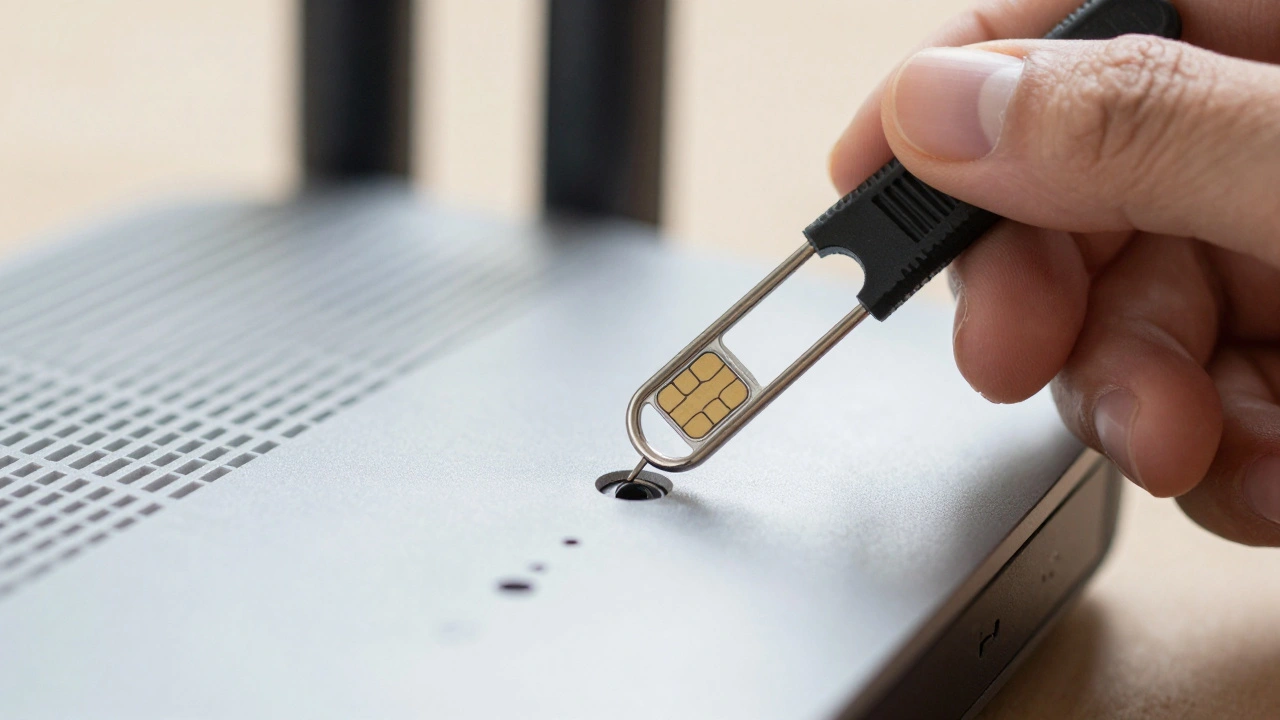
Unlike phones, IoT devices like smart bulbs, plugs, or WiFi Routers rarely have a screen. To reset these, you'll find the infamous "pinhole button." This is a tiny hole that requires a paperclip or a SIM ejector tool.
The general rule for the pinhole is the "10-second hold." Press and hold the button while the device is powered on for about 10 to 15 seconds. You'll usually see a LED light flash or change color to signal that the restore default settings process has triggered. For routers, this is a lifesaver when you've forgotten your admin password or the firmware has become unstable after an update.
Common Pitfalls and How to Avoid Them
The most heartbreaking scenario is the "Activation Lock." Companies like Apple and Google implemented this to stop thieves from stealing phones and wiping them to sell. If you reset a device without first signing out of the account, the device will demand the previous owner's password upon reboot. If you've forgotten that password, you're holding a very expensive brick.
Another risk is "bricking" during a firmware update. If your device is performing a system-level reset and the power cuts out, the BIOS or firmware can become corrupted. This is why keeping the device plugged into a wall outlet is non-negotiable during a factory reset. A battery percentage of 20% is not enough; aim for 80% or a constant power source.
What to do after the reset?
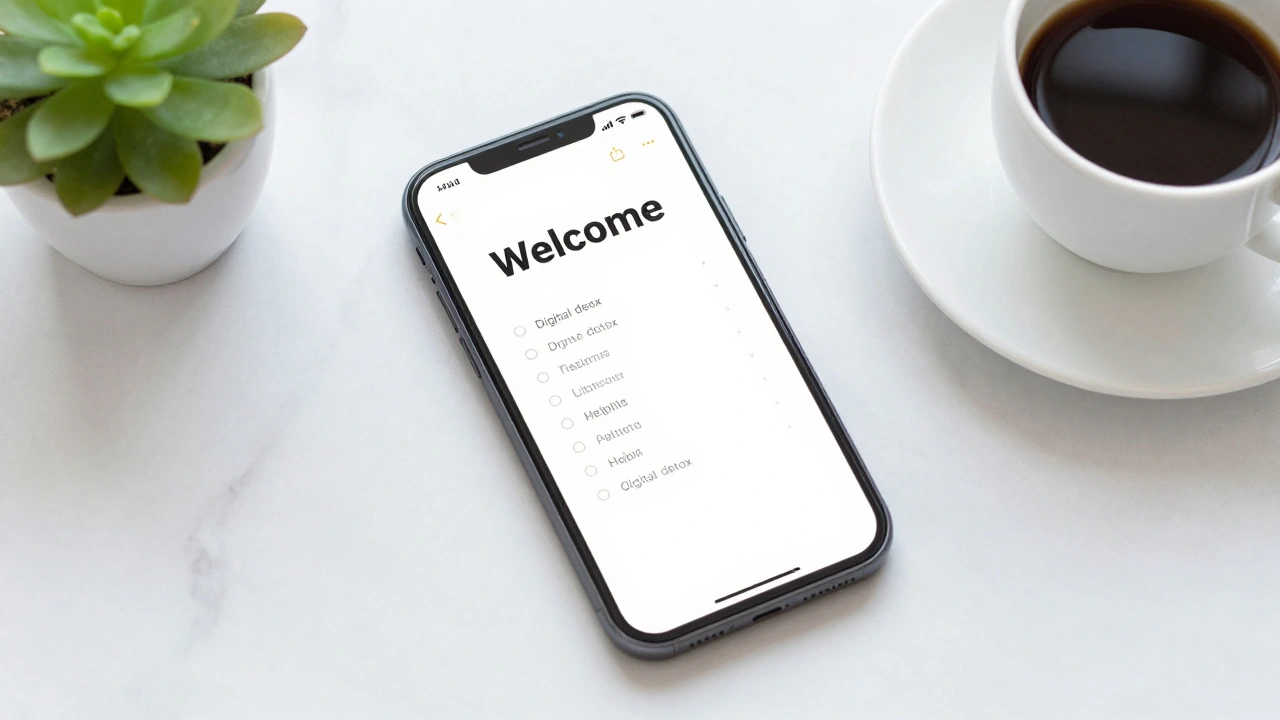
Once you see the "Welcome" or "Hello" screen, don't just rush to download every app you had before. This is a perfect time to perform a digital detox. Only reinstall the apps you actually use. If you restore a full system backup immediately, you might actually bring back the very glitch or setting that caused you to reset the device in the first place.
Install your essential apps one by one. If the device starts lagging again after you install a specific third-party launcher or a questionable "battery booster" app, you've found your culprit. By layering your apps back in, you can isolate the source of the problem-something you can't do if you just dump a 50GB backup file back onto the drive.
Will a factory reset delete my photos?
Yes. A factory reset wipes all user-generated data. Unless your photos are synced to a cloud service like Google Photos or iCloud, they will be permanently deleted from the device's local storage.
Can I undo a factory reset?
No, you cannot "undo" a reset. Once the data is wiped, it is gone. The only way to recover your information is to restore from a backup you created before the process started.
Does a factory reset speed up my phone?
Often, yes. It removes bloated cache files, stops rogue background processes, and deletes unnecessary apps that eat up RAM. However, if the slowness is caused by old hardware (like a dying battery or an outdated processor), a reset will only provide a temporary boost.
What is the difference between a reset and a format?
A factory reset usually refers to returning software settings to default and wiping user data. Formatting is a lower-level process that completely wipes a storage drive's file system, which is typically done when installing a completely new operating system from scratch.
Why is my device asking for an email after I reset it?
This is called Factory Reset Protection (FRP). It is a security feature that prevents unauthorized users from using a stolen device. You must enter the email and password of the account that was linked to the device before it was reset.
Next Steps for Different Users
For the casual user: If you're just feeling a bit of lag, try clearing the system cache partition (on Android) or updating your OS first. Only reset if the device is practically unusable.
For the seller: Perform a full encrypted wipe. Sign out of all accounts (iCloud/Google/Samsung) manually before hitting the reset button to ensure the buyer isn't locked out.
For the power user: If a standard factory reset doesn't fix your issue, you may need to "flash" a new factory image of the ROM using a computer and a bootloader, which is a deeper level of restoration.