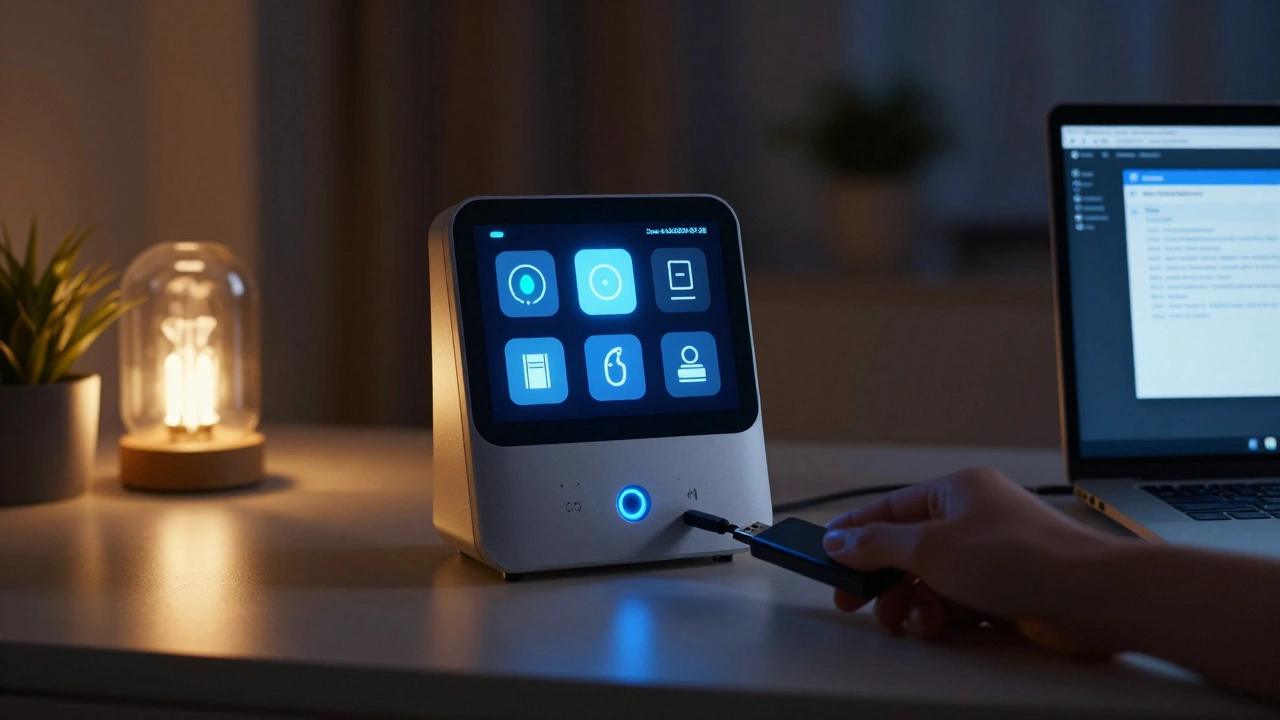
When your smart home stops working, it’s not just the lights going out - it’s the thermostat stuck at 60°F, the door locks jammed, and the security cameras offline. You didn’t plan for this, but you can plan for it. The key? Exporting rules and restoring configurations before disaster strikes.
Why Your Smart Home Needs a Backup
Most people think their smart home is "set and forget." But every update, every device swap, every app reinstallation can wipe out your custom automations. I’ve seen it happen: a user updates their Hubitat hub, loses all 47 scenes, and spends three days rebuilding them. That’s not tech trouble - that’s avoidable risk.
Smart home systems don’t auto-backup. Unlike your phone or laptop, your automation rules, device groupings, and trigger conditions live in a silo. If the hub crashes, the cloud service shuts down, or you switch platforms, those rules vanish unless you saved them.
Exporting your configuration isn’t optional. It’s insurance. And like car insurance, you don’t need it until you do.
How to Export Your Rules
Every major smart home platform handles exports differently. Here’s how to do it on the most common ones.
- Home Assistant: Go to Settings > System > Backup. Click Create Backup. This saves everything - automations, integrations, entities, even your custom Lovelace dashboards. The file is a .zip with a .backup extension. Store it on an external drive or cloud storage like Dropbox or Google Drive.
- Hubitat: Navigate to Apps > Hub Backup. Click Backup Now. The system generates a .json file. Download it and rename it with today’s date - like hubitat-backup-2026-02-28.json. Keep at least two copies: one on a USB stick, one in the cloud.
- SmartThings: Go to Settings > My Places > Backup & Restore. Tap Export. SmartThings saves your automations and device setup as a .zip. You can’t restore it yourself - you need to contact Samsung support if you lose everything. That’s a flaw. So export monthly and keep the file handy.
- Apple HomeKit: No direct export. But if you use iCloud, your Home setup syncs automatically. To be safe, go to Settings > [Your Name] > iCloud > Home and make sure it’s turned on. Also, write down your HomeKit code (the 8-digit number on each accessory) in a password manager. You’ll need it if you reset your phone or replace your iPad.
Pro tip: Set a recurring calendar event - every 30 days - to export your backup. Don’t wait for something to break.
What’s Included in a Backup
Not all backups are equal. Here’s what you’re actually saving when you export:
- Automation rules: "Turn on the porch light when motion is detected after sunset" - that’s saved.
- Device groupings: "Living Room Lights," "All Doors Locked," those custom groups you spent hours naming.
- Device names and IDs: Your thermostat isn’t just "Thermostat" - it’s "Thermostat (Z-Wave 12)". That ID matters for restores.
- Integration settings: If you connected your Nest to Home Assistant via API keys, those keys are stored in the backup.
- Custom dashboards: Your Lovelace layout, card arrangements, and themes - all preserved.
What’s NOT saved? Physical device firmware. Your Philips Hue bulbs still have their own software. You’ll need to re-pair them. But your rules - the logic that makes them work together - that’s in the backup.
Restoring Your Configuration
You’ve lost your hub. Or you upgraded. Or your cat knocked the router off the shelf. Now what?
Restoring isn’t plug-and-play. But it’s simpler than you think.
- Get a new or reset hub. Power it on and go through initial setup.
- Don’t add devices yet. Wait until the restore is done.
- Go to the backup section in your app (same place you exported).
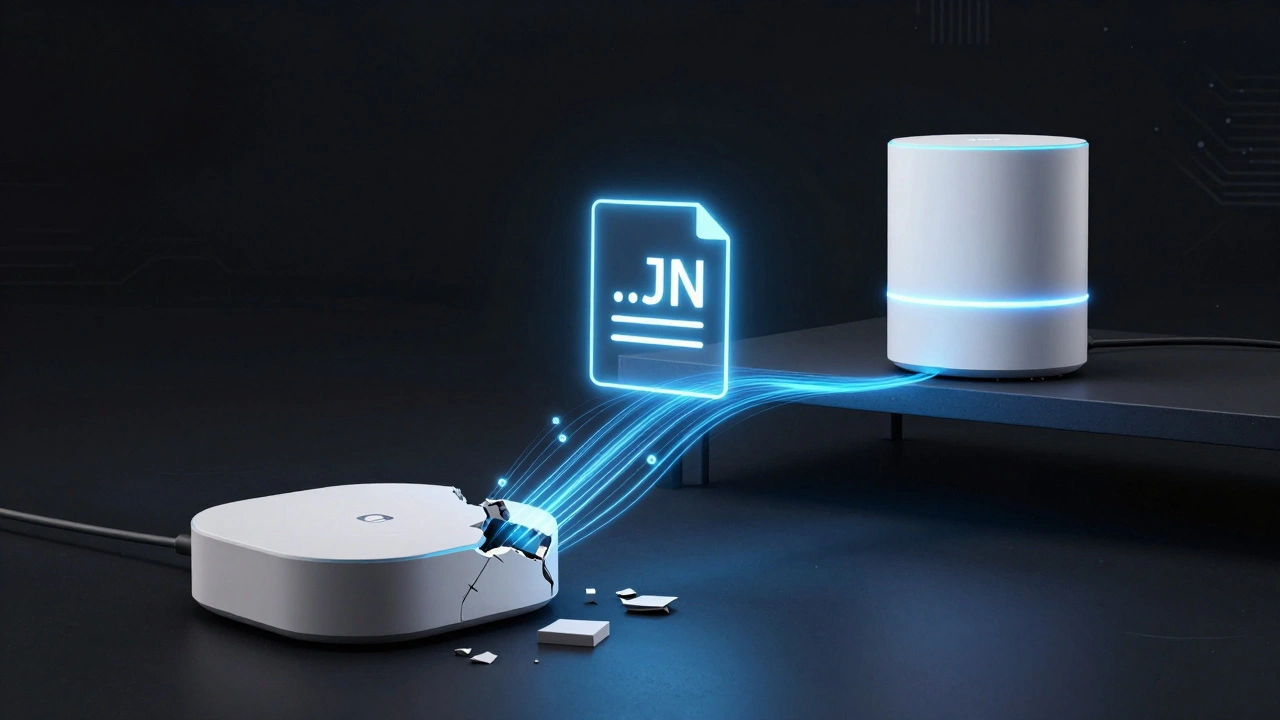
- Upload your .backup or .json file.
- Wait. This can take 5 to 20 minutes. Don’t interrupt it.
- Once done, check your automations. Do they work? If yes - you’re done.
- If not: some devices may need to be re-paired. That’s normal. Your rules will still be there - they just need to reconnect to the physical devices.
One time, after a power surge fried my Hubitat, I restored from a backup I’d made two weeks earlier. All 47 automations came back. I only had to re-pair three Z-Wave sensors. Took 15 minutes. If I hadn’t backed up? Three days of frustration.
Where to Store Your Backups
Storing backups on the same device you’re backing up is useless. If the hub dies, so does the file.
Use the 3-2-1 rule:
- 3 copies: One on the hub, one on an external drive, one in the cloud.
- 2 different media: USB drive + cloud storage.
- 1 offsite: Cloud storage counts - but if you use a local NAS, keep a copy at a friend’s house or in a safety deposit box.
For most people, this works:
- USB drive plugged into the hub (for quick access)
- Google Drive or Dropbox (automatically synced)
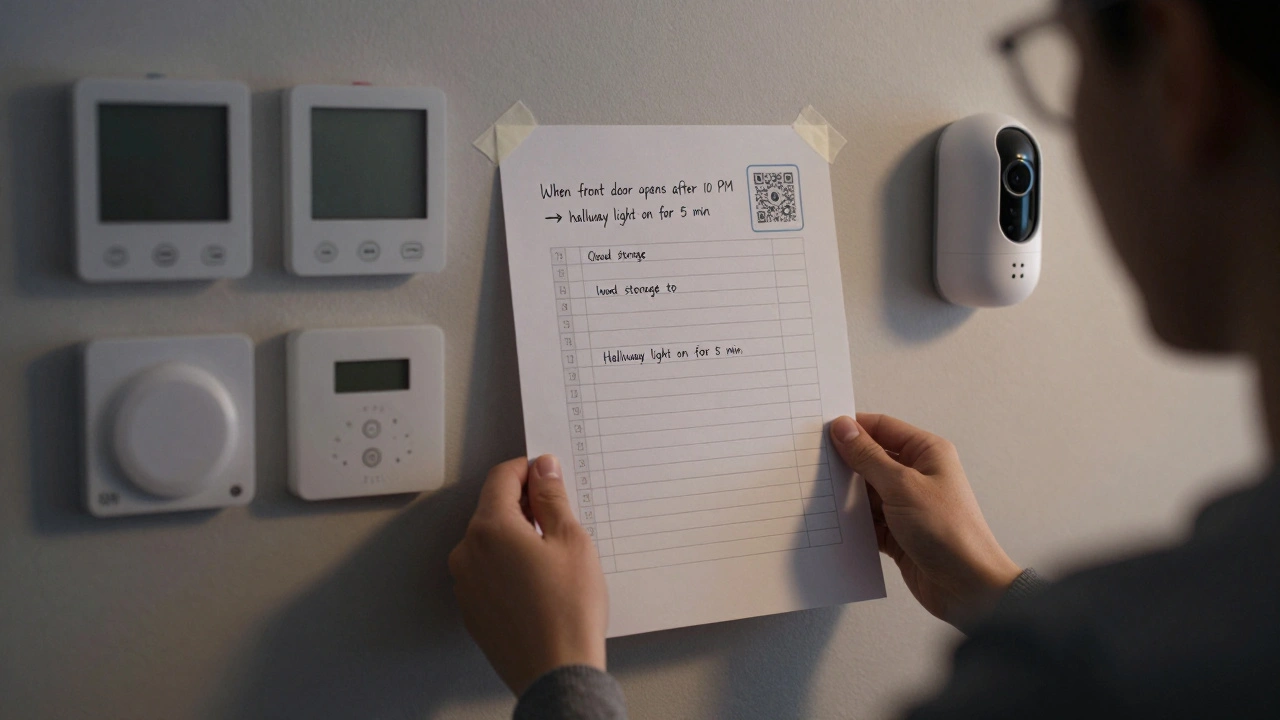
- One printed copy of your most critical automations (yes, printed - on paper, in a binder)
Why paper? Because when the power’s out and your phone’s dead, you can still read, "When the front door opens after 10 PM, turn on hallway light for 5 minutes."
Common Mistakes to Avoid
People think they’re backing up - but they’re not doing it right.
- Mistake: Only backing up once. Solution: Do it monthly. Automations change. New devices get added.
- Mistake: Saving files with vague names like "backup_final.zip". Solution: Use dates: homeassistant-backup-2026-02-28.zip.
- Mistake: Relying on cloud-only backups. Solution: If the service goes down (yes, SmartThings has had outages), you’re locked out.
- Mistake: Not testing restores. Solution: Once a year, restore your backup on a spare device or in a VM. Prove it works.
What If You Switch Platforms?
You’re tired of Home Assistant. You want to try Hubitat. Or you’re moving and your new house uses a different system.
Here’s the truth: you can’t directly transfer rules between platforms. The code is different. But you can reuse the logic.
Open your backup file. Look at your automations. Write them down in plain English:
- "When motion detected in kitchen after 8 PM, turn on lights at 30% for 10 minutes."
- "If front door unlocked after midnight, send alert to phone."
Then rebuild them in the new system. It’s tedious - but you won’t lose the logic. And next time, you’ll know exactly what to back up.
Final Thought: Backups Are Routine, Not Emergency
Your smart home isn’t magic. It’s code. And code breaks. Devices fail. Updates corrupt. Cloud services change.
Exporting rules and restoring configurations isn’t a tech skill - it’s a household habit. Like changing smoke detector batteries. Or checking the furnace filter.
Do it once a month. Store it in three places. Test it once a year. That’s all.
When the next outage hits - and it will - you won’t be scrambling. You’ll be calm. Because you already did the work.
Can I backup my smart home rules without a computer?
Yes. Most hubs let you export backups directly from their mobile apps. Home Assistant and Hubitat both have buttons in their apps to create and download backups. You don’t need a computer - just your phone and an internet connection to save the file to cloud storage.
Do I need to backup every device individually?
No. The backup file saves device settings, names, and groupings - but not the device firmware or pairing keys. You’ll need to re-pair devices after a restore, but your automations and scenes will return exactly as they were.
What if I lose my backup file?
If you followed the 3-2-1 rule, you still have copies. If not, you’ll have to rebuild your automations manually. That’s why storing backups in multiple places matters - one failure shouldn’t mean total loss.
How often should I update my backup?
At least once a month. If you add new devices, change automations, or update your hub, make a new backup right away. The more your system changes, the more frequently you should back up.
Can I restore a backup from one brand to another?
No. Each platform uses its own format. A Home Assistant backup won’t work on Hubitat. You can, however, read your old rules from the backup file and manually recreate them in the new system. That’s why writing them down in plain language helps.