Many seniors struggle with standard remote controls. The buttons are too small, too close together, and the labels are hard to read. If you’ve ever watched a grandparent fumble with a remote for five minutes just to change the channel, you know how frustrating it can be. It’s not that they’re not tech-savvy-it’s that the design doesn’t match their needs. The good news? There are remote controls and TV interfaces built just for them: big buttons, clear labels, and simple menus that actually work.
Why Standard Remotes Don’t Work for Seniors
Most remotes are designed for people with sharp vision, quick reflexes, and strong hand coordination. That’s not the reality for many older adults. Arthritis can make gripping small buttons painful. Cataracts or macular degeneration can blur text. Reaction time slows down, so pressing multiple buttons in sequence feels overwhelming. A 2023 study from the University of Oregon found that 68% of adults over 70 avoid using streaming services because the remote or app interface was too confusing.
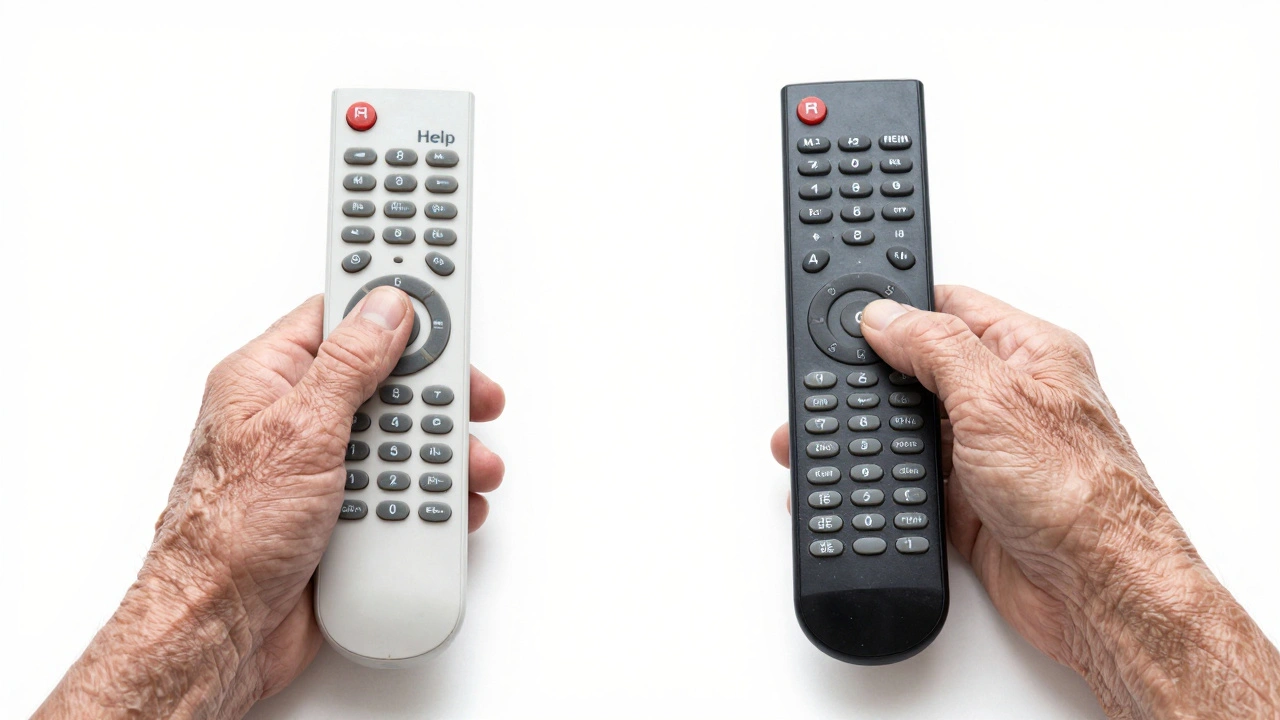
Standard remotes often have 30+ buttons. Some even have color-coded icons with no text. What does a purple diamond with a wave mean? If you don’t know, you’re stuck. There’s no help button. No way to go back. Just silence and frustration.
What Makes a Remote Seniors-Friendly
A good senior remote has three key features: big buttons, clear labeling, and minimal options. Look for remotes with buttons that are at least 1 inch wide. The best ones have raised edges so fingers can find them without looking. Text should be bold, high-contrast (black on yellow or white), and use simple words like “TV,” “Volume,” “Channel,” and “Power.” No jargon. No “Input,” “Guide,” or “Settings.”
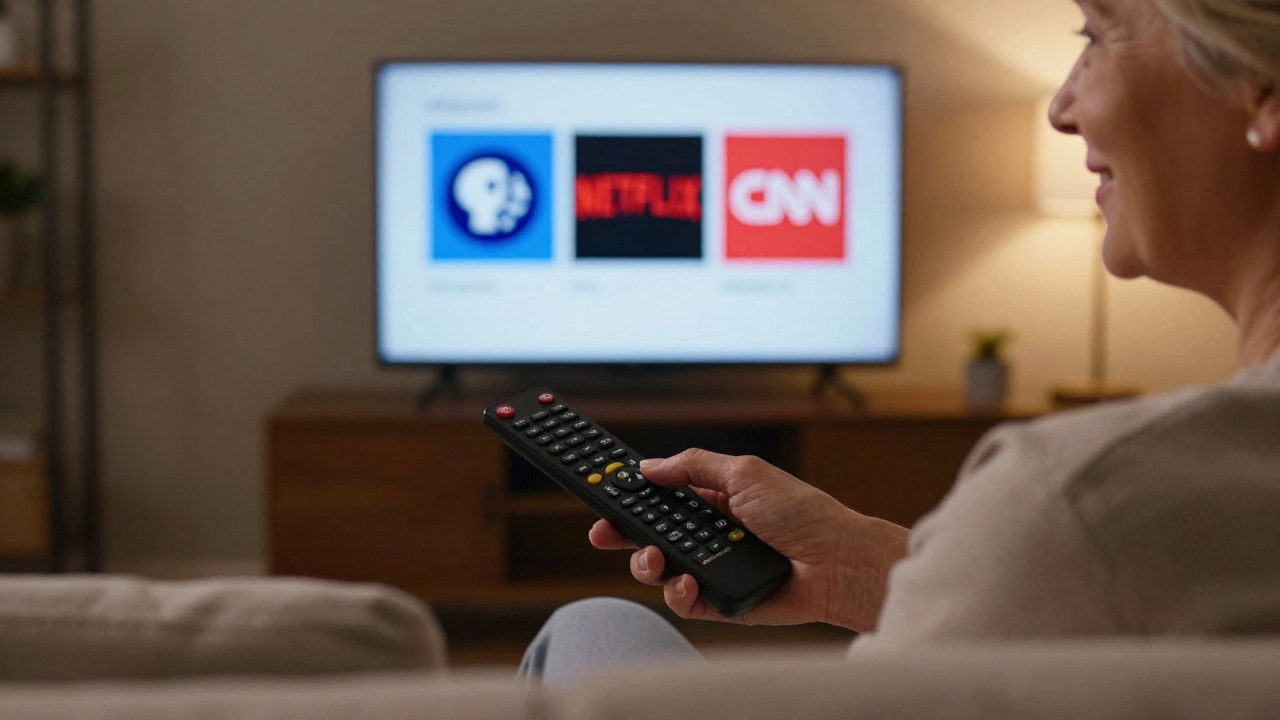
Some models include a single “Help” button that plays a voice prompt: “To change the channel, press the up or down arrow.” Others have a one-touch button that takes you straight to the live TV screen, skipping the home menu entirely. That’s huge. Why make someone navigate three menus just to watch PBS?
Top Features to Look For
- Large, high-contrast buttons - At least 1 inch wide, with bold text or symbols.
- Backlit keys - So they’re visible in dim rooms or at night.
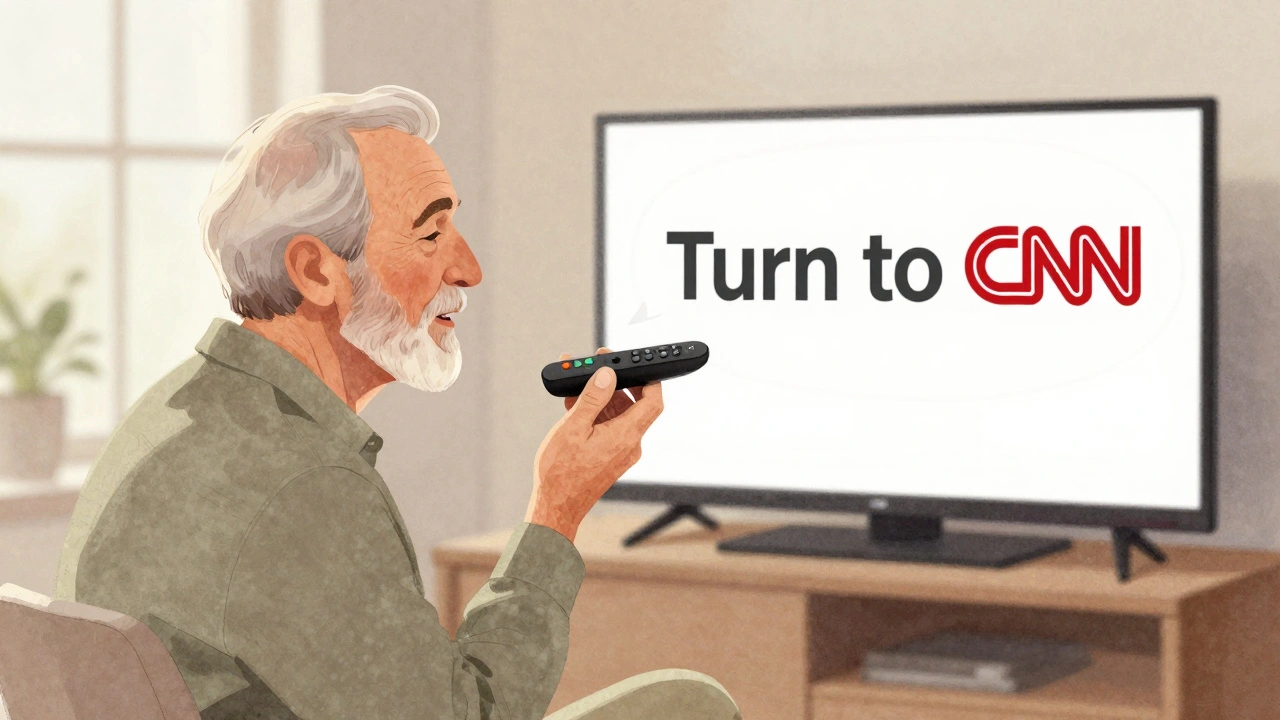
- Voice control - “Turn up the volume” or “Go to CNN” works better than hunting for buttons.
- Simple channel list - Only shows channels they actually watch, not 500 options.
- Long battery life - Fewer trips to replace batteries means less hassle.
- One-touch access - A button that goes straight to favorite apps like YouTube, Netflix, or local news.
Brands like Logitech Harmony a programmable universal remote with customizable button layouts, Big Button Remote a dedicated senior-friendly remote with 12 large, labeled buttons, and ClearClick a simple TV remote with voice assistance and pre-set channels are built from the ground up for older users. They don’t try to be smart. They just work.
Simplified TV Interfaces Matter Too
Even the best remote won’t help if the TV screen is cluttered. Many smart TVs have home screens that look like a tech conference booth-apps everywhere, ads, recommendations, live feeds. Seniors don’t need all that. They just want to watch their shows.
Look for TVs with a “Senior Mode” or “Simplified Interface.” These modes hide everything except the channel guide, volume, and a few favorite apps. Some TVs, like the Samsung Smart TV offers a "Simple Mode" that reduces on-screen clutter and enlarges text, let you choose which apps appear. You can remove YouTube, TikTok, and games, and leave only PBS, Netflix, and local news.
Another win? Voice navigation. Saying “Show me PBS” or “Turn on the TV” works better than scrolling through icons. It’s faster, easier, and doesn’t require perfect eyesight.
Real-Life Examples That Work
In Portland, a senior center started a “Tech Help Hour” last year. They gave 40 seniors free large-button remotes and walked them through setting up their TVs. Within two weeks, 89% of them were watching TV without help. One woman, 84, told the staff: “I didn’t know I could just say ‘turn it up’ and it would happen. I feel like I’m not lost anymore.”
Another example: a man in his 70s used to call his son every night to change the channel. After switching to a ClearClick a simple TV remote with voice assistance and pre-set channels remote, he started watching his favorite soap opera alone again. He didn’t need help. He just needed the right tools.
How to Set It Up
Buying the right remote is only half the battle. You need to set it up right.
- Remove the old remote. Put it in a drawer so it doesn’t confuse the user.
- Use the new remote’s setup guide. Most come with step-by-step pictures.
- Program only the channels they watch. Don’t add 20 streaming apps. Three is enough.
- Set the TV to Simplified Mode. This hides menus and makes text bigger.
- Record a voice message on the remote if it has that feature. “Press this button to watch CNN.”
- Test it together. Let them press each button. Watch how they react. Adjust if needed.
It takes 15 minutes. But it gives back independence.
Common Mistakes to Avoid
- Buying a remote that looks simple but still has too many buttons. Check the count-12 or fewer is ideal.
- Choosing a remote with tiny, glowing buttons. They look cool, but in low light, they’re hard to find.
- Assuming seniors will “figure it out.” They won’t. If it’s not intuitive, they’ll give up.
- Not turning off automatic updates. Sometimes a TV update changes the interface, and suddenly the buttons don’t work the same way.
What to Do If the Remote Breaks
Most senior remotes last 2-3 years. When the batteries stop holding a charge, or the buttons get sticky, it’s time to replace. Don’t try to fix it. Buy a new one. The same model is usually still available. Or upgrade to a newer version-many now include Bluetooth pairing, so the remote works even if the TV is across the room.
Some organizations offer free or discounted remotes. Check with local Area Agencies on Aging, senior centers, or even libraries. In Oregon, the Oregon Senior Tech Initiative a nonprofit that provides free simplified remotes to residents over 65 gives out remotes at no cost. Just ask.
It’s Not About Technology. It’s About Connection
For many seniors, the TV isn’t just entertainment. It’s how they stay connected-to family, to news, to the world. When they can’t change the channel, they feel left out. When they can’t find their favorite show, they stop watching. And that’s when loneliness creeps in.
A simple remote doesn’t fix everything. But it removes one small barrier. And sometimes, that’s enough to bring someone back into the room, back into the conversation, back into the flow of life.
Do I need a smart TV to use a large-button remote?
No. Large-button remotes work with any TV, whether it’s old or new. Many are universal remotes that can be programmed to control your cable box, soundbar, or DVD player too. You don’t need Wi-Fi or apps to use them.
Can I use voice commands with a large-button remote?
Some models do. Look for remotes labeled "voice-enabled" or "voice control." They usually have a dedicated button you press, then speak your command. It’s not like Siri or Alexa, but it’s reliable for simple tasks like changing channels or adjusting volume.
Are large-button remotes expensive?
They range from $20 to $80. Basic models with 12 buttons cost around $25. More advanced ones with voice or app control go up to $70. Compare that to the cost of hiring someone to help daily-this one-time purchase pays for itself.
What if my parent refuses to use a new remote?
Start small. Replace just one part of the system-maybe the cable box remote first. Let them get used to the size and feel. Don’t mention it’s "for seniors." Just say it’s easier. People respond better when they don’t feel labeled.
Can I program favorite channels on a senior remote?
Yes. Most allow you to assign favorite channels to specific buttons. For example, button 1 = PBS, button 2 = CNN, button 3 = local news. You can set this up using the remote’s manual or a smartphone app if it has one.