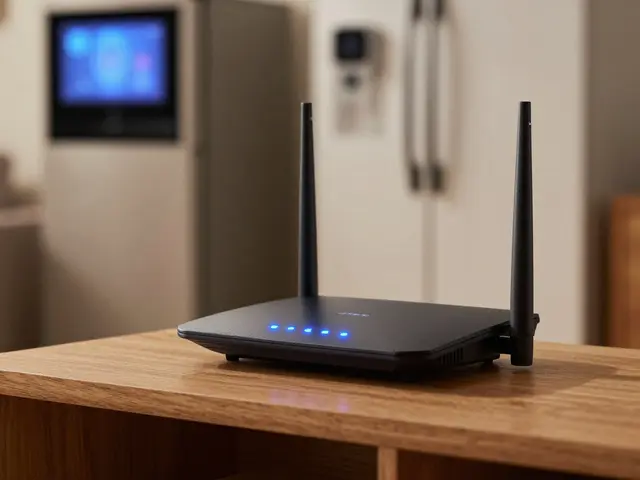
Your smart fridge just stopped talking to your phone. Or maybe your printer is throwing errors out of nowhere. Before you blame the hardware or call a technician, there is a high chance the culprit is outdated software living inside the device's chip. We often think of updates as something that only happens on our laptops or phones, but firmware is the silent backbone of every electronic gadget we own.
Firmware is not like an app you can uninstall if it misbehaves. It is deeply embedded in the hardware. When you update it, you are essentially rewriting the brain of the device. Get it wrong, and you might brick a $200 router or a $1,500 medical monitor. But get it right, and you unlock better performance, fix annoying bugs, and plug security holes that hackers love to exploit.
What Exactly Is Firmware?
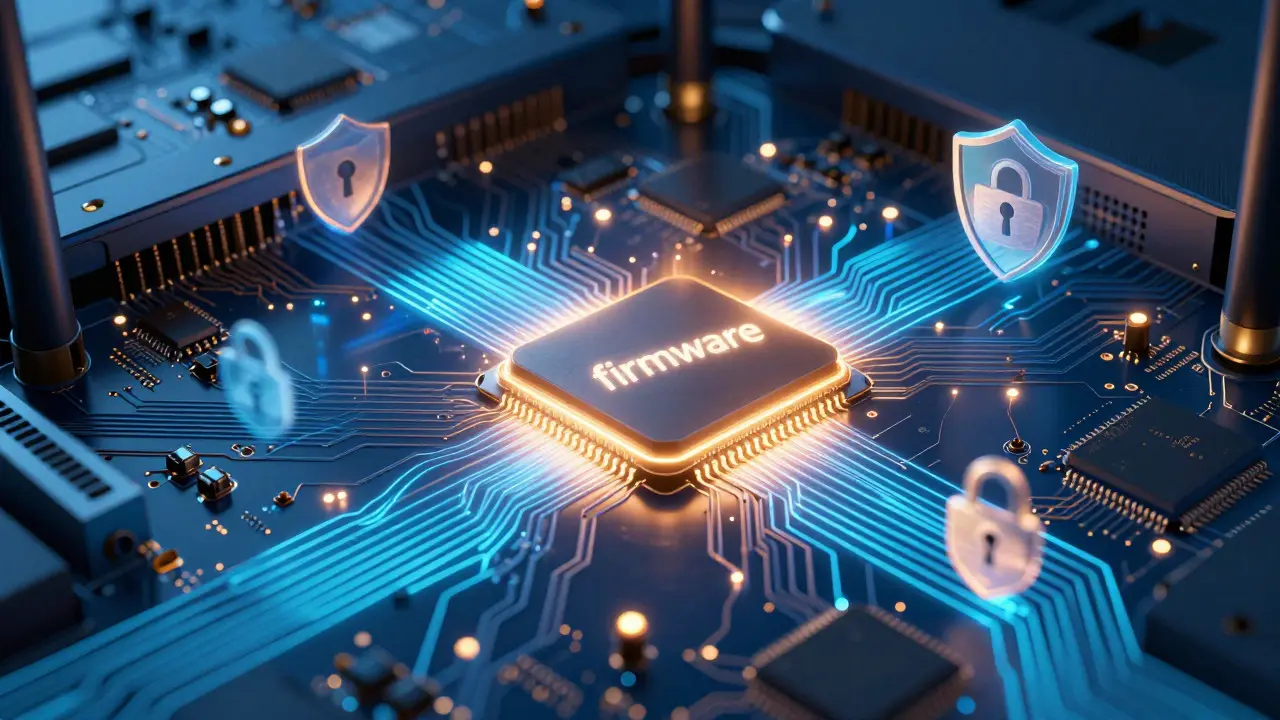
To understand why updates matter, you first need to know what you are actually changing. Firmware is a specialized type of computer program that provides low-level control for a device's specific hardware. Unlike operating systems such as Windows or macOS, which run on top of general-purpose processors, firmware lives in read-only memory (ROM) or flash memory directly attached to the circuit board.
Think of it this way: if your computer is a body, the operating system is your conscious mind, and firmware is your reflexes. It handles the basic stuff-turning on the power, initializing the hard drive, managing heat, and communicating with other components-before you even see a login screen. Because it sits so close to the metal, any change here has a massive impact on how stable and secure the device is.
Why You Should Not Ignore Update Notifications
We all have that "Snooze" button habit. We see a notification saying "Firmware Update Available" and we ignore it because we are busy. This is risky. Here is why manufacturers push these updates:
- Security Patches: This is the big one. Unpatched firmware is a favorite target for botnets. Remember Mirai? That massive cyberattack was powered by cheap IP cameras and routers running old, vulnerable code. If your home network is open, an outdated device is an open door.
- Bug Fixes: That random reboot your laptop does at 3 AM? That is likely a bug in the BIOS or UEFI firmware. Updates often contain fixes for these stability issues.
- New Features: Sometimes, manufacturers add new capabilities. For example, a newer Wi-Fi standard or support for a different type of storage drive might require a firmware tweak to work properly.
- Compatibility: As new operating systems come out, older devices sometimes need firmware tweaks to remain compatible. Without them, you might find your USB stick isn't recognized or your graphics card driver fails to load.
The Risks: What Can Go Wrong?
Let’s be honest. Updating firmware carries more risk than updating a web browser. If a browser update fails, you just reinstall the app. If a firmware update fails, the device might stop working entirely. Technicians call this "bricking" the device.
The most common causes of failure are simple human errors:
- Power Loss: If the device loses power during the write process, the data gets corrupted. This is why you should never unplug a router or printer while it is updating.
- Internet Dropouts: If the update downloads over Wi-Fi and the connection drops halfway through, you end up with a partial file. A corrupted file leads to a failed installation.
- Wrong File Version: Downloading the firmware for Model A and trying to install it on Model B can cause conflicts. Always check the exact model number printed on the sticker under your device.
- Overheating: Rarely, but possible. Writing to flash memory generates heat. In poorly ventilated enclosed spaces, this can sometimes interrupt the process.
How to Update Firmware Safely: A Step-by-Step Guide
You don’t need to be a coder to do this safely. You just need to be careful. Follow this checklist before you click "Update":
1. Check Your Power Source
If the device runs on batteries, make sure they are fully charged. If it plugs into the wall, ensure the outlet is stable. If you live in an area with frequent power surges, consider using a surge protector. For laptops, keep them plugged into AC power during the entire process.
2. Use a Wired Connection
Unless the update is pushed directly from the cloud via a stable server, try to download the firmware file to a local drive first. Then, upload it from your computer to the device. This eliminates the risk of a mid-download internet outage corrupting the file.
3. Read the Release Notes
Manufacturers usually provide a text file called "Release Notes." Skim through it. Does it say "Critical Security Fix"? That’s a priority. Does it say "Experimental Beta"? Maybe wait. Knowing what changes are coming helps you prepare.
4. Create a Backup
This is the step most people skip. If you are updating a NAS (Network Attached Storage) or a server, back up your data. If you are updating a smartphone, use the built-in cloud backup. While firmware rarely deletes user files, a total system crash could require a factory reset, wiping everything clean.
5. Stick Around
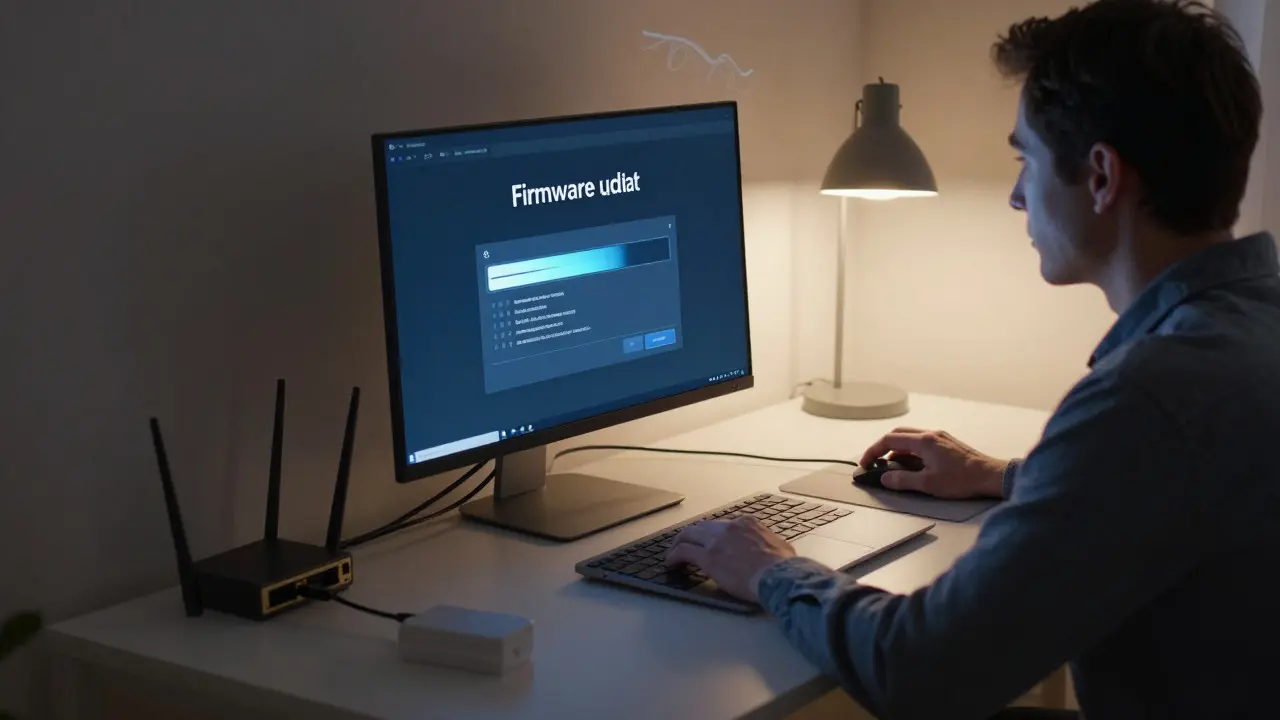
Don’t walk away. Watch the progress bar. If the device restarts, let it. Don’t press the power button if it seems stuck for a few minutes. The initial boot after a firmware update is often slower than usual because the system is indexing new files.
Common Devices and Their Specific Needs
Not all firmware updates are created equal. Different types of devices have different risks and methods.
| Device Type | Typical Update Method | Risk Level | Key Safety Tip |
|---|---|---|---|
| Laptop/Desktop PC | BIOS/UEFI Utility or OS Push | Low-Medium | Keep battery above 50% or plugged in |
| Smartphone/Tablet | Over-the-Air (OTA) | Low | Ensure sufficient storage space (usually 2x file size) |
| Router/Mesh System | Web Interface Upload | Medium | Use Ethernet cable; do not rely on Wi-Fi during update |
| NAS/Server | Management Software | High | Full data backup required; schedule during off-hours |
| IoT Smart Home Devices | App-Based OTA | Medium-High | Check battery levels; some devices cannot recover easily |
When to Skip an Update
Is it ever okay to ignore an update? Yes. Context matters. If you have a critical business workflow running on a specific version of software, and the manufacturer releases a firmware update that changes how that software interacts with the hardware, you might want to hold off. Wait until the vendor confirms compatibility.
Also, if you are using a device in a remote location where technical support is hard to reach, proceed with caution. If the update fails, you might need to ship the device back for repair. In those cases, waiting for community feedback or a second release candidate is a smart move.
Troubleshooting Failed Updates
So, you bricked your device. Panic is natural, but stay calm. Most devices have a recovery mode.
- For Routers: Look for a small "Reset" pinhole. Hold it down for 10-15 seconds while powering on. This usually restores factory defaults and allows you to re-upload the firmware file.
- For Laptops: Many modern PCs have a "UEFI Recovery" mode. Restarting three times in a row often triggers the automatic repair environment, allowing you to load a previous firmware version from a USB drive.
- For Smartphones: If the phone is stuck on the logo, it might be in "Fastboot" or "Recovery Mode." Connecting it to a computer and using manufacturer-specific tools (like iTunes for iPhones or Odin for Samsungs) can often flash a fresh firmware image.
If none of these work, the device might need professional reflashing. This involves connecting a programmer directly to the chip on the motherboard. It’s a job for a tech shop, not a DIY project, unless you have experience with soldering and hex editors.
Best Practices for Long-Term Maintenance
Don’t treat firmware updates as a one-time event. Make it part of your routine. Set a reminder in your calendar once a quarter to check for updates on your major devices. Keep a spreadsheet or note of your device models and current firmware versions. This makes troubleshooting much easier later on.
Finally, join online forums for your specific hardware. Users often report issues with new firmware releases before official patches come out. Being informed helps you decide whether to update immediately or wait a week.