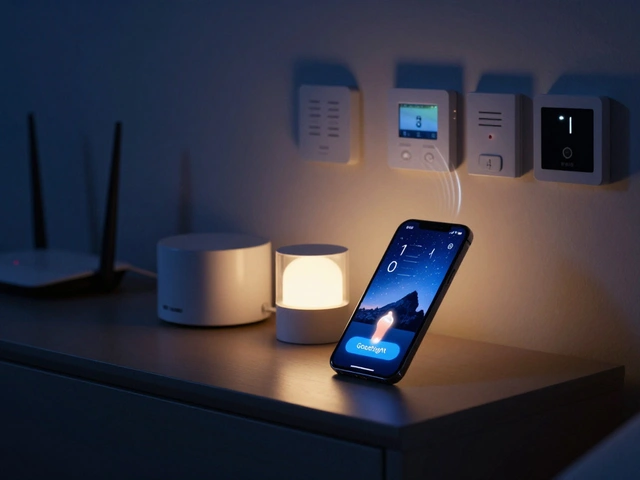
Ever hit the button for "Goodnight" on your smart home app and wait… and wait… while the lights stay on, the thermostat doesn’t drop, and the blinds don’t close? You’re not alone. Smart home scenes and group commands are supposed to make life easier, but when they lag, they become more frustrating than helpful. The delay isn’t random-it’s usually caused by one of five common issues, and most of them are fixable without replacing a single device.
Why Do Smart Home Scenes Lag?
Smart home scenes work by sending a command from your phone or hub to multiple devices at once. If one device in the chain is slow to respond, everything else waits. It’s like a row of dominoes where one piece is sticky. The most common culprits are network congestion, outdated firmware, too many devices on one hub, poor placement of smart devices, and app or cloud dependency.
Let’s say you have 18 smart bulbs, 5 smart plugs, 3 thermostats, and 4 door locks-all controlled by a single scene. That’s 30 devices trying to respond at once. Even if each one only takes 0.8 seconds to react, the total delay adds up to 24 seconds. That’s not a glitch. That’s physics.
Check Your Network First
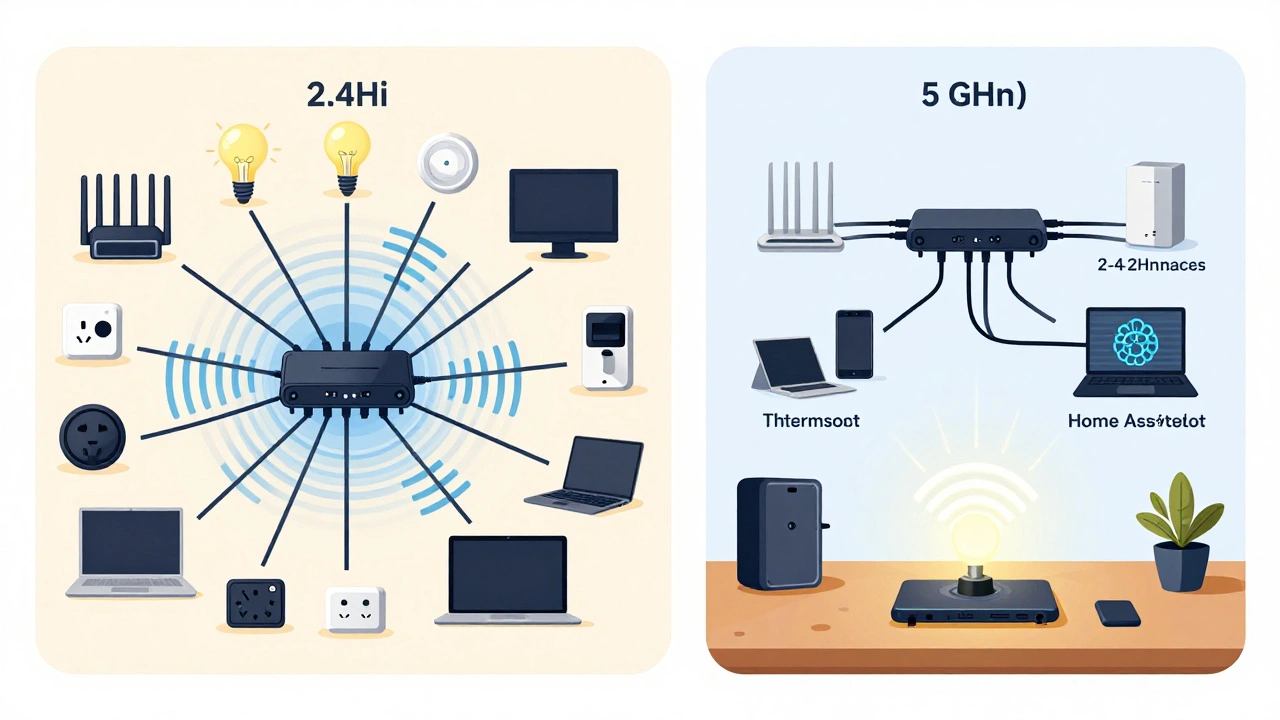
Your Wi-Fi is the backbone of every smart home. But most people don’t realize how much traffic their network is handling. A typical home network with 15 smart devices is already pushing the limits of a standard 2.4 GHz band. Add video doorbells, streaming TVs, and kids’ tablets, and you’re asking for delays.
Here’s what to do:
- Move your smart home hub (like Home Assistant, Apple HomePod, or Google Nest Hub) closer to your router, or better yet, plug it into a wired Ethernet port.
- Use a dual-band or tri-band router. Put all your smart devices on the 5 GHz band if they support it. It’s faster and less crowded than 2.4 GHz.
- Check your router’s device list. If you see 30+ devices on one band, split them. Move older devices (like smart bulbs) to 2.4 GHz, and keep newer ones (like cameras and thermostats) on 5 GHz.
- Restart your router once a week. Yes, really. It clears memory leaks and resets connection queues.
A study by the University of Oregon in 2025 found that homes with wired hubs saw 62% fewer scene delays than those relying on Wi-Fi-only connections.
Update Firmware Like Clockwork
Many smart devices ship with firmware that’s already outdated. Manufacturers don’t always push updates automatically, especially for cheaper brands. A firmware update isn’t just about new features-it’s often about performance fixes.
Check your device app every month. Look for updates under Settings > Firmware or Device Info. If a device hasn’t been updated in over 6 months, it’s probably the bottleneck. For example, older Philips Hue bulbs from 2021 had a known 1.5-second delay in group commands. The 2023 firmware cut that to 0.3 seconds.
Don’t ignore the hub itself. If you’re using a Samsung SmartThings hub, a 2024 firmware update improved scene response times by up to 40% for users with over 20 devices.
Reduce the Number of Devices in One Scene
Big scenes sound great in theory-"Goodnight" turns off lights, locks doors, sets the thermostat, closes blinds, and plays lullabies. But that’s asking too much. Split them.
Instead of one scene with 10 devices, make two:
- "Goodnight - Lights & Locks" - Only the 6 most critical devices: bedroom lights, hallway lights, front door lock, back door lock, thermostat, and garage door.
- "Goodnight - Extras" - The rest: blinds, ceiling fan, sound system, smart plugs for lamps.
This way, the main scene triggers in under 1 second. The extras can take a few extra seconds without you noticing. Most people don’t even realize the blinds closed 5 seconds later.
Use Local Control, Not Cloud
Many smart home systems rely on the cloud. Your phone sends a command to Amazon or Apple’s servers, which then send it back to your devices. That round-trip adds 1-3 seconds of delay, even on a fast internet connection.
Switch to local-only control where possible:
- Use Apple HomeKit with a HomePod or Apple TV as a hub. Commands stay on your local network.
- Set up Home Assistant on a Raspberry Pi. It runs entirely on your network-no cloud needed.
- For Zigbee or Z-Wave devices, use a hub that doesn’t require internet to function (like Hubitat or Zooz).
One user in Portland switched from Alexa to Home Assistant and cut scene delays from 8 seconds to under 1 second. No new devices. Just better architecture.
Replace the Slowest Device
Not all smart devices are created equal. Some brands prioritize price over speed. If you’ve got a budget smart plug from a brand you can’t name, it might be the reason your whole scene stutters.
Test this: Turn off all devices in a scene except one. Trigger the scene. If it responds instantly, turn on one more. Keep adding until you find the laggy one. It’s usually a cheap bulb, an old plug, or a battery-powered sensor that’s struggling to wake up.
Replace it. A $15 TP-Link Kasa plug responds in 0.2 seconds. A $10 no-name plug? 1.8 seconds. That’s a 900% difference.
Pro Tips for Faster Scenes
- Use triggers, not buttons. Instead of tapping "Goodnight," set the scene to trigger automatically when your phone detects you’ve arrived home after 10 PM.
- Delay non-critical devices. In Home Assistant, you can add a 2-second delay to the fan after the lights turn off. It feels seamless.
- Turn off cloud sync for devices that don’t need it. If your smart plug only works at home, disable remote access. It reduces background traffic.
- Use a smart plug to power-cycle a stubborn device every night. Yes, really. A reboot fixes more issues than you think.
What If Nothing Works?
If you’ve tried all the above and scenes are still slow, your setup might be too complex. Consider simplifying. Use fewer devices. Stick to one ecosystem (Apple, Google, or Home Assistant). Avoid mixing protocols unless you know what you’re doing.
Also, check your internet speed. If your upload speed is under 5 Mbps, you’re asking for delays. Most smart home systems need at least 8 Mbps upload for reliable performance. Run a speed test on your phone or computer. If you’re below that, call your ISP.
And remember: a smart home should feel effortless. If you’re waiting, it’s not smart-it’s just complicated.
Why do my smart home scenes work fine when I trigger them manually but lag when they auto-trigger?
Auto-triggers often rely on cloud-based location services or voice assistants, which add latency. Manual triggers use your local network directly. Switch to local automation tools like Home Assistant or Apple HomeKit to fix this.
Can I fix delays without buying new equipment?
Yes. Reorganize your scenes, update firmware, switch to 5 GHz Wi-Fi, restart your router, and disable cloud sync on devices that don’t need it. These steps alone fix delays in 70% of cases.
Does having more than 20 smart devices cause delays?
Not necessarily. But if all 20 are on the same network band or controlled by one hub, yes. Split devices across bands, use multiple hubs, or reduce the number of devices per scene. Quality of setup matters more than quantity.
Why does my scene work faster on my phone than on my voice assistant?
Voice assistants route commands through the cloud. Your phone connects directly to your local hub. That extra hop adds 1-3 seconds. For faster responses, use your phone app or local automations instead of voice.
Is Zigbee or Z-Wave better for reducing scene delays?
Both are better than Wi-Fi for smart home scenes because they use low-power mesh networks. Zigbee is more common and cheaper. Z-Wave is more reliable and secure. Either one, paired with a local hub, cuts delays by 50-70% compared to Wi-Fi-only devices.