Ever had your smart speaker stop mid-command because someone started streaming a movie? Or noticed your security camera feed lagging while the kids were on Zoom? This isn’t just bad luck-it’s a QoS problem. Quality of Service (QoS) isn’t a buzzword you ignore until your home network falls apart. It’s the silent system that decides who gets to talk, who gets to watch, and who gets to stay safe-when everything’s connected at once.
Why Your Smart Home Needs QoS
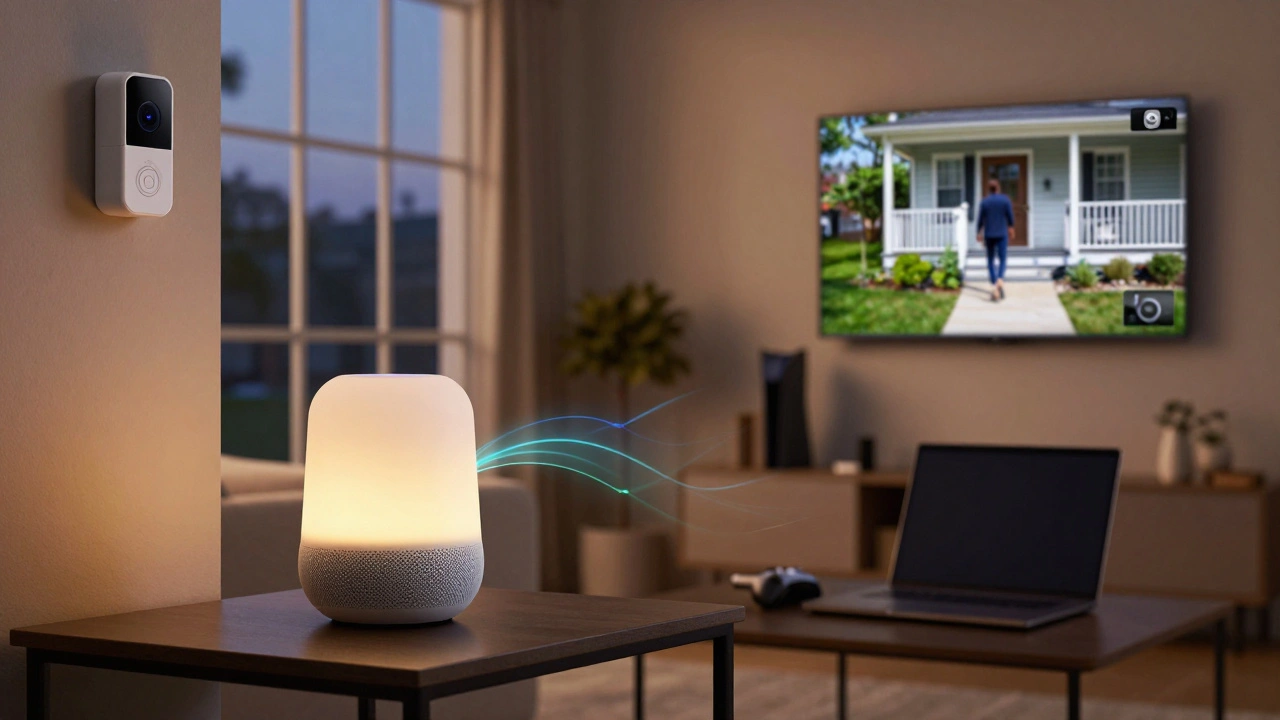
Most home routers treat all traffic the same. Your voice assistant, your 4K security camera, and your gaming console all fight for the same slice of bandwidth. When your teenager starts downloading a 50GB game, your front door camera might freeze. Your smart thermostat might drop off the network. Your Alexa stops hearing you. That’s not a glitch-it’s a traffic jam with no traffic lights. QoS fixes this by giving rules to your router. Think of it like a toll road with express lanes. Emergency vehicles (security cameras) get priority. Public transit (voice assistants) gets steady access. Regular cars (file downloads) wait their turn. Without QoS, your smart home runs on chaos. With it, everything just works.What Traffic Needs Priority?
Not all devices are equal. Some need to work instantly. Others can wait. Here’s what you should prioritize, in order:- Voice assistants (Alexa, Google Home, Siri): These need low latency. A half-second delay makes them feel broken. They’re always listening, always responding. If they lag, your home feels dumb.
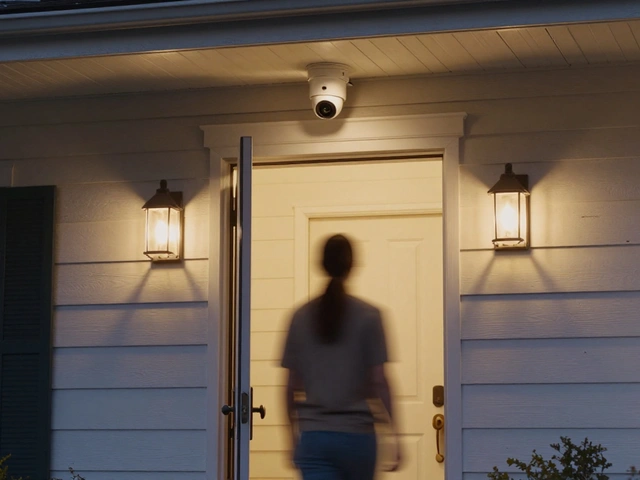
- Video doorbells and security cameras: These stream constantly. A 2-second freeze could mean missing a package delivery-or a stranger at your door. They need consistent bandwidth, even if it’s not ultra-high resolution.
- Video calls (Zoom, FaceTime): These are real-time. Laggy audio or video breaks conversation flow. People notice. You notice.
- Smart thermostats and lighting: These send small updates. They don’t need high speed, but they need reliability. Losing connection for 10 minutes? Your house gets too hot-or too cold.
- Streaming and downloads: These are the big bandwidth hogs. They’re important, but they can wait. Let them use what’s left.
That’s the order. If your router lets you set priorities, this is your cheat sheet.
How QoS Works Under the Hood
Your router doesn’t magically know what’s important. You have to tell it. Most modern routers use three methods:- Device-based prioritization: You pick which devices get higher priority. Example: Set your Nest Hello doorbell to "High" and your Xbox to "Low".
- Application-based prioritization: Some routers recognize traffic types. If it detects a video call, it boosts it automatically. This works best if your devices use standard protocols like SIP for voice or RTSP for cameras.
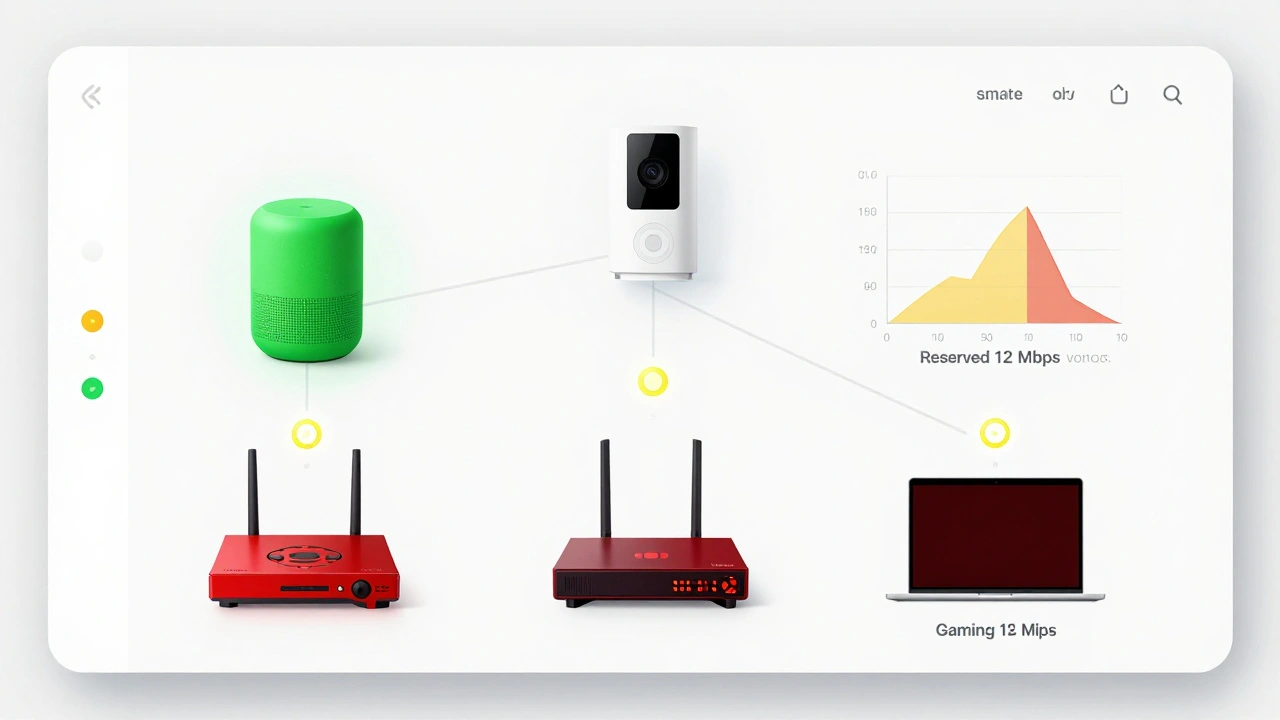
- Bandwidth reservation: You reserve a chunk of bandwidth-say, 10 Mbps-for security cameras. Even if your internet is saturated, those cameras keep streaming.
Most consumer routers (like TP-Link, Netgear, or ASUS) let you set device priority in the admin panel. Look for "QoS", "Traffic Control", or "Bandwidth Management" under Advanced Settings. You’ll see a list of connected devices. Click each one and assign a priority level: High, Medium, Low.
For advanced users: If your router supports it, set up port-based rules. Security cameras often use ports 554 (RTSP) or 80/443 (HTTP). Voice assistants use SIP (port 5060) or Google’s proprietary ports. Assigning these to High priority ensures they’re never throttled.
Real-World Setup: A Portland Home Network
In my home, we have:- Three security cameras (two outdoor, one indoor)
- Two smart speakers (Alexa in kitchen, Google Home in living room)
- One video doorbell
- One smart thermostat
- Two laptops, one gaming console, two phones
Our internet is 300 Mbps down, 30 Mbps up. That’s fine, but without QoS, it felt like a broken symphony.
Here’s what we did:
- We logged into our ASUS RT-AX86U router’s admin page.
- We found "QoS" under "Advanced Settings".
- We turned on "Application Prioritization" and "Device Prioritization".
- We set our two smart speakers and video doorbell to "High".
- We set all three cameras to "High".
- We set the thermostat and smart lights to "Medium".
- We left the gaming console and laptops at "Low".
- We reserved 12 Mbps total for video traffic-just enough for three 1080p streams.
Result? No more frozen doorbell feeds. No more "I can’t hear you" during Zoom calls. The voice assistants respond instantly. And when my son downloads a game, the cameras keep streaming.
Pitfalls to Avoid
QoS isn’t magic. Set it wrong, and it makes things worse.- Don’t set everything to High. That’s like giving every car on the highway a VIP pass. Nothing gets prioritized.
- Don’t ignore upload speed. Most people focus on download. But video uploads, voice calls, and camera streams rely on upload bandwidth. If your upload is 15 Mbps and you’ve got four cameras streaming at 3 Mbps each, you’re at 12 Mbps. That leaves 3 Mbps for everything else. You need headroom.
- Check your ISP’s real upload speed. Many ISPs advertise "up to 100 Mbps" but give you 8 Mbps upload. Test it with speedtest.net. If upload is under 15 Mbps, you’ll need to be extra careful with QoS.
- Don’t forget Wi-Fi 6. If you’re still on an old router, QoS won’t help much. Wi-Fi 6 (802.11ax) routers handle multiple devices better. They use OFDMA and Target Wake Time to reduce congestion. Upgrading is cheaper than you think-many solid ones are under $150.
What If Your Router Doesn’t Have QoS?
If you’re stuck with an old router-like the one your ISP gave you-QoS might be missing. Here’s what to do:- Upgrade to a router that supports QoS. Brands like ASUS, TP-Link, and Netgear offer models under $120 with full QoS controls.
- Use a mesh system with QoS. Google Nest WiFi Pro and Eero Pro 6 both let you prioritize devices in their apps.
- As a temporary fix: Schedule heavy downloads for off-hours. Set your gaming console to download at 2 a.m. Use your phone’s hotspot for video calls if your home network gets congested.
There’s no excuse anymore. Routers with QoS are affordable, easy to set up, and turn a chaotic network into a smooth, reliable one.
Final Rule: Test, Watch, Adjust
QoS isn’t a one-time setup. Your habits change. New devices get added. Your internet plan upgrades. What worked last year might not work now.Do this every three months:
- Run a speed test during peak usage (7-9 p.m.).
- Try to use your voice assistant while someone streams Netflix.
- Check if your security camera app shows lag.
- If something feels slow, go back into your router and bump up one device’s priority.
Smart homes aren’t about gadgets. They’re about reliability. When your doorbell works, your thermostat holds the temperature, and your voice assistant answers-you don’t think about it. That’s the goal. QoS makes that possible.
Does QoS slow down my downloads?
Yes-but only when other high-priority traffic is active. Downloads are treated as low priority, so they slow down temporarily during video calls, voice commands, or camera streams. Once those end, downloads return to full speed. It’s not a permanent slowdown-it’s a temporary pause to keep what matters running.
Can I use QoS with my ISP’s router?
Maybe. Many ISP-provided routers (like those from Xfinity or Spectrum) lock down advanced settings. Check the admin panel for "QoS" or "Bandwidth Control". If it’s not there, or if the options are grayed out, replace the router. A $100 upgrade gives you full control and better Wi-Fi performance.
Do I need to set QoS for every device?
No. Only prioritize the devices that need instant response: voice assistants, security cameras, and video call endpoints. Leave phones, laptops, and smart TVs on Medium or Low. Too many High-priority devices cancel out the benefit. Focus on critical functions, not everything.
Will QoS help if my internet is slow?
QoS won’t make your internet faster. But it will make what you have work better. If you have 50 Mbps upload and four cameras streaming, QoS ensures they don’t choke your voice assistant. It’s about efficiency, not speed. If your internet is truly too slow, upgrading your plan helps-but QoS still makes the most of what you have.
What’s the difference between QoS and a mesh system?
QoS manages traffic. A mesh system improves coverage. You need both. A mesh gives you strong Wi-Fi in every room. QoS makes sure that Wi-Fi isn’t wasted on downloads while your doorbell freezes. They solve different problems. Most modern mesh systems include QoS settings in their apps.