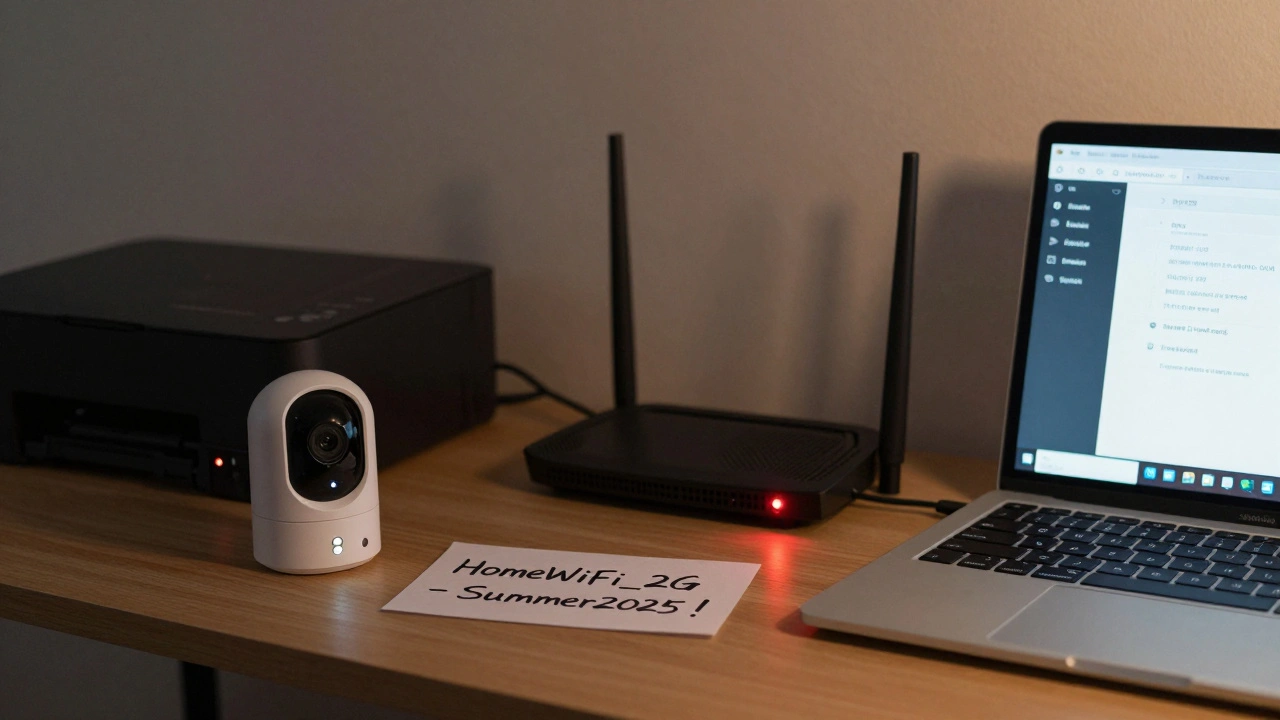
Ever changed your Wi-Fi name or password, only to realize your smart thermostat, printer, or security camera stopped working? You’re not alone. Thousands of people face this every week - especially after upgrading routers, resetting networks, or moving homes. The device doesn’t vanish. It’s just sitting there, confused, still trying to connect to the old network. And if you didn’t write down the old settings? You’re stuck.
Why Devices Get Lost After a Network Change
Your smart devices don’t have eyes. They don’t know you changed the Wi-Fi name from "HomeWiFi_2G" to "DorisHome_5G". They don’t magically guess the new password. They only remember what you told them once: the old SSID and password. When those don’t match anymore, they disconnect. And most won’t try again unless you reset them manually.
This happens most often with:
- Smart home gadgets (thermostats, lights, cameras)
- Printers and scanners
- Streaming sticks (Fire TV, Roku)
- Smart TVs and soundbars
- Older IoT devices without touchscreens
These devices usually lack a simple "Change Network" button. Some don’t even show a list of available networks. They rely on a one-time setup that’s now broken.
Step 1: Find the Device’s Last Known Network
Before you panic, check what you changed. Did you:
- Switch from 2.4 GHz to 5 GHz?
- Combine dual-band networks into one SSID?
- Change the password from "Summer2025!" to "DorisHome2026#"?
If you still have access to your old router settings - even on paper or an old phone - write down the exact SSID and password. Look for sticky notes, old backup files, or screenshots in your gallery. Some people save Wi-Fi passwords in password managers like Bitwarden or 1Password. Check there too.
Pro tip: Many modern routers let you export a Wi-Fi config file. If you backed up your router before the change, open it. You’ll find the old SSID and key right there.
Step 2: Reconnect Using the Device’s Reset Method
Most devices have a reset button or sequence. It’s usually hidden. Here’s how to find it:
- Smart thermostats (Nest, Ecobee): Hold the ring or edge button for 10 seconds until the screen flashes. Then follow the app setup again.
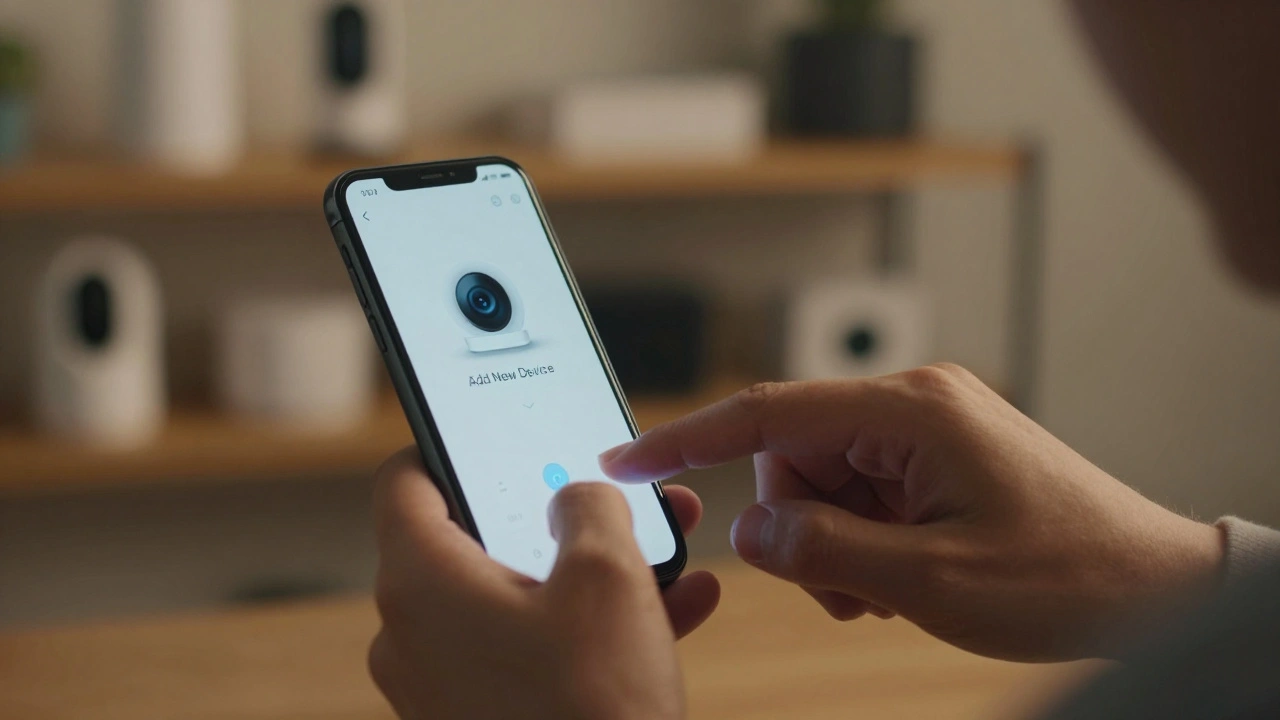
- Smart plugs (TP-Link, Kasa): Tap the power button 5 times fast. The LED will blink rapidly. Open the app and select "Add Device" again.
- Printers (HP, Epson): Go to Settings > Network > Wireless Setup Wizard. Press the Wi-Fi button on the printer until it starts blinking.
- Security cameras (Arlo, Ring): Press and hold the reset button (often on the bottom) for 15 seconds. The light will turn solid, then flash.
- Streaming sticks: Unplug it, wait 30 seconds, plug it back in. It should auto-start setup mode.
Once reset, the device will enter "pairing mode" - usually shown by blinking lights or a prompt on screen. Now you can set it up like it’s brand new.
Step 3: Use Your Phone or Computer as a Bridge
If you’re still stuck, use your phone or laptop as a temporary bridge. Here’s how:
- Temporarily change your router’s SSID and password back to the old ones.
- Let the lost device reconnect. This usually takes under a minute.
- Once connected, change the router settings back to your new network.
- Wait 30 seconds, then reboot the device. It should now connect to the new network automatically.
This trick works because many IoT devices don’t scan for new networks - they just stay on the last one they connected to. Once they’re back online, they often remember the new credentials after a reboot.
Step 4: Use Your Router’s Connected Devices List
Log into your router’s admin page (usually 192.168.1.1 or 192.168.0.1). Look for a section called "Connected Devices", "DHCP Client List", or "Device List".
It will show every device that’s ever connected - even if it’s offline now. Find your lost device by name (like "KitchenCam" or "HP_Printer_123"). Note its MAC address - a 12-character code like A0:B1:C2:D3:E4:F5.
Some routers let you assign a static IP to that MAC address. This doesn’t fix the Wi-Fi issue, but it helps you identify the device later. If your router supports it, you can even push a network update to connected devices. Check for "Push Wi-Fi Settings" or "Device Sync" options under Advanced Settings.
Step 5: Avoid This Problem Next Time
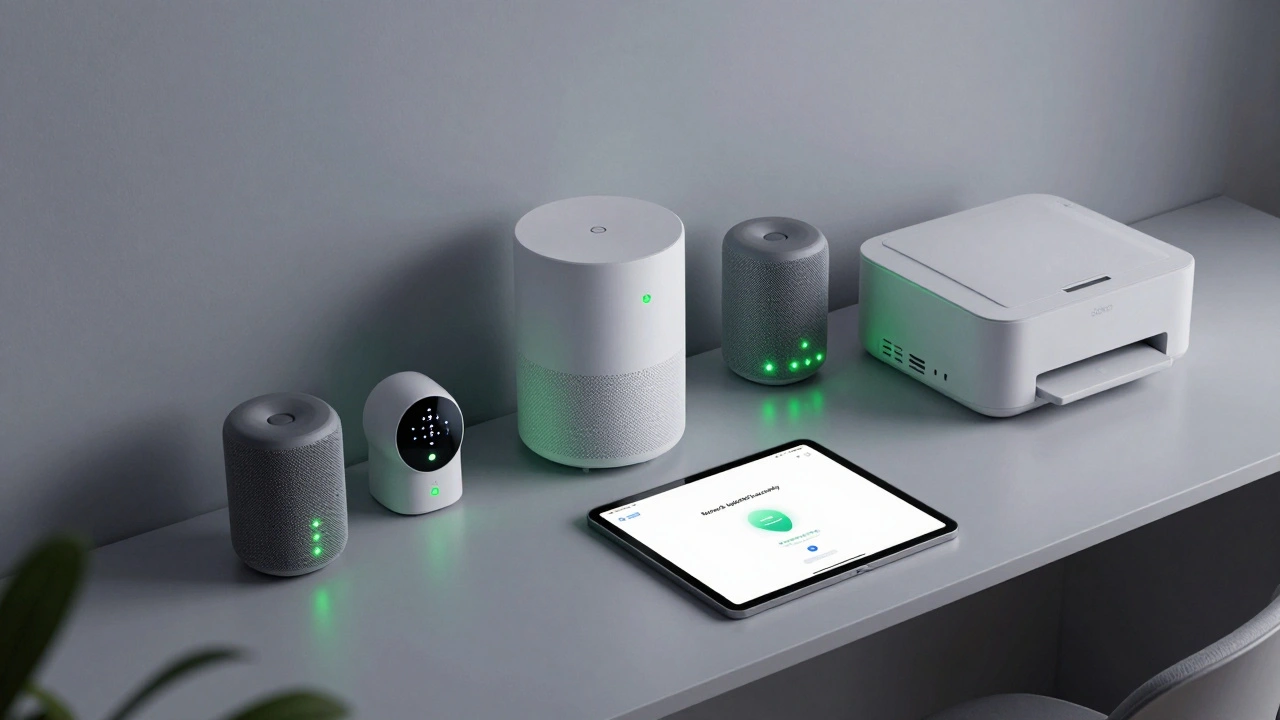
Here’s how to make this never happen again:
- Use a single SSID for both 2.4 GHz and 5 GHz. Most modern devices work fine on 5 GHz. Keeping them separate just causes confusion.
- Never change passwords unless you must. If you’re worried about security, use WPA3 encryption instead. It’s stronger than a complex password.
- Write down your network settings. Keep a printed copy in a drawer. Or use a digital note labeled "Home Wi-Fi" with both SSID and password.
- Update devices before changing networks. If your smart speaker or camera has a firmware update, install it first. New firmware often improves network recovery.
- Use a mesh system with centralized control. Systems like Eero, Google Nest Wifi, or TP-Link Deco let you change Wi-Fi settings from one app - and they auto-push updates to connected devices.
What If Nothing Works?
If the device still won’t reconnect after trying all steps:
- Check if the device is compatible with WPA3. Older gadgets (pre-2020) sometimes can’t connect to modern security standards.
- Try connecting via USB or Ethernet if possible. Some printers and smart hubs have wired ports.
- Use a secondary router as a bridge. Set up an old router with the old SSID and password, connect the device to it, then let it roam to your main network.
- As a last resort, factory reset the device and set it up from scratch. You’ll lose custom settings, but it’ll work.
And if it’s an old device with no app support anymore? It might be time to replace it. Many smart gadgets have a 3-5 year lifespan. If it’s struggling to reconnect after a simple network change, it’s probably outdated.
Final Thought: It’s Not Your Fault
Companies don’t make this easy. They assume you’ll always keep the same network. But life changes - routers get upgraded, passwords get reset, homes get remodeled. The blame isn’t on you. It’s on the design.
But now you know how to fix it. And next time? You’ll be ready.
Why won’t my smart camera reconnect after I changed my Wi-Fi password?
Smart cameras store the exact SSID and password you set during initial setup. If you change either, the camera can’t match the credentials anymore. It doesn’t ask for a new password - it just stays disconnected. You need to reset the camera, then reconfigure it using the new network details.
Can I recover a device if I forgot my old Wi-Fi password?
Yes. Check your router’s backup settings, look for saved passwords on your phone or computer, or check your password manager. If you still can’t find it, temporarily restore the old SSID and password on your router. Let the device reconnect, then switch back to your new network. The device will usually pick up the new credentials after a reboot.
Do all devices need to be reset manually after a network change?
No. Modern smartphones, laptops, and tablets usually reconnect automatically. But most IoT devices - like smart plugs, thermostats, and cameras - don’t have the ability to scan for new networks. They only remember one network. If that’s gone, you must reset them manually.
What’s the easiest way to avoid this problem in the future?
Use a mesh Wi-Fi system like Eero or Google Nest Wifi. These systems can push updated network settings to connected devices automatically. Also, avoid splitting 2.4 GHz and 5 GHz into separate networks. Use a single SSID - your devices will connect to the best band on their own.
Can I use my phone’s hotspot to reconnect a lost device?
Yes. Turn on your phone’s hotspot with the same SSID and password your device remembers. Connect the device to it. Once it’s online, turn off the hotspot. Then reboot the device. Many devices will remember the last network they were on and try to reconnect to it - which now matches your home network.