Setting up a printer doesn’t have to be a frustrating experience. Whether you’re plugging in a wired printer or connecting wirelessly, the process is straightforward if you know what to do. Many people give up after a few failed attempts, but the issue is rarely the printer-it’s usually the steps skipped or done out of order. Let’s cut through the confusion and walk through both wired and wireless setups with real-world clarity.
Wired Printer Setup: Plug and Go (Mostly)
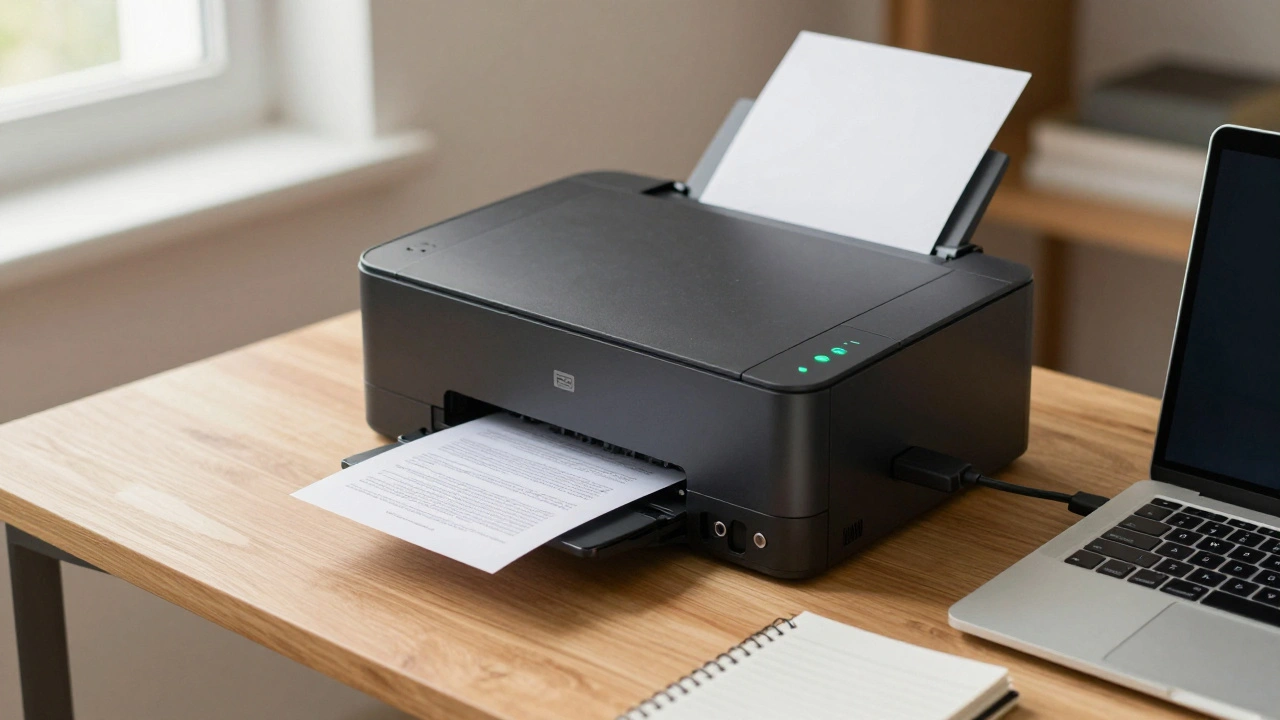
If you’re using a USB cable to connect your printer to your computer, you’re doing a wired setup. This is the most reliable method, especially if you’re in a home office with limited Wi-Fi signal or if you’re printing large files like PDFs or high-res photos. The steps are simple:
- Unbox the printer and remove all protective tapes and plastic.
- Plug in the power cable and turn it on.
- Connect the USB cable from the printer to your computer. Use the cable that came with the printer-third-party cables often don’t work well.
- Wait for your computer to detect the printer. On Windows, you’ll see a notification like "New device found." On macOS, the printer should appear automatically in System Settings > Printers & Scanners.
- If your computer doesn’t install drivers automatically, go to the manufacturer’s website (HP, Epson, Canon, etc.) and download the latest driver for your exact printer model and operating system.
That’s it. No passwords, no networks, no pairing. Wired setups rarely fail because they don’t rely on anything beyond a physical connection. I’ve seen users spend hours troubleshooting Wi-Fi when a simple USB cable solved everything. If your printer works over USB, you know the hardware is fine. That’s half the battle won.
Wireless Printer Setup: Connecting Without Cables
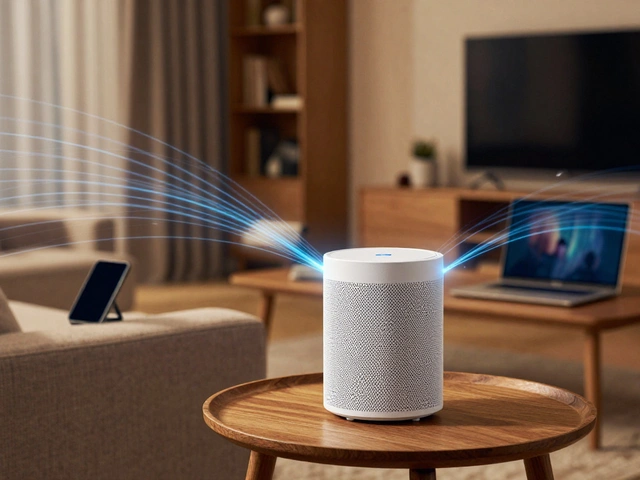
Wireless printing is convenient-you can send jobs from your phone, tablet, or laptop without being glued to your desk. But it’s also where most problems happen. Wi-Fi interference, outdated firmware, or mismatched networks can block the connection. Here’s how to avoid those pitfalls.
Start by making sure your printer supports Wi-Fi. Most modern printers do, but older models might need a USB-to-Wi-Fi adapter. Check the printer’s manual or the manufacturer’s website for your model’s wireless specs.
Now, follow these steps:
- Turn on the printer and access its control panel. Look for a menu labeled "Network," "Wireless," or "Wi-Fi Setup."
- Select "Wireless Setup Wizard" or "Wi-Fi Direct." If you’re connecting to your home network, choose the first option. If you want to print directly from a device without a router, use Wi-Fi Direct.
- Your printer will scan for available networks. Find your home Wi-Fi name (SSID) in the list and select it.
- Enter your Wi-Fi password. Type carefully-many failures happen because of a single wrong character. Use the on-screen keyboard or, if your printer has a touchscreen, copy-paste from your phone if possible.
- Wait for confirmation. The printer will display "Connected" or show a Wi-Fi icon. If it fails, try restarting both the printer and your router.
- On your computer or phone, go to the print settings and add the printer. On Windows: Settings > Devices > Printers & scanners > Add a printer. On macOS: System Settings > Printers & Scanners > + button. On iOS: Open a document, tap Share > Print > Add Printer.
One thing I’ve noticed working with local families in Portland: people often try to connect their printer to a 5GHz network. That’s a common mistake. Most printers only work on 2.4GHz. If your router combines both bands under one name, you need to split them in your router settings. Look for something like "Separate 2.4GHz and 5GHz networks" in your router’s admin page. Name the 2.4GHz network something like "Home-2.4" so you know which one to pick.
Printer Drivers: Why They Matter
Even if your printer connects, it won’t print properly without the right drivers. Many users assume the OS will handle everything, but that’s not always true. Generic drivers might let you print, but you’ll lose features like duplex printing, ink level monitoring, or scan-to-email.
Always download drivers from the official manufacturer site-not from third-party software sites. HP, Epson, Brother, and Canon all offer free driver downloads. Enter your exact printer model (e.g., "HP DeskJet 3755") and your operating system (Windows 11 64-bit, macOS Sonoma, etc.). Install the full feature software, not just the basic driver. It includes utilities that help you manage ink, run cleaning cycles, and update firmware.
Pro tip: Check for firmware updates after installing the driver. Firmware is the printer’s internal software. Outdated firmware can cause connectivity drops, paper jams, or slow printing. Most manufacturers have an automatic update tool built into their software. Run it.
Testing Your Setup
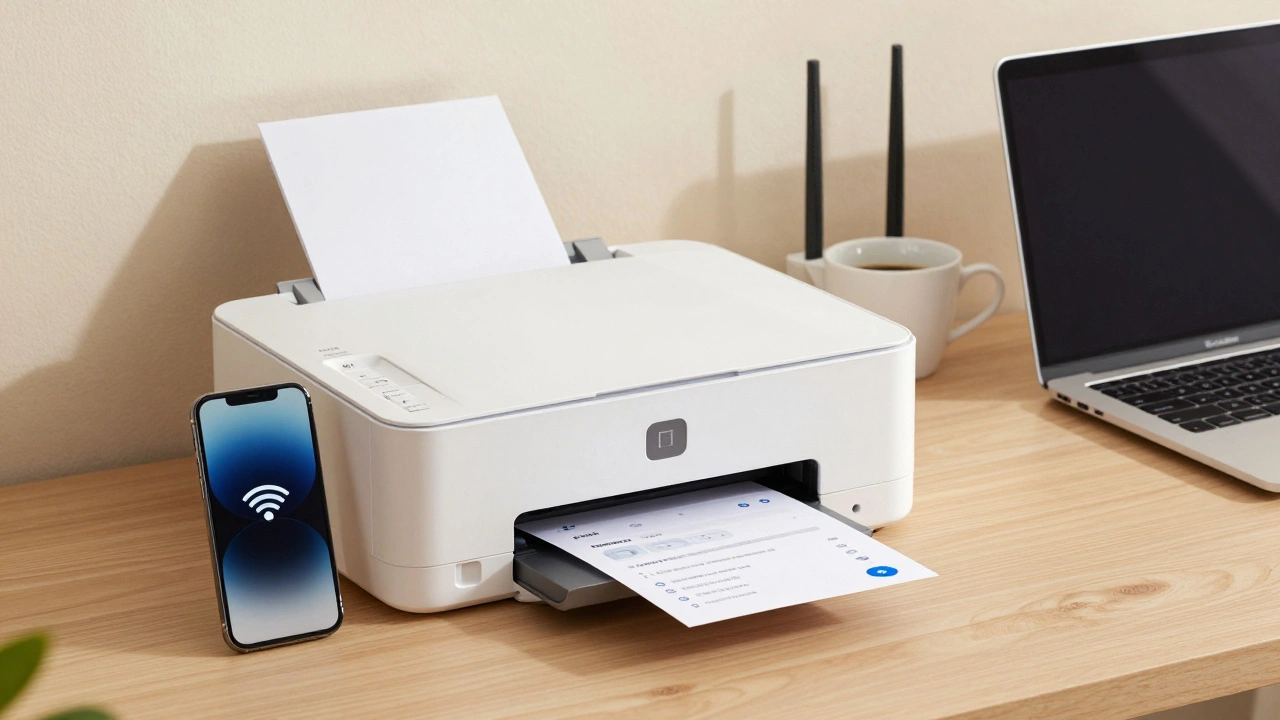
Don’t just assume it works. Test it properly.
- Print a test page from your computer’s printer settings.
- Try printing from your phone. Open a photo in your gallery and tap Share > Print.
- Send a document from a different device-like a laptop or tablet-to make sure multiple devices can connect.
- If you’re using a wireless setup, move your device farther from the printer. If the connection drops, you might have a weak signal. Try moving the printer closer to your router or use a Wi-Fi extender.
Some printers have a built-in network configuration page. On the control panel, look for "Network Settings" > "Print Network Configuration Page." This prints a sheet with your printer’s IP address, signal strength, and connected devices. Keep this sheet handy. If you ever lose the printer from your device list, you can type its IP address into a web browser to access its settings directly.
Common Problems and Quick Fixes
Here are the most frequent issues I’ve seen-and how to fix them fast:
- Printer shows "Offline" → Right-click the printer in your device list and select "Use Printer Online." Also, make sure the printer is powered on and not in sleep mode.
- Can’t find printer on network → Restart your router and printer. Wait two minutes before turning them back on. This clears cached network data.
- Prints blurry or missing colors → Run the printer’s cleaning cycle. Low ink doesn’t always trigger a warning-especially with third-party cartridges.
- Connection drops after a few prints → Update the printer’s firmware. Disable "Auto Sleep" in the printer’s settings if possible.
- Works on one device but not another → Reinstall the printer driver on the failing device. Sometimes, old driver files get stuck.
Wired vs Wireless: Which Should You Choose?
Here’s a quick comparison to help you decide:
| Feature | Wired (USB) | Wireless (Wi-Fi) |
|---|---|---|
| Setup Difficulty | Easy | Moderate |
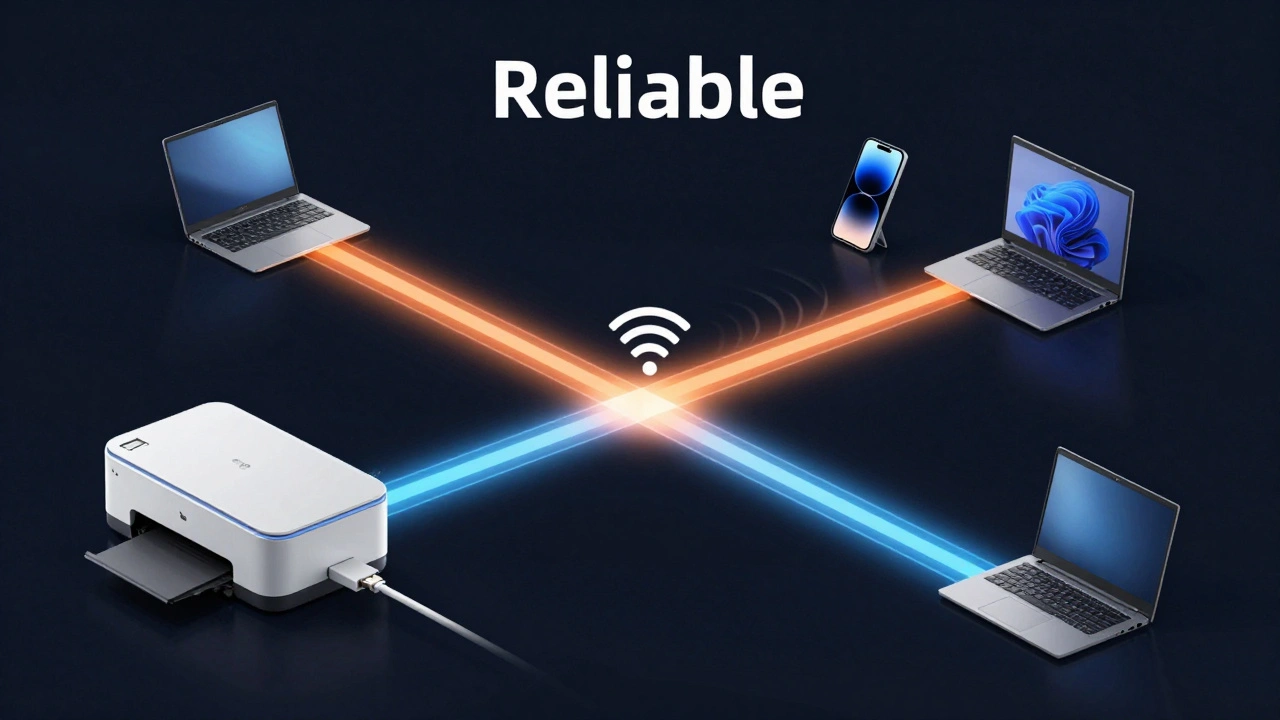
| Reliability | High | Medium |
| Range | Limited to cable length | Works anywhere in Wi-Fi range |
| Multi-device Support | One computer at a time | Multiple devices (phone, tablet, laptop) |
| Best For | Home offices, heavy printing, stable connection | Mobile users, families, smart homes |
If you’re the only one printing and you stay near your desk, go wired. It’s simpler and more dependable. If you have kids, roommates, or work from multiple rooms, wireless is worth the extra setup time.
Final Checklist Before You Walk Away
- Is the printer powered on?
- Did you install the correct driver from the manufacturer’s site?
- For wireless: Are you on the 2.4GHz network?
- Did you print a test page from at least two devices?
- Did you update the firmware?
- Did you note the printer’s IP address (for wireless) in case you need it later?
Printers are more reliable today than ever. Most issues come from skipping steps or using outdated software. Take the time to do it right once, and you’ll save hours of headaches later.
Can I use a printer without installing drivers?
Sometimes, yes. Modern operating systems like Windows 11 and macOS Sonoma can automatically detect and install basic drivers for common printers. But these drivers are minimal-they won’t let you access advanced features like double-sided printing, ink level alerts, or scan functions. For full control, always install the manufacturer’s full software package.
Why does my printer keep going offline?
This usually happens because the printer loses its network connection or enters sleep mode too aggressively. Check your printer’s settings to disable deep sleep. Also, make sure it’s not connected to a guest network or a 5GHz band-it needs the 2.4GHz signal. Restarting your router and printer often fixes this. If it persists, assign a static IP address to the printer in your router settings.
Is Wi-Fi Direct better than regular wireless printing?
Wi-Fi Direct lets you print directly from a device without connecting to your home network. It’s useful for quick prints when your Wi-Fi is down or if you’re in a public place. But it’s not ideal for everyday use. You have to reconnect every time you want to print, and it doesn’t work with multiple devices at once. Use it as a backup, not your main setup.
Do I need to connect my printer to the same network as my computer?
Yes, for wireless printing. Both your printer and your computer must be on the same Wi-Fi network. If your computer is on a guest network or a different SSID (like "Home-2.4" vs "Home-5G"), the printer won’t appear. Check your network settings on both devices to confirm they’re on the same band and name.
What if my printer doesn’t have a screen to set up Wi-Fi?
Some older or budget printers lack a display. In that case, use the manufacturer’s setup app on your phone or computer. HP Smart, Epson Connect, and Canon PRINT Inkjet/SELPHY apps can guide you through wireless setup using your device’s screen. Just follow the prompts-it’ll ask you to select your network and enter the password on your phone.
Once your printer is running smoothly, keep it that way. Update firmware every few months, clean the print heads if print quality fades, and replace ink before it runs completely dry. A little maintenance goes a long way.