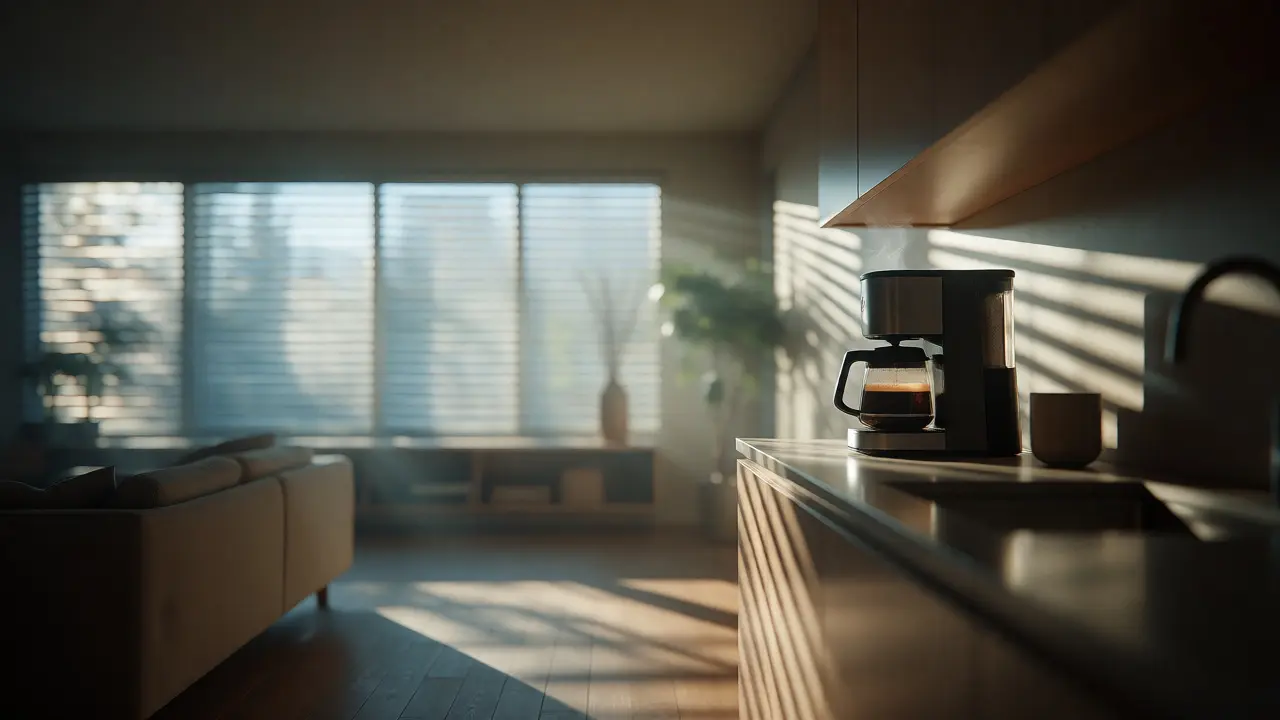
Imagine waking up to a house that already knows you’re awake. The blinds tilt open just enough to let in the soft Portland morning light, the thermostat nudges up two degrees, and your coffee maker has started brewing. This isn’t magic; it’s time-based automation, the practice of triggering specific smart home actions at set times or based on environmental conditions like sunrise and sunset. While motion sensors and voice commands get all the hype, scheduling is the backbone of a truly hands-off smart home. It turns reactive devices into proactive assistants.
But here’s the catch: most people set their schedules once and forget them. They don’t account for daylight saving time shifts, seasonal changes in daylight hours, or the fact that a fixed "7 AM" wake-up routine feels terrible in winter when it’s still pitch black outside. If your smart home feels rigid rather than intuitive, it’s likely because your automations are too static. Let’s fix that by building schedules that breathe with your life and the environment around you.
The Difference Between Clocks and Sunlight
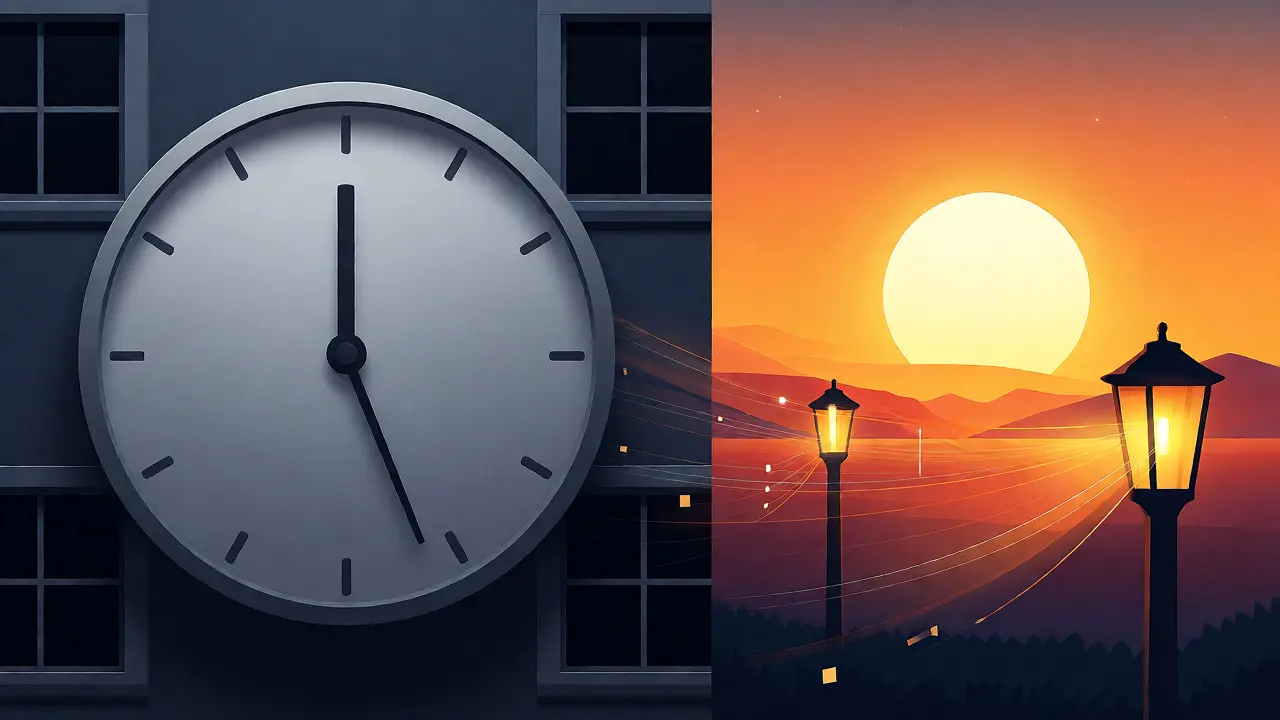
There are two main types of time-based triggers, and knowing which one to use makes all the difference. The first is Absolute Time, a trigger based on a specific clock time, such as 6:30 PM every day. This is perfect for routines tied to human habits, like locking doors at night or starting laundry during off-peak electricity hours. The second is Relative Time, a trigger based on astronomical events like sunrise, sunset, or civil twilight. Using relative time ensures your lights turn on when it actually gets dark, not when the clock says 5 PM. In November in Oregon, sunset can happen before 4:30 PM, while in June, it might not happen until after 9 PM. A fixed 5 PM trigger would leave you sitting in the dark for weeks in summer or blasting lights in a bright room in winter.
| Trigger Type | Best Use Case | Seasonal Adaptability | Complexity |
|---|---|---|---|
| Absolute Time (e.g., 8:00 AM) | Workouts, medication reminders, fixed work hours | Low (requires manual adjustment) | Simple |
| Relative Time (e.g., Sunset - 15 mins) | Outdoor lighting, window shades, security cameras | High (automatic adjustment) | Moderate |
| Offset Time (e.g., Sunrise + 30 mins) | Waking up gradually, garden irrigation | High | Moderate |
Building Your First Robust Schedule
Start small. Don’t try to automate your entire life in one weekend. Pick one pain point. For many homeowners, it’s the evening wind-down. You want lights to dim, music to lower, and locks to engage without you having to remember each step. Here is how to structure a resilient evening routine using a platform like Home Assistant, an open-source home automation platform running on Python 3. or Apple HomeKit, Apple's framework for controlling compatible smart home accessories.:
- Choose the Trigger: Select "Sunset" but add an offset. Set it to "Sunset minus 30 minutes." This gives you a buffer so the house doesn’t go dark abruptly.
- Add Conditions: Add a condition that checks if anyone is actually home. If the house is empty, you might only want the porch light on, not the living room ambiance.
- Define Actions: Dim living room lights to 20%, turn off kitchen overheads, and lock the front door.
- Set Expiration: Ensure the automation stops running if manually overridden. If you turn the lights back up at 8 PM, the system shouldn’t force them down again at 8:05 PM.
This approach uses logical flow to prevent annoyances. Many beginners skip the "Conditions" step, leading to robots acting out of turn. Remember, a smart home should be invisible. If you have to correct it daily, it’s not smart; it’s annoying.
Handling Daylight Saving Time and Seasonal Shifts
One of the biggest headaches in home automation is the biannual clock change. When we switch from Pacific Daylight Time to Pacific Standard Time, a naive absolute-time schedule will break. Your 7 AM wake-up alarm might fire when it’s still dark outside, or your "goodnight" routine might trigger an hour early. Most modern hubs handle this automatically, but custom scripts often fail.
If you are using a hub like Hubitat Elevation, a local-first home automation hub that processes rules locally., ensure your location settings are precise. Enter your exact latitude and longitude, not just the city name. Why? Because the calculation of sunrise and sunset depends on your specific coordinates. In Portland, being off by a few miles can shift sunset calculations by several minutes. Over a year, those minutes add up to significant discrepancies in your comfort levels.
Pro Tip: Test your automations during the week of the DST switch. Create a temporary automation that sends you a notification at your scheduled wake-up time. Check if the time aligns with actual daylight. If not, adjust your offsets. Some systems allow you to create "Seasonal Modes" where you manually switch between Summer and Winter profiles. This is less elegant than automatic adjustments but highly reliable if your software is buggy.
Integrating Weather and Presence
Time alone is rarely enough context. A schedule that turns on heating at 6 AM is great, unless it’s already 70 degrees inside because the sun hit the south-facing windows overnight. This is where conditional logic, rules that combine multiple factors like time, weather, and presence to determine an action. becomes powerful.
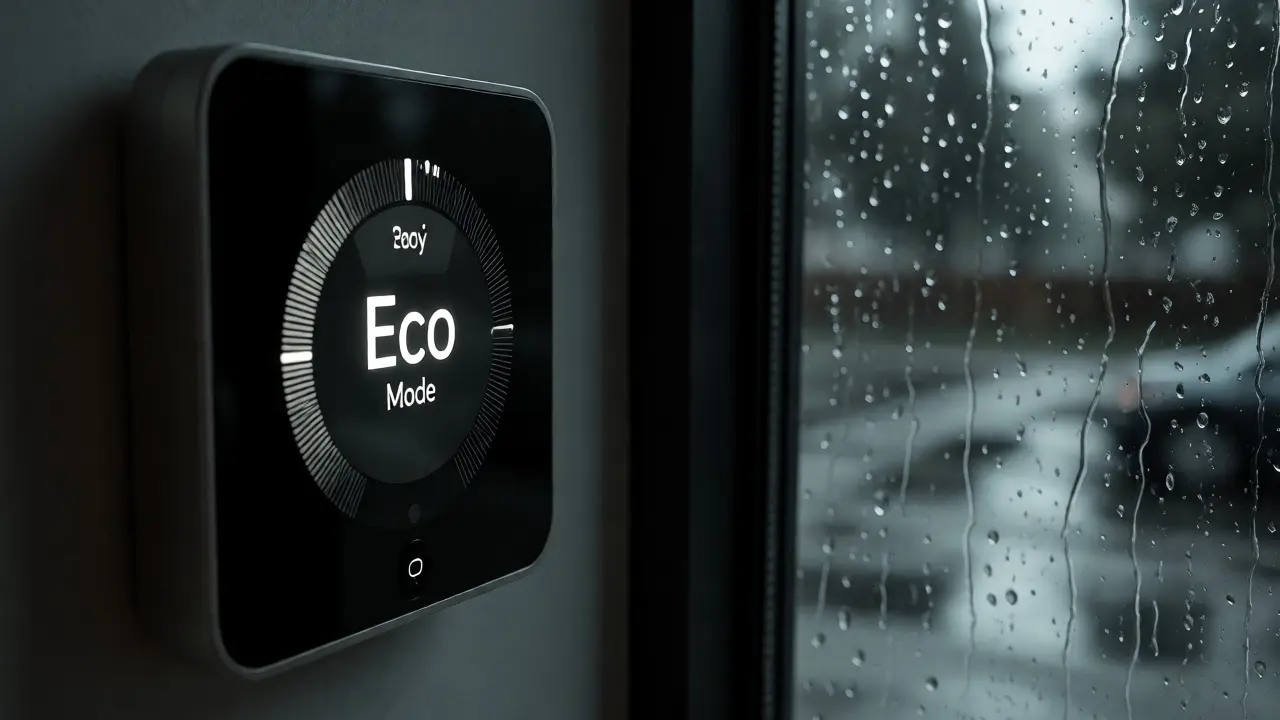
Let’s look at a real-world example involving Thermostat Scheduling, automated temperature control based on user behavior and external conditions.. Instead of setting a hard "Heat On" at 6 AM, try this logic:
- IF time is between 5:30 AM and 7:30 AM...
- AND indoor temperature is below 68°F...
- AND outdoor temperature is below 50°F...
- THEN set thermostat to Comfort Mode.
This prevents the furnace from kicking on unnecessarily on mild spring mornings. It saves energy and extends the life of your HVAC system. Similarly, for irrigation systems, never rely solely on a timer. Combine time with rain sensor data. If it rained yesterday, skip the Tuesday watering cycle regardless of what the clock says. This simple check can save hundreds of gallons of water per month.
Pitfalls to Avoid in Time-Based Routines
Even seasoned users fall into traps. The most common is "Automation Fatigue," where you create so many overlapping rules that they conflict. For instance, Rule A says "Turn off lights at Sunset," and Rule B says "Turn on porch light at Sunset." If they run simultaneously, you might get flickering or unpredictable results depending on which process finishes first.
Another issue is ignoring weekends. A weekday schedule assumes you leave at 8 AM. On Saturday, you sleep in. If your automation turns off the heat at 8 AM, you’ll wake up cold. To solve this, integrate calendar integration. Connect your smart home to your Google Calendar or Apple Calendar. Create a block called "Sleeping" that lasts until 9 AM on weekends. Use this calendar event as a condition to suppress morning automations. This keeps your schedule flexible without requiring you to manually toggle modes every Friday night.
Also, beware of network latency. If your Wi-Fi drops, cloud-based automations might fail to trigger at the right time. Local processing hubs like Hubitat or Home Assistant run directly on your hardware, ensuring that even if your internet goes down, your lights still turn on at sunset. For critical tasks like locking doors or turning off irons, prioritize local execution over cloud reliance.
Advanced Techniques: Randomization and Simulation
Have you ever noticed how robotic some smart homes sound? Every light turns on exactly at 6:00:00 PM. It screams "no one is home." Burglars know this. To make your home look occupied when you’re away, introduce randomness. Instead of a single trigger at 7 PM, create a range. Have the living room lights turn on randomly between 6:45 PM and 7:15 PM. Have the TV simulate noise between 8 PM and 9 PM.
Most advanced platforms support random delays. In Home Assistant, you can use templates to generate a random number of seconds to delay the action. This subtle imperfection adds realism. It’s a small detail, but it significantly improves security perception. Additionally, consider "Geofencing" combined with time. If you are usually home by 6 PM, but the geofence hasn’t triggered yet, maybe hold off on the full "Welcome Home" scene until both time and location conditions are met. Or, conversely, if you haven’t arrived by 6:30 PM, assume you’re working late and switch to Eco mode earlier.
What happens to my automations during Daylight Saving Time?
Most modern smart home hubs automatically adjust for Daylight Saving Time if you have entered accurate location data. However, absolute time schedules (like 7:00 AM) remain fixed on the clock, meaning they may occur in different lighting conditions. Relative schedules (based on sunrise/sunset) will shift automatically to match the new daylight hours. Always verify your location settings to ensure accurate astronomical calculations.
Can I pause time-based automations temporarily?
Yes, almost all platforms offer a way to disable specific automations or scenes. You can usually toggle a switch in the app interface. For more advanced control, create a boolean input (a virtual switch) named "Automations Enabled." Add a condition to your automations that checks if this switch is true. This allows you to globally pause all scheduled actions via voice command or dashboard button without deleting the rules.
How do I handle guests staying over who have different schedules?
Create a separate "Guest Mode" scene. When guests arrive, activate this mode. It can disable aggressive energy-saving schedules and keep lights on longer in the evenings. You can also use presence detection for specific guest phones if supported, or simply ask them to manually override controls. Manual overrides should always take precedence over automated schedules to ensure user comfort.
Is it better to use sunrise/sunset or fixed times for outdoor lights?
For outdoor lights, sunrise and sunset triggers are superior. Fixed times waste energy in summer (lights on when it’s still bright) and leave you in the dark in winter (lights off when it’s already dark). Using sunset triggers with a small offset (e.g., 15 minutes after sunset) ensures lights come on exactly when visibility drops, providing safety and efficiency year-round.
Why does my automation sometimes trigger twice?
This often happens due to network lag or conflicting rules. If two automations target the same device at similar times, they may fight each other. Check your logs for duplicate entries. Also, ensure you have a cooldown period or state check (e.g., "Only run if light is currently ON") to prevent redundant commands. Updating firmware on your hub and devices can also resolve timing glitches.