Forget the rule that says your password needs a special character, a number, and an uppercase letter. For many older adults, those rules are the exact reason they end up writing passwords on sticky notes or reusing the same one everywhere. The real problem isn't that seniors use "simple" passwords; it's that complex passwords don't fit how human memory works.
The goal here is not to make you feel behind on tech. It's to find a balance where your online accounts stay safe without turning every login into a headache. We're going to look at why simplicity wins for long-term retention, how to actually build a system you can remember, and which tools do the heavy lifting so you don't have to.
Why Complex Passwords Fail Memory
Cognitive Load is the amount of mental effort required to store and retrieve information in working memory. When a password is random like X9#mPq2!, your brain has to treat it as a string of unrelated symbols. There is no pattern to hook onto. This is known as low semantic value. In contrast, a phrase-based password has high semantic value because it connects to existing knowledge in your long-term memory.
Research in cognitive psychology shows that humans are better at remembering stories and sequences than arbitrary data. If you try to memorize a random string, you rely on short-term memory, which fades quickly unless you repeat it constantly. But if you create a password based on a song lyric, a childhood address, or a specific date with a twist, you are using associative memory. That type of memory is much more durable. For seniors, who may experience natural changes in processing speed, reducing cognitive load is the single most effective way to improve compliance with security habits.
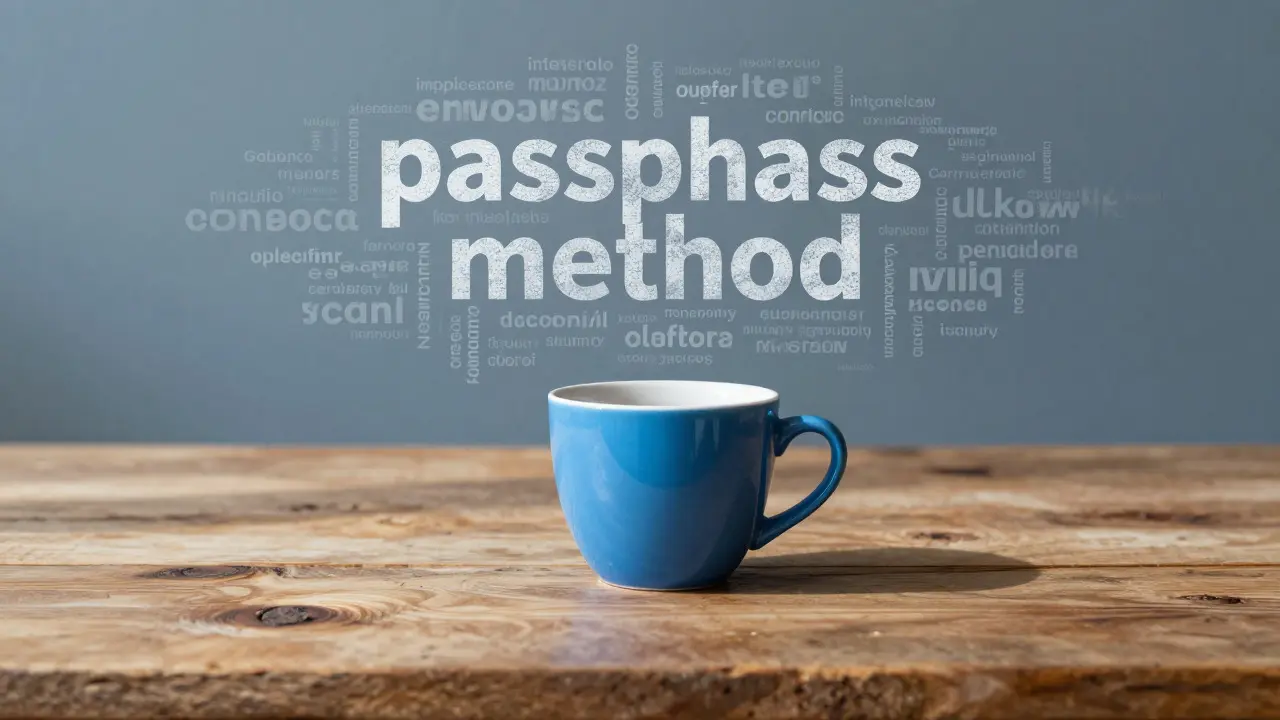
The Passphrase Method: Stronger and Easier
Instead of a short, complex word, use a long, simple sentence. This is called a Passphrase is a sequence of words used as a password, typically longer than traditional alphanumeric passwords. The security comes from length, not complexity. A 10-character random password is weaker than a 20-character passphrase made of common words.
Here is how to build one:
- Pick three to four random words that mean something to you but aren't obvious to others. Avoid your pet's name or birthday directly.
- Combine them into a sentence or a visual image.
- Add a small modification, like capitalizing the first letter of each word or adding a symbol at the very end.
Example: Instead of P@ssw0rd!, try BlueCoffeeCupOnTheDesk!. It is easy to type, easy to visualize, and hard for computers to guess because there are so many combinations of common words. You only need to remember the image of the blue cup on the desk, not a code.
Managing Multiple Accounts Without a Notebook
The biggest risk for seniors isn't usually a hacked email; it's account confusion. If you use the same password for your bank, email, and social media, one breach exposes everything. But keeping track of ten different passphrases is impossible without a helper. This is where Password Managers are software applications that securely store and manage multiple passwords for various online accounts. They act as a digital vault. You only need to remember one master key to open the door, and the manager remembers the rest.
| Method | Security Level | Memory Effort | Risk Factor |
|---|---|---|---|
| Sticky Notes | Low | None | Physical theft or loss |
| Same Password Everywhere | Medium | Low | Total account compromise if one site leaks |
| Manual Differentiation (e.g., adding '1', '2') | Medium | High | Easily guessed by hackers |
| Password Manager | High | Very Low | Requires trust in software vendor |
When choosing a manager, look for large companies with a long history. Brands like 1Password or LastPass are often recommended for their user-friendly interfaces. The key feature to look for is "auto-fill." This means when you open a website, the app automatically types your username and password for you. You just click a button. No typing, no remembering.
Two-Factor Authentication: The Safety Net
Even the best password can be stolen. Two-Factor Authentication, or 2FA, is a security method that requires two forms of identification to access an account, such as a password and a code sent to a phone. Think of it like your house. Your password is the key. 2FA is the deadbolt. Even if someone steals your key, they still need the code to get in.
For seniors, the best form of 2FA is usually an SMS text message code. While experts prefer authenticator apps, text messages are easier to understand and don't require syncing devices. When you log in, your phone buzzes with a 6-digit number. You type that in. Done. It adds ten seconds to the process but blocks 99% of automated hacking attempts.
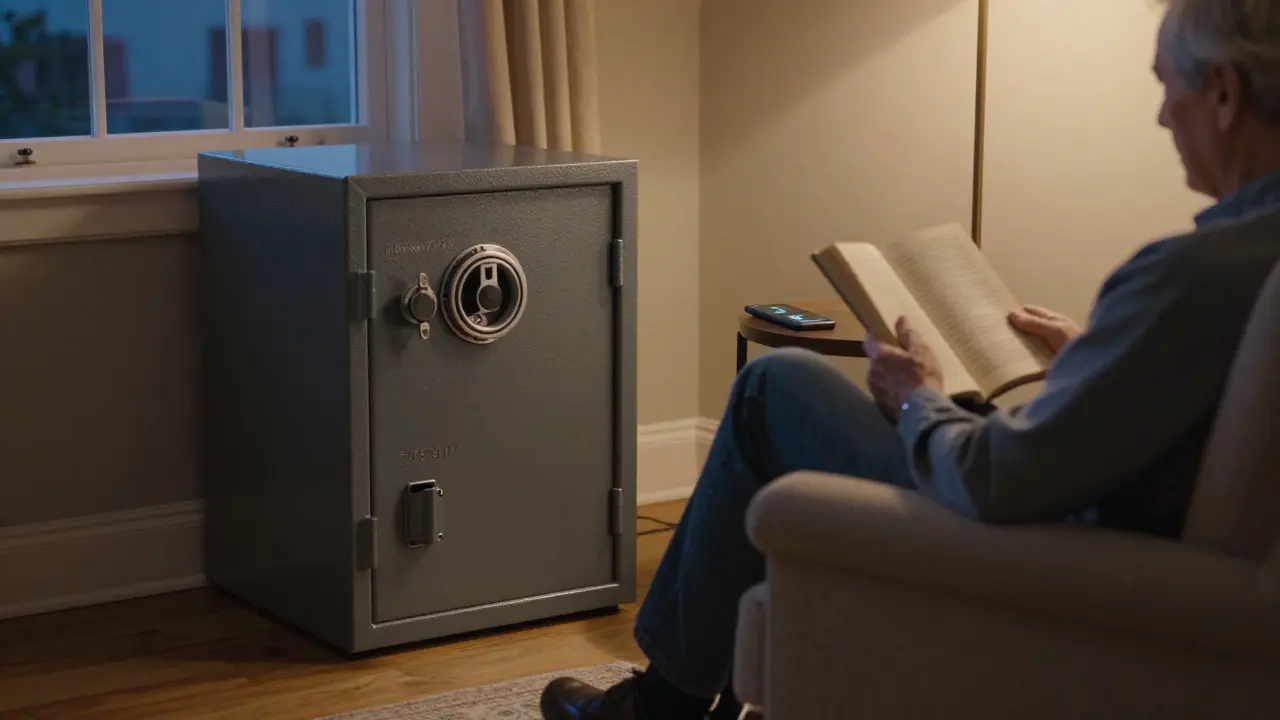
If you lose your phone, this becomes a problem. So, always set up a backup method. Most services allow you to add a backup email or a trusted family member's phone number. Keep these details in a secure place, like a locked drawer at home, not in the cloud.
Recognizing Phishing Scams
Technology changes fast, and scams change with it. Phishing is a cyberattack that uses fraudulent emails or messages to trick individuals into revealing personal information. These emails often look official. They might say your bank account is frozen or your package is stuck. The urgency is designed to make you act before you think.
Here are three simple checks to stop phishing cold:
- Check the Sender: Does the email come from a domain you recognize? If it looks like
[email protected]instead of[email protected], be suspicious. - Don't Click Links: Instead of clicking a link in the email, open your browser and type the website address yourself. If there is a real issue, it will show up on the official site.
- Hover Over Links: On a computer, move your mouse over a link without clicking. The actual URL appears at the bottom of the screen. If it looks weird, don't click.
Teach these rules to family members too. Often, seniors are targeted through "grandparent scams" via phone calls. Establishing a family code word can help verify identity during unexpected calls.
Building a Routine for Digital Hygiene
Security isn't a one-time setup; it's a habit. You don't need to check your accounts every day. Once a month is enough for most people. Set a recurring calendar reminder for the first Sunday of the month. Use this time to:
- Review any new sign-ups you forgot about.
- Update any passwords that were compromised in news reports.
- Ensure your password manager is backed up.
Keep your operating systems updated. Operating System Updates are software patches released by developers to fix bugs and security vulnerabilities. Yes, they are annoying. But they patch the holes that hackers use to sneak in. Turn on automatic updates if you can. If not, install them within a week of release. Don't wait months.
Finally, keep your physical environment secure. If you use a laptop at a coffee shop, watch who sits next to you. Shoulder surfing is real. If you use a tablet, enable a screen lock. It takes two seconds and prevents accidental taps or snooping.
When to Ask for Help
There is no shame in asking for help. Technology is complex, and even experts forget things. If you are struggling with a password reset or setting up 2FA, call a trusted family member or a local library tech support line. Many libraries offer free one-on-one sessions for seniors. The goal is to reduce anxiety, not increase it. If a tool feels too difficult, switch to a simpler one. Security should protect your peace of mind, not take it away.
Is it safe to write down my master password?
Yes, but only if it is stored safely. A paper note kept in a locked drawer or a safe is safer than a sticky note on a monitor. Just make sure the person who finds it knows what it is for. If you use a password manager, you only need to write down the single master password, not all your other credentials.
What if I lose my phone and can't get the 2FA code?
This is why backup methods are critical. Most major services like Google and Apple allow you to add a backup email address or a secondary phone number. Keep these details updated. If you are locked out, contact customer support immediately. They can verify your identity through other means, though it may take a few days.
Do I need a different password for every website?
Ideally, yes. However, if using a password manager is too difficult, prioritize unique passwords for your most important accounts: Email, Bank, and Social Media. For less critical sites like a recipe blog, you can reuse a generic passphrase. The email account is the most important because it is the key to resetting all other passwords.
Are password managers safe for beginners?
Yes, provided you choose a reputable provider. Major brands undergo regular security audits. The risk of a manager being hacked is statistically lower than the risk of reusing passwords across multiple sites. Start with a free version to test the interface before paying for a subscription.
How often should I change my passwords?
You do not need to change them monthly anymore. Experts now recommend changing passwords only when a breach is announced or if you suspect a leak. Frequent changes lead to weaker passwords (like adding numbers to old ones) and increased frustration. Focus on strength and uniqueness rather than frequency.