Handing a sleek new tablet to a parent or grandparent can feel like handing them a puzzle with missing pieces. The screen is bright, the icons are tiny, and the menus seem designed by someone who never needed glasses to read a menu. But here’s the truth: modern tablets aren’t inherently hard to use. They just need to be set up correctly first. If you skip the initial configuration, you’re setting your loved one up for frustration instead of independence.
The goal isn’t to simplify the device until it’s useless. It’s to remove the friction points that cause confusion. We’re talking about making text readable without squinting, making buttons big enough to hit with shaky hands, and stripping away the noise so the important stuff stands out. This guide walks through exactly how to tweak Android and iOS settings for older adults, focusing on visual clarity and ease of navigation.
Why Default Settings Fail Older Adults
Manufacturers design interfaces for younger eyes and faster thumbs. A standard font size on an iPad or Samsung Galaxy Tab might look crisp to a 30-year-old but appears as a gray blur to someone over 70. Beyond vision, fine motor skills often decline with age. Arthritis or tremors make tapping small, closely spaced icons a nightmare. When a user misses a button twice, they hesitate. When they hesitate, they lose confidence. By the time they call you for help, they’ve likely already decided the technology is "too complicated."
We need to adjust three main areas: display density, touch targets, and system clutter. Fix these, and the tablet becomes a tool rather than a source of anxiety.
Mastering Font Size and Display Density
Most people know how to increase font size in their email app. That’s not enough. You need to change the system-wide display settings. This affects everything from clock widgets to browser text.
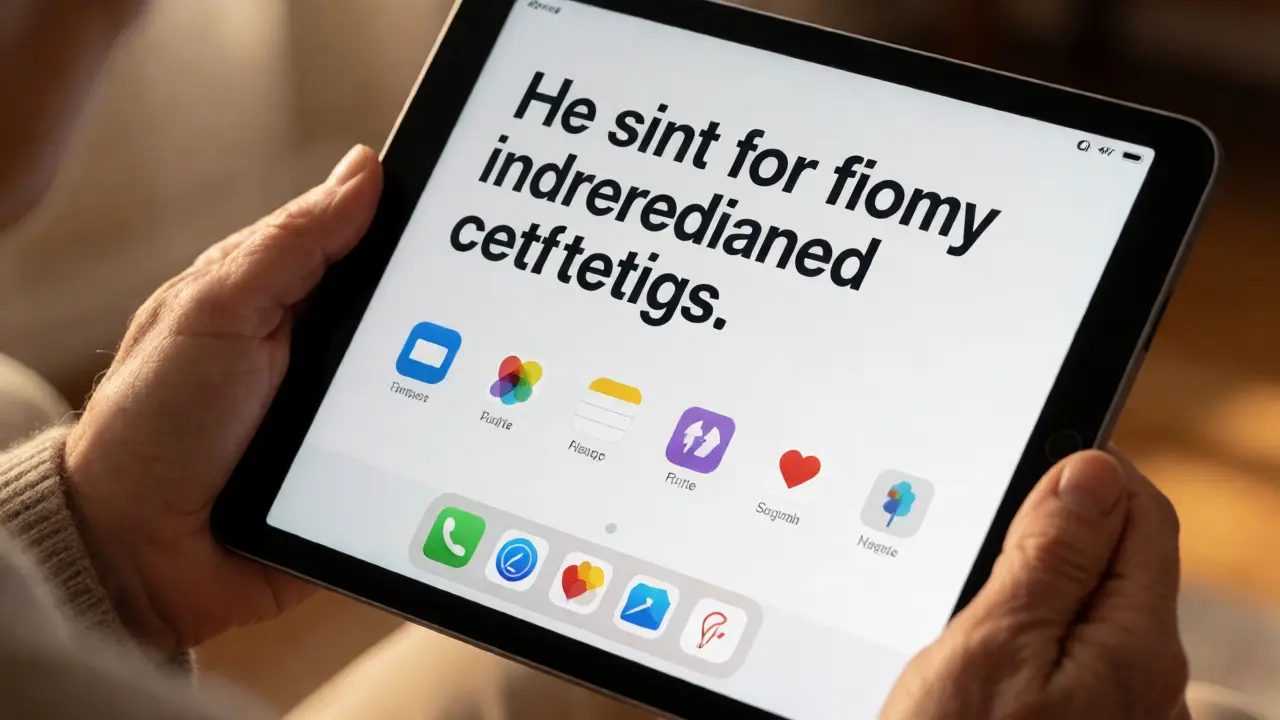
On iPadOS (Apple), go to Settings > Display & Brightness > Text Size. Drag the slider all the way right. Don’t stop there. Go to Settings > Accessibility > Display & Text Size > Larger Text and enable "Larger Accessibility Sizes." This unlocks even bigger fonts than the standard slider allows. For Android devices (Samsung, Pixel, etc.), navigate to Settings > Display > Font size and style. Increase both "Font size" and "Display size." The latter zooms in on the entire interface, making icons and menus physically larger, which is crucial for users with low vision.
| Setting | iPadOS Path | Android Path | Impact |
|---|---|---|---|
| System Font | Settings > Display & Brightness | Settings > Display > Font size | Readability of emails/web |
| Interface Zoom | Accessibility > Larger Text | Settings > Display > Display size | Size of buttons/menus |
| Bold Text | Accessibility > Bold Text | Accessibility > Font weight | Contrast against background |
Pro tip: Enable "Bold Text" if available. Thicker strokes are easier for aging eyes to distinguish against white backgrounds, reducing eye strain during long reading sessions.
Icons, Touch Targets, and Home Screen Hygiene
A clean home screen is a happy home screen. Delete every pre-installed app your senior doesn’t actively use. Facebook, Instagram, Games, and obscure utility apps create visual noise. Keep only essential tools: Phone, Messages, Camera, Photos, Calendar, and perhaps a simplified news reader or weather app.
Use folders wisely. Group related apps into clearly labeled folders. Instead of scattering ten different messaging apps, put them in a folder named "Chat." On Android, you can often change icon labels or use launchers like Nova Launcher to customize icon sizes. On iOS, while you can’t resize individual icons easily, you can rearrange them to place the most-used apps at the bottom row, where thumbs naturally rest.
Consider using "AssistiveTouch" on iOS or "One-Handed Mode" on Android. These features bring the reachability of top-screen elements down to thumb height, preventing awkward stretches that lead to dropped devices.

Voice Control and Dictation Features
Typing on a glass screen is difficult when fingers lack precision. Voice commands are the ultimate equalizer. Both major platforms have robust voice assistants that work surprisingly well for basic tasks.
For Apple users, activate Siri with "Hey Siri." Train them to say simple phrases: "Call Mom," "Text John," or "What’s the weather?" For typing longer messages, teach them to tap the microphone icon on the keyboard and dictate their message. It’s faster than hunting and pecking.
Android users should enable Google Assistant. Say "OK Google" to open the camera, check reminders, or read incoming texts aloud. This last feature is huge for those who struggle with small notification pop-ups. Have the assistant read messages so they don’t have to lean in close to the screen.
High Contrast and Visual Aids
Cataracts and macular degeneration reduce contrast sensitivity. Standard black-on-white text might wash out. Switching to high-contrast modes helps significantly.
On iPhone/iPad, go to Settings > Accessibility > Display & Text Size. Turn on "Increase Contrast." This darkens borders and makes text stand out sharply. You can also try "Smart Invert" or "Classic Invert" if they prefer light text on a dark background, though this changes colors in photos, so test it first.
On Android, look for "Color Correction" or "High Contrast Text" under Accessibility settings. Some Samsung devices offer a "Vision Improvement Guide" that lets you simulate different vision impairments to find the best color profile. Spend ten minutes adjusting this. It’s the difference between seeing a red error message and missing it entirely.
Simplifying Navigation with Shortcuts
Navigating back-and-forth menus confuses many seniors. Reduce the number of steps required to perform common actions.
Set up physical shortcuts. Many tablets support stylus buttons or side-button configurations. Map the volume rocker to take a photo or the power button to launch the camera directly. This bypasses unlocking the screen and finding the app icon.
Use "Guided Access" (iOS) or "Pin App" (Android). If your senior gets lost in a maze of web pages, Guided Access locks the tablet to a single app. They can’t accidentally exit to the home screen or switch apps. To leave, they press the side button three times and enter a PIN you control. This prevents accidental deletions or changing settings they didn’t mean to touch.
Final Checks and Maintenance
Once you’ve configured the fonts, icons, and voice features, do a live test. Ask them to send a text to a family member. Watch their hands. Do they hesitate? Is the keyboard too small? Adjust the keyboard layout-switch to a smaller, one-handed keyboard if possible, or enable predictive text to reduce keystrokes.
Check battery life. Older adults may forget to charge devices. Set up automatic backups via iCloud or Google Drive so photos are safe even if the tablet breaks. Finally, write down a simple cheat sheet. Tape it to the fridge or stick it to the back of the case. List the three most important things: How to turn it on, how to call you, and how to charge it.
Technology shouldn’t be a barrier. With thoughtful setup, a tablet becomes a window to grandchildren’s faces, news, and hobbies. Start with the basics, keep it simple, and revisit the settings after a week to see what still causes trouble.
Which tablet is easiest for seniors?
The iPad is generally considered the easiest due to its consistent interface and excellent accessibility features like Guided Access. However, high-end Android tablets like the Samsung Galaxy Tab series offer superior customization options, such as larger display scaling and customizable launchers, which can be better for users with specific visual needs.
How do I make the text bigger everywhere?
You must change system-wide settings, not just app-specific ones. On iOS, use Settings > Accessibility > Larger Text. On Android, use Settings > Display > Font size and style and adjust both font size and display size to ensure icons and menus scale up along with the text.
Can I prevent my senior from deleting apps?
Yes. On iOS, use Screen Time > Content Restrictions to disallow deleting apps. On Android, use Digital Wellbeing or third-party launcher settings to lock the home screen layout, preventing accidental removal of icons.
Is a stylus necessary for seniors?
Not always, but it helps with precision. A capacitive stylus can improve accuracy for users with hand tremors or arthritis. Look for models with a comfortable grip and a palm rejection feature so resting the hand on the screen doesn’t cause errors.
What is the best way to handle notifications?
Turn off non-essential notifications. Only allow calls, texts, and calendar alerts. Too many pop-ups distract from the task at hand. Use "Do Not Disturb" schedules to silence the tablet at night, ensuring better sleep hygiene.