You’ve just finished wiring a new smart home system in a three-story Victorian. The client is coming over in an hour to see the demo. You flip the switch, and nothing happens. Or worse, it works, but the lights flicker every time the Wi-Fi router reboots. This isn’t just annoying; it’s a liability. In the pro installation world, the difference between a five-star review and a nightmare support ticket often comes down to one thing: did you test it properly?
Most installers rely on memory or a vague mental list of "things that should work." But human memory fails under pressure. That’s why a rigorous Quality Assurance (QA) checklist is non-negotiable. It’s not about being pedantic; it’s about protecting your reputation and your profit margins. A solid QA process catches integration errors before they become expensive callbacks.
The Pre-Installation Reality Check
Before you even touch a screwdriver, you need to verify the environment. Many failures aren't hardware defects-they're environmental mismatches. If you skip this phase, you’re setting yourself up for failure during the final walkthrough.
Start with the network. Smart homes live and die by their connectivity. Don't assume the client's existing Wi-Fi is enough. For a robust setup, you need a dedicated IoT VLAN. This separates smart devices from laptops and phones, preventing bandwidth hogs from killing your doorbell camera feed.
- Signal Strength Mapping: Use a Wi-Fi analyzer app to check signal strength at every device location. Anything below -65 dBm is risky for video streaming or low-latency automation.
- Bandwidth Audit: Confirm the ISP plan supports the upload speeds required for cloud-connected cameras. Download speed doesn't matter if you can't push the video stream out.
- Power Load Verification: Check circuit capacity. Adding twenty smart plugs and a few smart switches to an old breaker panel might trip the main if you don't calculate the load correctly.
Also, verify physical constraints. Does the client have neutral wires in their light switches? If not, you’re limited to specific no-neutral smart switches, which have different reliability profiles. Document these constraints now so you don’t promise features that won’t work later.
Hardware Integrity and Connectivity
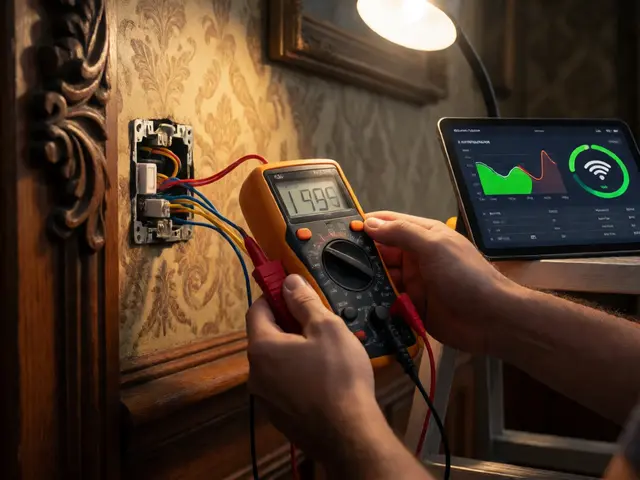
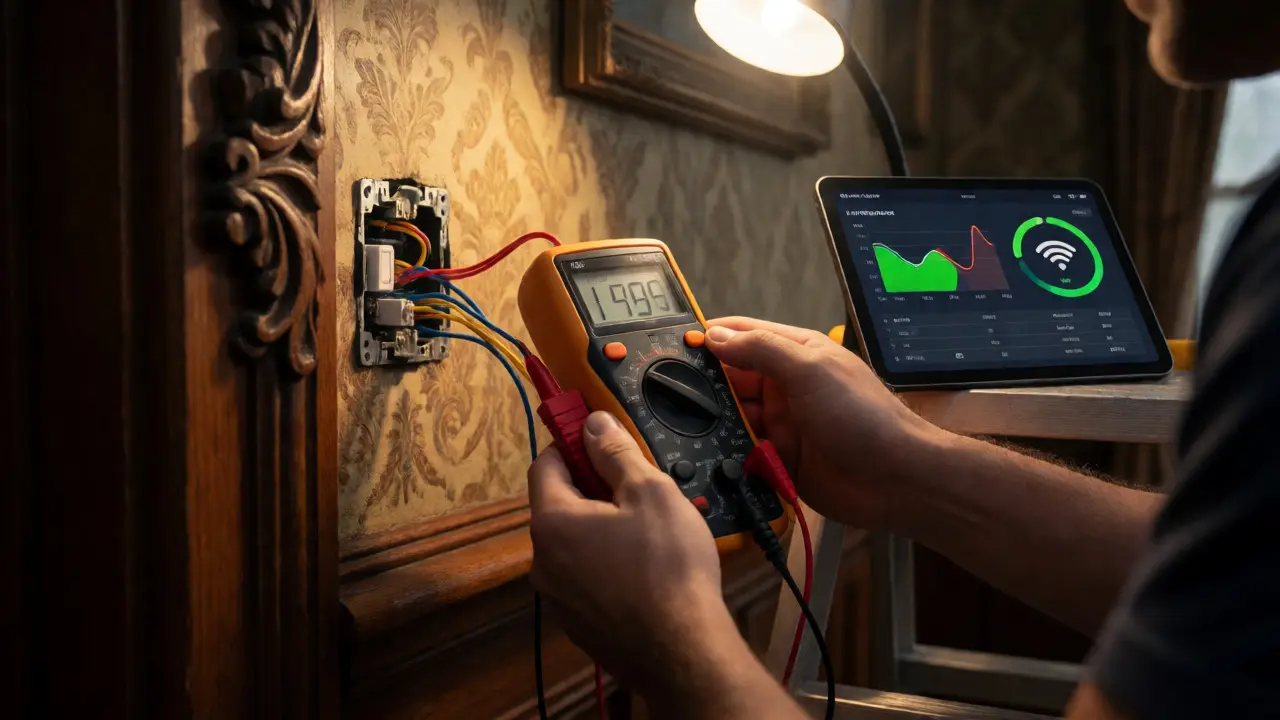
Once the gear is mounted, you need to validate the physical layer. This is where sloppy craftsmanship shows up. Loose terminals cause intermittent connections that are nearly impossible to diagnose remotely.
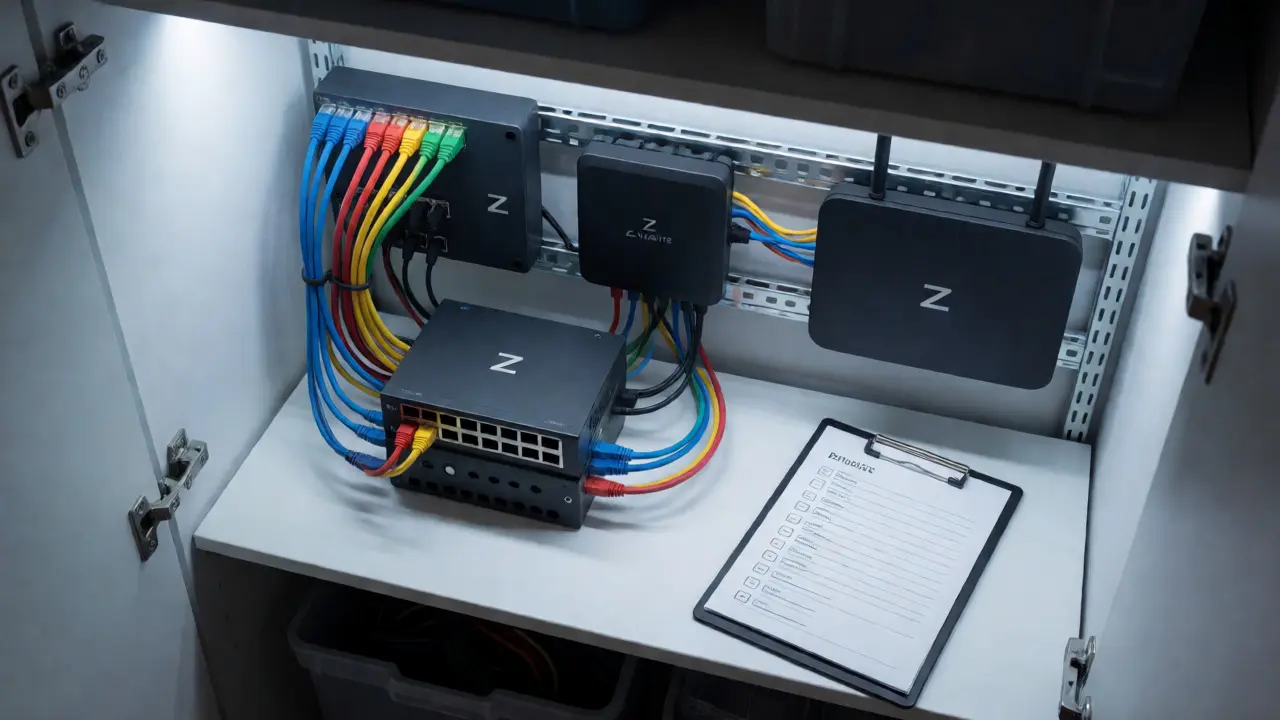
For wired devices like Z-Wave hubs or PoE cameras, tension tests are critical. Pull gently on each cable. If it moves, it wasn’t secured properly. For wireless devices, battery health is key. Never install a device with a partially charged battery unless you plan to replace it immediately. A low-battery sensor will report false positives or drop offline entirely.
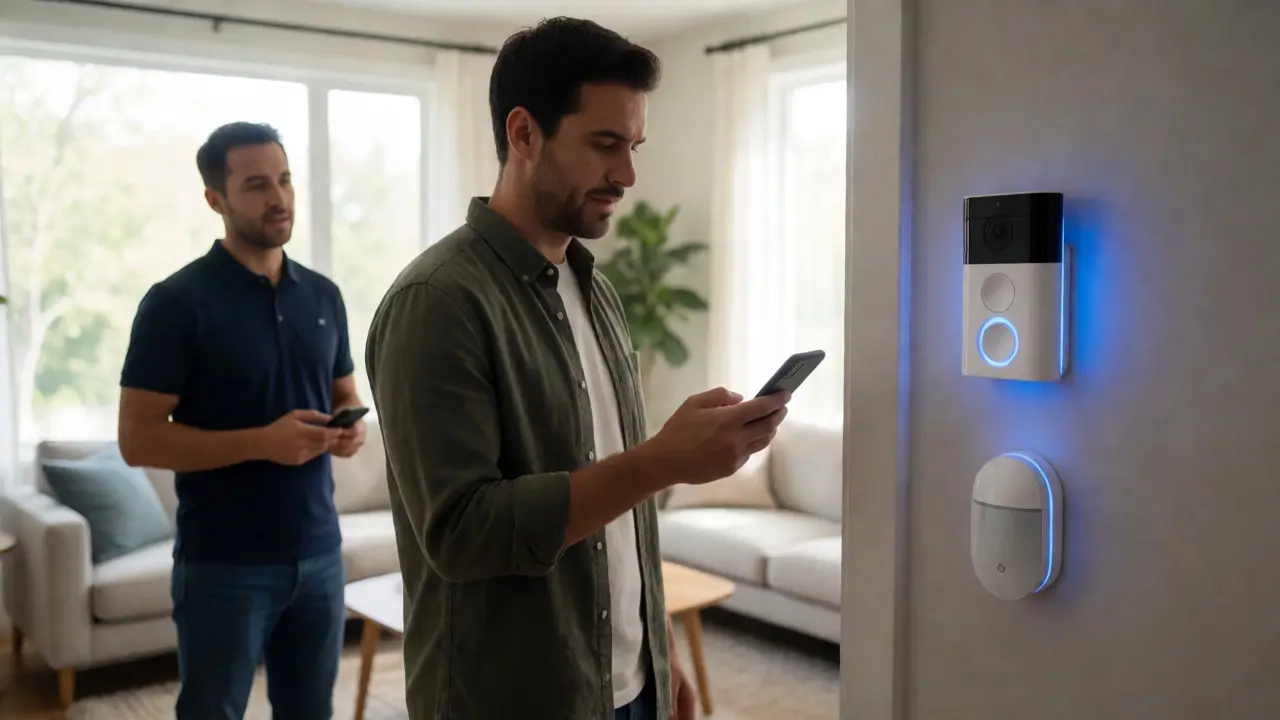
| Device Type | Common Issue | QA Action Item |
|---|---|---|
| Smart Locks | Battery drain due to misalignment | Test lock/unlock cycle 10 times; check voltage drop |
| Video Doorbells | Chime transformer mismatch | Verify transformer voltage matches device specs |
| Sensors (Door/Window) | Magnet distance too wide | Test trigger distance with manufacturer spec sheet |
| Smart Plugs | Overheating under load | Run high-draw appliance for 15 mins; check temp |
Integration protocols matter here. If you’re mixing Zigbee and Z-Wave devices, ensure your hub supports both natively or via compatible bridges. Mixed environments increase latency. Test the handshake between the device and the hub. If pairing takes more than three attempts, move the device closer to the hub or add a repeater. Do not leave weak signals for the client to deal with.
Automation Logic Stress Testing
This is the heart of the smart home experience. Clients don’t buy bulbs; they buy convenience. If your automations feel sluggish or unpredictable, the tech feels broken. You need to stress-test your logic flows.
Create "happy path" scenarios first. When motion is detected in the hallway at night, do the lights turn on within two seconds? Then, break it. Trigger the same scenario while the TV is playing loud audio. Does the voice assistant still hear the command? Test edge cases. What happens if the internet goes down? Your local automations should still function. If your system relies entirely on the cloud, a power outage means total darkness. Verify local execution capabilities for critical functions like security alarms and lighting.
Check for race conditions. Imagine two sensors triggering conflicting actions. If the front door opens (triggering "Welcome Home") and the living room motion sensor activates simultaneously, does the system get confused? Write scripts that prioritize safety and comfort over novelty. For example, never let an automation override manual control without a clear reset mechanism.
User Experience and Interface Validation
A technically perfect system is useless if the client hates using it. This is where many pros fail. They build complex dashboards that look cool to them but confuse the homeowner. Your QA must include a usability audit.
Hand the tablet or phone to someone who didn’t build the system. Ask them to perform common tasks: "Turn off all lights," "Lock the house," "Set the thermostat to 72 degrees." Watch their fingers. Do they hesitate? Do they tap the wrong icon? If they struggle, simplify the UI. Rename devices to natural language terms. "Living Room Main Light" is better than "LR_Switch_01".
Test notification fatigue. If every minor event sends a push alert, the client will mute the app within a week. Configure alerts only for actionable events-like a door left open for more than ten minutes or a water leak detection. Silence routine status updates. This keeps the system feeling helpful rather than nagging.
Documentation and Handover Protocol
The job isn’t done when the last bulb glows. It’s done when the client knows how to use it and you have a paper trail. Poor documentation leads to endless support calls asking, "Why is the garage door acting up?"
Provide a simple user guide, not a technical manual. Include screenshots of the app interface with arrows pointing to buttons. List troubleshooting steps for the top three most likely issues. Also, document your configuration settings. Take photos of the breaker panel labels and the network topology diagram. Store these in a shared folder accessible to both you and the client.
Finally, schedule a follow-up call for two weeks post-installation. Systems settle. Firmware updates roll out. New habits form. This proactive check-in prevents small glitches from becoming big complaints. It also positions you as a partner, not just a vendor.
How long should a standard smart home QA process take?
For a typical residential project with 20-30 devices, allocate 4-6 hours for thorough QA. This includes network mapping, hardware verification, automation testing, and user training. Rushing this phase usually results in higher callback rates within the first month.
Do I need separate Wi-Fi networks for smart home devices?
Yes, creating a separate IoT VLAN or SSID is highly recommended. It isolates smart devices from personal data traffic, improves security, and ensures consistent bandwidth for critical systems like security cameras. It also simplifies troubleshooting since you can rule out interference from personal devices quickly.
What is the most common mistake installers make during handover?
Assuming the client understands the backend complexity. Installers often show off advanced scenes and integrations that the client never uses. Instead, focus on teaching the core daily routines. Overloading the client with options causes decision paralysis and reduces satisfaction with the primary features.
How do I test smart home resilience against power outages?
Simulate an outage by unplugging the main hub or router. Check if essential automations (like lighting schedules or local security triggers) continue to run locally. Devices relying solely on cloud processing will fail. Ensure critical paths have local fallbacks configured in your hub’s software.
Should I update firmware before or after installation?
Update firmware after physical installation but before final configuration. Installing outdated firmware can lead to compatibility issues with newer hubs. However, updating mid-configuration can sometimes reset settings. Always back up configurations before applying major firmware updates to avoid losing custom scenes.