
Switching cloud providers feels like moving houses during a hurricane. You have boxes everywhere, the internet is down half the time, and you’re terrified of losing a photo from 2014 or a critical database backup. But it doesn’t have to be that chaotic. In 2026, cloud migration is less about brute force copying files and more about intelligent orchestration. Whether you are moving from on-premise servers to the cloud or hopping between major platforms like Amazon Web Services (AWS) and Microsoft Azure, the goal remains the same: move your data without breaking your business.
This guide cuts through the noise. We will look at the actual mechanics of moving petabytes of data, how to keep your applications running while you do it, and the specific pitfalls that cause migrations to fail. No fluff, just the steps that work in real-world scenarios.
Quick Summary / Key Takeaways
- Assess before you lift: Not all data needs to move. Archive or delete cold data first to reduce transfer costs by up to 40%.
- Bandwidth is king: For large datasets (>10TB), physical appliance transfers often beat high-speed internet connections due to latency and throttling issues.
- Incremental syncs save lives: Use tools that support delta-syncing to minimize downtime windows during the final cutover.
- Metadata matters: Moving files is easy; preserving permissions, tags, and directory structures is where most projects stumble.
- Test the destination: Verify integrity with checksums immediately after transfer, not weeks later.
The Pre-Migration Audit: What Actually Needs to Move?
Before you spin up a single virtual machine, you need to know exactly what you are dealing with. Most companies overestimate their active data footprint. A common mistake is trying to migrate every log file from the last five years. If no one looks at those logs, why pay to store them in a premium cloud tier?
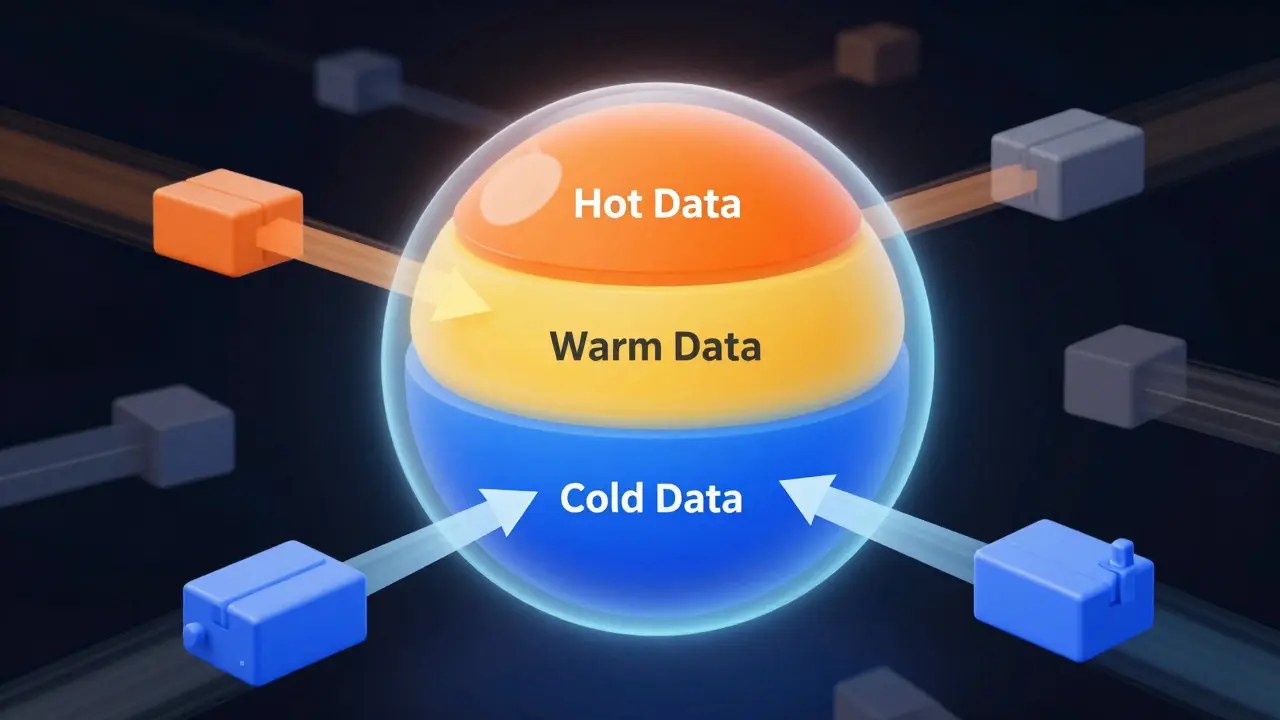
Start by mapping your data landscape. You need three distinct categories:
- Hot Data: Accessed daily. This includes current databases, user profiles, and active application state. This moves first and requires the highest performance tiers.
- Warm Data: Accessed monthly or quarterly. Think financial reports or seasonal inventory lists. These can be moved to lower-cost storage classes.
- Cold Data: Access rarely or never. Old backups, compliance archives. Consider keeping this on local tape or object storage with minimal retrieval fees, or simply deleting it if it’s redundant.
In our recent project helping a mid-sized e-commerce firm move from Google Cloud Platform to AWS, we found that 35% of their "production" storage was actually unused test data. By identifying this early, they saved $12,000 in initial transfer fees alone. The audit isn't just about size; it's about dependency. Which apps talk to which databases? If you move the database but leave the app behind, you’ll have latency nightmares. Map these relationships visually. It sounds tedious, but it prevents the "why is checkout slow?" panic calls two weeks post-migration.
Choosing Your Transfer Method: Internet vs. Appliance
You have two main ways to move data: over the network or via physical hardware. The choice depends heavily on volume and bandwidth constraints.
| Method | Best For | Average Speed | Cost Profile | Downtime Risk |
|---|---|---|---|---|
| Internet Transfer | < 10TB, low-latency regions | 1-5 Gbps | Paid per GB (egress fees) | Low (incremental) |
| Physical Appliance | > 50TB, remote locations | 100+ TB/day | Flat fee + shipping | Medium (logistics) |
| Hybrid Approach | Mixed environments | Variable | Optimized mix | Low |
For smaller datasets under 10 terabytes, internet transfer is usually sufficient. Tools like AWS DataSync or Azure Import/Export handle the compression and encryption automatically. However, if you are moving hundreds of terabytes, internet egress fees can skyrocket. AWS charges roughly $0.09 per GB for data leaving their network to another provider. That adds up fast. Physical appliances, like AWS Snowball Edge or Azure Data Box, allow you to ship hard drives directly to the provider. You plug in the drive, fill it locally, and ship it back. It bypasses the internet entirely for the bulk of the data.
There is a nuance here: metadata. Even if you use physical drives for the big files, you should still transfer metadata (file names, dates, permissions) over the internet first. This sets up the structure so that when the big files arrive, they drop into the right place instantly.
Handling Databases: The Tricky Part
Files are static. Databases are alive. Migrating a relational database like PostgreSQL or MySQL requires a different strategy than moving PDFs. You cannot just copy the `.sql` dump file because new transactions are happening every second.
The standard approach involves three phases:
- Initial Snapshot: Create a consistent backup of the source database. Load this into the target cloud environment. This might take hours or days depending on size.
- Change Data Capture (CDC): Set up a CDC tool (like Debezium or native replication features) to stream only the *changes* made to the source database to the target. This keeps the target in near-real-time sync.
- Cutover: Stop writes to the source. Wait for the CDC stream to catch up (usually seconds). Switch your application DNS or connection strings to point to the new database.
Be careful with schema differences. If you are moving from an older version of Oracle to a newer version of SQL Server, data types might not map perfectly. Test the conversion scripts in a sandbox environment before touching production. One mismatched date format can corrupt an entire table.
Preserving Metadata and Permissions
This is where many DIY migrations fail. You move the files, but now users can’t access them because their group permissions didn’t transfer. Or your automated scripts break because the file paths changed slightly.
Ensure your transfer tool supports POSIX permissions, ACLs (Access Control Lists), and extended attributes. If you are moving from a Windows-based NAS to Linux-based cloud storage, you will face a translation challenge. Samba shares, for example, don’t natively understand Linux ownership models. You may need to create a mapping layer or accept that some granular permissions will need to be rebuilt manually.
Also, think about naming conventions. If your source system uses special characters that the target cloud provider dislikes (like colons in filenames for AWS S3), your transfer will fail silently or throw errors. Sanitize your filenames beforehand. A simple script can rename files to use underscores instead of slashes, preventing headaches later.

Post-Migration Validation and Cleanup
Just because the transfer tool says "Complete" doesn’t mean everything is fine. You need a validation step. Don’t rely on file counts alone. Use checksums (MD5 or SHA-256) to verify that the content of critical files matches the source. For databases, run consistency checks to ensure row counts and index integrity match.
Run your applications against the new environment for at least 48 hours before declaring victory. Monitor error logs closely. Look for increased latency, failed API calls, or permission denied errors. These are the signs that something subtle went wrong during the move.
Finally, clean up the old environment. Keep it read-only for a few weeks as a safety net, then decommission it. Remember to cancel any associated subscriptions to avoid surprise bills. Cloud billing is notoriously tricky, and forgotten resources are a common source of waste.
Frequently Asked Questions
How long does a typical cloud migration take?
It varies wildly based on data volume and complexity. A small website with 50GB of data might take a weekend. An enterprise migration involving 100TB of structured and unstructured data can take 3-6 months. The planning and testing phases often take longer than the actual data transfer.
What are the biggest risks in cloud data transfer?
The top three risks are data corruption (mitigated by checksums), metadata loss (permissions/tags missing), and application incompatibility (code relying on specific file paths or OS features). Always test in a staging environment first.
Should I migrate everything at once or in phases?
Phased migration is almost always better. Move non-critical data first to test your pipeline. Then move development/staging environments. Finally, tackle production data. This reduces the blast radius if something goes wrong.
Do I need to change my application code during migration?
Ideally, no. If you are moving between similar cloud providers (e.g., AWS to GCP), minimal code changes are needed. If moving from on-premise to cloud, you might need to update configuration files for endpoints, credentials, and storage paths. Avoid hard-coded IP addresses in your code.
How much does cloud data transfer cost?
Inbound data to most clouds is free. Outbound data (egress) costs money. AWS charges ~$0.09/GB, Azure ~$0.087/GB. For very large volumes, negotiate enterprise pricing or use physical appliances to avoid per-GB fees. Internal transfers within the same region are often free.