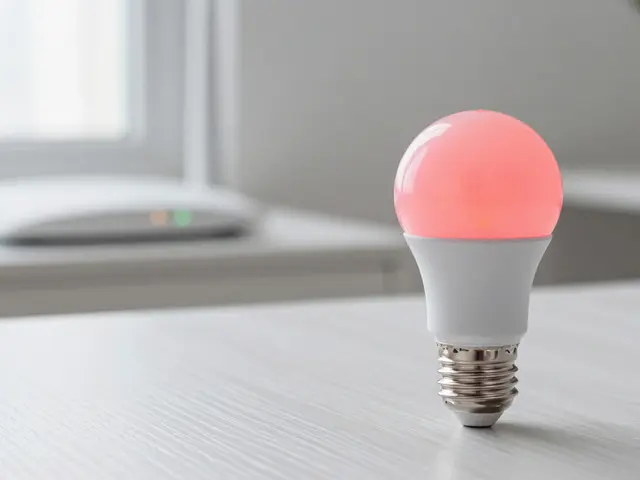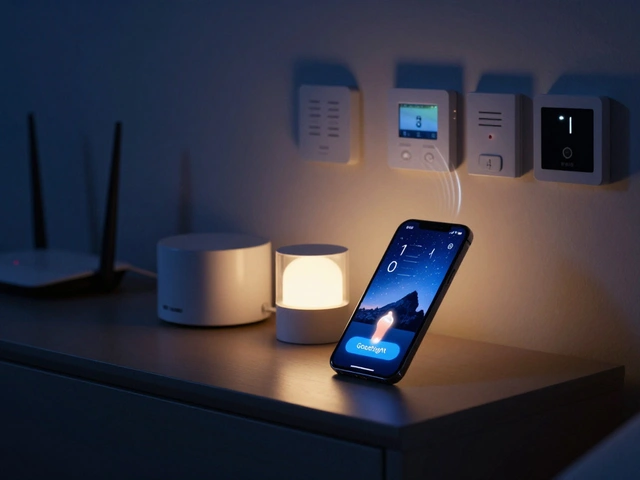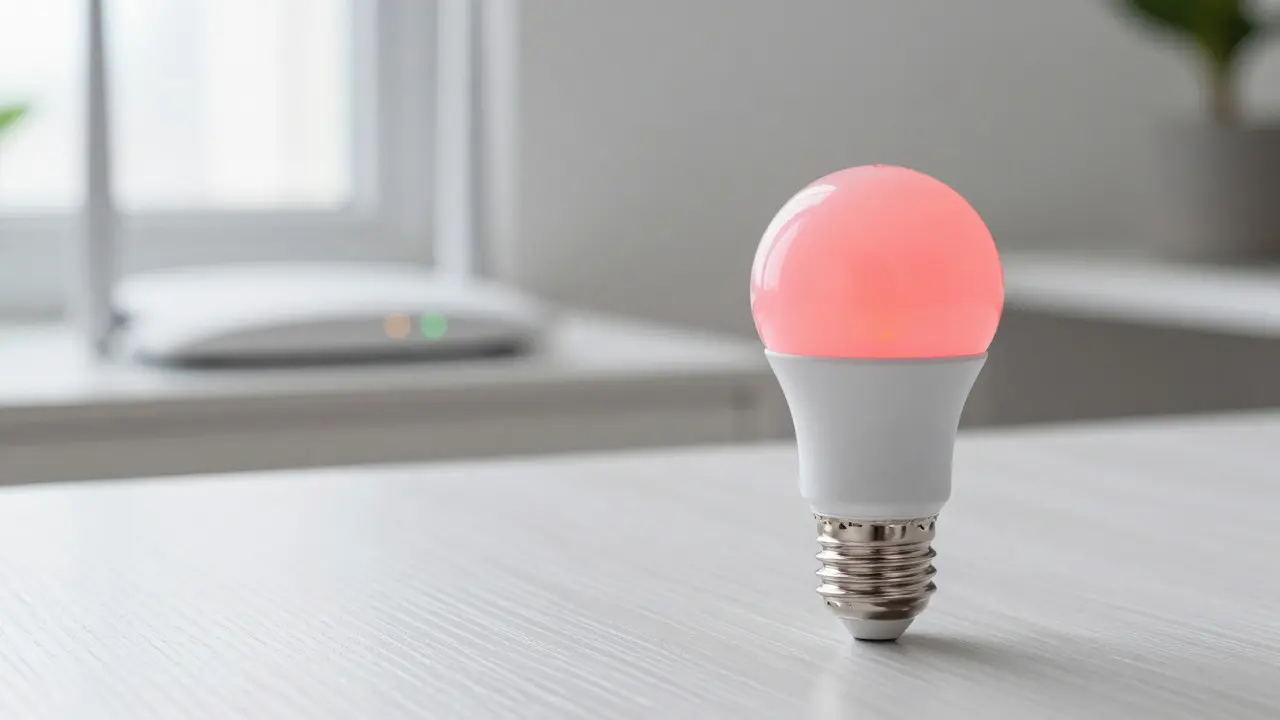
It’s 2026, and your smart bulb is blinking red again. You’ve restarted the router, held down the reset button for ten seconds, and maybe even whispered a prayer to the tech gods. Still no luck. Connecting smart devices is the process of linking internet-enabled household gadgets like lights, cameras, and thermostats to your home wireless network. While it sounds simple, it’s one of the most common headaches in modern home automation.
You don’t need a computer science degree to fix this. You just need to understand how these devices talk to your router and where things usually go wrong. This guide walks you through the exact steps to get your gear online, plus the specific tricks that save hours of frustration.
Quick Summary / Key Takeaways
- Most smart devices only work on 2.4 GHz Wi-Fi bands, not 5 GHz.
- Your device must be within range of the router during setup; moving it later is fine.
- If the app won’t find the device, check if your phone’s location services are enabled.
- A full power cycle (unplugging) often resolves firmware glitches better than a soft restart.
Why Your Device Can’t See the Network
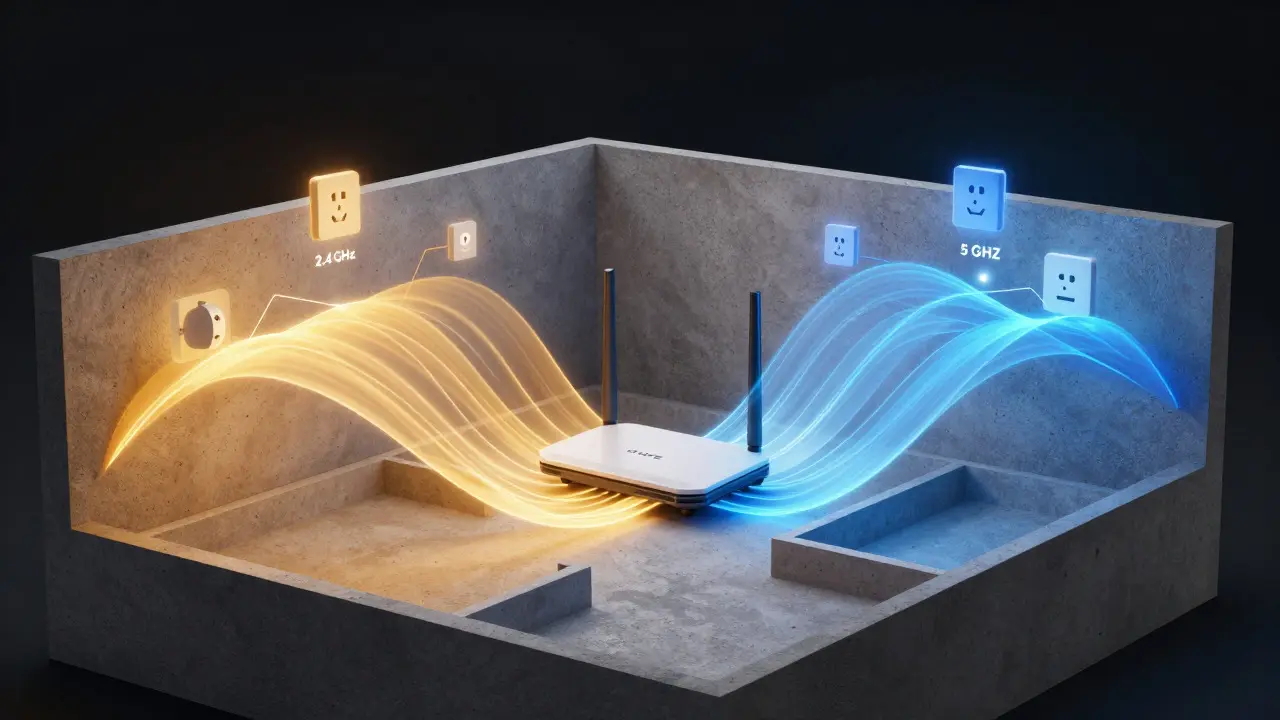
Before you start tapping buttons, let’s look at the two main culprits: frequency band mismatch and signal strength. Many people assume their home Wi-Fi is one single thing. It’s actually two separate networks running on different frequencies. The 5 GHz band is faster but has shorter range. The 2.4 GHz band is slower but penetrates walls better and reaches further.
Wi-Fi 6 is the latest standard for wireless networking that improves speed and capacity for multiple connected devices. However, many budget-friendly smart plugs and sensors still rely on older protocols that struggle with newer, complex router settings. If your router broadcasts both bands under the same name (a feature called "band steering"), some dumb-but-clever devices get confused about which one to grab. That’s why turning off band steering or explicitly naming your 2.4 GHz network separately can be a game-changer.
The 5-Minute Setup Routine
Follow this sequence every time. Skipping a step is usually what causes the failure.
- Check the Power Source: Is the outlet working? Plug a lamp into it to verify. Some devices have weak internal batteries that die during the long pairing process.
- Put the Device in Pairing Mode: Usually, this means holding a button until an LED blinks rapidly (not slowly). Read the manual; "rapid blink" and "slow pulse" mean different things to the hardware.
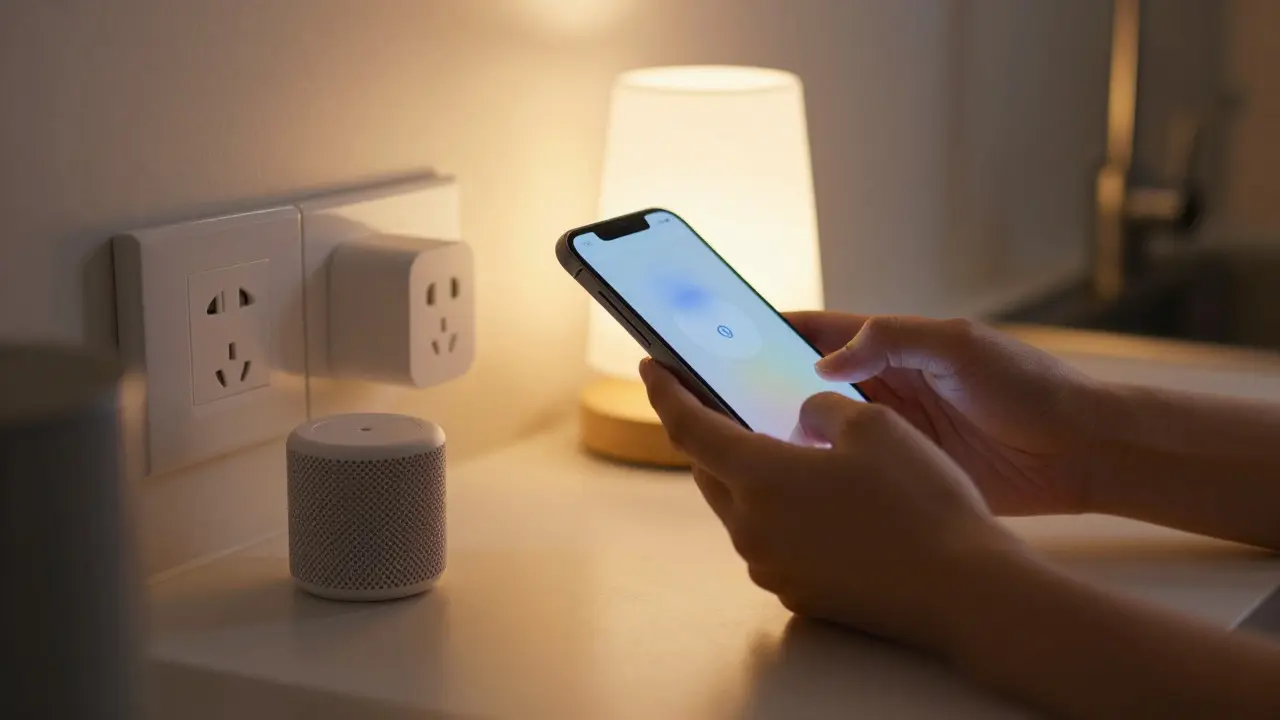
- Open the App on Your Phone: Ensure your phone is connected to the same Wi-Fi network as the router. Do not use mobile data. The phone acts as the bridge between the cloud and the local device.
- Enter the Password Carefully: Most apps hide the password field. Type it once, carefully. Capitalization matters. Special characters like # or $ often cause parsing errors in cheaper devices.
- Wait for the Confirmation Chime or Light Change: Don’t tap "Next" immediately. Wait until the device physically signals success (e.g., a solid blue light or a beep).
Troubleshooting Common Connection Failures
When it fails, it usually fails in one of three specific ways. Here is how to diagnose them.
| Symptom | Likely Cause | Immediate Fix |
|---|---|---|
| Device found, but password rejected | Router security setting too advanced (WPA3) | Temporarily switch router to WPA2-AES |
| App says "Searching..." forever | Phone not on correct Wi-Fi or Location Services off | Toggle Airplane mode on/off; enable Location for the app |
| Connected, then drops after 1 hour | IP address conflict or DHCP lease issue | Assign a static IP for the device in router settings |
| Works in living room, fails in bedroom | Signal attenuation due to distance/walls | Move device closer to router for setup, then test range |
One specific tip from experience: if you live in an apartment with thick concrete walls, your 2.4 GHz signal might drop significantly by the time it reaches the back hallway. In those cases, a mesh system node placed halfway between the router and the device solves the problem instantly. You don’t need to buy a whole new system; just adding one satellite node often doubles your effective coverage area for low-power IoT devices.
Advanced Tips for Stable Long-Term Performance
Once the device is connected, the real work begins. Smart devices are notorious for dropping offline when your main network gets busy. To prevent this, consider isolating your IoT traffic. Most modern routers allow you to create a "Guest Network." Put all your smart bulbs, plugs, and cameras on this guest network instead of your main one.
This does two things. First, it separates the heavy traffic from your streaming TV and gaming console, giving your smart devices a dedicated lane. Second, it adds a layer of security. If a cheap smart plug gets hacked, the attacker is stuck on the guest network and can’t easily peek at your personal files on the main LAN.
Also, keep your firmware updated. Manufacturers release updates to fix exactly these kinds of connectivity bugs. Check the app’s settings menu monthly. It takes thirty seconds and prevents 90% of mysterious dropouts.
Frequently Asked Questions
Do smart devices need a 5 GHz Wi-Fi connection?
No, most do not. In fact, the majority of smart home devices only support the 2.4 GHz band because it offers better range and lower power consumption. Only high-end devices like 4K security cameras or video doorbells typically require 5 GHz for higher bandwidth.
Why does my phone need to be on the same Wi-Fi to set up a device?
The phone acts as a relay. It receives the configuration instructions from the cloud server and passes them to the device over the local Wi-Fi network. If your phone is on mobile data, it cannot communicate directly with the local device during the initial handshake phase.
What is the difference between WPA2 and WPA3 security for smart devices?
WPA3 is the newer, more secure standard. However, many older or budget smart devices lack the processing power to handle WPA3 encryption efficiently, leading to connection failures. If a device struggles to connect, switching your router to WPA2-AES is a safe and effective workaround.
Can I move a smart device after it is connected?
Yes, but only if the new location still has a strong enough 2.4 GHz signal. If you move a camera from the kitchen to the garage and it stops working, the signal likely dropped below the threshold needed for stable communication. Test the signal strength in the new spot before finalizing the installation.
How many smart devices can my Wi-Fi router handle?
A standard consumer router can typically handle 20-30 active connections comfortably. However, smart devices send small pings frequently, so they consume less bandwidth than phones or laptops. A good rule of thumb is that you can have 50+ smart devices on a modern router without performance issues, provided they aren't all streaming video simultaneously.