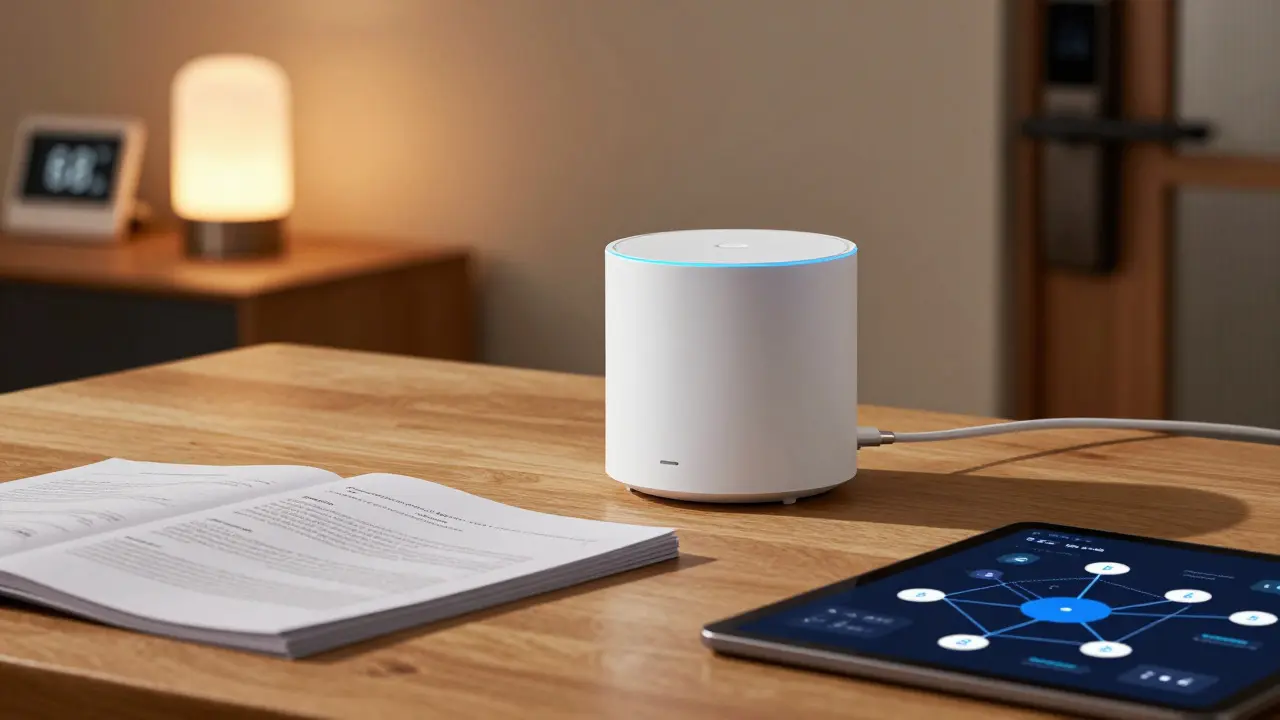
You just finished wiring your last sensor and syncing your hub. The lights dim, the thermostat adjusts, and the front door locks automatically. It feels like magic. But here is the hard truth: three months from now, when a camera goes offline or you want to add a new smart lock, that magic will feel like chaos if you haven't written it down.
Creating smart home documentation isn't about being a corporate IT manager. It's about saving yourself hours of frustration later. Whether you are in Portland dealing with rainy season humidity affecting outdoor sensors or anywhere else managing a complex IoT setup, a simple paper trail turns a headache into a five-minute fix. This guide walks you through exactly what to document, how to organize it, and why skipping this step is the most common mistake in DIY installations.
Why Your Brain Won't Remember the Details
We tend to think we'll remember where we put the Z-Wave repeater or which IP address belongs to the garage door opener. We won't. Human memory is terrible at retaining specific technical configurations unless they are used daily. Smart home systems involve dozens of variables: firmware versions, Wi-Fi channels, bridge protocols, and physical locations of hardware.
Consider the scenario where your mesh network drops out during a storm. Without notes, you might spend an hour guessing which node failed. With a simple map, you know Node 4 is behind the bookshelf on the second floor. Documentation bridges the gap between "I set this up" and "I understand how this works." It transforms your system from a black box into a transparent machine you can control.
The Core Components of a Smart Home Map
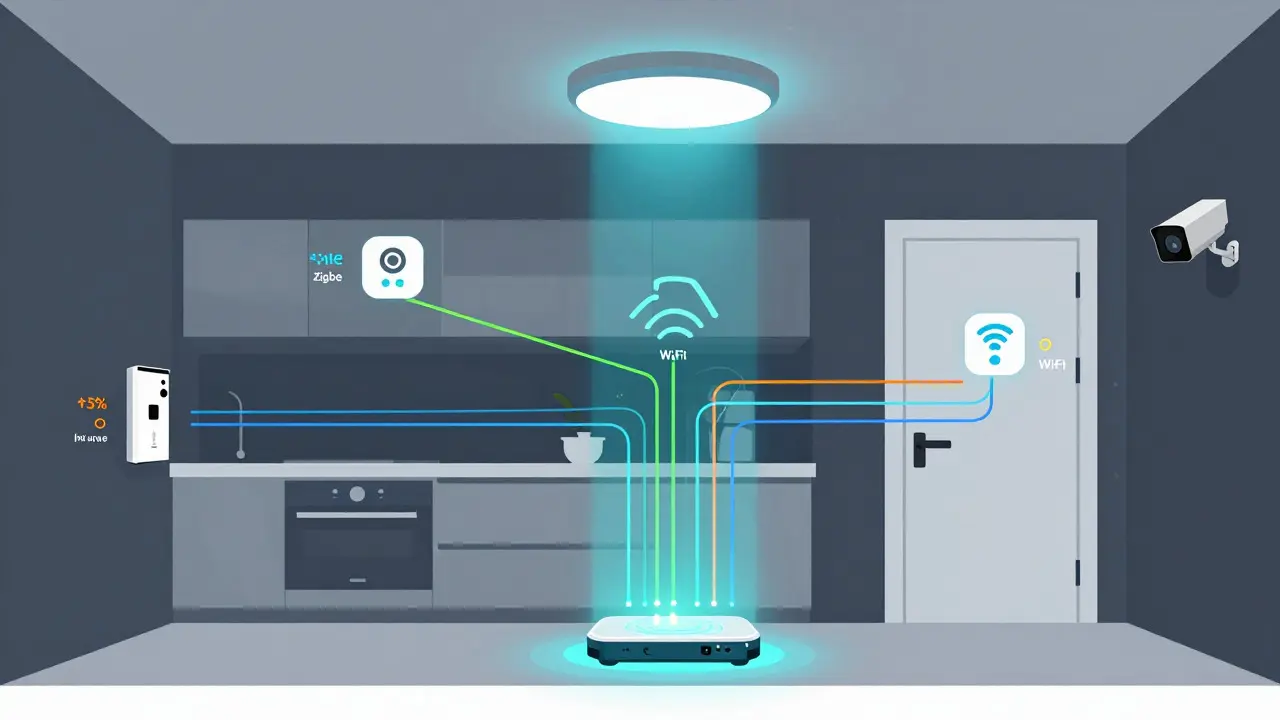
Your documentation should start with a visual representation of your network. You don't need professional CAD software. A whiteboard photo, a hand-drawn sketch scanned into your phone, or a digital tool like draw.io works perfectly. The goal is clarity, not aesthetics.
Every major entity in your system needs to be defined. Here is what your central map must include:
- The Hub: Identify your central controller (e.g., Home Assistant, Hubitat, or Apple HomePod). Note its model number and current firmware version.
- Network Infrastructure: Mark your router location, mesh nodes, and any dedicated IoT SSIDs. Include the subnet range (e.g., 192.168.1.0/24).
- Physical Devices: List every smart plug, bulb, sensor, and lock. Crucially, note their physical location (e.g., "Living Room Ceiling," "Front Door Frame").
- Protocols: Indicate whether devices use Zigbee, Z-Wave, Thread, or Wi-Fi. This determines troubleshooting paths.
When you label these entities, you create a semantic link between the physical object and its digital identity. For example, knowing that the "Kitchen Light" uses Zigbee means you check the Zigbee coordinator first, not the main Wi-Fi router.
Building Your Device Inventory Table
A visual map is great for layout, but a table is better for data. Create a spreadsheet or a database entry for every device. This is where you store the attributes that matter when things break.
| Device Name | Manufacturer/Model | Protocol | IP Address / MAC | Firmware Version | Location | Notes |
|---|---|---|---|---|---|---|
| Front Door Lock | August+ v3 | Z-Wave | N/A (Hub-bound) | 2.5.1 | Entryway | Battery replaced Jan 2026 |
| Living Room Bulbs | Philips Hue White | Zigbee | AA:BB:CC:DD:EE:FF | 1.104.2 | Ceiling Recessed | Grouped as "Lounge" |
| Garage Opener | LiftMaster Smart Hub | Wi-Fi | 192.168.1.50 | Latest Auto-Update | Garage Wall | Requires static IP |
Pay close attention to the "Notes" column. This is where you record quirks. Maybe the garage opener only connects to the 2.4 GHz band. Maybe the bathroom motion sensor has a blind spot near the mirror. These small details save massive amounts of time during troubleshooting.
Documenting Automations and Scenes
Hardware is only half the story. The real value of a smart home lies in its automations. If you have a rule that says "Turn off all lights when everyone leaves," you need to document the logic behind it.
For each automation, write down:
- Trigger: What starts the action? (e.g., Geofence exit, Time-based, Sensor change.)
- Condition: Are there prerequisites? (e.g., Only if doors are locked, Only if outside temperature is below 60°F.)
- Action: What happens? (e.g., Set thermostat to Eco mode, Send notification.)
- Dependencies: Which other devices or services does this rely on?
Imagine you move your internet provider. Some automations might rely on cloud connectivity, while others work locally. By documenting dependencies, you know exactly which routines will fail during an outage and which will keep working. This distinction is critical for reliability.
Managing Firmware and Updates
Smart home devices update themselves, often without asking permission. Sometimes an update fixes a bug; sometimes it breaks compatibility. Your documentation should include a log of significant changes.
Create a simple "Change Log" section. Every time you manually update a hub or a device, note the date, the old version, the new version, and the reason for the update. Did you update because of a security patch? Because the app crashed? Recording this helps you revert if needed. If a new firmware version causes your Z-Wave network to drop nodes, you can quickly identify the culprit by checking your log.
Also, document your backup strategy. Do you export your configuration files weekly? Where are those backups stored? Cloud storage? A local NAS? If your hub dies, having a documented backup location ensures you can restore your system in minutes rather than days.

Troubleshooting Playbooks
Preventive documentation is good, but reactive documentation saves lives. Create a mini-playbook for common issues. You don't need a manual for every possible error, but cover the top three problems you've faced.
Example Playbook Entry: "Camera Offline" 1. Check power source. 2. Verify Wi-Fi signal strength at camera location. 3. Ping the camera's IP address from the hub. 4. If ping fails, check the router's DHCP lease table. 5. If ping succeeds, restart the NVR or cloud service app.
Writing these steps forces you to think logically about the problem. Once written, they become a checklist for future incidents. Even if you forget the exact command line interface command to restart a service, the playbook reminds you where to look.
Keeping Documentation Alive
The biggest risk with documentation is obsolescence. If your notes are six months old, they are useless. To keep them fresh, integrate documentation into your workflow.
Use a digital format that is easy to edit. A shared Notion page, a Markdown file in GitHub, or even a simple PDF on your desktop works. The key is accessibility. If the docs are buried in a drawer, they won't get updated. If they are one click away on your phone, you'll update them when you add a new device.
Make a habit of updating the inventory table immediately after installing a new device. It takes thirty seconds. That thirty seconds prevents the "What was that password again?" panic later. Treat your documentation as part of the installation process, not an afterthought.
Do I need to document every single light bulb?
Yes, but keep it brief. Group similar devices together if they share the same protocol and location. However, individual identification is crucial for troubleshooting specific failures. If one bulb flickers, you need to know its exact position and model to diagnose if it's a driver issue or a hardware defect.
What is the best format for storing smart home documentation?
Digital formats are preferred for searchability and ease of editing. Markdown files, wikis, or spreadsheet applications work well. Avoid handwritten notes unless you scan them immediately. Digital docs allow you to copy-paste IP addresses and link to online support forums directly.
How often should I review my documentation?
Review it quarterly or whenever you make significant changes to your network topology. A quick ten-minute audit ensures that firmware versions and IP assignments are still accurate. This prevents drift between your physical setup and your records.
Should I include passwords in my documentation?
Store sensitive credentials in a password manager, not directly in plain text documents, unless the document is encrypted. However, noting *where* the password is stored (e.g., "Admin password in 1Password, vault 'HomeNet'") is highly valuable. This avoids writing secrets in multiple insecure places.
Is it worth buying third-party tools for documentation?
Usually, no. Free tools like Obsidian, Notion, or even Excel are sufficient. Paid tools may offer better visualization features, but the core value comes from consistency and detail, not the software interface. Start simple and upgrade only if you hit a workflow bottleneck.