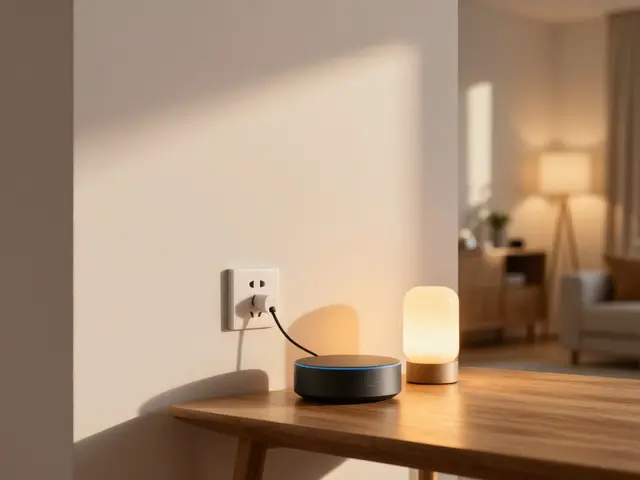
Imagine your neighbor is coming over to fix a leaky faucet while you are at work. You don't want to give them your master key, but you need them inside. This is where Smart Home Guest Access comes in. It allows you to grant specific people entry or control rights for a limited time without handing over permanent credentials. The goal is simple: keep your home secure while making life easier for visitors, contractors, and family members.
Most people fear that sharing access means losing control. They worry about someone changing the thermostat, leaving lights on, or even stealing their data. These concerns are valid. However, modern systems offer granular controls that let you define exactly what a guest can do and when they can do it. By understanding how these permissions work, you can turn a potential security risk into a convenient feature.
Understanding Temporary Access Levels
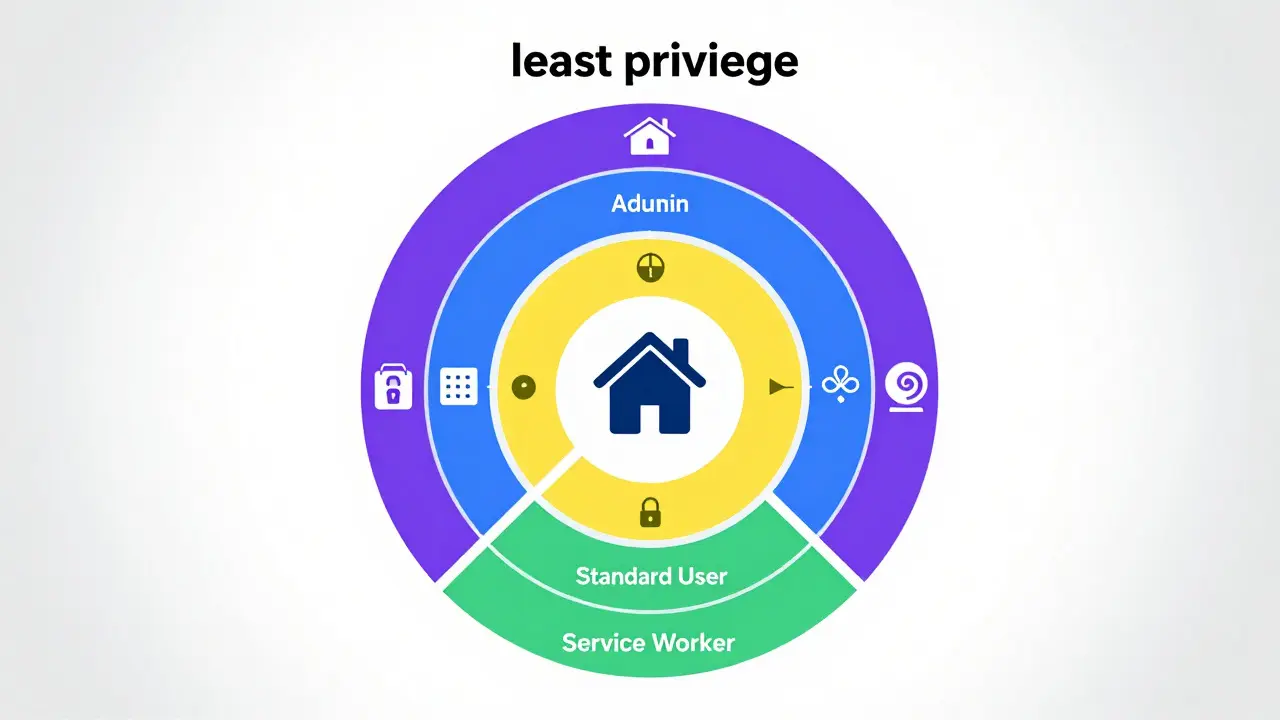
Not all access is created equal. When you invite someone into your digital home, you need to decide how much power they get. A contractor fixing the garage door needs different permissions than a babysitter checking on the kids. Most smart home hubs categorize these roles into distinct tiers.
- Full Admin: Can change settings, add new users, and manage devices. Rarely needed for guests.
- Standard User: Can operate major systems like locks, lights, and thermostats but cannot delete accounts.
- Guest Mode: Limited to specific zones or devices. Often tied to a single entry point.
- Service Worker: Time-bound access to specific areas, such as the utility room or attic.
The key here is least privilege. Give them only what they need to complete the task. If a plumber only needs to enter the house, do not give them control of the security cameras. This reduces the attack surface if their phone gets lost or hacked.
Setting Up Secure Entry Points
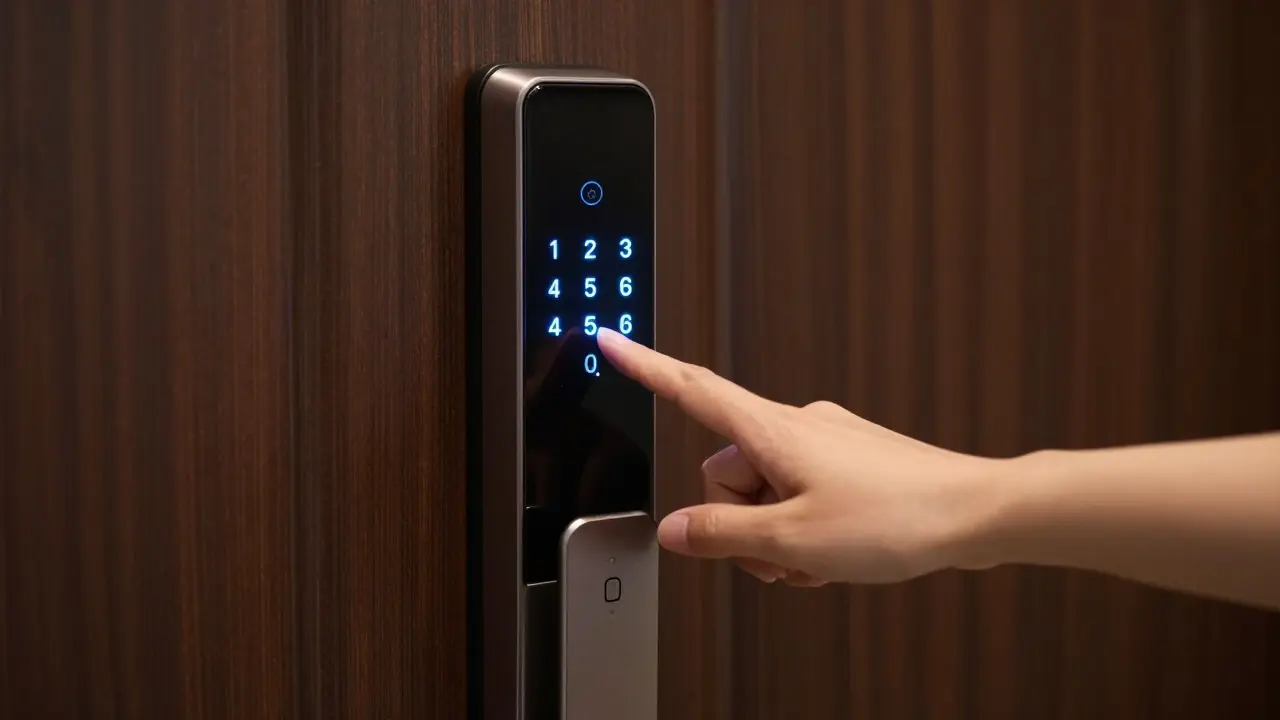
Physical entry is the first line of defense. Smart Locks have revolutionized this process. Instead of cutting a physical key, you create a digital code or use an app-based unlock. For temporary access, time-limited codes are the gold standard.
Here is how to set up a secure temporary entry using a typical smart lock system:
- Open your smart home app and navigate to the lock settings.
- Select "Create Code" or "Add User."
- Choose the expiration date and time. For a day visit, set it to expire at midnight.
- Restrict the code to specific hours if necessary (e.g., 9 AM to 5 PM).
- Enable notifications so you get an alert every time the code is used.
Always choose a unique code for each visitor. Reusing codes makes it hard to track who entered if something goes wrong. Also, avoid obvious dates like birthdays. Use random number generators if your app offers them.
Managing Device Permissions
Entry is just the beginning. Once inside, guests might interact with other devices. This is where Smart Home Hubs shine. Brands like Amazon Alexa, Google Home, and Apple HomeKit allow you to create profiles for different users.
For example, you can set up a "Guest Profile" that disables the video doorbell camera privacy mode or restricts the thermostat range. This prevents guests from accidentally setting the heat to 80 degrees when you prefer 68. You can also hide sensitive devices, like the office safe or the media server, from the guest's view entirely.
| Platform | Guest Feature Name | Key Limitation | Best For |
|---|---|---|---|
| Amazon Alexa | Household Members | Limited device-level granularity | Voice-first households |
| Google Home | Home Profiles | Requires same Google Account ecosystem | Android-centric homes |
| Apple HomeKit | Shared Home | iOS dependency for full features | Privacy-focused Apple users |
| Samsung SmartThings | Members & Roles | Complex setup for non-Samsung devices | Mixed-brand ecosystems |
Security Best Practices for Shared Access
Convenience shouldn't come at the cost of security. When sharing access, you are essentially extending your trust to another person's technology habits. Here are practical steps to mitigate risks.
First, enable two-factor authentication (2FA) on your main account. If a guest's phone is compromised, 2FA adds a layer of protection against remote hijacking. Second, review your activity logs regularly. Most apps show a history of unlocks, temperature changes, and light toggles. Spotting unusual patterns early can save you from bigger issues.
Third, be mindful of Wi-Fi security. Guests often connect their phones to your network. Consider creating a separate guest Wi-Fi network that isolates their devices from your core smart home infrastructure. This way, if a guest's tablet has malware, it won't easily spread to your smart fridge or security system.
Handling Contractors and Service Workers
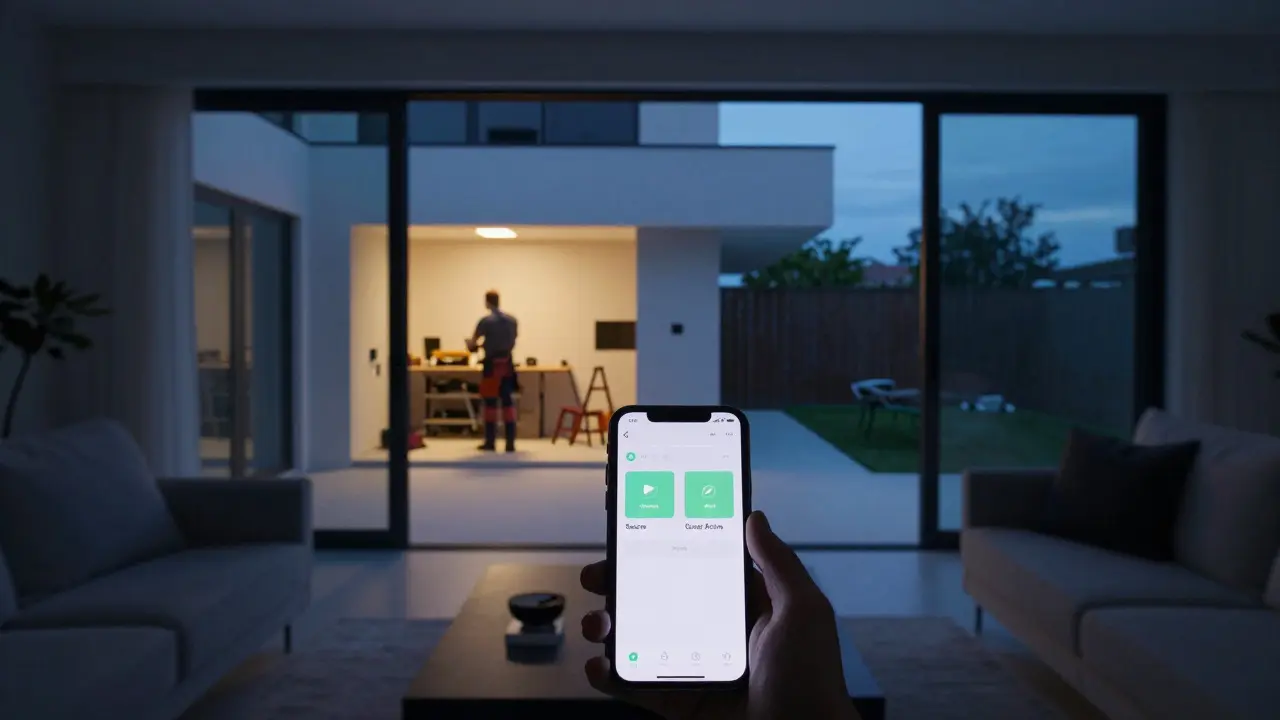
Contractors present a unique challenge. They may need access multiple times over weeks or months. Giving them a permanent admin account is dangerous. Instead, use recurring time slots or long-term guest codes that auto-expire after the project ends.
If you use a service like Ring or Nest, check if they offer "Professional Access" modes. These often include features like disabling motion detection during work hours to prevent false alarms. Always communicate clearly with the worker about which doors to use and whether they should notify you before entering.
Troubleshooting Common Access Issues
Even with the best plans, things go wrong. Phones lose signal, batteries die, or apps glitch. Here is how to handle common scenarios.
If a guest forgets their code, don't panic. Most smart locks allow you to generate a new code instantly via your phone. Just make sure you have cellular data or Wi-Fi available. If your internet goes down, check if your lock supports offline codes. Many modern locks store codes locally on the keypad, so they still work without cloud connectivity.
If a guest changes a setting you didn't expect, like turning off the AC, check the "History" tab in your app. You can usually revert changes manually. To prevent this in the future, lock specific devices to "Owner Only" mode in your hub settings.
Frequently Asked Questions
Can I revoke guest access instantly?
Yes. Most smart home platforms allow you to remove a user or delete a code with one tap. The change syncs to the device within seconds if the internet is active. For offline locks, the code remains valid until the next sync, so act quickly.
Do guests need to download my specific app?
It depends on the method. If you use a numeric keypad code, no app is needed. If you use app-based unlocking, yes, they must install the manufacturer's app and accept your invitation. Keypad codes are generally more reliable for temporary guests.
What happens if my internet goes down while a guest is trying to enter?
If your smart lock stores codes locally, it will still work. Cloud-dependent locks may fail. Check your device manual for "offline capability." Many newer models use Bluetooth or Z-Wave to maintain local control even without Wi-Fi.
Is it safer to give a guest a code or an app login?
Codes are generally safer for short-term visits because they don't require sharing passwords or installing software. App logins offer more control over devices but increase the risk if the guest's phone is compromised.
How long should a temporary code remain active?
Only as long as necessary. For a one-day visit, set it to expire at 11:59 PM that night. For weekly services, set it to expire on the last scheduled day. Avoid indefinite codes unless absolutely required.