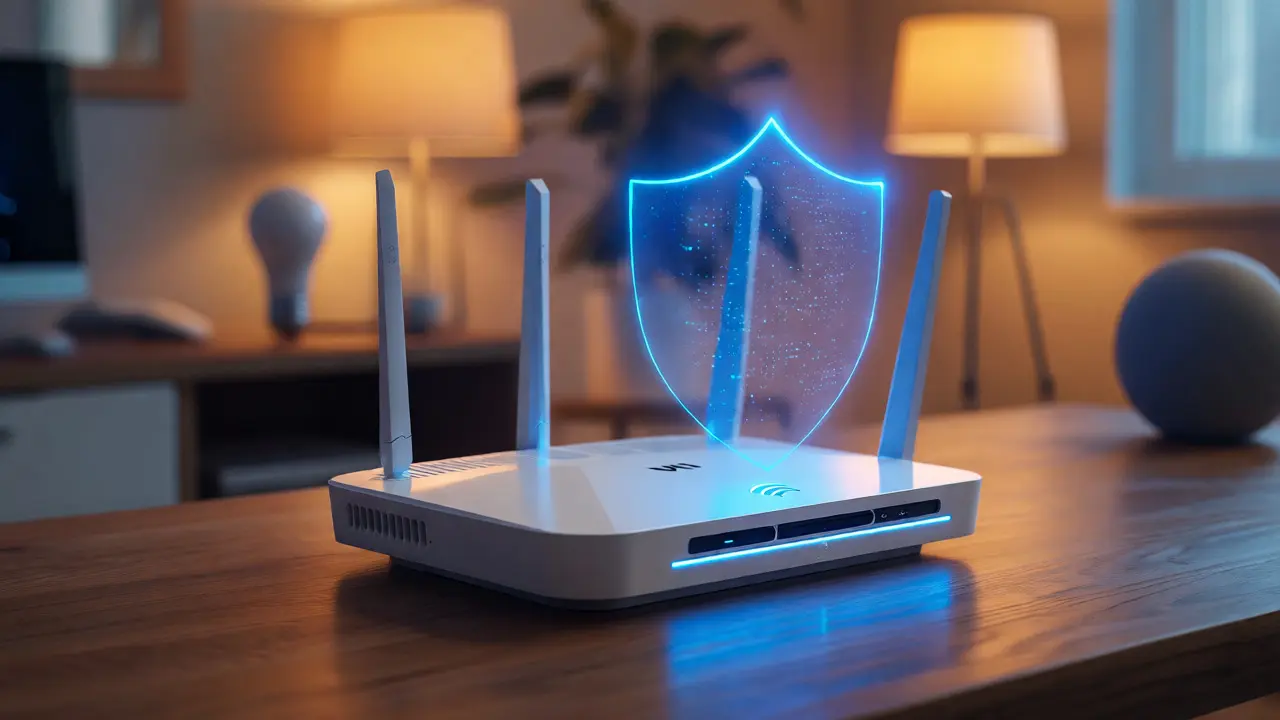
You know that feeling when your Wi-Fi drops out right in the middle of a video call? Or maybe you just bought a new smart bulb, but it refuses to connect to your router. These aren't always hardware failures. Often, they are symptoms of outdated firmware, which is essentially the operating system that runs your networking gear. Keeping this software current isn't just about getting shiny new features; it's the single most effective way to keep your home network stable and secure from modern threats.
Many people treat their routers like set-and-forget appliances. You plug it in, enter the password once, and never touch it again for three years. That approach worked fine back in 2015. It doesn't work today. With the rise of IoT devices and increasingly sophisticated cyberattacks targeting home networks, an unpatched router is an open door. Let's break down why updating matters, how to do it safely, and what to expect when you hit that "Update" button.
Why Your Router Needs Regular Attention
Think of your router as the bouncer at a club. Its job is to let authorized traffic in and keep the troublemakers out. When vulnerabilities are discovered in its code, hackers can exploit them to spy on your data or even hijack your device. A prime example is the Mirai botnet, which exploited default credentials and known firmware flaws in millions of routers to launch massive DDoS attacks. If your firmware is old, you're likely running vulnerable code.
Beyond security, updates often address stability issues. Have you noticed random reboots or lag spikes during peak hours? Manufacturers frequently release patches to fix memory leaks or improve how the router handles multiple connections. In 2026, with homes averaging over 30 connected devices per household, efficient resource management is critical. An update might optimize how your router prioritizes gaming traffic versus background downloads, smoothing out those annoying lags.
The Three Pillars of Firmware Updates
When you look at a changelog for a router update, you'll usually see changes falling into three categories: security, stability, and features. Understanding these helps you decide if an update is urgent or optional.
| Category | What It Fixes/Add | Urgency Level |
|---|---|---|
| Security Patches | Closes vulnerabilities (CVEs), fixes encryption flaws, blocks known malware vectors. | High - Apply immediately |
| Stability Improvements | Reduces crashes, improves Wi-Fi range consistency, fixes DHCP bugs. | Medium - Apply within a week |
| New Features | Adds support for new protocols (like WPA3), parental controls, or mesh compatibility. | Low - Optional based on needs |
Security patches are non-negotiable. If the changelog mentions "critical vulnerability" or references a CVE number, install it now. Stability improvements are valuable if you've been experiencing glitches. New features are nice-to-haves. For instance, if you don't use parental controls, an update adding a new interface for them won't change your daily experience much. But if you have young kids online, that feature becomes essential.
How to Check and Install Updates Safely
Most modern routers check for updates automatically, but relying solely on auto-update can be risky. Sometimes, a buggy update gets pushed out before users report issues. It’s better to take manual control, especially if you rely on a stable connection for work.
- Access the Admin Panel: Type your router's IP address (usually 192.168.1.1 or 192.168.0.1) into a web browser. Log in with your admin credentials.
- Navigate to Firmware Settings: Look for tabs labeled "Administration," "System," or "Firmware Upgrade." This varies by brand. TP-Link puts it under System Tools; Netgear hides it under Advanced > Administration.
- Check for Updates: Click "Check Online." Do not manually download files unless you are experienced. Using the built-in checker ensures you get the correct version for your specific hardware model.
- Backup Configuration: Before hitting update, export your settings. If something goes wrong, you can restore your SSID and password without resetting everything.
- Install and Reboot: Start the update. The router will reboot automatically. Do not unplug it during this process. It usually takes 2-5 minutes.
A common mistake is interrupting the power supply mid-update. This can "brick" the router, rendering it useless until you perform a complex recovery procedure. Patience here saves you a trip to the electronics store.
ISP-Managed vs. User-Managed Routers
Your experience with updates depends heavily on who owns your equipment. If you rent a modem/router combo from your Internet Service Provider (ISP), like Xfinity or Spectrum, they often push updates remotely. You might not even see a notification. While convenient, this removes your choice. You can't delay a buggy update, and sometimes ISPs roll out changes that disable advanced features you prefer.
If you own your router, you have full control. Brands like Asus, Ubiquiti, and Netgear allow you to manage the schedule. Some enthusiasts go further and install third-party firmware like OpenWrt or DD-WRT. These open-source alternatives offer granular control and extended support for older hardware. However, they require technical knowledge. Installing custom firmware voids warranties and carries a higher risk of misconfiguration. For most homeowners, sticking to official manufacturer firmware is the safer bet.
Troubleshooting Post-Update Issues
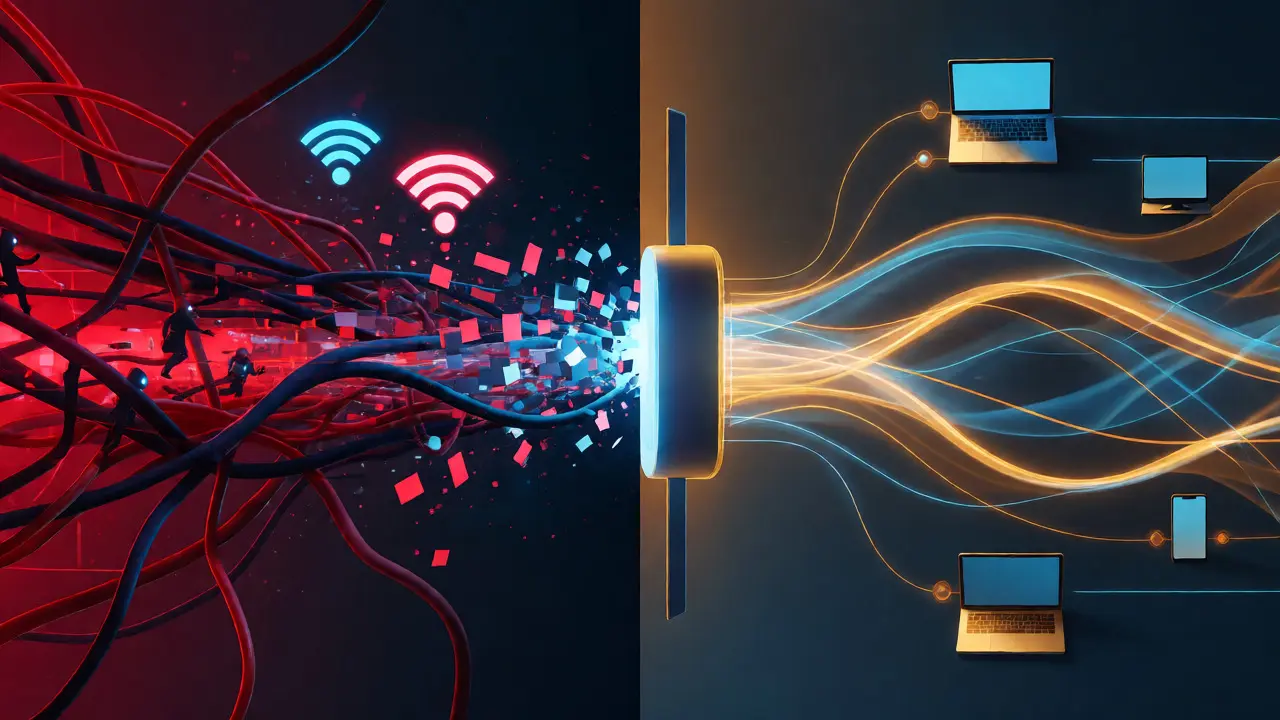
Sometimes, an update breaks things. Maybe your printer stopped connecting, or your smart TV dropped off the network. Don't panic. Here’s a quick troubleshooting checklist:
- Power Cycle: Unplug the router and modem, wait 30 seconds, then plug the modem back in first. Once it connects, plug in the router. This clears temporary cache errors.
- Forget and Reconnect: On problematic devices, remove the saved Wi-Fi network and reconnect. This forces the device to renegotiate security keys.
- Factory Reset: If issues persist, reset the router to factory defaults and reconfigure manually. Corrupted configuration files from the previous version often cause conflicts.
- Rollback: Check if your manufacturer allows rolling back to a previous firmware version. Not all brands support this, so verify before attempting.
If you recently updated and suddenly lost internet access, check the WAN status in the admin panel. Sometimes the MAC address cloning setting gets reset, causing the ISP to reject the connection. Re-enabling MAC clone usually fixes this instantly.
Future-Proofing Your Network
As we move deeper into 2026, firmware updates are becoming more intelligent. We're seeing the rise of AI-driven diagnostics in high-end routers. These systems analyze traffic patterns and suggest updates only when necessary, reducing downtime. Additionally, support for Wi-Fi 7 is expanding. If your router supports it, ensure your firmware includes the latest drivers for Multi-Link Operation (MLO), which combines different frequency bands for lower latency.
Don't ignore end-of-life notices. Manufacturers eventually stop releasing updates for older models. If your router hasn't received a patch in over two years, consider replacing it. Running unsupported hardware means no more security fixes, leaving your personal data exposed to new attack methods developed after support ended.
Will updating my router erase my Wi-Fi password?
Usually, no. Most standard firmware updates preserve your existing configuration, including SSID and passwords. However, major version upgrades or factory resets will wipe these settings. Always back up your config file before updating to be safe.
How often should I update my router firmware?
Check for updates every 3 to 6 months. If there is a critical security alert affecting your specific model, update immediately. For most users, quarterly checks strike a good balance between staying secure and avoiding unnecessary disruption.
Can I update my router while using the internet?
No. The update process requires the router to reboot. During this time, your internet connection will drop for 2 to 5 minutes. Avoid downloading large files or streaming video during this window.
What happens if the update fails?
If the power goes out during an update, the router may fail to boot. Try performing a hard reset (holding the reset button for 10-15 seconds). If that doesn't work, consult your manufacturer's website for a TFTP recovery method to reinstall the firmware manually.
Do I need to update if my internet works fine?
Yes. Just because your connection seems stable doesn't mean it's secure. Many vulnerabilities don't affect performance visibly but expose your data to interception. Regular updates close these silent security gaps.