
You walk into a co-working space with your laptop, expecting to plug in and work. But before you even open an email, you hit a wall: the Wi-Fi password changes every hour, or worse, it’s the same one everyone uses, meaning your neighbor can see your screen sharing session. This isn't just annoying; it's a security nightmare for businesses that rely on these flexible offices.
As remote work solidifies its place in the corporate world by 2026, Co-Working Space Technology has evolved from simple desk rentals to complex IT ecosystems. The two biggest pain points? Network security and printing. If you’re running a small team out of a shared hub, or if you’re managing the facility itself, getting these two areas right is non-negotiable. Here is how to handle them without losing your mind.
The Security Paradox of Shared Networks
Traditional home networks are closed loops. You trust your family members. Co-working spaces are open loops. You have freelancers, startups, and maybe a competitor sitting three desks away. Using a single flat network for everyone is like leaving your front door unlocked in a busy city. It invites trouble.
The solution isn't just "better Wi-Fi." It's segmentation. Modern Secure Network architectures use Virtual Local Area Networks (VLANs) to slice the internet connection into invisible tunnels. One tunnel is for public guests-slow speeds, no access to other devices. Another tunnel is for resident members-faster, encrypted, but still isolated from each other. A third might be for staff and building management systems.
This isolation stops lateral movement. If a hacker compromises a freelancer’s infected laptop, they can’t jump across the VLAN boundary to sniff data packets from a law firm’s secure server next door. In 2026, standards like WPA3 Enterprise are becoming the baseline for this. They require individual credentials rather than a shared pre-shared key (PSK). That means when someone leaves the space, you revoke their specific credential, not the entire building’s password.
Printing in a Paperless World (That Isn’t)
Let’s be honest: we said paper was dead ten years ago. It wasn’t. Contracts need wet signatures. Designers need color proofs. Legal teams need physical archives. But traditional office printers are terrible for co-working environments. They are clunky, hard to configure, and often left open to anyone who walks by.
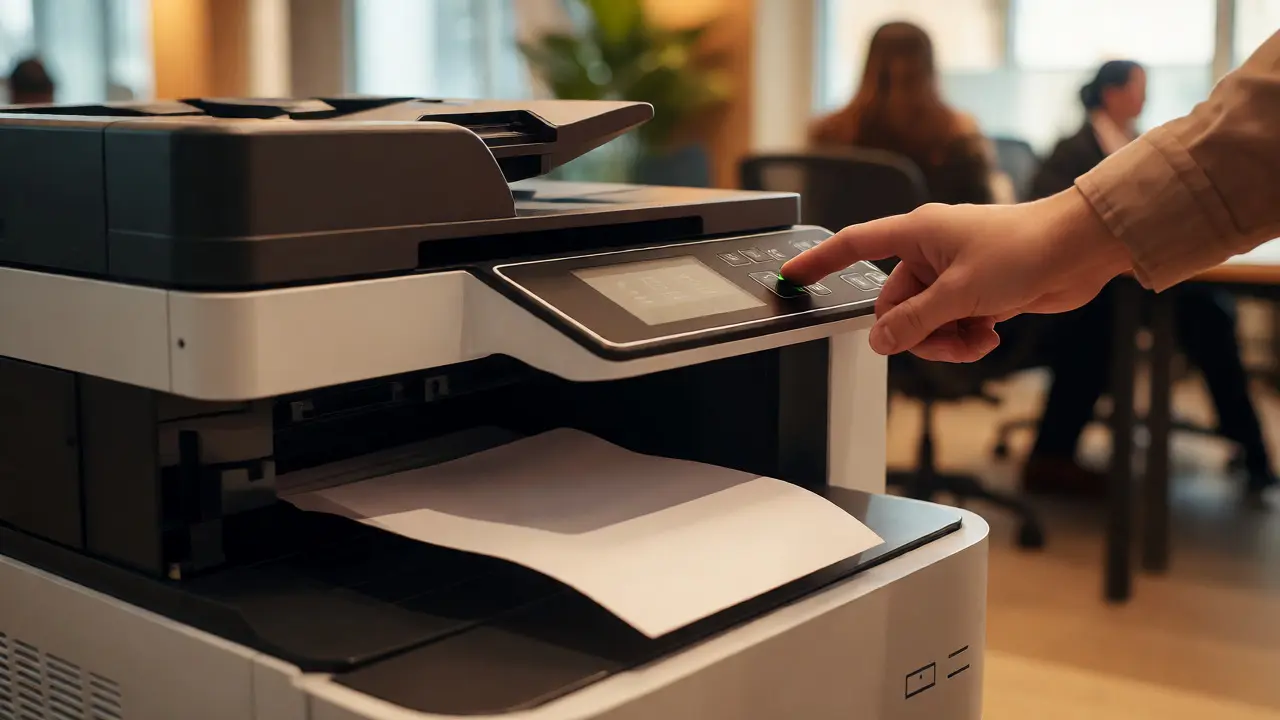
The shift here is toward Managed Print Services. Instead of every member trying to install drivers for a different HP or Canon model, the space uses cloud-based print queues. You send a document from your phone or laptop to a central portal. Then, you walk up to any multifunction device in the building, tap your badge or enter a code, and the file prints. No cables. No driver hell.
| Feature | Traditional Local Printer | Cloud-Based Managed Print |
|---|---|---|
| Setup Time | High (Driver installation per device) | Low (Web portal or mobile app) |
| Security | Low (Documents sit in tray until collected) | High (Pull-printing requires authentication) |
| Cost Tracking | Difficult (Manual logbooks) | Automatic (Per-page billing integration) |
| Maintenance | User responsibility | Vendor SLA (Service Level Agreement) |
Pull-printing is the killer feature here. Your job doesn’t print until you physically arrive at the machine and authenticate. This prevents sensitive documents from sitting in the output tray where anyone can read them. It also saves money. How many times have you sent a test page and forgotten about it? With pull-printing, unclaimed jobs expire after 24 hours, saving toner and paper.
Implementing a Robust BYOD Policy
Bring Your Own Device (BYOD) policies are standard in co-working spaces, but most are weak. Saying "please don't hack us" isn't a policy. You need technical enforcement.
Start with device registration. When a new member joins, they should register their primary laptop or tablet. This allows the network admin to apply specific rules. For example, registered devices get higher bandwidth priority during peak hours (9 AM - 5 PM). Unregistered guest devices get throttled speeds.
Next, enforce encryption. Ensure all traffic over the Wi-Fi is encrypted end-to-end. While HTTPS protects web traffic, it doesn’t protect everything. Use a captive portal that forces users to agree to terms of service before accessing the internet. This legal layer works alongside the technical VLANs to create liability protection for the space owner.
Don’t forget IoT devices. Smart thermostats, security cameras, and coffee machines need connectivity too. Keep them on a separate IoT VLAN. If a smart bulb gets hacked, it shouldn’t be able to talk to the finance department’s desktop computer.
Hardware Choices That Matter
You don’t need enterprise-grade routers costing $10,000, but consumer mesh systems often fail under load. Look for hardware that supports multi-gigabit backhauls. As more members bring 4K monitors and transfer large design files, gigabit Ethernet ports become bottlenecks.
For printing, choose multifunction printers (MFPs) with native cloud connectors. Brands like Xerox, Ricoh, and Konica Minolta offer models that integrate directly with platforms like Printix or PaperCut. These software layers handle the user authentication and cost allocation. Avoid cheap inkjet printers for shared spaces; their cost-per-page is astronomical compared to laser MFPs designed for high volume.

Common Pitfalls to Avoid
Many managers make the mistake of setting it and forgetting it. Networks drift. New devices connect. Old passwords linger. Schedule quarterly audits of your active connections. Remove dormant devices. Check for rogue access points-someone might plug in a personal router that interferes with the main signal.
Another trap is ignoring physical security. A secure network means nothing if someone unplugs the server rack. Ensure network closets are locked. Label cables clearly so technicians don’t accidentally disconnect the wrong line during maintenance.
Finally, communicate changes. If you upgrade to WPA3 or change the print portal URL, tell your members. Surprise friction leads to complaints. Transparency builds trust.
Key Takeaways
- Use VLANs to isolate guest, member, and staff traffic to prevent data leaks.
- Adopt cloud-based pull-printing to enhance security and reduce waste.
- Implement device registration for better bandwidth management and accountability.
- Separate IoT devices onto their own network segment to limit attack surfaces.
- Regularly audit connected devices to maintain performance and security hygiene.
Is WPA3 necessary for co-working spaces?
Yes, especially if you support multiple simultaneous users. WPA3 provides stronger encryption against brute-force attacks and offers forward secrecy, which protects past sessions if the private key is compromised later. It is significantly more secure than the older WPA2 standard.
How does pull-printing save money?
It eliminates accidental prints. Since the document only prints after you authenticate at the machine, unclaimed jobs are automatically deleted. This reduces paper and toner usage by preventing unnecessary test pages or forgotten drafts from being printed.
Can I use my personal printer in a co-working space?
Generally, no. Most spaces prohibit personal hardware due to power consumption, noise, and network clutter. However, some premium suites offer private offices where you can bring your own equipment, subject to IT approval for network compatibility.
What happens if the internet goes down?
Good co-working providers have redundant connections. If the primary fiber line fails, a backup 5G or cable connection takes over automatically. This failover ensures minimal downtime for critical tasks like video calls or cloud syncing.
Are co-working networks safe for banking?
On a properly segmented VLAN with WPA3 encryption, yes. However, always use a VPN for added peace of mind when handling sensitive financial data on public or semi-public networks. A VPN encrypts your traffic between your device and the destination server, adding another layer of protection.