Imagine trying to log into your bank account and forgetting the password. Again. You reset it, create a new one that is slightly different from the last, and write it down in a note app. It is frustrating, but it is also dangerous. Every time you type that password, you are handing over a digital key that can be stolen, guessed, or intercepted. In 2026, this old way of logging in is finally dying out. The replacement is passwordless authentication, a system that relies on what you have or who you are, rather than what you know.
This shift is not just about convenience; it is a massive leap in security. By removing passwords entirely, we eliminate the biggest target for hackers. Instead of memorizing complex strings of characters, you use biometrics like fingerprints or facial recognition, or physical devices like security keys. This article breaks down how these technologies work, why they are safer, and how you can start using them today.
Why Passwords Are Broken
To understand why passwordless authentication matters, you first need to look at why passwords fail. The human brain is terrible at remembering random data. When websites demand long, complex passwords with symbols and numbers, people do not come up with unique ones. They reuse them. If one site gets hacked, attackers try those same credentials everywhere else. This is called credential stuffing, and it accounts for billions of attacks every year.
Even if you use a password manager, which is highly recommended, the underlying model has flaws. Passwords are secrets that travel over the internet. If a server storing those hashes is compromised, your data is at risk. Passwordless systems change the game by using public-key cryptography. Your private key never leaves your device. Only a mathematical proof that you possess the key is sent to the server. This means even if the company’s database is hacked, your login credentials cannot be stolen because they do not exist in their system.
How Biometric Authentication Works
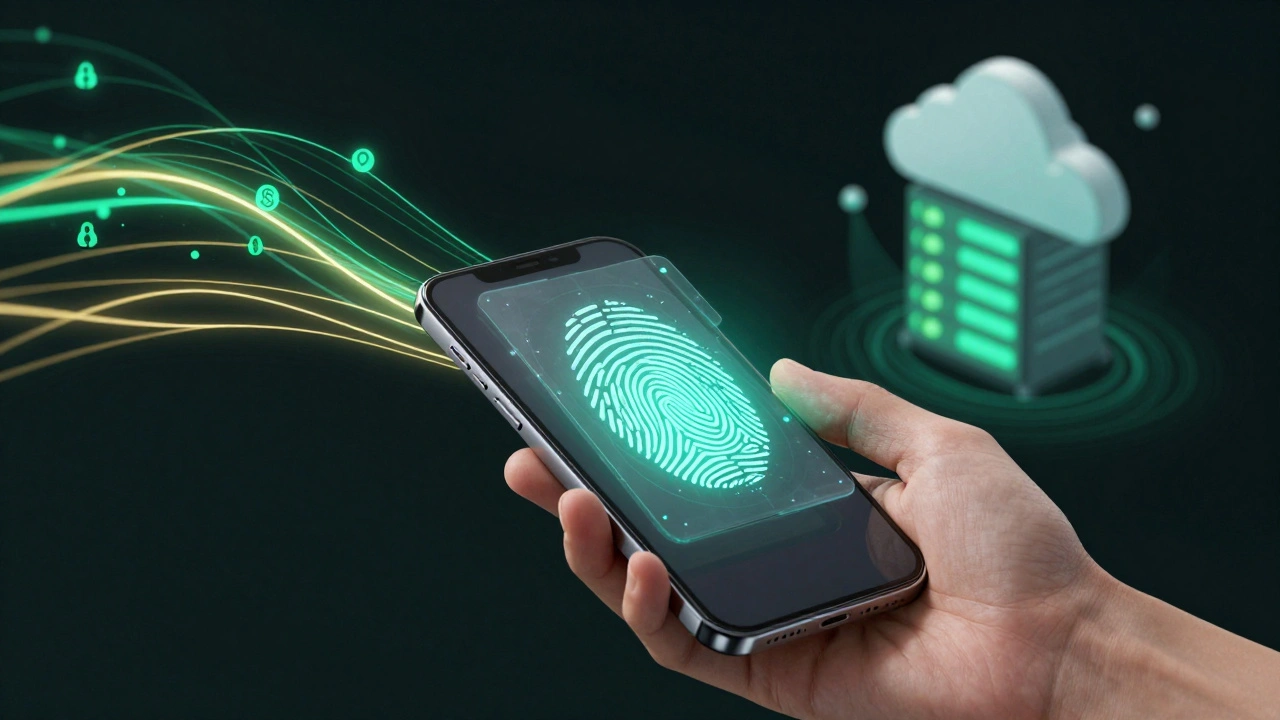
Biometrics are perhaps the most visible form of passwordless login. You see them every time you unlock your phone with Face ID or Touch ID. But how does this translate to logging into a website? The process involves two main steps: local verification and remote assertion.
First, your device checks your identity locally. When you place your finger on the sensor, your phone’s secure enclave compares the live scan against the template stored securely on the chip. This happens offline, so no image of your fingerprint is ever sent to the cloud. Once verified, the device generates a cryptographic signature using your private key. This signature is then sent to the website as proof that you are authorized. The website verifies this signature using your public key, which was registered during setup.
This method is incredibly fast. There is no typing, no waiting for SMS codes, and no dealing with expired tokens. However, biometrics have limits. They require specific hardware, such as a fingerprint reader or an infrared camera. Not all computers or older phones support these sensors. Additionally, while rare, there are concerns about privacy and the permanence of biometric data. Unlike a password, you cannot change your face if it is compromised, though modern systems mitigate this by storing only mathematical templates, not actual images.
The Power of Physical Security Keys
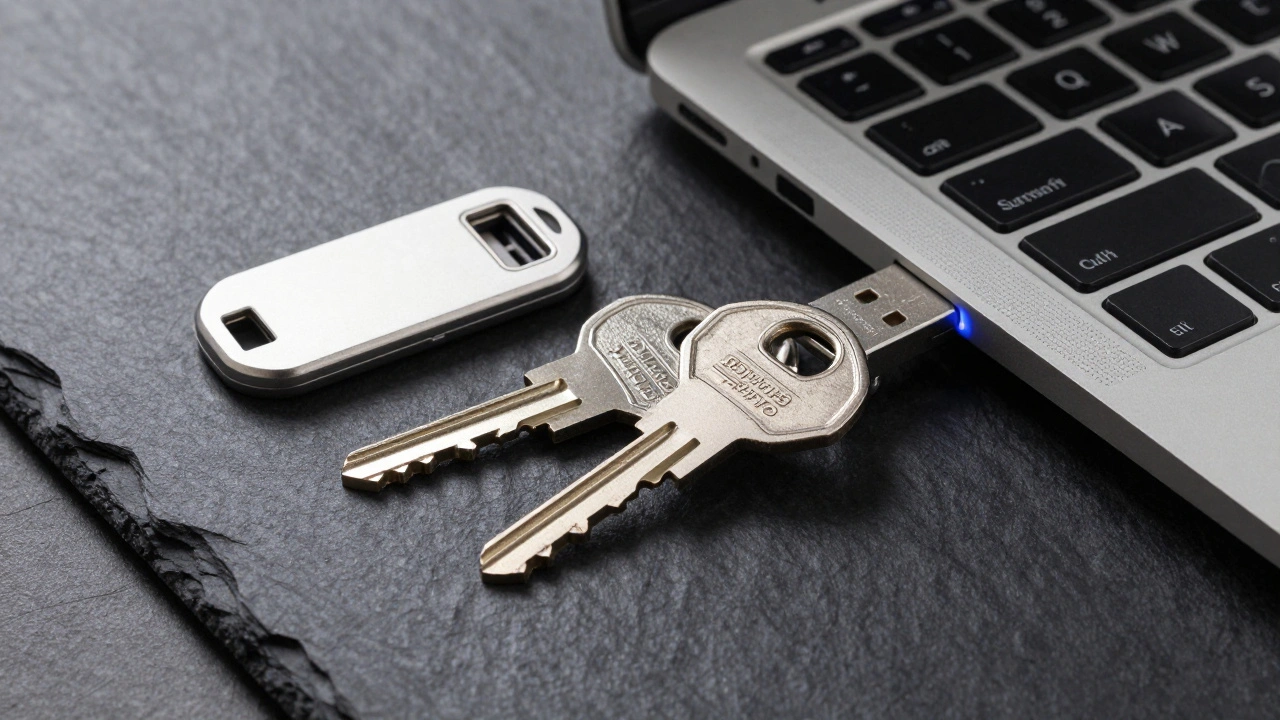
If biometrics rely on who you are, security keys rely on what you have. These are small USB, Lightning, or NFC devices that you plug into your computer or tap against your phone. Brands like YubiKey, SoloKeys, and Google Titan offer these tools. They are often referred to as FIDO2 keys because they adhere to the Fast Identity Online (FIDO) standards set by the FIDO Alliance.
Using a security key is straightforward. When you attempt to log in, the browser prompts you to insert the key. You touch a button on the key, and it signs the challenge from the website. This physical interaction prevents remote phishing attacks. A hacker sitting halfway across the world cannot steal your session because they do not have the physical device in their hand. Even if they trick you into visiting a fake login page, the key will refuse to sign the request because the domain name does not match the one you originally registered.
Security keys are considered the gold standard for high-security accounts, such as email and banking. They are durable, battery-free (mostly), and immune to malware that might capture keystrokes. The downside is cost and portability. You need to carry the key with you, and if you lose it, recovering access can be a hassle unless you have backup methods set up.
Understanding FIDO2 and WebAuthn Standards
You might hear terms like FIDO2 and WebAuthn thrown around when discussing passwordless tech. It is important to distinguish between them. FIDO2 is the overarching standard developed by the FIDO Alliance. It consists of two protocols: CTAP (Client-to-Authenticator Protocol) and WebAuthn (Web Authentication). CTAP defines how the authenticator (like your phone or security key) talks to the client (your browser or operating system). WebAuthn is the API that allows websites to implement this authentication.
These standards ensure interoperability. Without them, a security key made by one company might not work with a browser from another. With FIDO2, any compliant device works with any compliant service. Major platforms including Microsoft, Apple, Google, and Amazon now support WebAuthn. This widespread adoption means you can use the same passwordless method across thousands of websites without needing separate apps or tokens for each one.
| Feature | Biometrics (Face/Fingerprint) | Security Keys (FIDO2) | SMS/Email Codes (MFA) |
|---|---|---|---|
| Convenience | High (Instant) | Medium (Requires device) | Low (Waiting for code) |
| Phishing Resistance | High | Very High | None |
| Hardware Requirement | Built-in sensors | External dongle/NFC | Phone/Sim card |
| Cost | Free (if device owned) | $25-$100 per key | Free |
| Recovery Difficulty | Medium | Hard (if lost) | Easy |
Setting Up Passwordless Login on Major Platforms
Adopting passwordless authentication is easier than you think. Most major services have simplified the setup process. Here is how you can get started with the most common platforms.
- Microsoft Accounts: Go to your account settings and select "Sign-in options." You can add a Windows Hello PIN, fingerprint, or face recognition. For non-Windows devices, you can register a security key or use the Authenticator app as a passkey provider.
- Apple iCloud Keychain: Apple integrates passkeys directly into iOS and macOS. When you sign in to a supported website, Safari may prompt you to save a passkey. This uses Face ID or Touch ID for future logins. You can manage these in Settings under Passwords.
- Google Accounts: Navigate to "Security" in your Google Account. Look for "Passkeys" or "2-Step Verification." You can add a security key or enable Smart Lock for biometric login on Android and Chrome browsers.
- AWS and Developer Tools: Many developer platforms now support SSH keys or FIDO2 keys for console access. Check the security section of your provider’s documentation to replace traditional IAM passwords.
When setting up, always register multiple methods. If you rely solely on a single security key and lose it, you could be locked out. Combine a biometric method on your primary device with a physical key as a backup.
Pitfalls and Best Practices
While passwordless is superior, it is not foolproof if implemented poorly. One common mistake is relying on SMS-based multi-factor authentication (MFA) as a substitute for true passwordless. SMS codes are vulnerable to SIM swapping attacks, where a hacker tricks your carrier into transferring your number to their device. This is not passwordless; it is just a weaker second factor. True passwordless uses cryptographic proofs, not shared secrets.
Another pitfall is ignoring recovery options. If your phone breaks and your security key is lost, how do you get back in? Always set up backup codes or secondary devices before deleting your password. Some services allow you to print recovery sheets. Keep these in a safe place, like a fireproof box, not on your desk.
For businesses, the transition requires careful planning. Not all legacy systems support WebAuthn. You may need to use an identity provider (IdP) like Okta or Auth0 that bridges the gap between modern standards and older applications. Educating users is also critical. People are used to typing passwords. Explain that tapping a key or scanning a face is faster and safer, and provide clear guides on how to recover access if issues arise.
The Future of Digital Identity
We are moving toward a world where passwords are obsolete. As more devices support FIDO2 and biometric sensors become standard in laptops and tablets, the friction of logging in will disappear. Passkeys, which bundle biometric verification with cloud sync, are becoming the norm. They allow you to switch devices seamlessly without re-registering your keys manually.
Cybersecurity is shifting from perimeter defense to zero trust. In a zero-trust model, every access request is verified, regardless of where it comes from. Passwordless authentication fits perfectly here. It provides continuous, strong verification without burdening the user. As regulations tighten and data breaches continue to make headlines, adopting passwordless methods is no longer optional-it is essential for protecting personal and corporate data.
Is passwordless authentication really unhackable?
No technology is completely unhackable, but passwordless is significantly more secure than passwords. It eliminates phishing risks because the cryptographic signature is bound to the specific website domain. However, if your device itself is compromised with malware, or if you physically lose your security key to a thief, there are still risks. That is why combining methods and keeping software updated is crucial.
What happens if I lose my security key?
If you lose your security key, you must use your backup method to regain access. This could be a second security key, a biometric login on a trusted device, or recovery codes provided during setup. Always register at least two methods when enabling passwordless login to avoid being locked out permanently.
Can I use passwordless on any website?
Not yet. While major platforms like Google, Microsoft, Apple, and Amazon support it, many smaller websites still rely on traditional passwords. Check for icons like "Sign in with Passkey," "Use Security Key," or the FIDO logo near the login field. Browser extensions can sometimes help bridge the gap, but native support is growing rapidly.
Are biometric data stored on servers?
No. In a proper passwordless implementation, your biometric data (like your fingerprint or face map) stays on your device's secure enclave. It is never uploaded to the cloud or the website's server. The server only receives a cryptographic signature that proves you authenticated locally.
Do I still need a password manager?
Yes, for now. Since not all websites support passwordless login, you will still encounter sites that require passwords. Use a password manager to generate and store unique, complex passwords for those legacy sites. Over time, as passwordless adoption increases, your reliance on the manager will decrease.