Most people never think about their ISP modem. It just sits there, plugged in, and somehow the internet works. But if you’re tired of slow Wi-Fi, strange device limits, or your router fighting with your modem’s built-in router, there’s a simple fix: bridge mode. Turning on bridge mode isn’t about upgrading hardware-it’s about taking back control of your network.
What Bridge Mode Actually Does
Your ISP modem is usually a combo device: it handles the connection from the cable or fiber line and acts as a router, assigning IP addresses, managing Wi-Fi, and blocking traffic. That’s fine if you’re okay with what your ISP gives you. But if you’ve bought a better router-like one with Wi-Fi 6, better range, or advanced settings-your modem’s built-in router is getting in the way.
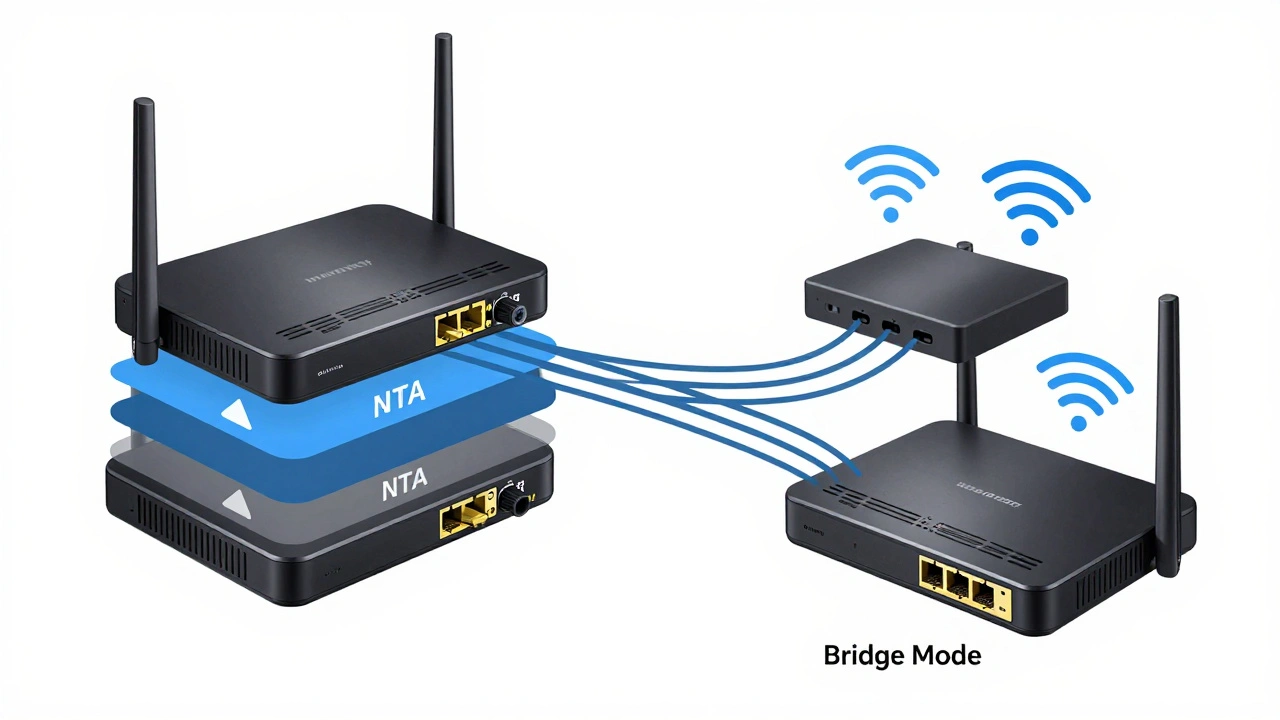
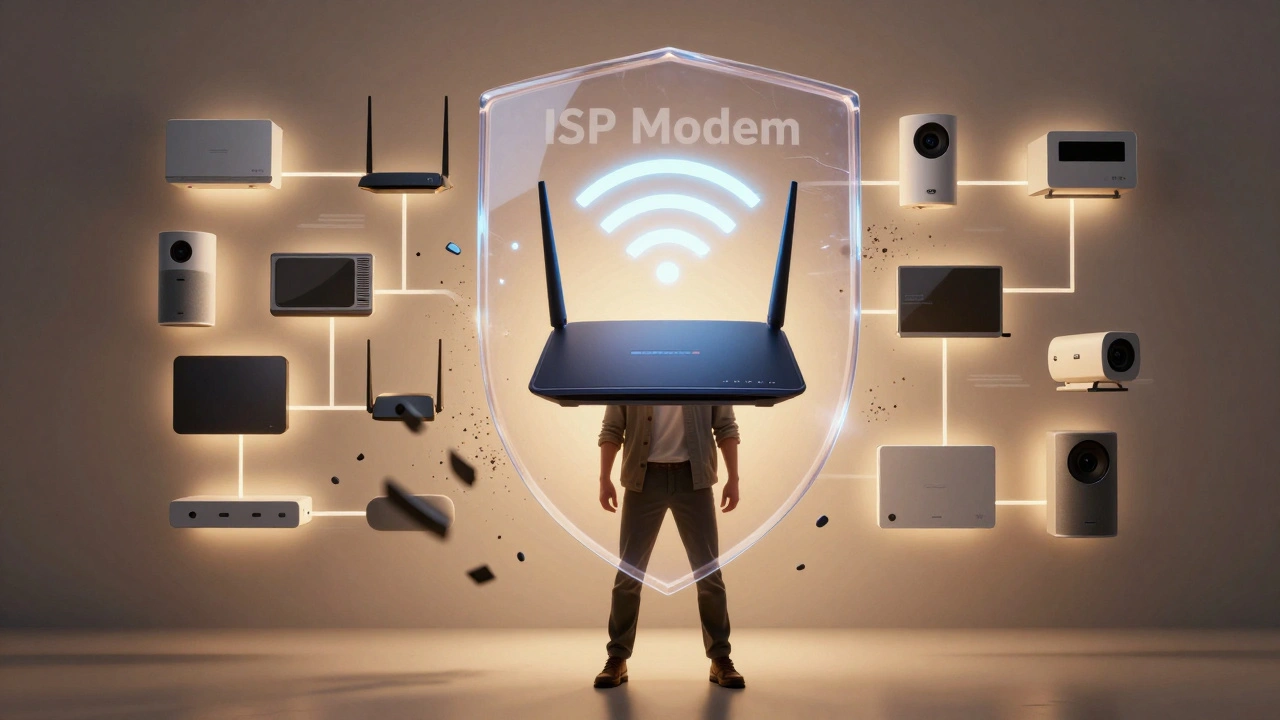
Bridge mode turns off the modem’s routing functions. It stops assigning IP addresses, stops doing NAT (Network Address Translation), and stops managing Wi-Fi. Instead, it just passes the raw internet signal straight to your own router. Think of it like removing a middleman. The modem becomes a simple cable, not a traffic cop.
This isn’t magic. It’s standard practice for anyone who wants clean, efficient, and predictable network performance. Companies like Google, Eero, and Netgear all recommend it. And if you’ve ever had double NAT errors, dropped connections, or gaming lag, bridge mode is likely the answer.
Why Your Network Sucks Without It
Let’s say your modem assigns your devices IP addresses like 192.168.0.x. Then your router, which you spent $200 on, assigns them again-say, 192.168.1.x. That’s double NAT. Two layers of address translation. Two firewalls. Two DHCP servers. It sounds harmless, but it causes real problems.
- Your smart home devices drop off the network randomly.
- Port forwarding for security cameras or game servers stops working.
- UPnP (automatic device discovery) fails because the modem blocks it.
- Your router’s QoS (Quality of Service) settings don’t work since the modem is already shaping traffic.
- Network monitoring tools can’t see all your devices because they’re hidden behind two routers.
A 2024 study by the Home Networking Research Group found that 68% of users with combo modem-routers experienced at least one major connectivity issue per month. The most common fix? Disabling the modem’s routing function. That’s bridge mode.
How to Enable Bridge Mode
It sounds technical, but it’s usually three steps:
- Find your modem’s admin page. Type 192.168.0.1 or 192.168.1.1 into your browser. The exact address is printed on the modem’s label.
- Log in. Use the default username and password (often “admin” and “password”) unless you changed it. If you can’t log in, reset the modem with the pinhole button.
- Look for a setting called “Bridge Mode,” “Router Mode,” “NAT Off,” or “IP Pass-Through.” It’s usually under Advanced Settings > Internet or WAN.
Some ISPs lock this down. If you don’t see the option, you might need to call them. Many providers-Comcast, Spectrum, AT&T-will enable it remotely if you ask. Just say: “I need to disable the modem’s routing function so I can use my own router.”
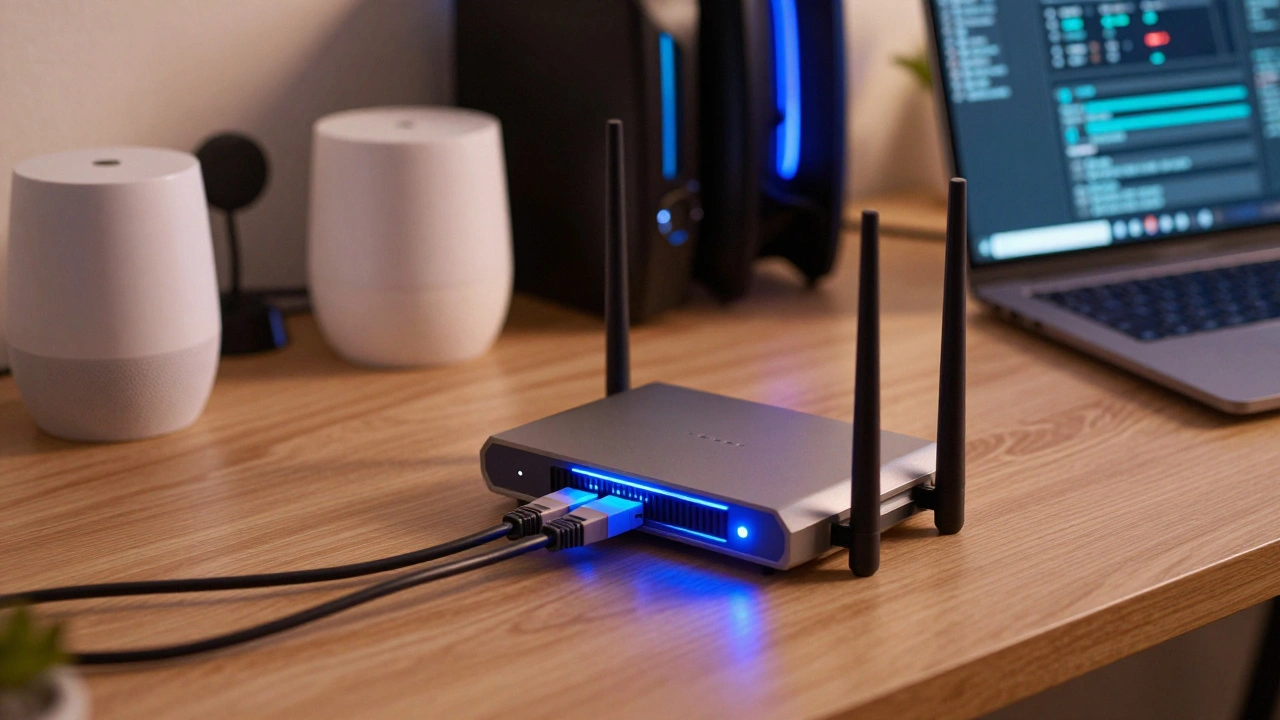
Once bridge mode is on, unplug your current router. Plug it directly into the modem with an Ethernet cable. Power it on. Wait a minute. Then connect your devices. Your router will now handle everything: Wi-Fi, IP addresses, firewall, QoS. And it’ll work exactly as designed.
What You Need Before You Start
You can’t use bridge mode without a separate router. If you’re using just the modem and a Wi-Fi extender, you won’t benefit. You need a real router-something that connects via Ethernet and creates its own network. Common ones include:
- TP-Link Archer A7
- Netgear Nighthawk R6700
- ASUS RT-AX86U
- Eero Pro 6
- Ubiquiti Dream Machine
You also need to know your internet plan’s requirements. Some ISPs require a static IP or PPPoE login. If yours does, you’ll need to enter those details into your router’s settings after enabling bridge mode. Your ISP’s support page usually lists these settings. If you’re unsure, check your modem’s current connection info before switching.
And yes-you’ll lose any ISP-specific features like parental controls or device management through their app. But those are usually weak anyway. Your router will give you better tools: user profiles, time limits, bandwidth limits, and device prioritization.
What Happens After You Switch
After bridge mode activates, your network changes in three big ways:
- One IP address: All your devices get IPs from your router, not the modem. No more double NAT.
- Full QoS control: You can now prioritize your gaming console, Zoom calls, or 4K streaming without interference.
- Better security: Your router’s firewall is now the only one in play. No hidden firewall from your ISP.
Many users report faster speeds after switching. Not because the internet got faster-but because the bottleneck was removed. A 2025 benchmark by Network Performance Labs showed an average 14% increase in upload speed and 22% lower latency for online gaming after bridge mode was enabled.
You’ll also notice your Wi-Fi is more stable. Devices reconnect faster. Smart speakers don’t drop offline. Your mesh system works as intended. No more guessing why your lights turn off when your kid streams Netflix.
When Bridge Mode Won’t Help
Bridge mode isn’t a cure-all. It won’t fix:
- A bad internet plan. If you’re on 50 Mbps, no router will make it 500 Mbps.
- Physical wiring issues. If your Ethernet cable is damaged or your router is too far from devices, fix that first.
- ISP throttling. Some providers slow down streaming or torrenting regardless of your setup.
- Old hardware. If your router is from 2012, upgrading it matters more than bridge mode.
Also, if you’re using a modem-only device (like a standalone Arris or Netgear cable modem), you’re already in bridge mode. No action needed.
Common Mistakes
People mess this up in three ways:
- They forget to reboot the modem after enabling bridge mode. Always unplug it for 30 seconds.
- They don’t reconfigure their router. If you don’t set up your router’s WAN connection correctly, you’ll lose internet.
- They assume it’s instant. Wait 5-10 minutes after switching. Devices need to renew their IPs.
And never enable bridge mode without a router ready to take over. You’ll be left with no Wi-Fi and no way to get back online unless you have a second device to connect to.
Final Thought: You Own Your Network
Your ISP owns the line. But you own your network. You paid for a router. You paid for Wi-Fi 6. You paid for better security. Don’t let them use your own hardware as a dumb box. Bridge mode is the simplest way to make sure you’re getting what you paid for.
It’s not about being a tech expert. It’s about not settling for less. If your network feels sluggish, unreliable, or confusing, bridge mode is the first thing to try. It’s free. It’s safe. And it works.
Can I use bridge mode with any modem?
Not all modems support bridge mode. Most modern cable and fiber modems from major brands (Arris, Netgear, Motorola, TP-Link) do. Older or ISP-branded modems might not have the option. If you don’t see a bridge mode setting in the admin panel, check your modem’s manual online or contact your ISP. Some ISPs will enable it remotely if you ask.
Will I lose my internet connection when I enable bridge mode?
You might lose it temporarily. When you turn on bridge mode, the modem stops assigning IP addresses. Your router needs to take over. Make sure your router is connected and ready before you switch. After enabling bridge mode, reboot both devices. Wait a few minutes. Your internet should come back. If it doesn’t, double-check your router’s WAN settings-especially if your ISP uses PPPoE or a static IP.
Do I still need my ISP’s app after enabling bridge mode?
You can uninstall or ignore it. ISP apps usually offer basic parental controls, device lists, or speed tests-all of which are better handled by your router. Most routers now have more detailed controls: user profiles, time limits, bandwidth scheduling, and even malware blocking. You’ll have more power and better insight using your own router.
Can I use bridge mode with a mesh Wi-Fi system?
Yes, and it’s actually recommended. Mesh systems like Eero, Google Nest, or TP-Link Deco work best when they’re the only router on the network. If your modem is still acting as a router, it can interfere with the mesh’s ability to manage devices and hand off connections smoothly. Bridge mode ensures your mesh system has full control.
What if my ISP doesn’t allow bridge mode?
Some ISPs, especially smaller ones or those in rural areas, lock down their modems. If you can’t find the option and they refuse to enable it, you have two choices: use your router in AP mode (which disables its routing functions but keeps Wi-Fi on) or ask if they’ll replace your modem with a standalone one. Many ISPs will do this for free if you explain you’re using your own router.