
The Quick Setup Guide for Parents
If you're staring at a screen and don't know where to start, follow this basic workflow. Most modern computers have these features built-in, so you don't usually need to buy expensive third-party software right away.
- Create separate user accounts: Never let your child use an Administrator account. If they have admin rights, they can simply turn off any restriction you put in place. Give them a Standard User account.
- Enable the built-in OS filters: Use the native tools provided by the operating system (like Windows Family Safety or macOS Screen Time).
- Set up DNS filtering: This is a "secret weapon" that filters content at the network level before it even reaches the computer.
- Define your "Hard Limits": Decide on the cutoff times for school nights versus weekends before you start clicking buttons.
Filtering the Noise: How Content Filters Actually Work
Content filtering isn't just a simple "on/off" switch. Depending on the tool you use, the computer handles the request in different ways. Some tools use Keyword Filtering, where the software looks for specific words in a URL or on a page and blocks it if a match is found. Others use Category Blocking, which relies on a massive database maintained by the software company that labels websites as "Adult," "Gambling," or "Social Media."
For instance, if you use Microsoft Family Safety on a Windows 11 machine, you can choose to block specific websites or allow only a "white list" of approved sites. A white list is much safer for younger children (ages 5-8), while a black list (blocking only the bad stuff) works better for teens who need more freedom for research.
| Method | How it Works | Best For | Biggest Weakness |
|---|---|---|---|
| Blacklisting | Blocks specific known bad sites | Teens/Older Kids | New bad sites pop up daily |
| Whitelisting | Blocks everything except approved sites | Young Children | Very restrictive; hard to maintain |
| DNS Filtering | Blocks requests at the network level | Whole-home protection | Can be bypassed with a VPN |
Managing the Clock: Setting Effective Time Limits
We've all been there: the "five more minutes" plea that turns into an hour of arguing. Time limits take the emotion out of the equation because the computer becomes the "bad guy," not the parent. On macOS, the Screen Time feature allows you to set "Downtime." This means only apps you've specifically allowed will work during those hours-like the calculator for homework or a music app for winding down.
A pro tip here is to use "gradual wind-down" alerts. Some software can notify the child when they have 15, 5, and 1 minute left. This prevents the jarring experience of a screen suddenly turning black in the middle of a saved game or a half-written essay, which usually leads to a meltdown.
If you're using a Chromebook, Google Family Link is the go-to tool. It lets you set a daily limit (say, 2 hours) and once that limit is hit, the device locks. You can also remotely unlock the device for an extra 30 minutes if they're finishing a project. This creates a system of reward and trust rather than just strict prohibition.
The Network Level: Why DNS Filtering is a Game Changer
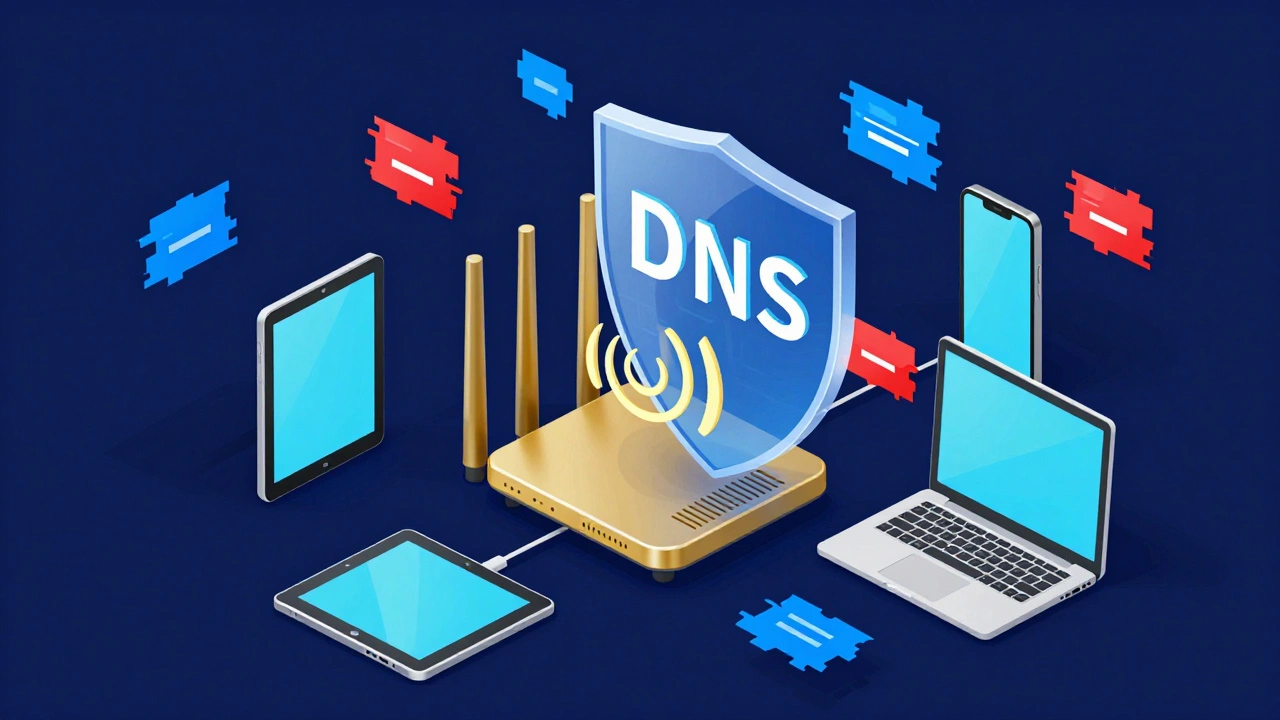
If you're tired of configuring every single device in the house, you should look into DNS (Domain Name System) filtering. Think of DNS as the phonebook of the internet. When you type in a website, your computer asks a DNS server for the IP address. A filtering DNS, like Cloudflare for Families or OpenDNS, will simply refuse to provide the address if the site is flagged as malicious or adult.
The beauty of this is that it works across all devices-computers, tablets, and smartphones-without needing to install software on each one. You simply change the DNS settings in your Router configuration. For example, using Cloudflare's 1.1.1.3 family DNS automatically blocks malware and adult content for every single person connected to your Wi-Fi.
Common Pitfalls and How Kids Bypass Controls
Here is the reality: kids are often more tech-savvy than we give them credit for. If your child is a bit of a tinkerer, they will try to find a way around your filters. One of the most common methods is using a VPN (Virtual Private Network). A VPN encrypts their traffic and routes it through another server, which makes the content filter think the request is coming from somewhere else, effectively bypassing the block.
Another common trick is using a web-based proxy or "unblocked" gaming sites. To combat this, you should regularly check the browser history-not to spy, but to see if they've found a loophole. If you see a lot of traffic to a site called "Proxy-Free-Web," you know your filter has a hole in it.
The biggest mistake parents make is relying 100% on the software. No filter is perfect. The most effective control is an open conversation about *why* these limits exist. Explain that the internet has "digital neighborhoods" and some are just not safe for them yet. When kids understand the risk (like phishing or predatory behavior), they are less likely to try and hack their way around the limits.

Checklist for a Safe Home Computer
- [ ] Child has a Standard (non-admin) user account.
- [ ] OS-level parental controls (Family Safety/Screen Time) are active.
- [ ] A daily time limit is set for school nights.
- [ ] DNS filtering is configured on the home router.
- [ ] SafeSearch is enabled on Google and Bing.
- [ ] A "device parking' spot is established (e.g., no computers in bedrooms after 9 PM).
Will parental controls slow down my computer?
Generally, no. Built-in OS tools like Windows Family Safety or macOS Screen Time have a negligible impact on performance. DNS filtering happens at the network level, so it doesn't use any of your computer's RAM or CPU. You won't notice a speed difference in your games or apps.
Can my child bypass these limits if they use a guest account?
Yes, if Guest accounts are enabled, they often bypass user-specific restrictions. You should disable the Guest account in your system settings to ensure all users must be identified and managed under your parental control umbrella.
What is the best way to block adult content on a Chromebook?
The most effective method for Chromebooks is using Google Family Link. Since Chromebooks are essentially a browser, Family Link allows you to manage the Chrome browser directly, set website restrictions, and even approve or block apps from the Play Store.
Do I need to buy separate software like Norton or McAfee?
Not necessarily. For most families, the built-in tools from Microsoft, Apple, and Google, combined with a free DNS filter like Cloudflare, are more than enough. Paid software is only necessary if you need extremely granular reporting or remote monitoring of a device that isn't linked to a family account.
How do I stop my child from downloading dangerous software?
The best way is to remove their Administrator privileges. When a user tries to install software on Windows or Mac, the system asks for an admin password. Since only you have that password, they cannot install any new programs without your permission.
Next Steps for Different Age Groups
Your approach should change as your child grows. For young children (under 10), go for a "walled garden" approach. Use whitelists and keep the computer in a shared living area where you can see the screen. The goal here is maximum safety and supervision.
For pre-teens (10-12), shift to "guided exploration." Use category blocking (blacklists) and set firm time limits. This is the age where they start wanting to explore social media, so focus on teaching them about privacy settings and the dangers of talking to strangers.
For teenagers (13+), the software should take a backseat to trust and transparency. Move away from strict blocking and toward "activity monitoring." Instead of blocking sites, use tools that give you a weekly report of where they spend their time. Use this data as a starting point for conversations about digital wellness and mental health.