- Most connectivity issues stem from 2.4GHz vs 5GHz Wi-Fi band confusion.
- Power cycling (the classic "off and on again") solves about 70% of device freezes.
- Interference from microwaves or thick walls can kill Zigbee and Z-Wave signals.
- Keeping firmware updated prevents security holes and weird bugs.
- Hard resets are a last resort but often the only way to clear a corrupted cache.
Why Your Smart Devices Stop Talking to Each Other
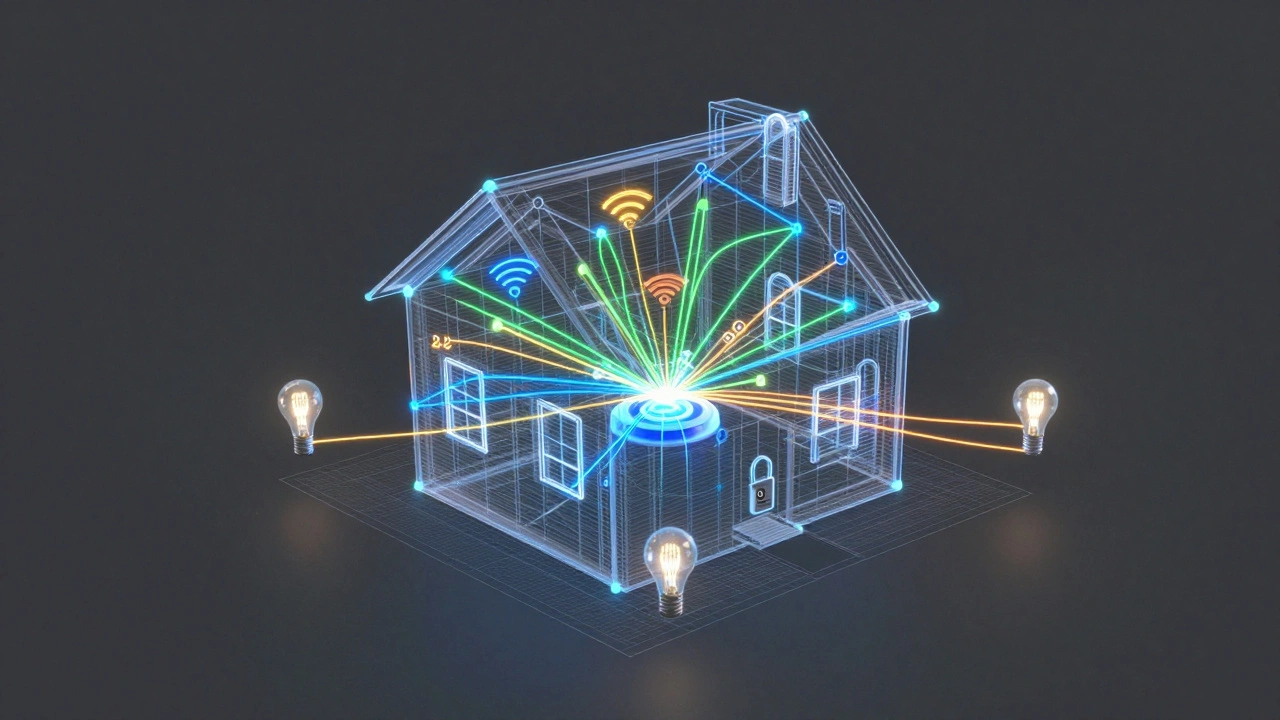
Before we start clicking buttons, we need to understand the "language" your house is speaking. Most smart homes rely on a IoT is Internet of Things network, where physical objects are embedded with sensors and software to exchange data . But they don't all use the same protocol. You might have devices using Wi-Fi, which is great for high-bandwidth stuff like cameras, but power-hungry. Then there's Zigbee, a low-power mesh network used by bulbs and sensors, and Z-Wave, which operates on a different frequency to avoid Wi-Fi interference. When a device "drops off," it's usually because the communication chain is broken.
If your smart bulb is unresponsive, don't assume it's broken. It might just be that a piece of furniture was moved, blocking the signal from the nearest mesh node. Or perhaps your router decided to change the channel, and the device couldn't follow. Understanding that your home is essentially a web of radio waves helps you stop guessing and start diagnosing.
Fixing Connectivity and Wi-Fi Dead Zones
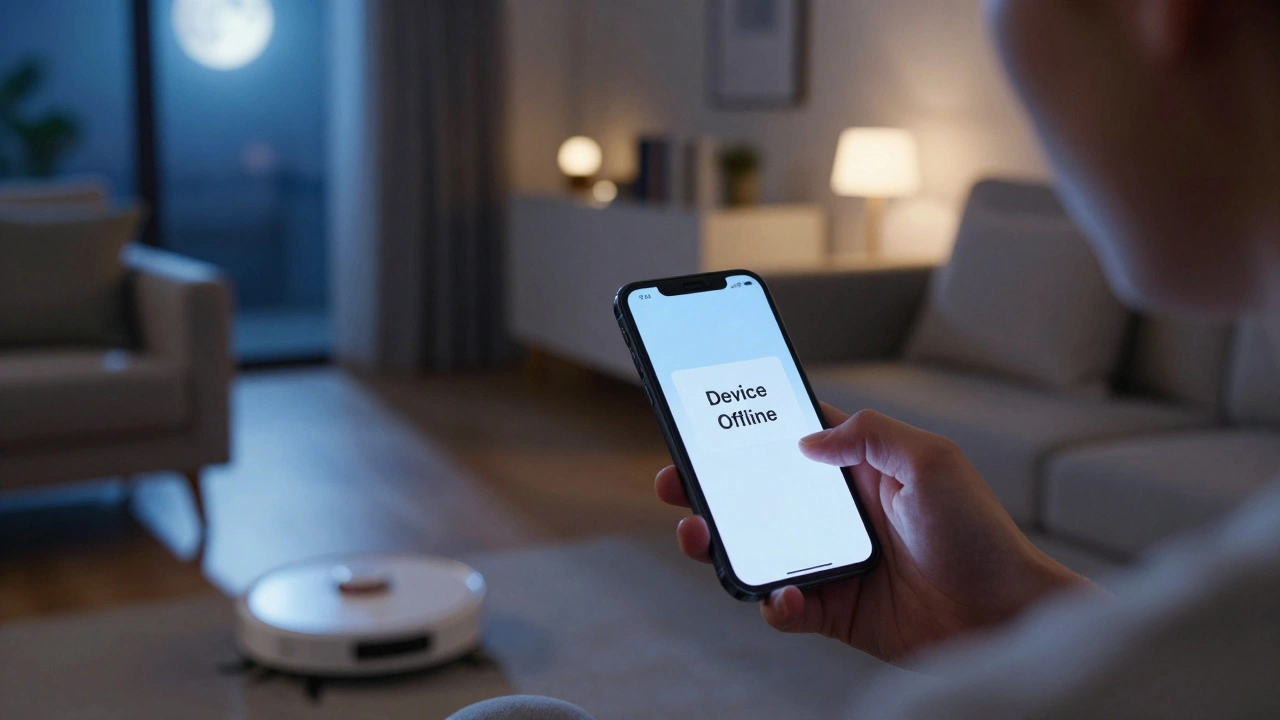
The most common headache is the "Device Offline" notification. Usually, this happens because smart devices are picky about their frequency. Most smart plugs and switches only work on the 2.4GHz band. If you have a modern router that blends 2.4GHz and 5GHz into one name (SSID), the device might get confused and fail to connect.
To fix this, try splitting your Wi-Fi bands in your router settings. Give the 2.4GHz and 5GHz networks different names, like "Home_Wifi_Slow" and "Home_Wifi_Fast." Force your smart devices onto the 2.4GHz band. Since 2.4GHz has longer waves, it penetrates walls much better than the faster 5GHz signal, which is why it's the standard for home automation.
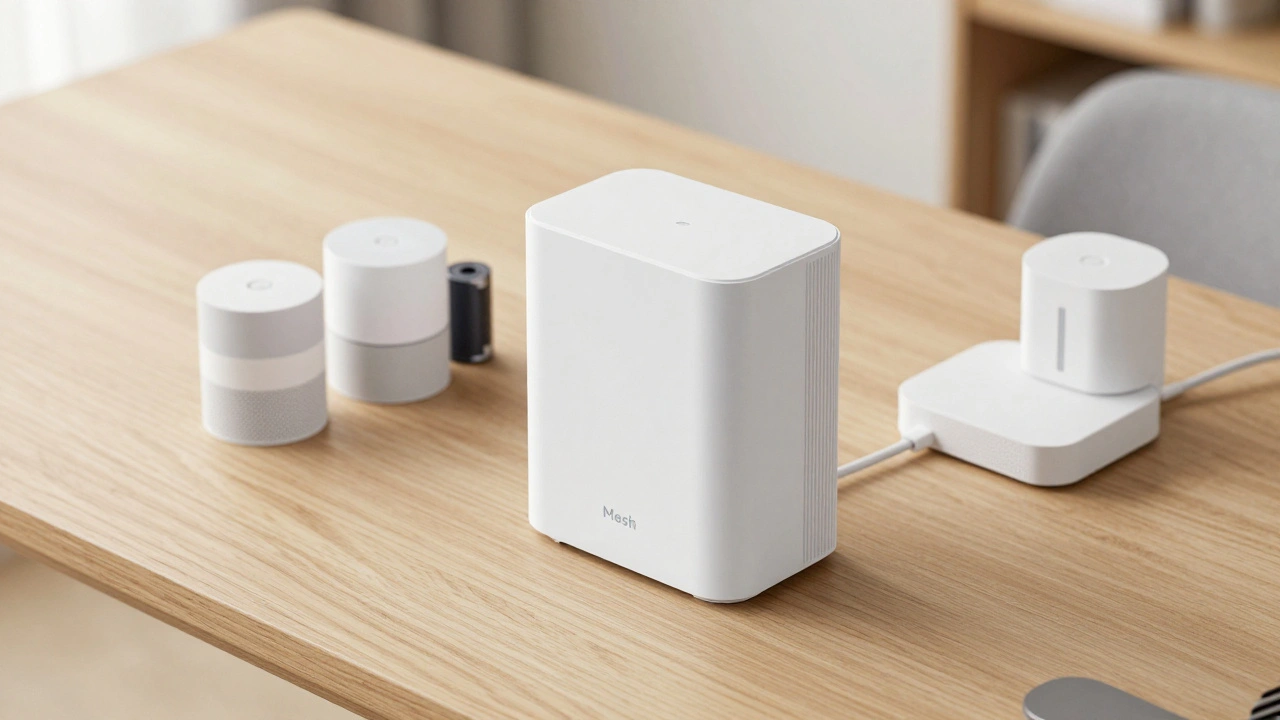
If the signal is still weak, stop relying on a single router. A Mesh Wi-Fi System is a network of multiple routers (nodes) that work together to provide a single, seamless Wi-Fi blanket across a large area . By placing a node halfway between your router and a dead zone, you can bring a stubborn outdoor camera back online without running miles of Ethernet cable.
| Protocol | Best For | Range/Penetration | Power Use |
|---|---|---|---|
| Wi-Fi | Cameras, Video Doorbells | Medium | High |
| Zigbee | Light Bulbs, Motion Sensors | Short (Mesh) | Very Low |
| Z-Wave | Locks, Thermostats | Long (Mesh) | Low |
| Matter | Cross-platform compatibility | Variable | Low/Medium |
Solving the "Ghost in the Machine" (Software Glitches)
Have you ever noticed your lights turning on at 3 AM for no reason? That's usually not a ghost; it's a software conflict. Often, a Smart Home Hub (like a Samsung SmartThings or an Apple HomePod) may have a cached command that didn't execute and finally triggered hours later. This is where the "power cycle" comes in. Unplugging the hub for 30 seconds clears the temporary memory (RAM) and forces it to re-establish a fresh connection with every device.
Another culprit is outdated firmware. Manufacturers release updates to fix bugs and close security holes. If your smart lock is sluggish, check the app for a "Firmware Update" notification. A common mistake is updating the hub but forgetting to update the individual devices. If there's a version mismatch, the hub might send a command the device no longer understands.
If you're using IFTTT (If This Then That) or complex automation routines, check for "looping." For example, if you set a rule that "When the door opens, turn on the light" and another that "When the light turns on, open the door," you've created a logic loop that can crash your system or cause erratic behavior. Review your triggers and ensure they aren't fighting each other.
Dealing with Unresponsive Hardware
Sometimes the problem isn't the network; it's the hardware. Batteries in motion sensors and door contacts can drain faster than the app predicts, especially in cold weather. If a sensor stops triggering, swap the battery before you try to re-pair the device. A low battery can cause the radio to fail even if the LED light on the device still blinks.
When all else fails, you have to do the "Hard Reset." This is the nuclear option because it wipes all settings. For most bulbs, this involves flipping the wall switch on and off five times in a specific rhythm. For plugs, it's usually holding a small button for 10 seconds. After a hard reset, you must remove the device from your app and add it as if it were brand new. This clears any corrupted local data that a simple restart can't touch.
Check for physical interference too. Do you have your smart hub sitting right next to your Wi-Fi router? That's a bad idea. The signals can overlap and cause "noise," making it harder for the hub to hear the tiny whispers from your sensors. Move the hub at least three to five feet away from the router to give it some breathing room.
The Matter and Thread Revolution
If you're tired of buying devices and wondering "Will this work with my ecosystem?" you should look into Matter is a unifying, open-source connectivity standard that allows smart home devices from different brands to work together seamlessly . It's designed to kill the fragmentation that makes troubleshooting so hard. Instead of having five different bridges for five different brands, Matter allows devices to talk directly to each other.
Combined with Thread, a low-power mesh networking protocol, the stability of smart homes is increasing. Thread is faster than Zigbee and doesn't have a single point of failure; if one device goes down, the network automatically reroutes the signal through another. When buying new gear in 2026, look for the Matter logo to avoid future connectivity nightmares.
Why does my smart bulb keep disconnecting from the Wi-Fi?
This is usually caused by signal interference or the device being too far from the router. Check if you have a 2.4GHz network enabled, as most bulbs don't support 5GHz. If it's a mesh of bulbs, ensure you have a few "repeater" devices (like smart plugs) between the router and the furthest bulb to strengthen the mesh network.
What is the difference between a Soft Reset and a Hard Reset?
A soft reset is just power cycling-turning the device off and on again. This clears the temporary cache but keeps your settings. A hard reset restores the device to factory defaults, wiping your Wi-Fi credentials and pairing info. Only use a hard reset if the device is completely unresponsive or you're setting it up for a new user.
Can my microwave actually affect my smart home?
Yes. Microwaves operate on the 2.4GHz frequency, which is the same frequency used by many smart devices and Wi-Fi routers. If your hub or a critical device is located right next to the microwave, you may experience temporary disconnects whenever you heat up your lunch.
How do I know if my device is using Zigbee, Z-Wave, or Wi-Fi?
Check the packaging or the device's technical specs in the manual. Wi-Fi devices connect directly to your router. Zigbee and Z-Wave devices require a hub or a bridge to connect to the internet. If the device is very small and battery-powered (like a leak sensor), it's almost certainly using a low-power protocol like Zigbee or Z-Wave.
What should I do if my voice assistant says "Device not responding"?
First, check if the device is powered on. Second, open the native app for that device (e.g., the Philips Hue app instead of Google Home) to see if it's online there. If the native app works but the voice assistant doesn't, the problem is a link failure between the two accounts. Try unlinking and relinking the service in your assistant's settings.
Next Steps for a Stable Home
If you've followed these steps and still have issues, it's time to audit your network. Start by mapping out your devices and seeing where the gaps are. If you have a large home, investing in a dedicated smart home hub rather than relying on cloud-to-cloud integrations can drastically reduce latency and increase reliability.
For those moving toward a professional setup, consider a dedicated VLAN (Virtual Local Area Network) for your IoT devices. This separates your smart bulbs and cameras from your main computers and phones, which not only improves security but can also reduce network congestion. If you're not tech-savvy enough for VLANs, simply upgrading to a Wi-Fi 6 or Wi-Fi 7 router will provide better device management and more stable connections for the dozens of gadgets now cluttering your airwaves.