You’re standing in your kitchen, ready to ask for the weather or start a timer, but your smart speaker just says, "Account not linked." It’s a frustrating moment that breaks the seamless flow of modern living. Whether you are dealing with Alexa is Amazon's voice assistant service that integrates with millions of smart devices and skills. Also known as Alexa Voice Service, it requires robust cloud synchronization to function correctly., Google Assistant is Google's integrated AI platform for voice commands, search, and smart home control across Android and iOS devices. It relies on deep integration with the Google ecosystem for device management., or Siri is Apple's personal assistant built into iOS, macOS, and watchOS operating systems. It uses local processing and iCloud services to manage user preferences and connected hardware., the root cause is almost always a broken link between your central account and the specific smart home hub or device.
Understanding the Core Connection Problem
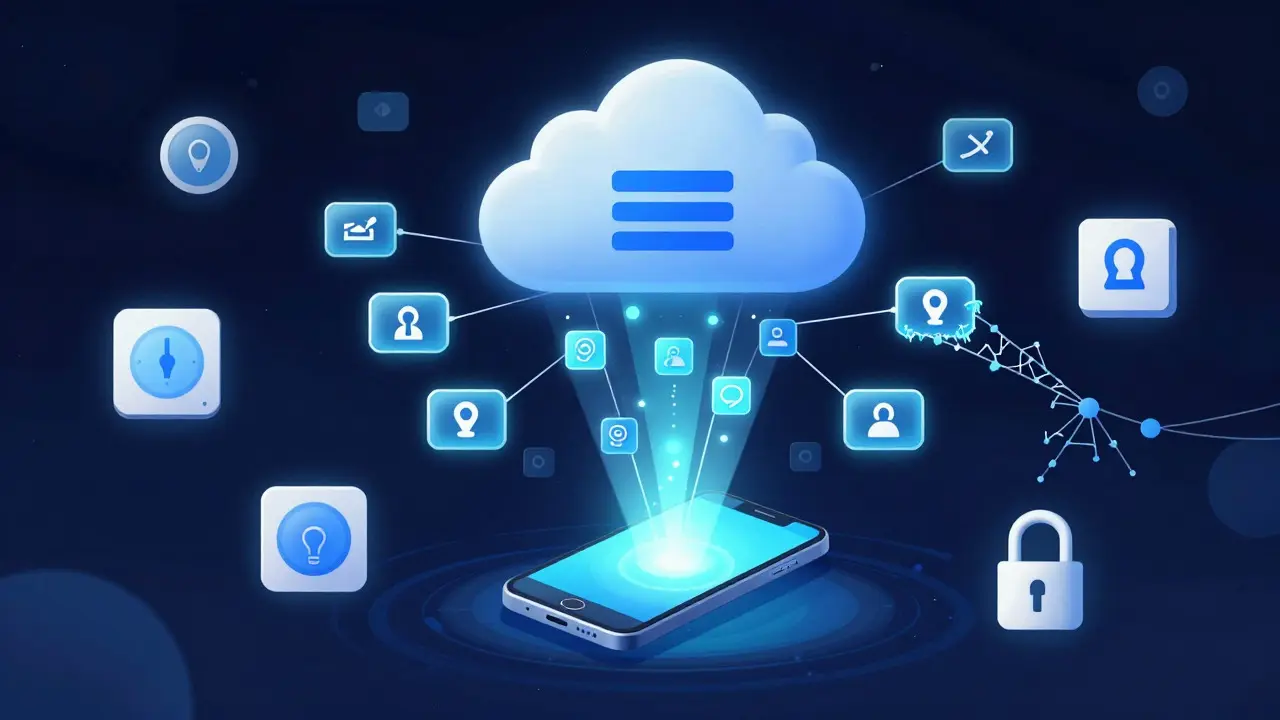
Before jumping into fixes, it helps to understand why these links break. Smart home ecosystems do not usually talk directly to each other; they talk through a central authentication server. When you link an account, your phone sends a token to the cloud, which then authorizes the device to act on your behalf. If that token expires, if your password changes, or if a server-side update resets permissions, the link snaps. This is why a simple restart often fails-the issue is digital, not physical.
The three major platforms handle this differently. Amazon uses a skill-based architecture where each third-party device acts like an app. Google uses a more centralized approach via the Google Home app, while Apple uses Matter and HomeKit protocols that require stricter security handshakes. Knowing which system you are troubleshooting saves time. For instance, if your Amazon Echo is A line of smart speakers and displays manufactured by Amazon featuring the Alexa voice assistant. These devices serve as the primary interface for controlling compatible smart home gadgets. works but your lights don’t, the problem is likely in the specific light brand’s skill, not Alexa itself.
Universal First Steps for All Platforms
Regardless of whether you use Amazon, Google, or Apple, start with these four universal checks. They resolve about 60% of linking errors without needing deep technical intervention.
- Check Internet Stability: Ensure both your phone and the smart device are on the same Wi-Fi network. A weak signal can prevent the authentication handshake from completing. Move the device closer to the router temporarily.
- Update the App: Outdated apps often contain deprecated API keys that no longer work with current server versions. Go to your app store and update the companion app (Alexa, Google Home, or Apple Home) to the latest version.
- Restart the Device: Unplug the smart speaker or hub for 30 seconds. This forces a fresh connection request to the cloud when it powers back on.
- Verify Password Changes: Did you change your email password recently? If so, the old token is invalid. You will need to re-authenticate manually in the settings menu.
Fixing Alexa Account Linking Errors
Alexa errors often manifest as "Skill not found" or "Device offline." The most common culprit is a mismatched Amazon account. Many users have multiple Amazon accounts (one for shopping, one for Prime Video, etc.). If you logged into the Alexa app with the wrong email address, your devices won’t appear.
To fix this, open the Alexa app and tap the profile icon in the top right corner. Check the email address listed there. If it’s incorrect, log out and log back in with the correct account. Once logged in, go to "Devices," select the problematic device, and choose "Refresh." If the device still doesn’t show up, remove it from the list and add it again using the "Add Device" button. This process regenerates the unique device ID and re-links it to your current session.
If you are trying to link a third-party service like a smart lock or thermostat, go to "Skills & Games," find the brand, and click "Disable Skill." Wait ten seconds, then click "Enable Skill" again. This forces a new OAuth token exchange between Amazon and the manufacturer’s server.
Resolving Google Home Sync Issues
Google Home errors are frequently tied to location services or Bluetooth permissions. Unlike Alexa, Google Assistant relies heavily on room labeling and proximity detection. If your phone’s Bluetooth is off, or if location services are disabled, the app may fail to recognize nearby devices.
First, ensure Bluetooth and Location Services are enabled on your phone. Open the Google Home app and tap the wrench icon for the affected device. Look for a warning banner that says "Connection Issue." Tap it and follow the prompts to re-pair. If that fails, delete the device from the app entirely. Then, put the device into pairing mode (usually by holding a button until the light blinks blue or orange) and scan for it again in the Google Home app.
A specific quirk with Google is the "Work Profile" conflict. If you use Android Work Manager, make sure the device is assigned to the correct profile. Sometimes, a device gets stuck in the work profile and becomes invisible to your personal Google Home app. Switching profiles or resetting the app data can clear this glitch.
Troubleshooting Siri and Apple HomeKit Pairing
Siri issues are distinct because Apple prioritizes privacy. Devices must be explicitly paired within the Apple Home app before Siri can recognize them. A common error is "Not Found" or "Accessory Not Responding." This often happens after an iOS update or a router change.
Open the Apple Home app and tap the three dots next to the accessory. Select "Remove Accessory." Confirm the removal. Now, take the physical device and reset it to factory settings (refer to the manufacturer’s manual, as this varies by brand). Once reset, open the Home app, tap the plus sign, and select "Add Accessory." Scan the QR code on the device. During this process, keep your iPhone close to the device. Apple uses Ultra Wideband chips in newer iPhones for precise spatial mapping, so proximity matters for a stable initial link.
If you use Matter-compatible devices, ensure your HomePod or Apple TV is acting as the Matter controller. If the bridge is down, Matter devices will drop off Siri. Restarting the HomePod mini or Apple TV often restores the bridge connection.
Comparison of Common Error Triggers
Each platform has its own personality when it comes to failure modes. Understanding these differences helps you diagnose faster. Here is a breakdown of what typically goes wrong and how the systems react.
| Platform | Common Error Message | Primary Cause | Quickest Fix |
|---|---|---|---|
| Alexa | "Skill not linked" | Wrong Amazon account login | Log out/in with correct email |
| Google Home | "Device offline" | Bluetooth permission denied | Enable Bluetooth and Location |
| Siri | "Accessory not responding" | Matter bridge disconnected | Restart HomePod/Apple TV |
| All Platforms | "Authentication failed" | Expired OAuth token | Re-link device from scratch |
Advanced Troubleshooting: When Apps Fail
If basic steps don’t work, you might be dealing with a deeper network configuration issue. One frequent culprit is IP address conflicts. If your smart device keeps changing its IP address due to DHCP lease expiration, it can lose its registration in the cloud database. To stabilize this, log into your router’s admin panel and assign a static IP address to your smart hub or speaker. Most routers allow you to reserve an IP based on the device’s MAC address. This ensures the device always reports the same identity to the internet.
Another advanced fix involves clearing the cache of the companion app. On Android, go to Settings > Apps > [App Name] > Storage > Clear Cache. On iOS, you may need to delete and reinstall the app, as there is no direct cache clear option. Reinstalling forces a complete refresh of all stored tokens and configurations. Just remember to have your Wi-Fi password handy, as you’ll need to reconnect everything.
Finally, check for firmware updates on the device itself. Manufacturers often release silent updates that fix compatibility bugs. These updates usually happen overnight, but sometimes a device gets stuck mid-update. Power cycling the device during this process can corrupt the firmware. If the device feels unresponsive, hold the power button for 15-20 seconds to force a hard reboot, which often triggers a recovery mode that repairs corrupted files.
Preventing Future Linking Errors
Once you’ve fixed the immediate issue, take a few minutes to set things up for long-term stability. Keep your firmware updated by enabling automatic updates in the device settings if available. Avoid changing your Wi-Fi network name (SSID) unless necessary, as this can break hardcoded connections in older devices. If you must change networks, plan to re-pair all devices during the downtime.
Also, standardize your passwords. Using the same strong password for your email and smart home accounts reduces the chance of accidental mismatches. However, avoid using the same password for every single online service, as a breach in one place could compromise your entire smart home setup. Use a password manager to keep track of credentials securely.
Frequently Asked Questions
Why does my Alexa say "account not linked" even though I’m logged in?
This usually means you are logged into a different Amazon account than the one associated with your devices. Check the email address in the top right corner of the Alexa app. If it’s wrong, log out and log back in with the correct account. Alternatively, the OAuth token may have expired, so try disabling and re-enabling the specific skill for that device.
Do I need to reset my router to fix smart home linking issues?
Not usually. Resetting the router is a last resort because it disconnects all devices. Try restarting the router first (unplug for 30 seconds). If the issue persists, check if your router supports dual-band Wi-Fi. Some older smart devices only work on 2.4 GHz, not 5 GHz. Ensure your device is connected to the correct band in your router settings.
Can I use Alexa and Google Home on the same device?
Generally, no. Most smart speakers are locked to one ecosystem at the hardware level. An Amazon Echo runs Alexa, and a Nest Hub runs Google Assistant. However, you can link third-party devices to both ecosystems simultaneously. For example, a Philips Hue bulb can be controlled by both Alexa and Google Home, allowing you to switch assistants without losing device functionality.
What is the Matter protocol and how does it help with linking?
Matter is a universal connectivity standard designed to make smart home devices work seamlessly across different brands and platforms. It simplifies linking by providing a common language for devices. If a device supports Matter, you can pair it once with a bridge (like a HomePod or Echo Show), and it should automatically become available to Siri, Alexa, and Google Assistant without complex individual setup steps.
How often should I update my smart home apps?
As soon as an update is available. Developers release updates to fix bugs, improve security, and maintain compatibility with new server-side changes. Delaying updates can lead to "bit rot" where older app versions stop communicating with the cloud servers. Enable automatic updates on your phone to ensure you never miss a critical patch.