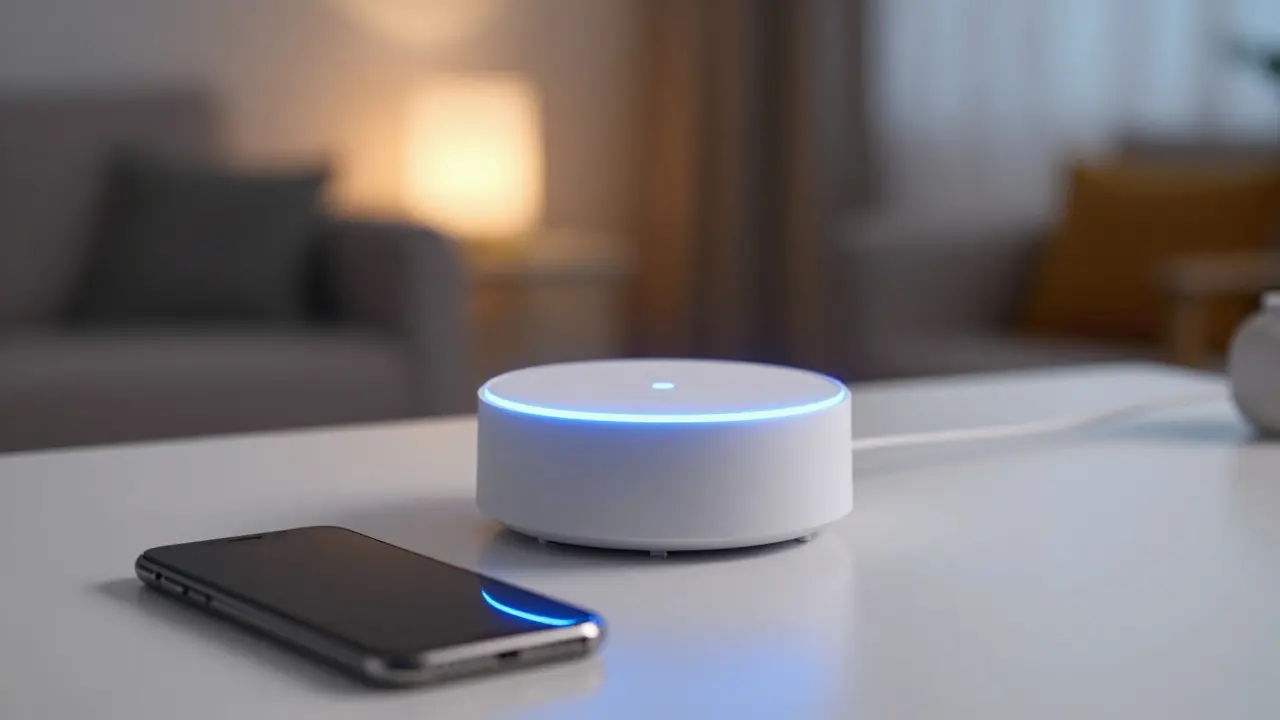
Imagine this: you’re away on a trip, your phone dies, and when you finally get back online, your smart thermostat is stuck at 70 degrees, your garage door won’t open via the app, and your security cameras are showing “offline.” You didn’t just lose connectivity; you lost the configuration that makes your house smart. Most people think backing up their photos is enough, but for smart homes, the real risk isn’t data loss-it’s state loss. If your hub resets or crashes, do you have a way to restore it to exactly how it was yesterday? Probably not, unless you’ve set up a proper backup strategy.
Why Your Hub Needs a Backup Strategy
A smart home hub acts as the brain of your connected devices. It stores device pairings, automation rules, user permissions, and schedule settings. Unlike a standard computer where files sit on a disk, these configurations often live in volatile memory or proprietary cloud databases. If the hardware fails, or if a firmware update goes wrong, restoring the system can take hours-or days-if you don’t have a snapshot of the previous state.
The primary goal here is continuity. You want to ensure that if you need to swap out a damaged controller, the new one behaves exactly like the old one. This includes things like which bulbs are grouped together, what triggers the sprinklers, and who has access to the front door lock. Without a backup, you’re essentially rebuilding your digital life from scratch every time something breaks.
Local vs. Cloud: Where Should Your Data Live?
There are two main ways to store your hub’s configuration: locally on your network or in the manufacturer’s cloud. Each has distinct trade-offs regarding reliability, privacy, and speed.
For many users, a hybrid approach works best. Use the cloud for convenient remote access and basic syncing, but maintain a local backup file for critical restoration scenarios. If the vendor shuts down its service, your local file ensures you aren’t locked out of your own home’s logic.
Step-by-Step: Creating Your First Configuration Backup
Not all hubs make this easy, but most modern controllers offer some form of export function. Here is how to approach the process regardless of the specific brand you use:
- Check for Native Export Options: Log into your hub’s web interface or mobile app. Look for settings labeled "Backup," "Export," or "System Settings." Many hubs allow you to download a JSON or XML file containing all device states and automations.
- Document Manual Configurations: Some custom automations or third-party integrations might not be included in native exports. Keep a simple text file listing any manual IP addresses assigned to devices, custom scripts, or unique pairing codes.
- Store Files in Multiple Locations: Never keep your only backup on the hub itself. Copy the export file to a Network Attached Storage (NAS) device, an external hard drive, or a secure cloud folder like Dropbox or Google Drive.
- Version Your Backups: Name your files with dates (e.g.,
hub_backup_2026-08-27.json). This allows you to roll back to a known good state if a recent change caused issues. - Schedule Automated Backups: If your hub supports scheduled tasks, set it to run a backup weekly. If not, use a script on a home server to pull the configuration file automatically.
The Role of NAS Devices in Home Automation Stability
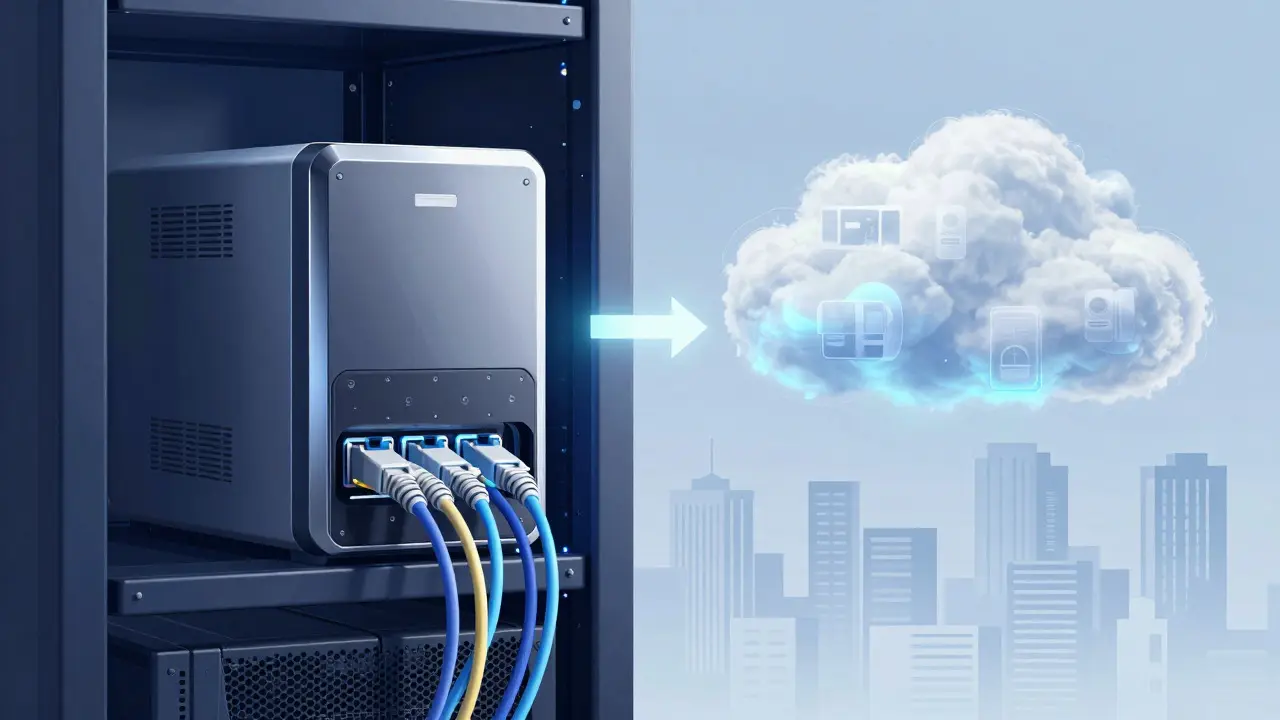
A Network Attached Storage device is more than just a place to store movies. For smart home enthusiasts, a NAS acts as a central repository for logs, backups, and even media servers. By storing your hub’s configuration files on a NAS, you decouple your smart home logic from the physical hub hardware.
If your hub dies, you can buy a replacement unit, install the same firmware version, and import the configuration file from your NAS. The process usually takes less than 15 minutes. This is significantly faster than re-pairing dozens of Zigbee or Z-Wave devices, which can be tedious and error-prone. Additionally, NAS devices often come with redundant power supplies and RAID arrays, making them far more reliable than a single consumer-grade hub for long-term data retention.
Firmware Updates and Configuration Risks
One of the most common reasons for losing configuration is a failed firmware update. Manufacturers regularly push updates to fix bugs or add features, but sometimes these updates reset certain settings or break compatibility with older devices. Before applying any major firmware update to your hub or controller, always create a fresh backup.
Treat firmware updates like software patches on your computer. They improve performance, but they carry risk. If you skip the backup step and the update wipes your automation rules, you’ll spend the next evening recreating them from memory. A five-minute backup saves hours of frustration. Furthermore, keeping a record of which firmware version worked best for your specific setup helps you decide whether to stay on a stable version or move to the latest release.
Security Considerations for Stored Configurations
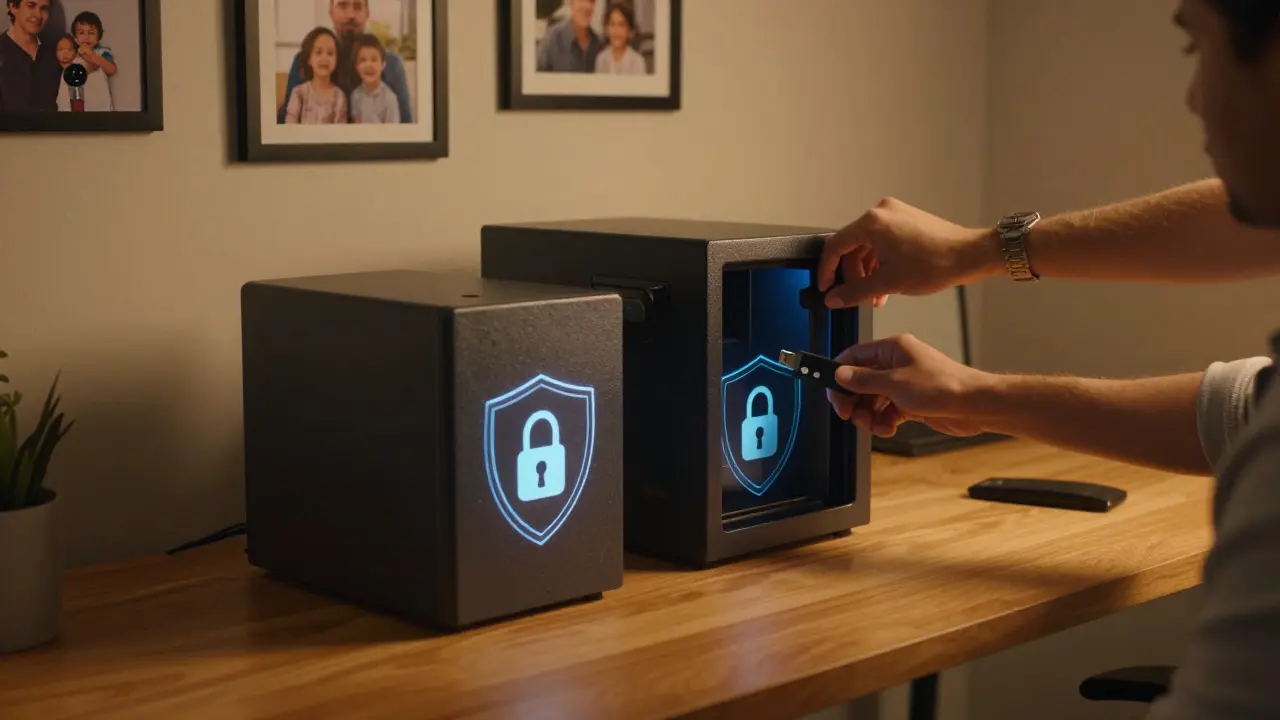
Your smart home configuration file contains more than just device names. It may include Wi-Fi passwords, API keys, and encryption tokens for connected devices. Because of this, treat your backup files like sensitive documents. If you store them in the cloud, ensure the folder is encrypted. If you use a local external drive, consider using full-disk encryption to prevent unauthorized access if the drive is lost or stolen.
Also, be mindful of where you store these files. Avoid putting them in public cloud folders shared with colleagues or friends. Limit access to trusted household members only. Since these files control physical access to your home (like locks and gates), leaking them could pose a physical security risk, not just a digital one.
Testing Your Restoration Process
A backup is useless if you can’t restore from it. Every six months, test your restoration process. You don’t need to wipe your current hub to do this. Instead, try importing the backup file into a secondary device or a virtual machine if supported. Verify that the device list matches your current setup and that automation triggers work as expected. This proactive testing ensures that when disaster strikes, your backup is actually viable.
Do I need to back up my smart home hub if I have cloud sync?
Yes. Cloud sync protects against hardware failure, but it doesn't protect against vendor service shutdowns, accidental deletions in the app, or firmware glitches that corrupt the cloud data. A local backup provides a second layer of protection that you fully control.
What format should I use for my configuration backups?
Use the native export format provided by your hub, usually JSON or XML. These formats are human-readable and widely supported. Avoid binary backup images unless you have a specific reason to use them, as they are harder to inspect and restore selectively.
How often should I update my smart home backup?
Weekly is a good baseline for most households. However, you should also create a manual backup before any significant changes, such as adding new devices, changing automation rules, or updating firmware.
Can I transfer my configuration to a different brand of hub?
Rarely. Most hub ecosystems are proprietary, meaning a backup from a Hubitat hub won't directly work on a SmartThings hub. You will likely need to re-pair devices and recreate automations, though the old backup serves as a valuable reference guide for your new setup.
Is it safe to store my hub backup on a USB stick?
It is acceptable as a temporary measure, but USB sticks are prone to physical damage and failure over time. For long-term reliability, use a NAS, an external hard drive with regular health checks, or a reputable cloud storage service.