You just bought a shiny new PS5 or Xbox Series X. You plug it in, turn on the game, and... it looks like every other TV you've owned for the last decade. Smooth? Maybe. But is it fluid? Probably not. Most people leave their gaming consoles running at 60Hz with standard settings, missing out on the buttery-smooth motion and instant response times that modern hardware was built to deliver. It’s frustrating because the tech is right there, locked behind a few menu toggles and cable choices.
Getting your gaming console integration right isn't about buying the most expensive gear; it's about aligning three specific technologies: 120Hz refresh rates, Variable Refresh Rate (VRR), and low-latency modes. When these three work together, input lag drops, screen tearing vanishes, and games feel connected to your controller in a way that feels almost physical. If you want to stop fighting your display and start enjoying your games, here is exactly how to set up your system for peak performance.
The Foundation: Why 120Hz Matters More Than Resolution
Most gamers obsess over 4K resolution, but frame rate is where the real magic happens for competitive and immersive play. A standard TV refreshes its image 60 times per second (60Hz). That means if your console renders 120 frames per second (fps), half of those frames are thrown away or displayed twice, causing stutter. A 120Hz panel displays 120 images per second. This doubles the visual information sent to your eyes.
Why does this matter? Human vision processes motion differently than static images. At 120Hz, fast-paced shooters like Call of Duty or racing sims like Forza Motorsport look significantly clearer during quick pans. The motion blur inherent in LCD and OLED panels is halved because each frame is held on screen for half as long. This isn't just marketing fluff; it reduces eye strain and makes tracking moving targets much easier. However, getting 120Hz requires more than just a compatible TV. You need the right bandwidth pipeline.
HDMI 2.1: The Unsung Hero of Gaming Setup
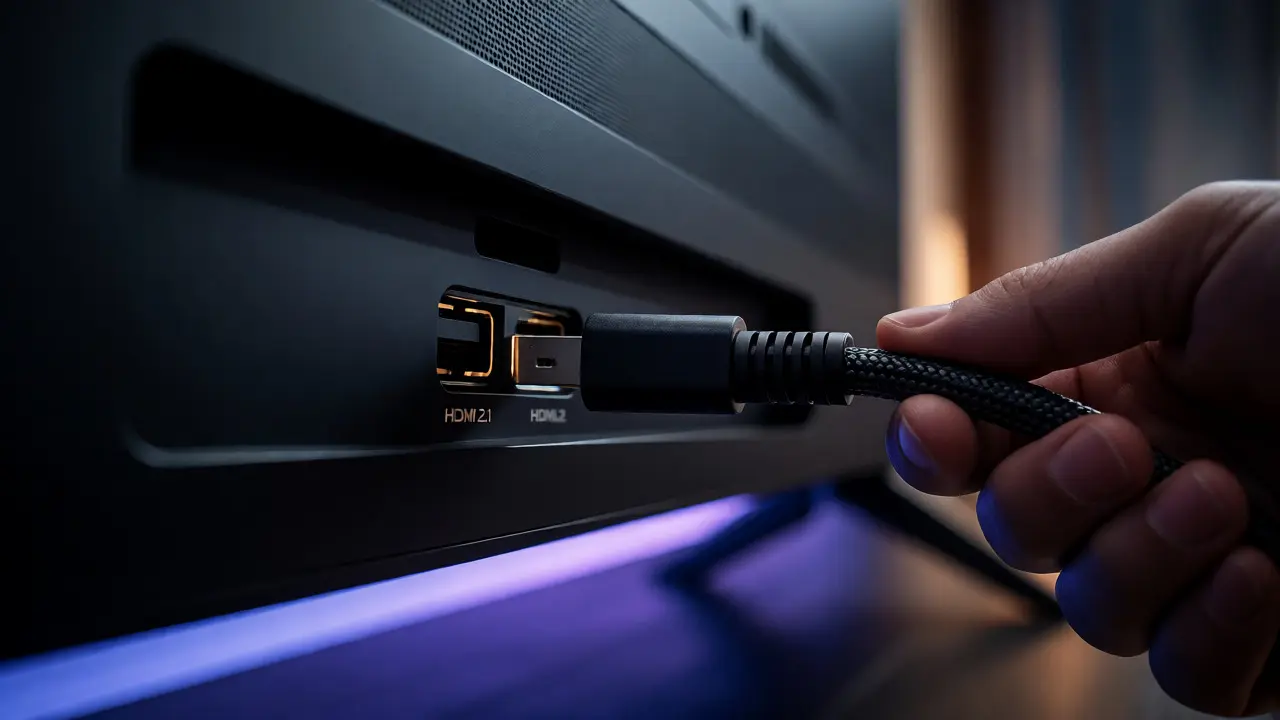
Here is the biggest bottleneck in home theater setups: cables and ports. Not all HDMI ports are created equal. To run 4K at 120Hz with HDR, you generally need HDMI 2.1 a version of the High-Definition Multimedia Interface specification that supports higher resolutions and faster refresh rates, including 4K at 120Hz and 8K at 60Hz. Older HDMI 2.0b ports max out at 4K/60Hz or 1080p/120Hz.
If you own a PlayStation 5 or Xbox Series X, check your TV’s back panel. Look for an HDMI port labeled "eARC" or specifically marked as "HDMI 2.1" or "4K@120Hz." Many TVs only have one or two such ports, often reserved for eARC audio return. If you use that port for your soundbar, you might lose video features unless your TV supports ALLM (Auto Low Latency Mode) and VRR on non-eARC ports too. Always consult your manual. Also, buy certified Ultra High Speed HDMI cables. Cheap $5 cables from gas stations rarely handle the 48Gbps bandwidth required for uncompressed 4K/120Hz signals, leading to black screens or signal dropouts.
Variable Refresh Rate (VRR): Eliminating Screen Tearing
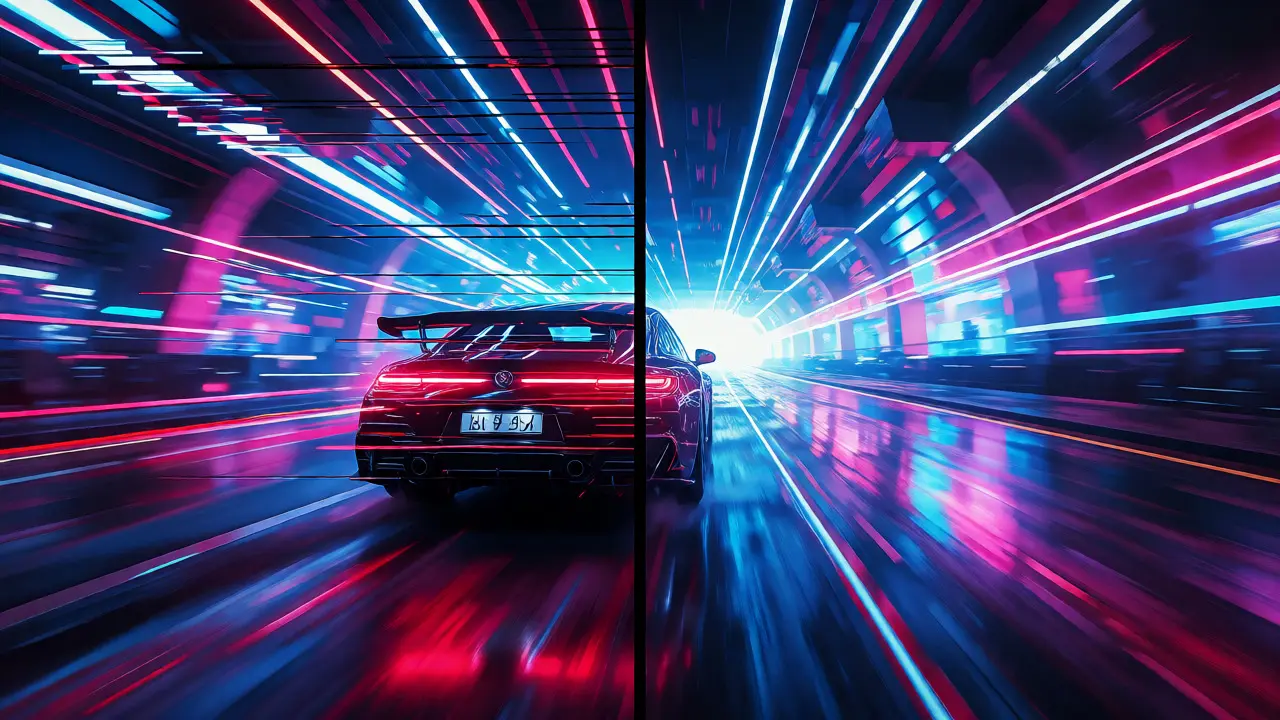
Even with a 120Hz TV, games don’t always run at a perfect, steady 120fps. Complex scenes might dip to 90fps, while simple menus hit 120fps. When the console’s frame rate doesn’t match the TV’s fixed refresh rate, you get screen tearing-a horizontal line splitting the image where two different frames are visible simultaneously. It looks jarring and breaks immersion.
This is where Variable Refresh Rate (VRR) a technology that synchronizes the display's refresh rate with the graphics card's output frame rate to eliminate screen tearing and reduce stuttering comes in. There are two main flavors you’ll encounter:
- AMD FreeSync Premium Pro: Supported by Xbox Series X/S and many PC GPUs. It works seamlessly with most modern TVs.
- NVIDIA G-Sync Compatible: Primarily for PCs, but some newer TVs support it natively.
- HDMI Forum VRR: The universal standard supported by both PS5 and Xbox Series X via HDMI 2.1. This is the most important setting for console players.
Enabling VRR allows your TV to wait for the next frame rather than forcing a refresh at a fixed interval. If the game drops to 100fps, the TV refreshes at 100Hz. The result? No tearing, no stutter, even when frame rates fluctuate. For PS5 users, go to Settings > Screen and Video > Video Output > Enable 120Hz Output > Automatic. Then ensure VRR is set to "Automatic" or "On." For Xbox, go to General Options > TV & display options > Allow auto-low latency mode and Allow variable refresh rate.
| Feature | Standard 60Hz Setup | Optimized 120Hz + VRR Setup |
|---|---|---|
| Input Lag | 30-50ms (Noticeable delay) | 10-15ms (Near-instant response) |
| Motion Clarity | Blurry during fast pans | Crisp and fluid |
| Screen Tearing | Frequent without VRR | Eliminated via synchronization |
| Bandwidth Required | HDMI 2.0 (18Gbps) | HDMI 2.1 (48Gbps) |
Low Latency Mode: Cutting the Cord Between Action and Reaction
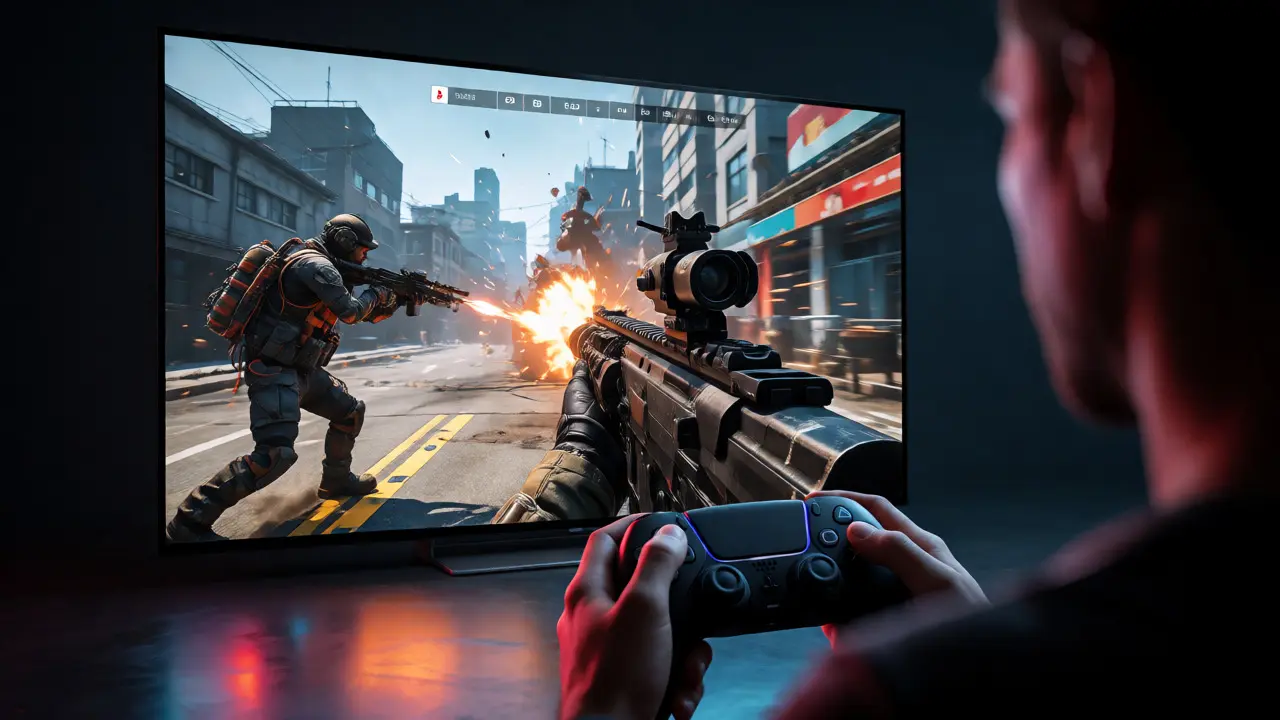
Latency is the time between pressing a button on your controller and seeing the action happen on screen. In competitive gaming, milliseconds matter. Your TV adds processing time to make movies look good-smoothing motion, sharpening edges, reducing noise. These post-processing effects add delay. Gamers hate this delay.
Enter Game Mode a preset configuration on televisions that minimizes image processing to reduce input lag, often bypassing motion smoothing and noise reduction filters. On most modern TVs, enabling Game Mode automatically activates Auto Low Latency Mode (ALLM). ALLM communicates with the console via HDMI CEC (Consumer Electronics Control). When you launch a game, the TV detects the signal type and instantly switches to Game Mode. When you open Netflix, it switches back to Movie Mode.
If your TV doesn’t support ALLM, you must manually switch inputs. Check your TV’s picture settings. Turn off "Motion Smoothing," "Noise Reduction," and "Sharpness enhancement" in the game-specific picture profile. These features consume GPU power on the TV and add 10-20ms of lag. Keep it raw. You want the pixels to change as soon as the console sends them.
Step-by-Step Optimization Checklist
Ready to configure? Follow this sequence to avoid common pitfalls. Doing things out of order can cause handshake issues where the TV fails to recognize the high-bandwidth signal.
- Connect Correctly: Plug your console into the HDMI 2.1 port using a certified Ultra High Speed HDMI cable. Do not use an older HDMI 1.4 or 2.0 cable.
- Update Firmware: Update your TV firmware first, then update your console system software. Manufacturers frequently fix VRR bugs in updates.
- Enable HDMI Enhanced Format: On Samsung TVs, go to External Device Manager > Input Signal Plus. On LG, go to General > Devices > HDMI ULTRA HD Deep Color. Ensure the specific HDMI port is set to "Enhanced" or "Deep Color." Without this, the port defaults to lower bandwidth limits.
- Activate VRR: Go into your TV’s picture settings under the Game Picture Mode. Find VRR or FreeSync/G-Sync and toggle it ON. Note: Some TVs disable HDR when VRR is active below certain resolutions, so test both.
- Set Console Output: On PS5, set Resolution to 4K, 120Hz Output to Automatic, and VRR to Automatic. On Xbox, select 4K, allow 120Hz, and enable VRR.
- Verify Performance: Launch a game known to support 120Hz (like Doom Eternal or Rocket League). Look for a smoothness indicator or use a frame counter app if available on your TV.
Troubleshooting Common Handshake Issues
Sometimes, despite doing everything right, you get a black screen or flickering. This is usually an HDCP (High-bandwidth Digital Content Protection) handshake failure. The devices are arguing over encryption keys.
First, try power cycling. Unplug the TV and console from the wall outlet for 60 seconds. This clears the HDMI buffer. Second, check your cable length. Passive HDMI 2.1 cables degrade quickly beyond 3 meters (10 feet). If you’re running long wires through walls, consider an Active Optical Cable (AOC). Third, simplify your chain. If you route video through an AV receiver, ensure the receiver also supports HDMI 2.1 pass-through. Many older receivers choke on 4K/120Hz signals. If possible, connect the console directly to the TV and send audio separately via optical or eARC.
Beyond the Basics: Future-Proofing Your Setup
Gaming standards evolve. While 4K/120Hz is the current gold standard, 8K is looming, though currently irrelevant for most consoles due to lack of native content. What matters more now is optimizing for OLED burn-in risks if you play static HUD-heavy games for hours. Modern OLEDs have pixel shifters and logo dimming features. Enable these in your TV’s OLED care settings. They subtly move the image every few minutes to prevent permanent ghosting.
Also, consider audio integration. High-refresh-rate visuals demand precise audio cues. Ensure your sound system is configured for low-latency decoding. If you use Bluetooth headphones, beware of codec delays. Use wired connections or low-latency proprietary wireless headsets designed for consoles, not generic Bluetooth earbuds which can add 100ms+ of audio lag, ruining the sync achieved by your video settings.
Do I really need HDMI 2.1 for 120Hz?
It depends on your resolution. If you are playing at 1080p or 1440p, HDMI 2.0 can often handle 120Hz. However, for 4K at 120Hz, HDMI 2.1 is virtually mandatory due to the massive bandwidth requirements. Additionally, HDMI 2.1 enables features like Auto Low Latency Mode (ALLM) and Variable Refresh Rate (VRR) natively, which are critical for the best experience.
Will VRR hurt my TV's lifespan?
No, VRR itself does not damage the TV. It simply changes the timing of the refresh cycle. However, constantly switching between very low and very high refresh rates can sometimes cause minor flickering on cheaper panels. This is a compatibility issue, not a wear-and-tear issue. High-quality panels handle VRR indefinitely without degradation.
Why is my game still laggy after enabling Game Mode?
If Game Mode is on but lag persists, check if Motion Smoothing or Noise Reduction is accidentally enabled within the Game Mode preset. Also, verify that your internet connection isn't the bottleneck if you're playing online multiplayer. Local rendering lag is distinct from network latency. If local controls feel sluggish, double-check that VRR is actually active, as disabled VRR can cause stutter that feels like lag.
Can I use an old HDMI cable for 4K 120Hz?
Rarely. Standard "High Speed" HDMI cables (HDMI 2.0) typically cap at 18Gbps, which is insufficient for uncompressed 4K/120Hz/HDR. You need an "Ultra High Speed" certified cable rated for 48Gbps. Using an older cable will likely result in the TV dropping to 4K/60Hz or displaying a black screen entirely.
Does VRR work with all games?
No. Both the game engine and the console must support VRR. Developers have to explicitly enable it. Popular titles like Fortnite, Doom Eternal, and Microsoft Flight Simulator support it, but many single-player narrative games do not. You can check the official support lists for PlayStation and Xbox to see which titles benefit from VRR.