
You know the drill. You have five laptops, three tablets, a smart TV, and that one stubborn desktop in the basement. Each one needs its security patches applied. If you do this manually, you are wasting hours every month just clicking "Update" and waiting for restarts. Worse, you miss things. Maybe the tablet gets skipped because it was offline during your last sweep. That gap is where malware thrives.
Automated software updates are processes that install new versions of applications and operating systems without manual intervention. They keep your devices secure and efficient while freeing up your time. This guide breaks down how to set them up across different ecosystems, what pitfalls to avoid, and which tools actually work in 2026.
Why Manual Updating Fails at Scale
Think about the last time you updated all your devices at once. Did you remember the router firmware? The smart thermostat? Probably not. Manual updating relies on human memory and consistency, both of which fail under load. When you manage more than two or three devices, the cognitive load becomes too high.
Security experts from the National Institute of Standards and Technology (NIST) emphasize that unpatched vulnerabilities are the leading cause of small business breaches. A single missed update on a secondary device can expose your entire network. Automation removes the human error factor. It ensures that when a patch is released, it gets deployed according to your schedule, not whenever you happen to have free time.
Choosing Your Update Strategy
Not all devices should update at the same time. You need a strategy that balances security with stability. Here are the three main approaches:
- Immediate Patching: Best for critical security fixes. Devices update as soon as the patch is available. Risk: Potential compatibility issues if the patch is buggy.
- Scheduled Maintenance Windows: Updates occur at a specific time, like 2 AM on Sundays. Best for home networks where downtime is acceptable. This allows you to monitor results before the next cycle.
- Phased Rollouts: Used mostly in business environments. One device group gets the update first. If no issues arise after 48 hours, the rest follow. This minimizes disruption.
For most personal setups, a hybrid approach works best. Enable automatic updates for mobile devices and browsers, but use scheduled windows for computers and servers. This way, you get immediate protection for high-risk apps without risking your main workstation crashing mid-project.
Native Tools by Operating System
Before buying third-party software, check what your devices already offer. Modern operating systems have robust built-in mechanisms.
| Platform | Tool Name | Best For | Control Level |
|---|---|---|---|
| Windows | Windows Update | PCs and Laptops | Medium (Active Hours) |
| macOS | System Preferences | Macs and iPads | High (Background Install) |
| Android | Google Play Services | Phones and Tablets | Low (Auto-Over-Wi-Fi) |
| iOS/iPadOS | iOS Settings | iPhones and iPads | Medium (Nightly Auto) |
| Linux | Unattended-Upgrades | Servers and Desktops | High (Cron Jobs) |
On Windows 11, enable "Active Hours" so updates don't interrupt your workday. Go to Settings > Windows Update > Advanced Options. Set your active hours to cover your typical work time. For macOS, ensure "Install macOS updates" is checked in General settings, but disable "Automatically restart" if you want to control reboot times.
Linux users often forget that their distro has powerful automation tools. On Ubuntu or Debian, install `unattended-upgrades`. It handles security patches automatically via cron jobs. You can configure it to send email reports, so you know exactly what changed without logging in daily.

Third-Party Management Solutions
If you have mixed devices-say, a Mac, a Windows PC, and several Android tablets-native tools don't talk to each other. You need a central dashboard. This is where third-party patch management tools shine.
PDQ Deploy is a popular tool for Windows environments that pushes updates silently. It’s great if you’re managing a small office or a tech-savvy home lab. For cross-platform needs, look at Ninite. Ninite doesn’t require an agent; you just run a custom installer once, and it keeps common apps like Chrome, Zoom, and VLC updated forever. It’s simple, free for basic use, and surprisingly effective.
Another strong option is Chocolatey for Windows command-line enthusiasts. You can script update commands like `choco upgrade all -y` and schedule them via Task Scheduler. This gives you granular control over which packages update and when.
For mobile fleets, Mobile Device Management (MDM) solutions like Jamf (for Apple) or Microsoft Intune provide enterprise-grade control. However, these are often overkill for home users. Stick to native auto-updates unless you have strict compliance requirements.
The Hidden Risks of Automation
Automation isn't magic. It can break things. Remember the Windows 10 update disaster in 2018? Or the recent Linux kernel bugs that caused boot loops? Automatic updates assume that the vendor tested everything perfectly. They didn't.
Here is how to mitigate risk:
- Backup Before Major OS Updates: Never let a major version upgrade happen automatically without a recent backup. Use Time Machine on Mac or File History on Windows.
- Disable Auto-Reboot for Critical Machines: If you use your computer for live presentations or rendering, disable automatic reboots. Let the update install, but wait for you to restart.
- Monitor Logs: Check your update logs weekly. Most tools have a history tab. Look for failed installations. A silent failure means you are still vulnerable.
- Whitelist Problematic Apps: Some legacy software breaks with new .NET frameworks or Java versions. Exclude these from automatic updates until you test compatibility.
Also, consider bandwidth. If you have limited data caps, downloading large game updates or OS patches on multiple devices simultaneously can spike costs. Schedule heavy downloads for off-peak hours or use local caching if you have a NAS.
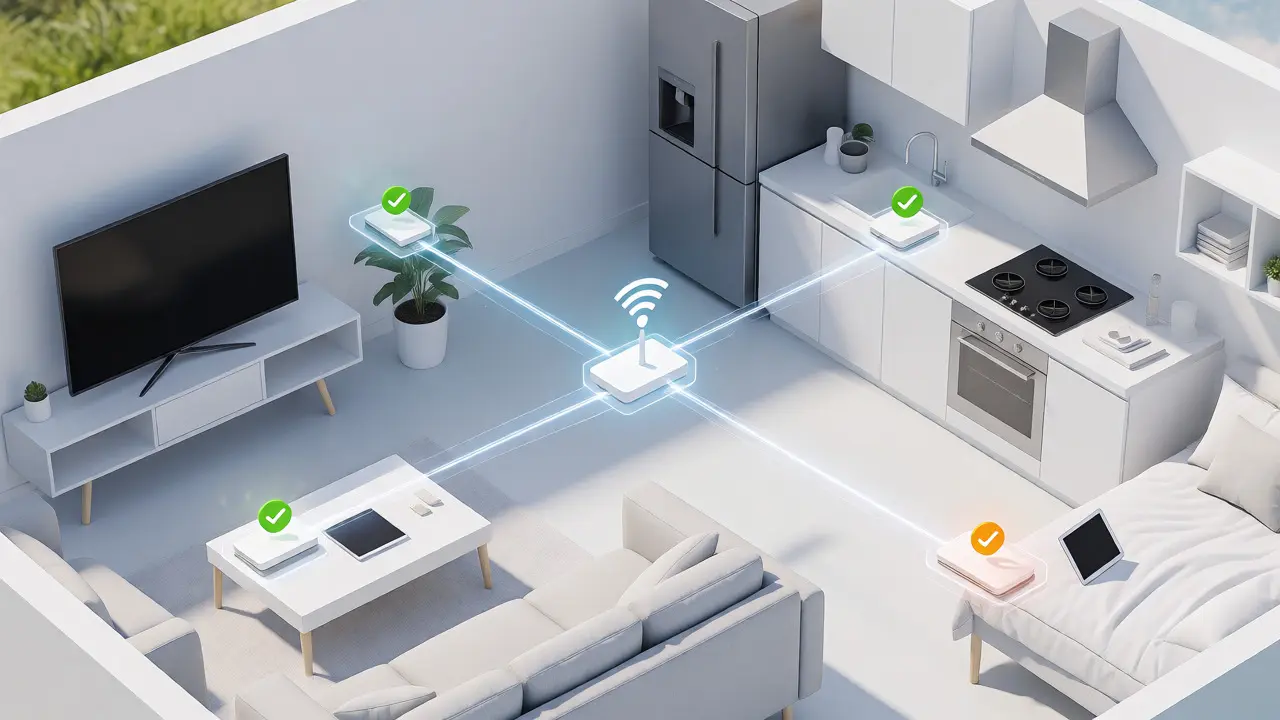
IoT and Smart Home Devices
We often forget the smart fridge, the doorbell camera, and the Wi-Fi bulb. These devices rarely have user-facing update controls. They rely on cloud push notifications.
Your job here is less about configuration and more about verification. Log into your router's admin panel monthly. Many modern routers allow you to see firmware status for connected IoT devices. If a device hasn't updated in six months, check the manufacturer's app. Sometimes you need to manually trigger a check-in by toggling the power or resetting the connection.
Security note: IoT devices are frequent targets because they are often left unpatched. If a device no longer receives updates (end-of-life), consider replacing it or isolating it on a separate guest network to limit potential damage.
Setting Up Your Automation Workflow
Ready to set it up? Follow this checklist to get started today.
- Audit Your Devices: List every computer, phone, tablet, and server. Note the OS and key applications.
- Enable Native Auto-Updates: Turn on automatic updates for OS and core apps on all devices.
- Configure Active Hours: Set these on Windows and macOS to prevent interruptions during work.
- Install a Cross-Platform Tool: Try Ninite for Windows apps or Chocolatey for advanced control.
- Set a Monthly Review: Put a reminder in your calendar to check update logs and verify backups.
- Test Recovery: Know how to roll back an update if something goes wrong. Practice using System Restore or Time Machine.
This workflow takes about an hour to set up initially. After that, it requires almost zero effort. You spend ten minutes a month reviewing logs instead of ten hours clicking buttons.
Frequently Asked Questions
Do I really need to automate updates for my old laptop?
Yes, especially if it connects to the internet. Old hardware might be slower, but it is still vulnerable to web-based threats. Automated updates ensure security patches arrive without requiring constant attention. Just make sure to disable automatic reboots if the machine is slow, so it doesn't hang unexpectedly.
What happens if an automatic update fails?
Most modern systems will retry the download or installation later. However, some failures are silent. Always check your update history or log files weekly. If a critical security patch fails repeatedly, you may need to troubleshoot disk space, internet connectivity, or corrupted system files.
Is it safe to let apps update automatically in the background?
Generally, yes. Background updates consume minimal resources on modern hardware. The main risk is unexpected UI changes or feature removals. If you rely on specific features in productivity software, consider delaying updates for those specific apps until you can review release notes.
How do I stop updates from eating my data plan?
Configure your mobile devices to only update over Wi-Fi. On Windows, set your network connection as "metered" in Settings. This prevents large downloads from starting automatically. For desktops, schedule updates during off-peak hours if you have time-based pricing.
Can I automate updates for Linux servers remotely?
Absolutely. Tools like Ansible or Puppet can manage updates across dozens of Linux servers. For smaller setups, configuring `unattended-upgrades` with email notifications provides remote visibility. You receive a report of installed packages without needing to SSH into each box.