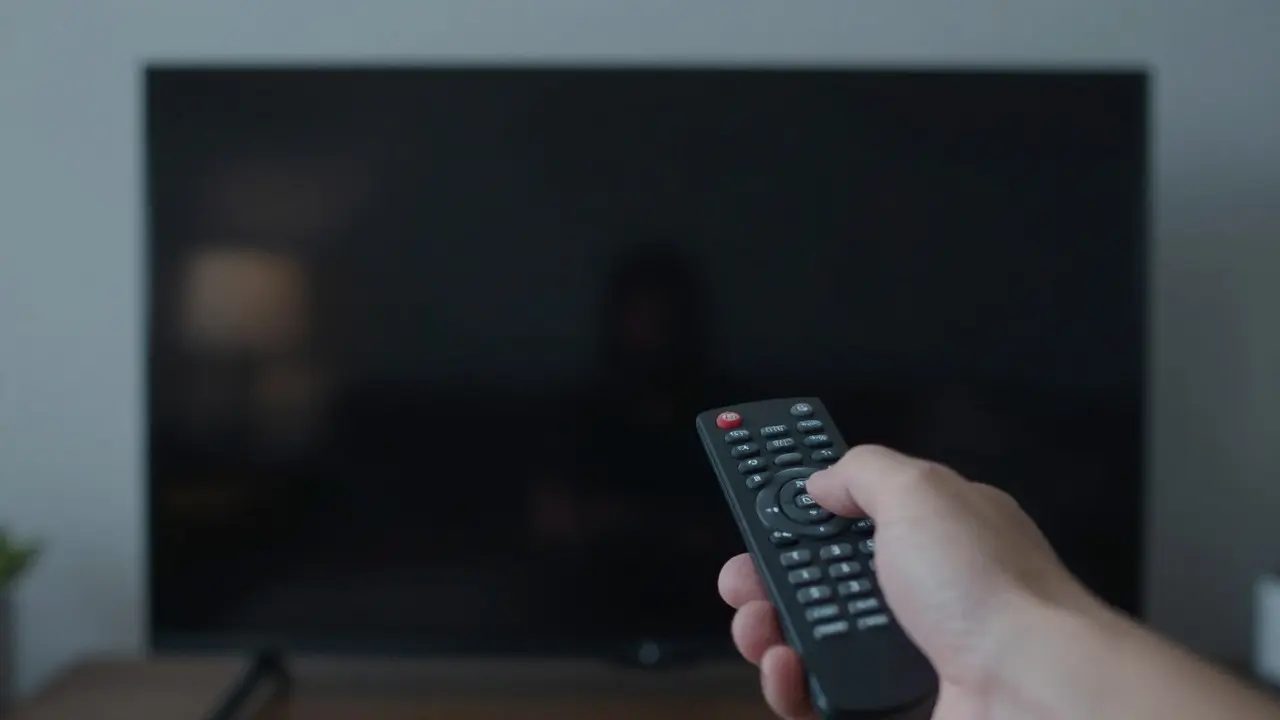
Nothing kills the mood of a movie night faster than a black screen that refuses to wake up or a remote that controls the wrong device. You press "Power" on your TV remote, but your soundbar stays silent, or your Blu-ray player turns off when you just wanted to change channels. These are classic symptoms of HDMI handshake failures and Consumer Electronics Control (CEC) misconfigurations. If you have spent hours swapping cables or restarting devices only to get the same result, you are not alone. This guide cuts through the technical jargon to give you practical, tested solutions to get your home entertainment system working like it did out of the box.
Understanding the Core Problem
To fix the issue, we first need to understand what is actually failing. An HDMI handshake is the digital negotiation process between an HDMI source device and a display that establishes communication parameters such as resolution, refresh rate, and audio format. When this fails, one device doesn't recognize the other, resulting in no signal. Meanwhile, Consumer Electronics Control, commonly known as CEC, is a feature built into HDMI that allows multiple connected devices to be controlled with a single remote. While these two features work independently, they often fail together because they rely on the same physical connection and stable power states.
The root cause is rarely a broken cable. In most cases, it is a timing issue, a firmware glitch, or a setting conflict within the device's internal menu. By isolating whether the problem is the physical link (handshake) or the command logic (CEC), you can apply the correct fix without wasting money on unnecessary hardware upgrades.
Diagnosing the Failure Point
Before changing settings, perform a quick diagnostic to pinpoint the culprit. Start by connecting your source device (like a streaming stick or game console) directly to your TV using a single high-quality HDMI cable. Bypass any AV receivers, soundbars, or switches for now. If the picture appears instantly, your physical connection is fine, and the issue likely lies in the intermediate devices or CEC settings. If the screen remains black even with a direct connection, the problem is a fundamental handshake failure between the source and the display.
Check the following indicators during this test:
- No Signal Message: The TV recognizes the port but gets no data. This usually means the source device isn't sending a signal or the cable is faulty.
- Black Screen with Audio: The handshake partially succeeded for audio but failed for video. This often points to a bandwidth limitation or a specific audio codec mismatch.
- Intermittent Signals: The picture flickers or drops out. This suggests a loose connection, a damaged pin in the cable, or a power management issue where the device sleeps too aggressively.
Fixing HDMI Handshake Failures
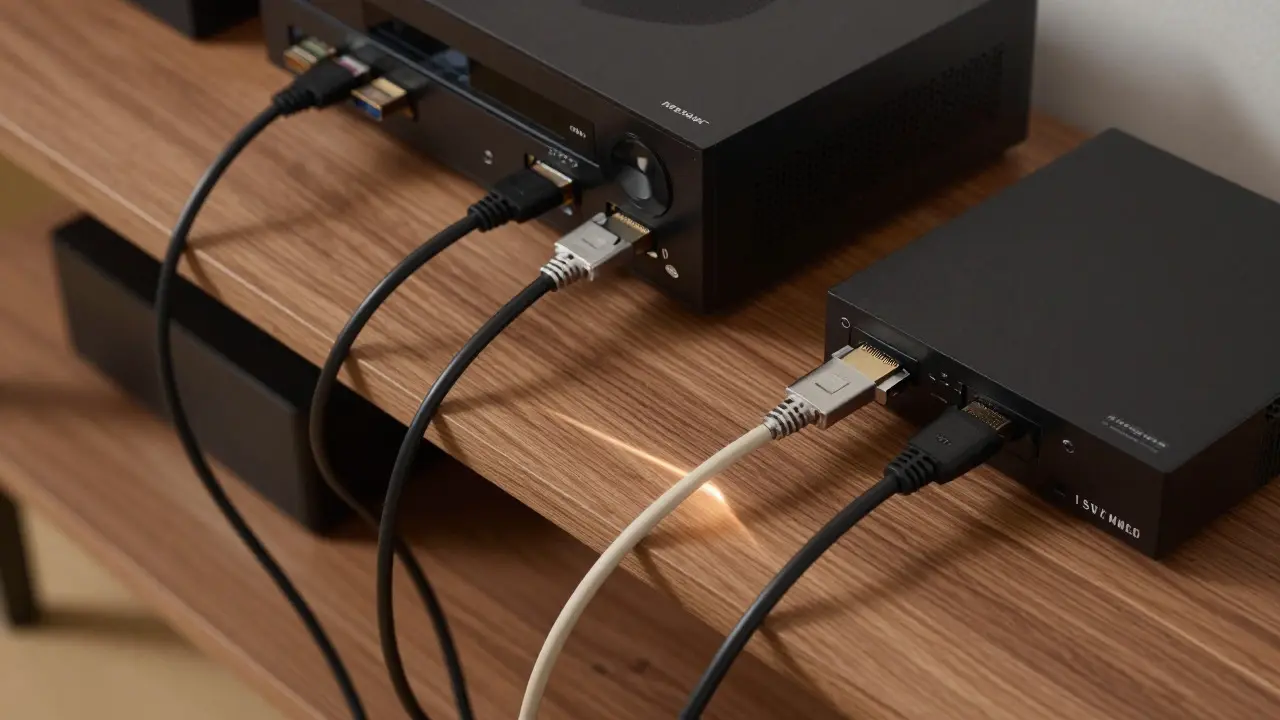
If your diagnosis points to a handshake issue, start with the simplest fixes first. Many modern TVs and consoles have aggressive power-saving modes that cut power to the HDMI ports after a few minutes of inactivity. When you turn the device back on, the TV might not be ready to accept the new signal immediately.
- Disable Standby Modes: Go into your TV's settings and look for options like "Deep Sleep," "Eco Mode," or "HDMI Standby." Turning these off ensures the TV stays electrically active even when the screen is off, allowing for a faster and more reliable handshake.
- Update Firmware: Manufacturers frequently release updates to fix compatibility bugs. Check the settings menu on both your TV and your source device for available updates. A recent update might resolve a specific incompatibility with your current setup.
- Reset HDMI Settings: Some devices allow you to reset their HDMI configuration. Look for an option labeled "Reset HDMI" or "Clear EDID." This forces the devices to renegotiate their capabilities from scratch.
- Use a Different Port: Not all HDMI ports on a TV are created equal. Ports labeled "ARC" or "eARC" support additional features but sometimes have different processing pipelines. Try moving your connection to a standard HDMI input if you are currently using an ARC port, or vice versa.
If the issue persists, consider the cable itself. While many people assume HDMI cables are universal, quality matters. For 4K content at 60Hz or higher, you need a cable certified for High Speed or Ultra High Speed. Using a cheap, uncertified cable can lead to intermittent handshake failures due to signal degradation over longer distances.
Taming CEC Control Chaos
Once your picture is stable, tackle the CEC issues. CEC is convenient, but it is notoriously finicky. One brand calls it "Anynet+" (Sony), another "Simplink" (LG), and yet another "Bravia Sync" (Sony again, confusingly). The name changes, but the function remains the same: one remote controls all.
Common CEC problems include devices turning off unexpectedly, remotes controlling the wrong device, or volume controls not syncing. Here is how to stabilize it:
- Enable CEC Consistently: Ensure CEC is turned ON in the settings of every device in the chain. If your TV has CEC on but your AV receiver has it off, commands will get lost in translation.
- Limit the Chain Length: CEC signals degrade as they pass through more devices. If you have a TV, AV receiver, and soundbar all daisy-chained, try reducing the number of links. Connect the soundbar directly to the TV via optical or Bluetooth if possible, keeping the HDMI path simple for video.
- Turn Off Unnecessary Features: Some CEC sub-features like "System Audio Control" or "Device Wake-on-Command" can cause conflicts. If you don't use them, disable them to reduce noise on the line.
A pro tip: If CEC is still acting up, try disabling it entirely on all devices except the main TV. Use the TV's remote for basic power functions and the individual remotes for specific device controls. It is less elegant, but it eliminates the source of the chaos completely.
Hardware Considerations and Upgrades
Sometimes, software fixes aren't enough. Your hardware setup might be the bottleneck. If you are using an older AV Receiver that predates widespread 4K support, it may struggle with the bandwidth required for modern 4K UHD content. In this case, bypassing the receiver for direct TV connections can solve handshake issues related to bandwidth limitations.
Similarly, if you are using an HDMI Switch to manage multiple inputs, ensure it is powered. Passive switches (those without a power adapter) often fail to maintain a stable handshake because they draw power from the devices themselves, which can fluctuate. Active, powered switches provide a consistent signal and are far more reliable for complex setups.
After you have resolved the immediate problem, take steps to prevent recurrence. Create a routine of updating your device firmware every six months. Keep a spare high-speed HDMI cable handy, as cables do eventually wear out, especially if they are bent or kinked regularly. Finally, document your settings. Take photos of your TV and receiver menus so you know exactly which settings were working before you made changes. This saves you from having to guess your way back to a stable configuration if something goes wrong later. By understanding the distinct roles of HDMI handshake and CEC, you can troubleshoot with precision rather than frustration. Whether you are dealing with a stubborn black screen or a chaotic remote control experience, these steps will help you regain full control over your home entertainment system. This is typically a failed HDMI handshake. The TV and the source device are not agreeing on the video format. Try resetting the HDMI settings on both devices, updating their firmware, or using a different HDMI port on the TV. It depends on your tolerance for glitches. If you want one-remote convenience and your devices are compatible, keep it on. If you prefer reliability and don't mind using multiple remotes, disable CEC on all devices to eliminate potential conflicts. Yes. For 4K at 60Hz or higher, you need an HDMI cable rated for High Speed or Ultra High Speed. Standard cables may work for lower resolutions but often fail to maintain a stable handshake for 4K signals, especially over longer distances. Absolutely. Older receivers may not support the latest HDMI standards or have outdated firmware that struggles with modern 4K sources. Bypassing the receiver to connect directly to the TV can confirm if the receiver is the bottleneck. Both allow audio to travel from the TV to a soundbar or receiver over a single HDMI cable. eARC (Enhanced Audio Return Channel) supports higher bandwidth, enabling lossless audio formats like Dolby Atmos. If you are experiencing audio issues, ensure you are using the correct port and that your equipment supports the specific audio format you are trying to play.
Scenario
Handshake Risk
CEC Reliability
Best Practice
Direct Source to TV
Low
High
Simplest and most stable setup
Source to AV Receiver to TV
Medium
Medium
Ensure all firmware is updated; check CEC settings on both ends
Source to Powered HDMI Switch to TV
Low-Medium
Low
Good for video stability; CEC may require manual configuration
Source to Passive HDMI Switch to TV
High
Very Low
Avoid for 4K content; prone to handshake failures
Preventing Future Issues
Why does my TV show no signal even though the device is on?
Is CEC worth keeping enabled?
Do I need a special cable for 4K content?
Can an old AV receiver cause handshake issues?
What is the difference between HDMI ARC and eARC?