Imagine sitting down to watch your favorite evening news, but the anchor’s voice is muffled, lost in a sea of background music and sound effects. Or picture trying to reply to a text from your grandchild, but your fingers feel stiff and typing on that tiny glass screen feels like an impossible puzzle. If this sounds familiar, you are not alone. Millions of older adults struggle with these exact issues daily. The good news? Technology has finally caught up. Voice-to-text and captioning tools have evolved from clunky, error-prone experiments into reliable, user-friendly helpers that can restore independence and connection right inside your living room.
We are not talking about complex software that requires a computer science degree to operate. We mean simple switches, smart TVs, and smartphone features that do the heavy lifting for you. Whether you deal with age-related hearing loss or just find it hard to type small messages, there is a tool here for you. Let’s look at what actually works, how to set it up without frustration, and which options save you money versus those that cost extra.
Why Standard Captions Often Fail (And What Fixes It)
You might think, "My TV already has captions." True, but standard Closed Captions (CC) often lag behind the audio by several seconds. For someone with hearing loss, that delay breaks the rhythm of conversation. You hear the laugh track before you read the joke. It ruins the experience. Furthermore, standard CCs don’t always identify who is speaking, leaving you guessing if it’s the husband or the wife delivering the bad news.
The solution lies in Automatic Speech Recognition (ASR) powered by Artificial Intelligence. Unlike old-school captioning, AI-driven tools process audio in real-time with near-zero latency. They also add context, such as [doorbell rings] or [phone vibrating], which helps you understand the environment around you, not just the dialogue.
For seniors at home, two main categories of tools solve this:
- Live Captioning Apps: These run on your phone or tablet and listen to your TV, radio, or even people talking in the room.
- Built-in Device Features: Modern Smart TVs, iPhones, and Android phones now include native live transcription capabilities that require no extra downloads.
Top Voice-to-Text Tools for Communication
If typing is painful due to arthritis or vision issues, voice-to-text is a game-changer. But not all dictation software is created equal. Some require you to speak in perfect, robotic sentences. Others understand natural speech, including pauses and filler words like "um" and "uh." Here is what works best for home use in 2026.
| Tool Name | Best For | Cost | Key Feature |
|---|---|---|---|
| Apple Dictation | iPhone/iPad Users | Free (Built-in) | Works offline; integrates directly into Messages and Notes. |
| Google Voice Typing | Android Users | Free (Built-in) | Highly accurate; learns your vocabulary over time. |
| Otter.ai | Meetings & Lectures | Freemium | Records and transcribes conversations; highlights keywords. |
| Dragon Anywhere | Long Documents | Subscription (~$15/mo) | Industry-leading accuracy; handles medical/legal terms well. |
Apple Dictation and Google Voice Typing are usually the best starting points because they are free and already on your device. To use them, you simply tap the microphone icon on your keyboard and speak. Your phone turns your words into text instantly. I’ve found that Google’s version is slightly better at understanding regional accents, while Apple’s works seamlessly across all apps without needing an internet connection once downloaded.
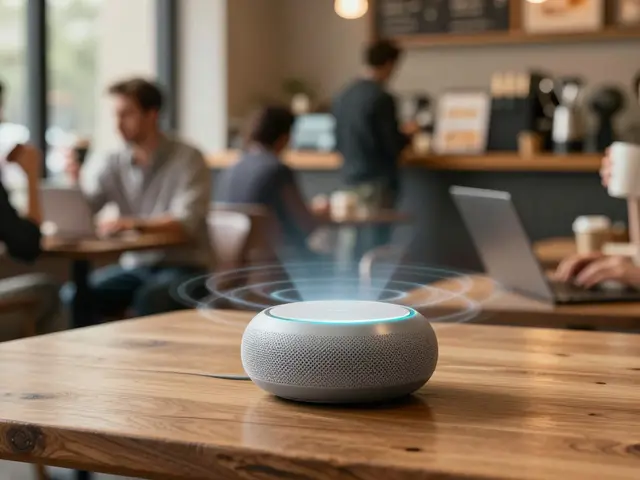
If you need to transcribe longer conversations, like a doctor’s appointment or a family gathering, Otter.ai shines. You press record, place your phone on the table, and it generates a written transcript within minutes. It even separates speakers, so you know exactly who said what. This is invaluable for keeping track of medication instructions or legal advice.
Real-Time Captioning for TV and Streaming
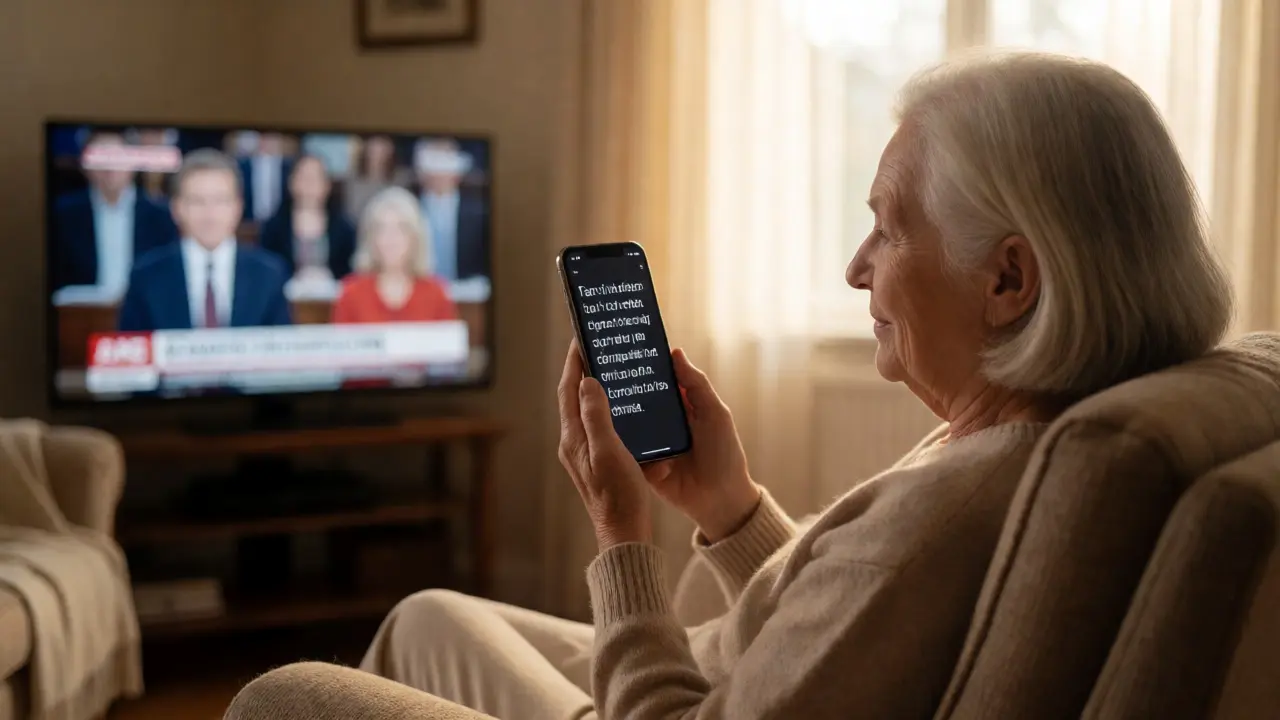
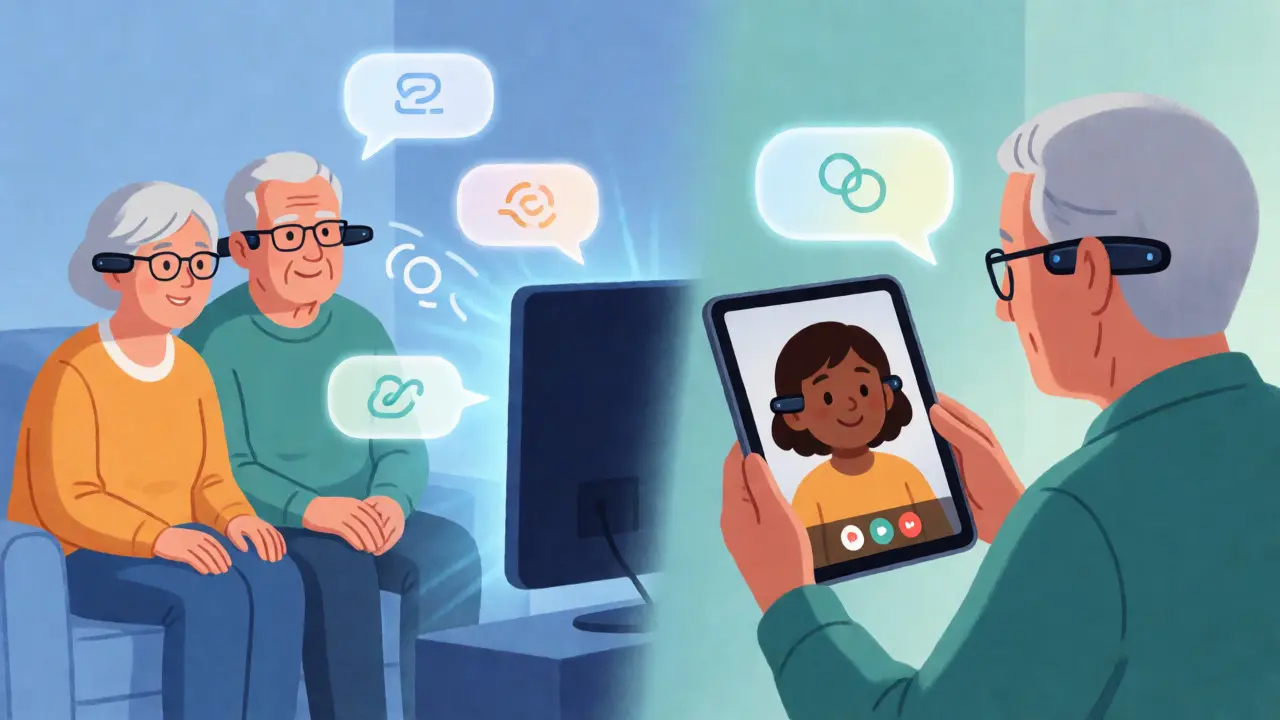
Watching television should be relaxing, not a workout. If you rely on subtitles, you likely miss visual cues because your eyes are glued to the bottom of the screen. Real-time captioning apps bridge this gap by projecting text onto your phone or tablet screen, which you can hold closer to your face than the TV.
Here is how to set up the most effective setups:
Using Live Transcribe (Android)
If you have an Android phone, you have access to one of the best free tools available: Live Transcribe. Developed by Google, this app uses machine learning to convert speech to text in real-time. It supports over 70 languages and dialects.
To use it for TV, open the app and point your phone toward the TV speakers. The text scrolls up smoothly as the characters speak. You can adjust the font size to be huge, making it easy to read from a distance. A pro tip: enable the "Sound Alerts" feature. This notifies you visually when a doorbell rings or a baby cries, turning your phone into a safety monitor.
Using Live Captions (iOS)
For iPhone users, iOS 16 and later versions include a built-in feature called Live Captions. Unlike third-party apps, this runs locally on your device, meaning your private conversations aren’t sent to the cloud. To activate it, go to Settings > Accessibility > Live Captions. Once enabled, a floating window appears whenever media plays. You can move this window anywhere on the screen and resize it. It works with FaceTime calls, video streaming apps, and even voice memos.
Hardware That Makes a Difference
Sometimes, software isn’t enough. If your hearing loss is significant, you might need hardware assistance to feed clear audio into these apps. Background noise is the enemy of voice-to-text technology. If your microphone picks up the hum of the refrigerator or traffic outside, the transcription accuracy drops.
Consider these affordable additions:
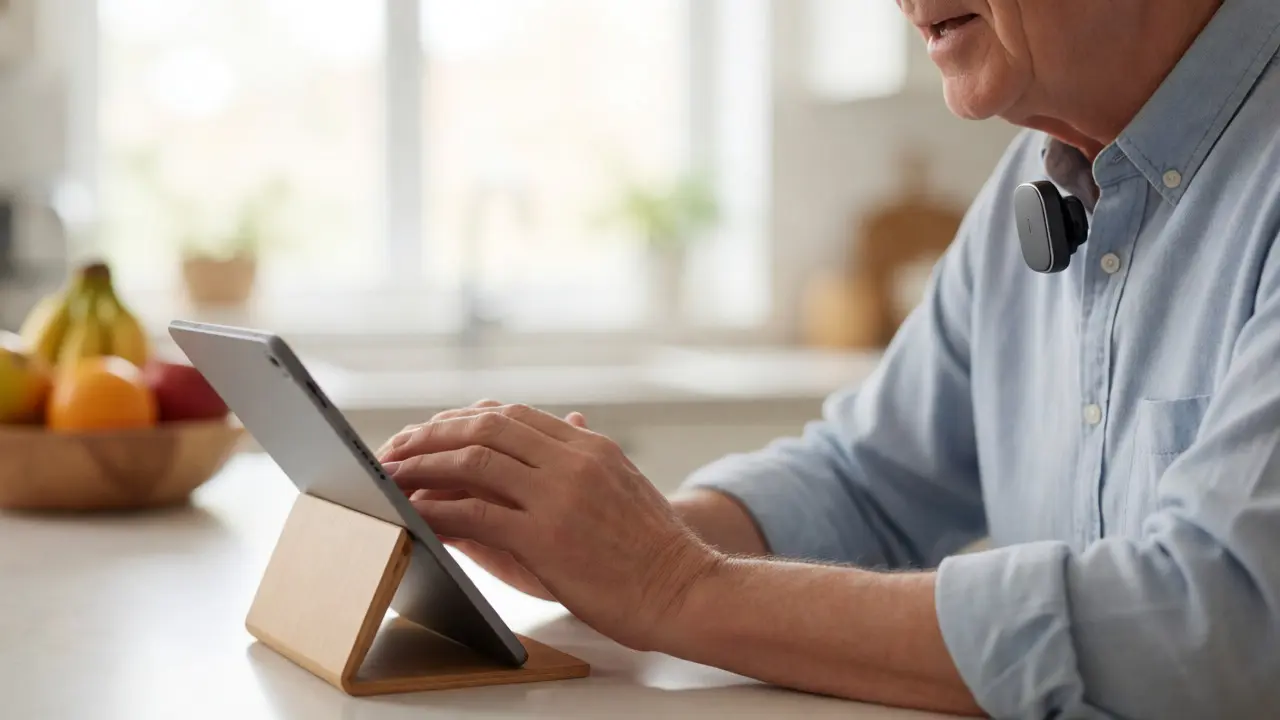
- Bluetooth Microphones: Small lapel mics that clip to your shirt. When paired with your phone, they capture your voice clearly while ignoring room noise. This is crucial for using voice-to-text in busy households.
- Hearing Aid Compatibility: Many modern hearing aids connect via Bluetooth to smartphones. Check if your current aids support direct audio streaming. If they do, you can route the TV audio directly into your ears while simultaneously displaying captions on your phone.
- Digital Antennas: If you watch broadcast TV, a high-quality digital antenna ensures a crisp signal. Poor signal quality leads to garbled audio, which confuses captioning algorithms.
I recently helped my neighbor, Arthur, set up his system. He struggled with typing texts to his daughter. We installed a simple Bluetooth headset connected to his iPad. Now, he dictates messages while gardening. His daughter says his texts have become more frequent and detailed because he isn’t afraid of typos anymore.
Overcoming Common Frustrations
Even the best tools have quirks. Here is how to handle the most common complaints seniors report:
"It keeps mishearing names." Most apps allow you to create a custom vocabulary list. Add family members’ names, street addresses, and specific hobbies. The algorithm will prioritize these words, reducing errors significantly.
"The battery dies too fast." Continuous listening drains power. Keep a charging station near your usual seating area. Alternatively, use Wi-Fi calling or ensure your phone is plugged in during long viewing sessions. Some dedicated captioning devices plug directly into the wall, eliminating battery anxiety entirely.
"I don’t want to learn new apps." Start with one. Don’t try to master Otter.ai, Dragon, and Live Captions all at once. Pick the one that matches your primary device (iPhone vs. Android). Master that single workflow. Once it feels automatic, explore others if needed.
Setting Up Your Home Environment
Technology works best when the physical environment supports it. Acoustics play a huge role in both hearing and transcription accuracy.
Try these quick fixes:
- Reduce Echo: Hard surfaces like tile floors and bare walls cause echoes, which confuse microphones. Adding a rug under your coffee table or curtains over windows can dramatically improve audio clarity.
- Positioning: Place your device’s microphone close to the sound source. If watching TV, put your tablet on a stand facing the speakers, not buried in a cushion.
- Lighting: Ensure your screen is bright enough to read captions easily. Increase contrast settings in your phone’s accessibility menu if white text on black backgrounds causes eye strain.
Remember, the goal is comfort. If a setup feels cumbersome, tweak it. Move the chair, change the angle, or switch the app. There is no single "right" way, only the way that lets you enjoy your day.
Frequently Asked Questions
Do voice-to-text tools work without internet?
Yes, many do. Both Apple Dictation and Google Voice Typing offer offline modes where the processing happens directly on your phone. However, advanced features like speaker identification in apps like Otter.ai usually require an internet connection to sync data and provide higher accuracy.
Are these tools secure for private conversations?
Generally, yes. Built-in features on iOS and Android process data locally on the device for privacy. Third-party apps may send audio to the cloud for processing. Always check the privacy policy of any app you download, especially if you plan to transcribe sensitive medical or financial discussions.
Can I use these tools for video calls with family?
Absolutely. Most video conferencing platforms like Zoom, Skype, and FaceTime now integrate live captioning. On FaceTime, enabling Live Captions will display text bubbles during the call. For other apps, you can often enable their built-in subtitle features or use your phone’s accessibility tools alongside the call.
What if I have trouble seeing the small text?
All major operating systems allow you to increase text size globally. In your phone’s settings, look for "Display & Brightness" or "Accessibility." You can also use magnification gestures-usually triple-tapping the screen-to zoom in on specific parts of the transcript if needed.
Is Dragon Anywhere worth the subscription cost?
If you write long emails, letters, or documents regularly, yes. Its accuracy rate exceeds 95% for professional users, which saves hours of editing time compared to free alternatives. For casual texting, the free built-in options are usually sufficient.
Next Steps: Try One Thing Today
Don’t let the list of options overwhelm you. Pick one task you find annoying-like typing a grocery list or reading the news-and apply one tool to it today. If you have an iPhone, turn on Live Captions and watch a ten-minute news segment. If you have an Android, open Live Transcribe and dictate a short email. Notice the difference. Small adjustments lead to big improvements in daily comfort and connectivity.