Did you know that your laptop's webcam might be recording you right now? It’s a scary thought, but it happens more often than you’d expect. Whether it’s a bug in a video conferencing app or a curious AI assistant listening for its wake word, our devices are always watching and listening. The good news is that you have more control over this surveillance than most people realize.
In this guide, we’ll cut through the technical jargon and show you exactly how to take back control of your camera and microphone privacy. We’ll look at simple hardware tricks, software settings, and behavioral habits that stop unwanted recording before it starts. By the end, you’ll know which devices are actually spying on you and how to shut them off without breaking your workflow.
Quick Summary / Key Takeaways
- Physical barriers are king: A $5 sliding cover for your webcam and a switchable mic disable button are the most reliable ways to stop recording.
- Check permissions regularly: Most operating systems (Windows, macOS, iOS) let you see exactly which apps accessed your camera and mic recently.
- Smart speakers are not always on: They usually only listen for a wake word locally, but cloud processing can still expose your voice data if you don’t adjust settings.
- Use a dedicated browser profile: Keep your work calls separate from personal browsing to limit background data collection.
- Update firmware: Many privacy leaks come from outdated drivers or buggy firmware that fail to close camera ports properly.
The Hardware Layer: Your First Line of Defense
Before we dive into software settings, let’s talk about the physical world. Software can be hacked, updated, or bugged. Hardware, however, is stubborn. If you physically block the sensor, no amount of code can record you. This is why the simplest solution is often the best one.
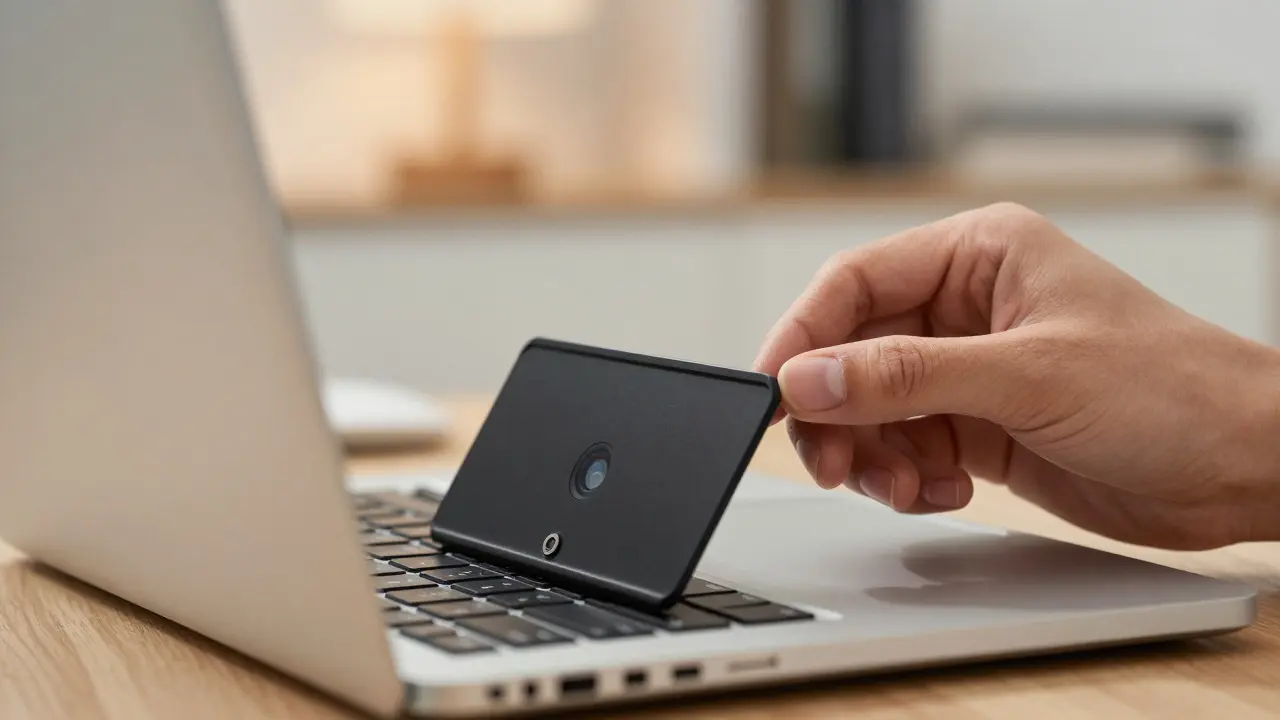
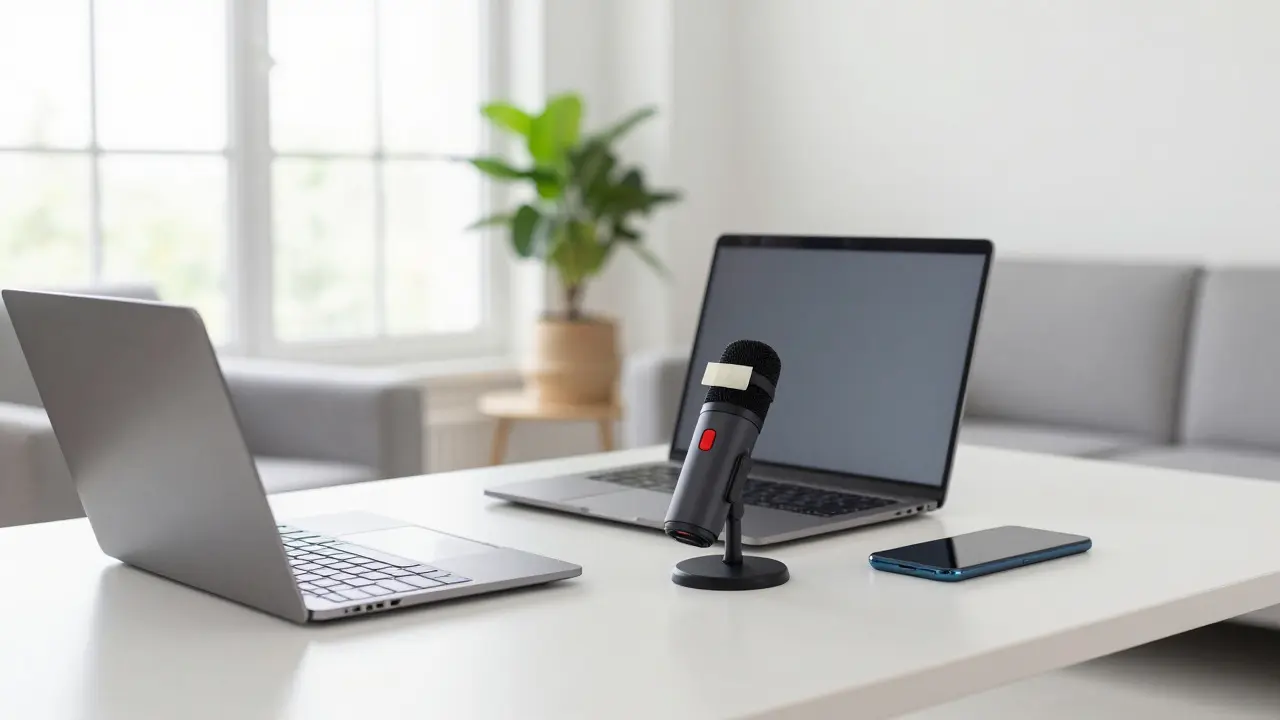
For webcams, think of a shutter. You can buy adhesive slide covers for laptops and external cameras. These are cheap, effective, and require zero technical skill. When you’re not in a call, slide it closed. For desktop users with built-in cameras, a piece of electrical tape works surprisingly well, though it’s less elegant. The key is making the act of "turning off" the camera visible. If you can see the light is off, you feel safer.
Microphones are trickier because they’re everywhere. Laptops, phones, tablets, smart TVs, and even some monitors have mics. You can’t easily tape over a laptop mic without risking damage or blocking sound when you do need it. Instead, look for devices with a physical kill switch. Some high-end laptops and USB conference microphones have a hardware switch that cuts power to the mic entirely. If your current setup lacks this, consider a USB microphone with a mute button that also disconnects the signal path, not just the software input.
| Method | Effectiveness | Cost | Convenience | Best For |
|---|---|---|---|---|
| Webcam Cover | 100% (Physical) | Low ($5-$15) | High | Laptops, Desktops |
| OS Permission Settings | 90% (Software) | Free | Medium | All Devices |
| Hardware Mic Switch | 100% (Physical) | Medium ($30+) | High | Conference Rooms, Pro Users |
| Firewall Rules | 80% (Network) | Free | Low | Advanced Users |
Mastering Operating System Permissions
If you’re comfortable with software, your operating system gives you powerful tools to audit who is accessing your sensors. Both Windows and macOS have improved their privacy dashboards significantly in recent years. On Windows 10 and 11, go to Settings > Privacy & Security > Camera and Microphone. Here, you’ll see a list of every app that has permission to access these inputs. More importantly, there’s a toggle to allow or deny access for specific apps. If you find an app you rarely use that has camera access, turn it off.
On macOS, navigate to System Settings > Privacy & Security. You’ll find similar toggles for Camera and Microphone. Apple also provides a green dot indicator in the menu bar whenever the camera or mic is active. This visual cue is invaluable. If you see the green dot light up while you’re working in silence, you know something is recording. Click on it to see which app is responsible. Often, it’s a background sync service or a chat application that didn’t close properly after a meeting.
Mobile devices offer similar controls. On iOS, check Settings > Privacy & Security > Camera and Microphone. Android users should look under Settings > Apps > Special App Access > All File Access (for general permissions) or specifically under Privacy > Location/Camera/Microphone depending on the version. The goal here is least privilege. An email app doesn’t need camera access. A weather app doesn’t need your mic. Strip away permissions you don’t actively use.
Smart Speakers and the Wake Word Myth
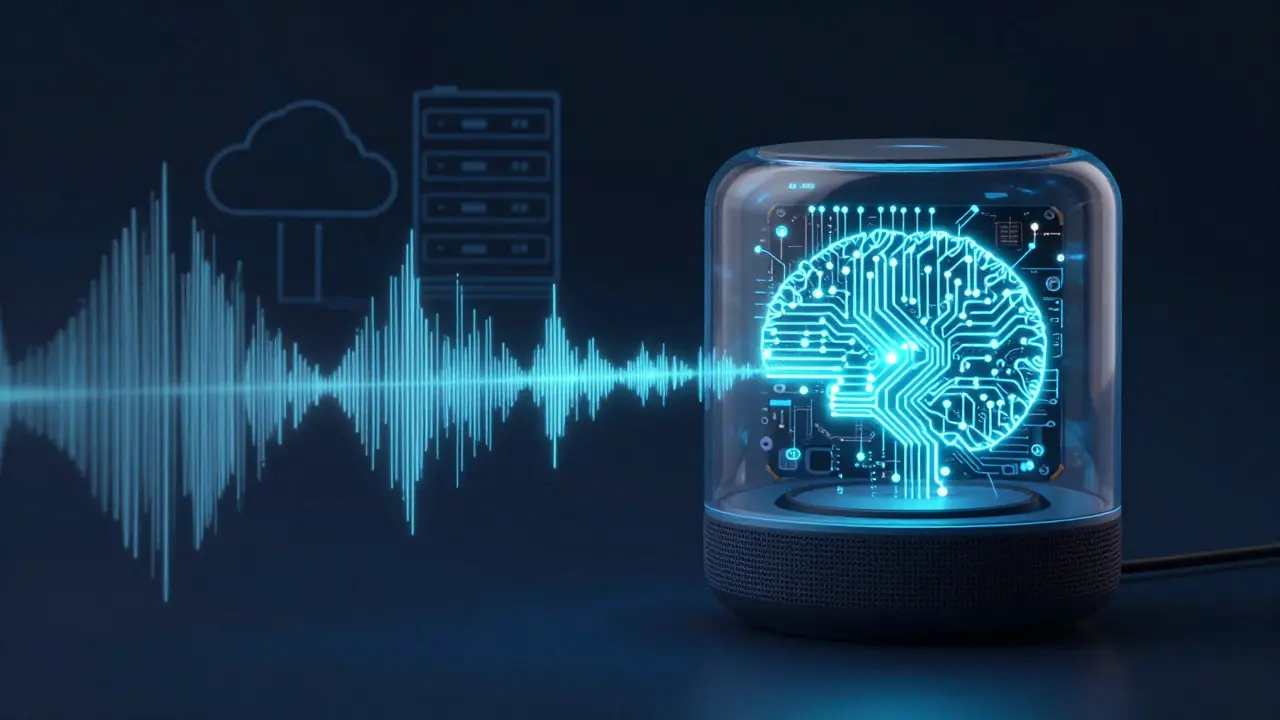
Let’s address the elephant in the room: smart speakers like Amazon Echo, Google Nest, and Apple HomePod. Do they record everything you say? Not exactly. Most modern smart speakers process the wake word (like "Alexa" or "Hey Google") locally on the device using a small neural network. This means your casual conversation isn’t constantly being uploaded to the cloud. However, once the wake word is detected, the audio stream is sent to the cloud for processing.
Here’s where privacy gets fuzzy. Companies often keep a copy of those voice clips for quality improvement unless you opt out. To control this, you need to dig into the companion app. In the Alexa app, for example, you can review recent voice recordings and delete them manually. You can also enable "Do Not Disturb" mode, which disables the mic entirely. But the most robust setting is to change the default behavior so that voice samples aren’t automatically saved. Check your specific device’s settings for "Voice Recording History" or similar options. Turning this off ensures that unless you explicitly ask to save a clip, your voice stays local.
Browsers and WebRTC Leaks
One area many people overlook is the web browser. Modern browsers support WebRTC (Web Real-Time Communication), which allows direct peer-to-peer connections for video calls. While great for Zoom or Meet, it can leak your IP address and potentially activate your camera/mic without obvious indicators if a website uses aggressive JavaScript.
To mitigate this, consider using a browser extension that blocks WebRTC by default, allowing it only for trusted sites. Alternatively, use a dedicated browser profile for video calls. Keep your daily browsing (email, news, social media) in a separate profile where WebRTC is disabled. This reduces the attack surface significantly. Also, pay attention to the browser’s own privacy indicators. Chrome and Firefox show a small icon in the address bar when the camera or mic is active. Make sure you haven’t accidentally granted permanent permission to a shady site. Right-click that icon and revoke access if needed.
Behavioral Habits for Long-Term Security
Technology helps, but habits matter more. Start by establishing a routine. Before starting a video call, check that your camera cover is open and your mic is unmuted. After the call, reverse the process. This muscle memory prevents accidental recordings.
Secondly, treat your home Wi-Fi network as a potential vulnerability. If your smart TV or old tablet is connected to the same network as your secure laptop, a compromised device could theoretically probe others. Use a guest network for IoT devices (smart bulbs, cameras, speakers) to isolate them from your main work devices. This way, if a smart bulb gets hacked, it doesn’t have easy access to your laptop’s webcam.
Finally, stay updated. Privacy bugs are often fixed in updates. Don’t ignore the "Update Available" notification for your OS, browser, or smart device firmware. A patched system is a much harder target for silent recording exploits.
Frequently Asked Questions
Is it true that my phone records me all day?
Not continuously. Phones typically only activate the microphone when an app requests it or when a voice assistant is triggered. However, some apps may hold onto microphone permissions longer than necessary. Checking your battery usage report can reveal which apps have been active recently, giving you a clue about unexpected microphone usage.
What is the best way to protect a laptop used for work?
The best approach is layered defense. Use a physical webcam cover, disable microphone access for non-essential apps in the OS settings, and ensure your firewall is configured to block outbound traffic from unknown applications. Additionally, use a virtual private network (VPN) when on public Wi-Fi to encrypt your data in transit.
Do smart TVs really spy on us?
Most smart TVs collect viewing data and sometimes voice commands if equipped with a remote microphone. They rarely record ambient room audio continuously due to storage and bandwidth constraints. To minimize risk, disable the microphone on the remote if possible, and turn off "Personalized Ads" and "Data Sharing" options in the TV settings menu.
How can I tell if my webcam is currently recording?
Look for the LED indicator light next to the lens. On most devices, this light turns on when the camera is active. However, some low-cost webcams can be modified to hide this light. For extra security, place a piece of paper in front of the lens or use a physical slider cover. If you can't see the lens, you're safe.
Should I unplug my smart speaker when not in use?
Unplugging is the ultimate privacy guarantee, but it defeats the purpose of a smart speaker. A better middle ground is to use the "Mute" button on the device itself, which usually turns off the microphone and lights up a red indicator. This stops local listening without cutting power to the device, allowing it to still play music or receive notifications.