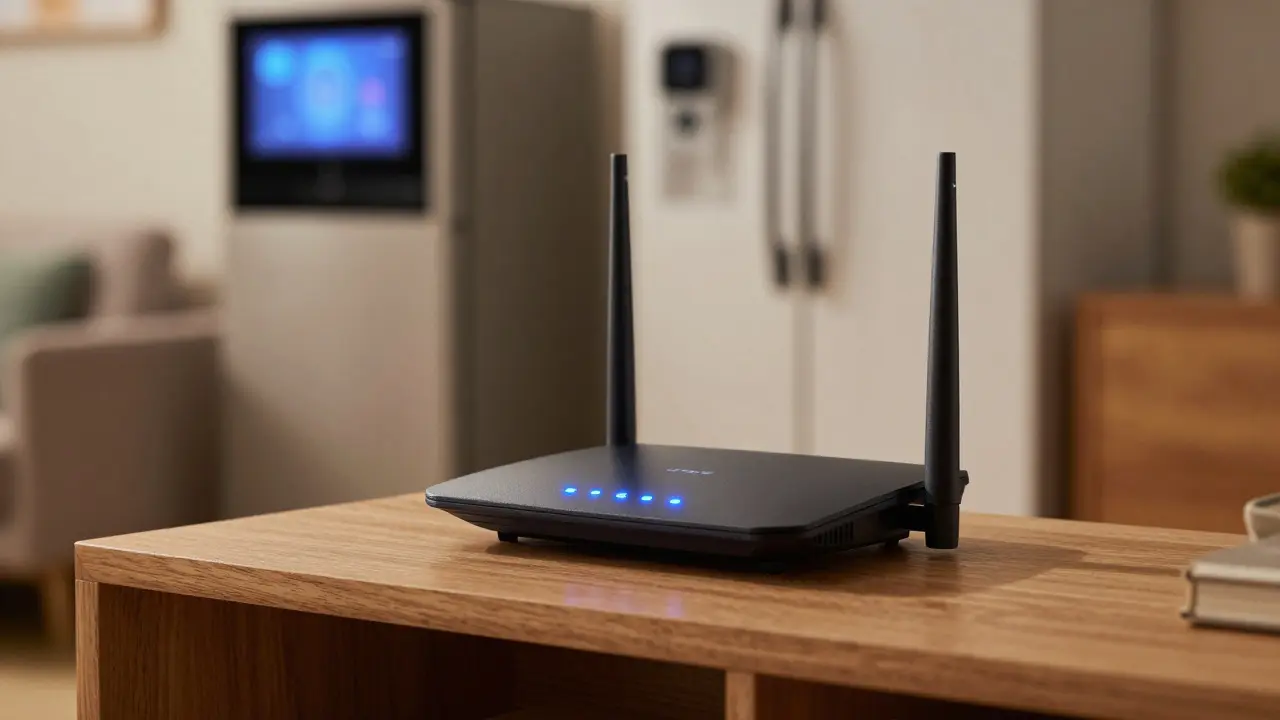
Your smart fridge is talking to your laptop. Your video doorbell is streaming to a cloud server you’ve never heard of. And somewhere in the background, your old printer might be broadcasting its open ports to the entire neighborhood. This isn’t science fiction; it’s the reality of modern home networking. As we move deeper into 2026, the line between your personal life and your digital footprint has blurred completely. Network Security is the practice of protecting data, devices, and users from unauthorized access or damage within a network environment. For most households, this means securing your local area network (LAN) so that one compromised gadget doesn’t take down your whole digital life.
Why Your Router Is the Front Door
If you think about your home network like a house, your router is the front door. If the lock on that door is weak, everything inside is vulnerable. Many people still use the default credentials provided by their Internet Service Provider (ISP). These are often generic combinations like "admin/admin" or printed plainly on the back of the hardware. Hackers know this. They run scripts across entire IP blocks looking for these weak entry points.
To fix this, you need to change two things immediately. First, the administrator password for the router interface itself. Second, the Wi-Fi password. Don’t just add numbers to the end of your pet’s name. Use a passphrase generator to create a random string of at least 12 characters. Mix uppercase, lowercase, numbers, and symbols. Once set, write it down and store it in a secure place, like a password manager, because you will forget it. The goal is to make brute-force attacks too slow to be worth the hacker's time.
The Hidden Risks of Smart Devices
Here is where things get tricky. You bought a smart bulb because it was cheap and easy to install. But did you check if it uses WPA3 encryption? Did you update its firmware? Most Internet of Things (IoT) devices have limited processing power, which means they often run outdated software with known vulnerabilities. A single unpatched security camera can become a botnet node, sending spam emails from your IP address while you’re trying to work.
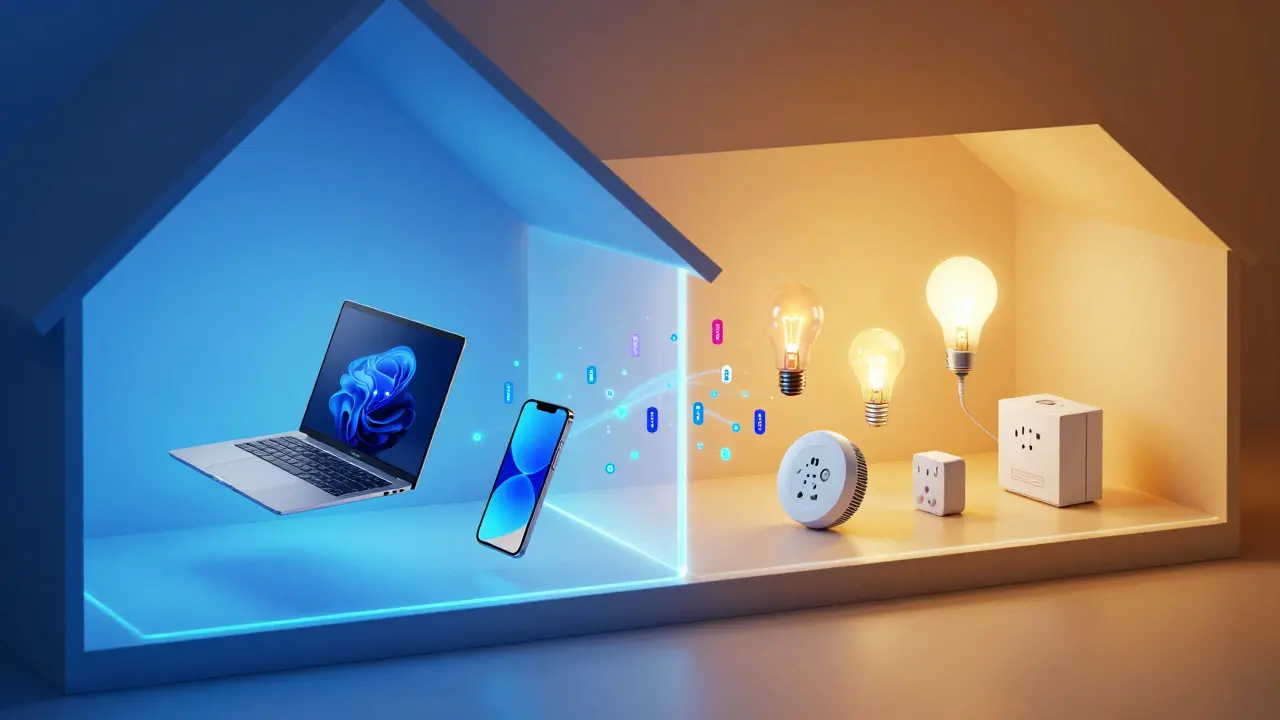
The best way to handle this is segmentation. Think of your network as having different rooms. Keep your critical devices-laptops, phones, desktops-in one room (your main Wi-Fi SSID). Put all your smart gadgets-thermostats, plugs, bulbs-in another room (a Guest Network or IoT-specific SSID). If a hacker gets into the smart plug, they shouldn’t be able to jump over to your laptop. Most modern routers allow you to create these separate networks without buying extra hardware. It’s a simple setting change that adds a massive layer of defense.
Encryption Standards: WPA2 vs. WPA3
You’ll see terms like WPA2 and WPA3 when configuring your Wi-Fi. WPA2-PSK (Personal) has been the standard for over a decade. It’s decent, but not perfect. WPA3 is the newer standard introduced to close specific loopholes, particularly against offline dictionary attacks. If your router supports WPA3, enable it. If it doesn’t, stick with WPA2-AES (not TKIP, which is obsolete). Avoid WEP entirely; it’s essentially no encryption at all. When you look at your router settings, ensure the security mode is explicitly set to one of these protected standards. Open networks are fine for guests who only need temporary access, but keep them isolated from your internal files.
Managing Firmware and Updates
A lot of people ignore the little notification that says "Firmware Update Available." That’s a mistake. Manufacturers release these updates to patch security holes discovered after the product leaves the factory. In 2026, many ISPs push these updates automatically, but if you have a third-party router or a mesh system, you might need to do it manually. Set a reminder to check for updates once a month. While you’re there, check the firmware versions of your major IoT devices. If a device hasn’t had an update in three years, ask yourself if it’s still safe to keep on the network. Sometimes, the safest option is to retire the device.
Physical and Local Threats
We often focus so much on digital threats that we forget physical ones. Who else has access to your router? Do you have a neighbor who borrows your Wi-Fi password for their guest? Be careful with shared passwords. If you do share access, use the Guest Network feature rather than giving out your main admin credentials. Also, consider the physical location of your router. Placing it near a window can weaken the signal inside and strengthen it outside, potentially allowing nearby attackers to get a stronger signal for packet sniffing. Keep your router central in your home and away from external walls if possible.
| Protocol | Security Level | Compatibility | Recommendation |
|---|---|---|---|
| WPA3 | High | Newer devices (2020+) | Best choice for new setups |
| WPA2-AES | Medium-High | Most devices (2015+) | Acceptable fallback for mixed networks |
| WPA2-TKIP | Low | Legacy devices | Avoid if possible |
| WEP | None | Obsolete | Disable immediately |
Monitoring Your Network Activity
How do you know if someone is on your network? Most routers have a client list. Log in and look at the connected devices. Do you recognize every MAC address? If you see a device you don’t know, it could be a forgotten gadget, a neighbor piggybacking, or an intruder. Tools like Fing or Angry IP Scanner can help map out your network from your phone. Run a scan once a quarter. If you find unknown devices, disconnect them via the router interface and change your Wi-Fi password. This forces everyone to reconnect, clearing out any unauthorized users.
Building a Sustainable Security Routine
Network security isn’t a one-time task. It’s a habit. Here is a simple routine to follow:
- Monthly: Check for router and device firmware updates.
- Quarterly: Scan for unknown devices on your LAN.
- Annually: Rotate your Wi-Fi password and admin credentials.
- As needed: Add new devices to the IoT/Guest network, not the main one.
Do I really need a separate network for my smart devices?
Yes, it is highly recommended. Smart devices often have weaker security than computers. By placing them on a separate Guest or IoT network, you prevent them from directly accessing your personal files and other critical devices. It acts as a firewall between your valuable data and your less secure gadgets.
What is the difference between WPA2 and WPA3?
WPA3 is the newer, more secure standard. It offers better protection against brute-force attacks and improves privacy for public networks. WPA2 is still secure for home use but lacks some of the advanced cryptographic features found in WPA3. If your hardware supports it, always choose WPA3.
How often should I change my Wi-Fi password?
Every six to twelve months is a good rule of thumb. More frequently if you suspect a breach or if a family member leaves the household. Changing the password forces all devices to reconnect, which helps identify any unauthorized connections that may have slipped in.
Is it safe to leave my router’s admin panel accessible?
Only if you have changed the default username and password to something strong and unique. Leaving it on default credentials is risky because hackers use automated tools to scan for common logins. Ideally, restrict access to the admin panel to your local network only, disabling remote web access if possible.
What should I do if I find an unknown device on my network?
First, try to identify it using a network scanning app. If it remains unidentified, disable it through your router’s client list. Then, change your Wi-Fi password to force all devices to re-authenticate. This ensures the unknown device loses connection unless it knows the new password.