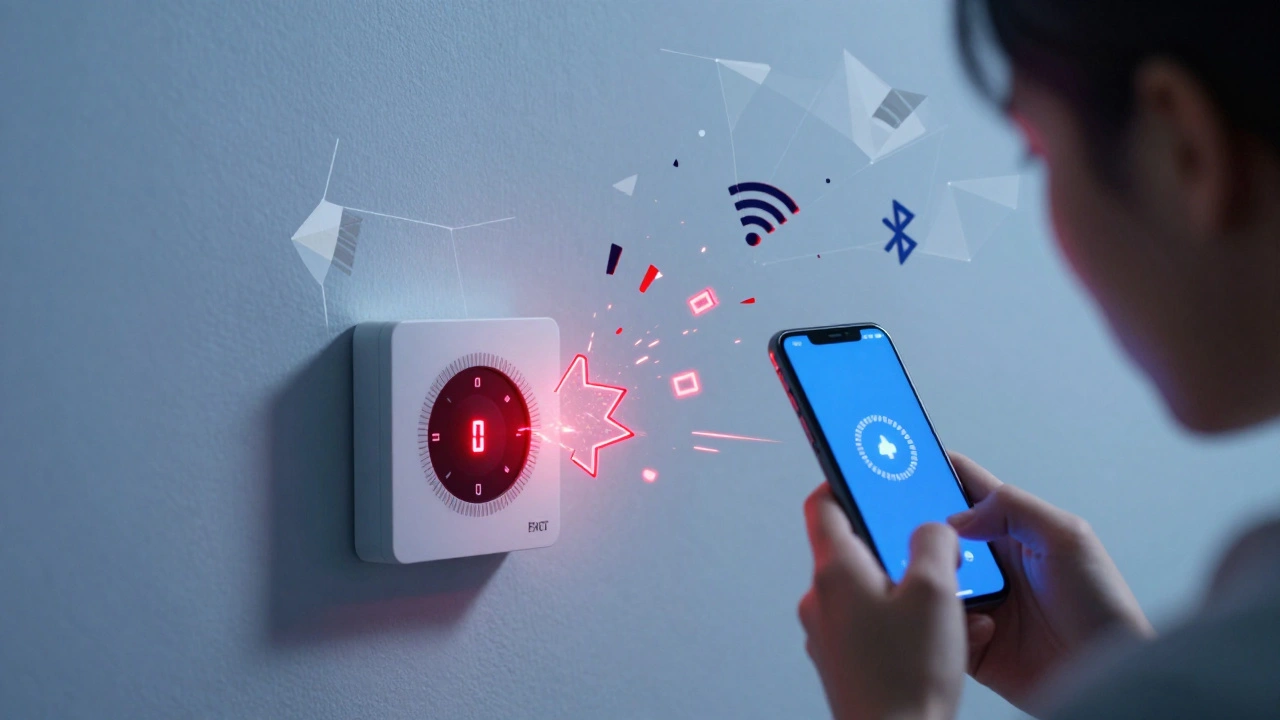
Picture this: you buy a smart thermostat that promises to cut your energy bills. You install it, connect it to your Wi-Fi, and try to link it with your voice assistant. Nothing happens. The app spins. The device blinks red. You’ve just hit a wall of device compatibility problems. It’s frustrating, expensive, and surprisingly common.
In our hyper-connected world, we expect everything to talk to everything else. But behind the sleek marketing, there’s a messy reality of different protocols, outdated software, and conflicting standards. When devices fail to integrate, it’s rarely because one piece is "broken." Usually, it’s a mismatch in how they speak to each other.
Resolving these integration issues doesn’t always require a degree in computer science. Often, it requires understanding the hidden layers of communication between your gadgets. Let’s look at why these conflicts happen and how to fix them without throwing your equipment out the window.
The Hidden Language Barrier: Protocols Matter
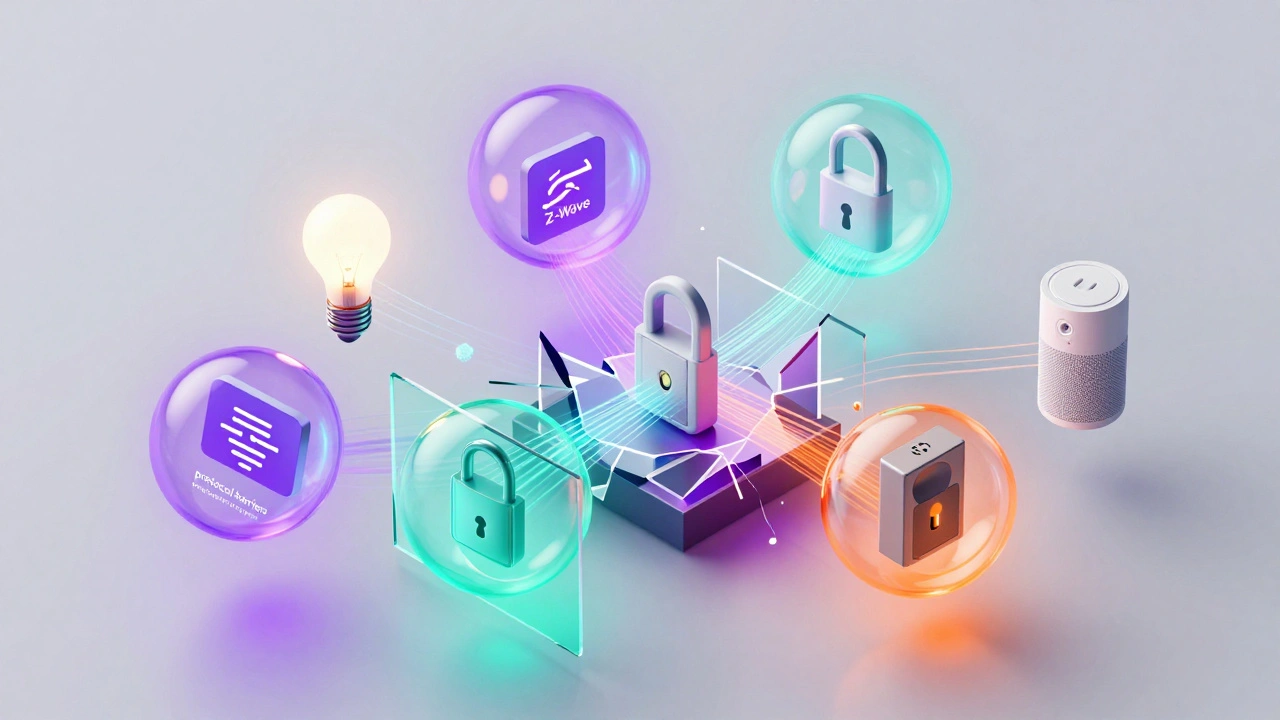
Think of device protocols as languages. If one person speaks French and another speaks Mandarin, they won’t understand each other unless there’s a translator. In tech, Wi-Fi, Bluetooth, Zigbee, and Z-Wave are those languages.
A major source of integration failure is protocol mismatch. You might have a smart bulb that uses Zigbee, but your hub only supports Wi-Fi. Without a bridge or a multi-protocol hub, they can’t communicate. This isn’t a bug; it’s a fundamental incompatibility.
- Wi-Fi: Great for high-bandwidth devices like cameras, but drains batteries quickly and clutters your network.
- Bluetooth (BLE): Perfect for short-range connections like fitness trackers, but struggles with mesh networks.
- Zigbee/Z-Wave: Low-power, long-range mesh networks ideal for sensors and locks, but require a dedicated hub.
- Matter: The new universal standard designed to solve these exact problems by allowing cross-platform communication.
If you’re mixing old-school Zigbee devices with new Matter-enabled gadgets, you need a hub that speaks both. Check your hub’s specifications. If it lists only "Wi-Fi" under supported protocols, don’t expect it to pair with a Z-Wave door lock.
Ecosystem Walls: Why Brands Don’t Play Nice
Even if two devices use the same protocol, they might still refuse to work together due to ecosystem restrictions. Tech giants build walled gardens for good reason: security and control. But for users, this means buying into a single brand family.
For example, an Apple HomeKit accessory often requires specific encryption chips that Android-based hubs can’t read. Similarly, Samsung SmartThings has its own certification process. A generic smart plug might work on Amazon Alexa but fail silently on Google Home if it lacks the necessary cloud API integration.
| Ecosystem | Primary Protocol Support | Integration Pain Points |
|---|---|---|
| Apple HomeKit | Thread, Wi-Fi, Bluetooth | Requires certified accessories; limited third-party automation logic. |
| Amazon Alexa | Wi-Fi, Zigbee, Z-Wave, Matter | Routines can be buggy; skill updates may break older integrations. |
| Google Home | Wi-Fi, Thread, Matter | Dependent on cloud connectivity; local execution is limited compared to competitors. |
| Samsung SmartThings | Zigbee, Z-Wave, Wi-Fi, Matter | Complex setup; some devices require cloud bridges that slow down response times. |
To avoid this trap, check the "Works With" logos before buying. If a device says "Works with Alexa," it usually means it connects via the cloud, not locally. Cloud connections are slower and more prone to outages. Local connections are faster and more reliable but harder to set up.
Software Rot: When Updates Break Everything
Here’s a scenario that drives many users crazy: your system works perfectly for six months. Then, you update your router firmware or your phone’s OS, and suddenly your smart lights go dark. This is called "software rot" or regression bugs.
Manufacturers push updates to fix security holes or add features. Sometimes, these updates change how the device handles authentication tokens or IP addresses. If your smart TV stops casting from your laptop after a Windows update, it’s likely because the new OS changed its default network discovery settings.
How do you fix this?
- Reboot everything: Yes, it’s cliché, but it clears cached errors. Restart your router, hub, and peripheral devices.
- Check for companion app updates: The device itself might be fine, but the app controlling it needs a patch to talk to the new server version.
- Reset the device: If rebooting fails, perform a factory reset. This forces the device to re-establish its connection parameters from scratch.
- Roll back if possible: Some routers allow you to revert to previous firmware versions if the latest one causes instability.
Keep a log of when things broke. Did it happen right after an update? That’s your clue. If you manage multiple devices, consider using a separate VLAN (Virtual Local Area Network) for IoT devices. This isolates them from your main network, reducing the chance that a PC virus or OS update affects your smart home gear.
Network Congestion: The Invisible Bottleneck
Your Wi-Fi router is the traffic cop of your digital life. Most home routers broadcast on two frequencies: 2.4 GHz and 5 GHz. Here’s the catch: almost all smart home sensors, plugs, and bulbs run on 2.4 GHz because it travels through walls better.
But 2.4 GHz is crowded. Your microwave, baby monitor, neighbor’s Wi-Fi, and Bluetooth headphones all fight for space on this band. When too many devices compete, packets get dropped. Your smart lock might time out trying to send a signal to your phone.
Integration issues often masquerade as hardware failures when they’re actually network congestion problems. To diagnose this:
- Use a Wi-Fi analyzer app: Tools like NetSpot or WiFi Analyzer show you which channels are congested. Switch your router to a less crowded channel (1, 6, or 11 are best).
- Separate SSIDs: Give your 2.4 GHz and 5 GHz networks different names. Connect high-bandwidth devices (laptops, TVs) to 5 GHz and leave 2.4 GHz exclusively for IoT devices.
- Add a Mesh System: If you have a large home, dead zones cause devices to drop off and reconnect repeatedly, causing sync errors.
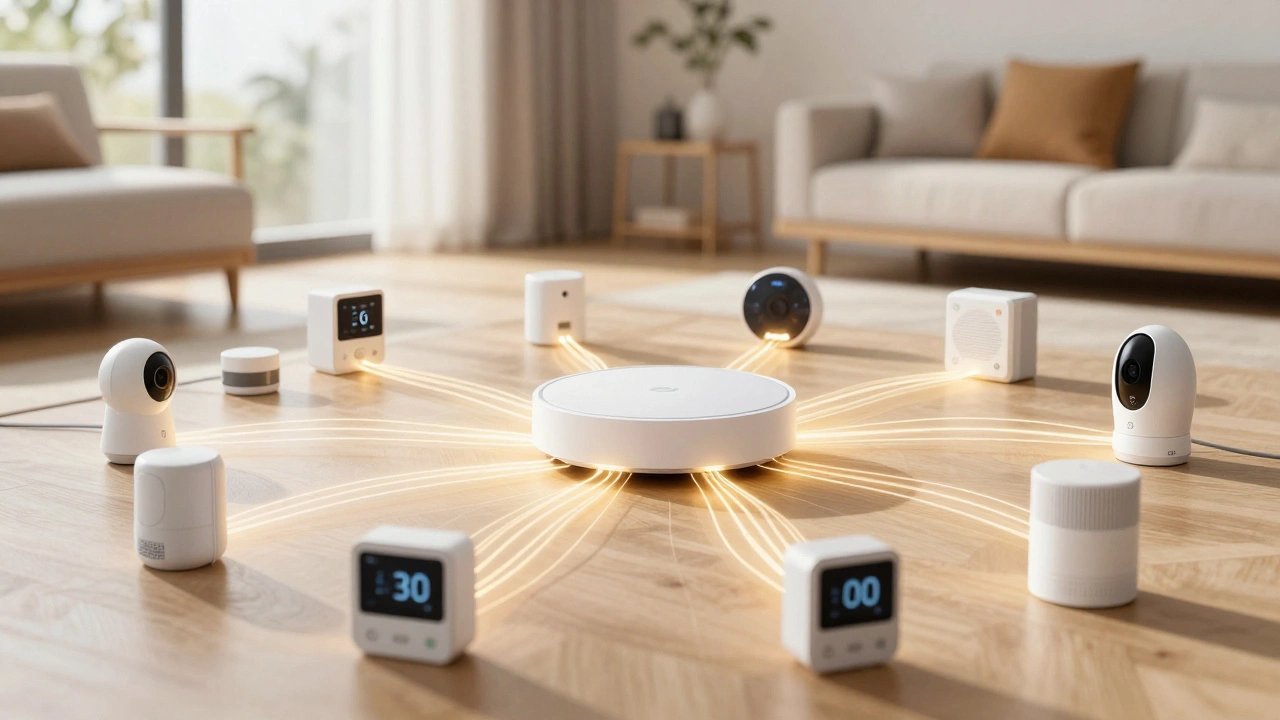
Don’t ignore the physical location of your hub. Placing your Zigbee or Z-Wave hub inside a metal cabinet or far from your devices creates blind spots. Keep hubs central and elevated.
The Power of Matter: A New Hope?
Enter Matter. Launched to standardize smart home communications, Matter allows devices from different brands to work together seamlessly. It runs on top of existing protocols like Thread and Wi-Fi, acting as a universal translator.
If you’re facing persistent compatibility headaches, switching to Matter-certified devices is the most future-proof move. Look for the "Works with Matter" badge. These devices will natively support Apple Home, Google Home, and Amazon Alexa without needing complex workarounds.
However, Matter isn’t magic. It still requires a compatible controller (like a HomePod, Echo Show, or Nest Hub). And older devices won’t magically become Matter-compatible. You’ll need to upgrade gradually. Start with core devices-lights, locks, and thermostats-and expand from there.
Manual Configuration: For the DIY Troubleshooter
When automatic pairing fails, manual configuration is your backup plan. Many devices offer a "setup mode" where you can enter static IP addresses or MAC filtering manually.
Why does this help? By assigning a static IP to a critical device (like a security camera), you ensure it always answers at the same address. Dynamic IPs can shift, confusing apps that cache old addresses.
Steps to assign a static IP via DHCP reservation:
- Log into your router’s admin panel (usually 192.168.1.1 or 192.168.0.1).
- Find the "DHCP Client List" or "Attached Devices."
- Note the MAC address of the problematic device.
- Create a DHCP reservation linking that MAC address to a fixed IP.
- Restart the device.
This small step solves countless "device not found" errors caused by IP conflicts or lease expirations.
Security vs. Convenience: The Trade-off
Tightening security often breaks integration. If you enable WPA3 encryption on your router, older devices that only support WPA2 might disconnect. If you disable UPnP (Universal Plug and Play) for security, some gaming consoles or media servers might lose port forwarding access.
You have to balance safety with functionality. If a device is essential but insecure, isolate it. Create a guest network for legacy devices. This keeps them connected to the internet while preventing them from accessing your personal files or banking data.
Why won't my new smart device connect to my existing hub?
The most common reason is a protocol mismatch. Check if your device uses Zigbee, Z-Wave, or Wi-Fi, and verify your hub supports that specific protocol. Also, ensure both devices are on the same 2.4 GHz Wi-Fi network if wireless pairing is required.
Can I mix different brands of smart home devices?
Yes, but it depends on the ecosystem. Using a multi-protocol hub like Samsung SmartThings or Home Assistant allows you to mix brands easily. If you rely solely on voice assistants like Alexa or Google Home, stick to devices with official "Works With" certifications to avoid cloud-dependent lag.
What should I do if an update breaks my smart home setup?
First, reboot all devices including your router. If that fails, check for app updates. If the issue persists, perform a factory reset on the affected device and re-pair it. As a preventive measure, consider isolating IoT devices on a separate network VLAN.
Is Matter worth waiting for before buying new devices?
If you're building a new system, yes. Matter ensures cross-brand compatibility and reduces reliance on single ecosystems. However, if you need a device now, most current Zigbee or Wi-Fi devices will still work with Matter controllers via bridges, so you don't necessarily need to delay purchases entirely.
How do I know if my Wi-Fi is causing integration issues?
Look for intermittent disconnections or slow response times. Use a Wi-Fi analyzer app to check for channel congestion on the 2.4 GHz band. Separating your 2.4 GHz and 5 GHz networks and dedicating 2.4 GHz to IoT devices often resolves these stability issues.