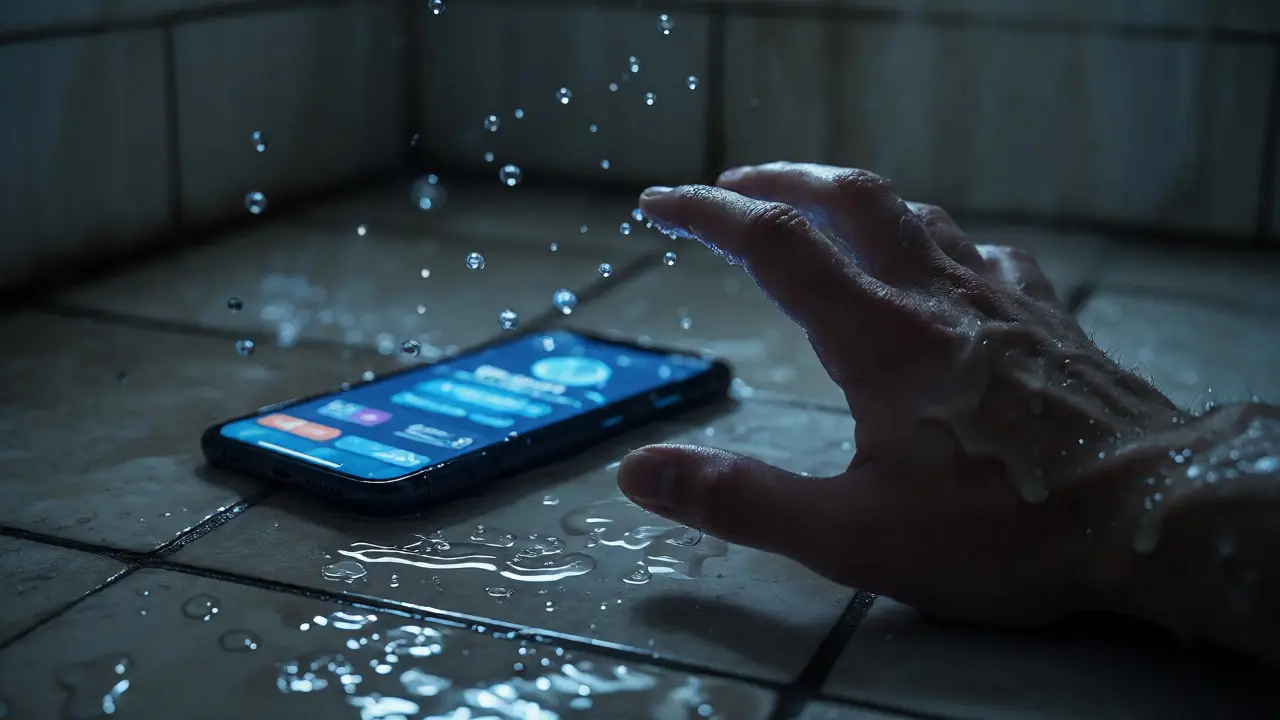
Imagine you slip in the shower. You're wet, possibly injured, and your phone is on the counter across the room. Reaching for it might mean falling again. But if you've set up Emergency Voice Shortcuts, a feature within modern voice assistants that allows users to trigger complex actions or alerts using simple spoken phrases without unlocking their devices, you just say "Hey Siri, call Mom" or "Alexa, help," and help is already on the way.
This isn't just about convenience; it's about speed. In critical events-medical emergencies, break-ins, fires, or severe weather-every second counts. Traditional interfaces require multiple taps: unlock, find app, tap button, confirm. Voice cuts this down to one action. But here’s the catch: most people set these up wrong. They use long, complicated phrases that fail when they’re panicked or screaming. This guide breaks down how to build a voice command system that actually works when things go sideways.
Why Standard Voice Commands Fail in Emergencies
You might think your default "Hey Google, call 911" is enough. It often isn't. Here’s why standard setups crumble under pressure:
- False Positives: If your wake word is too common (like "Okay Google"), background noise from a TV or crying baby can trigger accidental calls.
- Latency Issues: Some assistants take 2-3 seconds to process natural language. In a cardiac event, that delay matters.
- Lack of Context: Saying "Call John" might dial his work number, not his mobile, depending on which contact card is prioritized.
- Privacy Lockouts: On some devices, if you haven't enabled "Lock Screen Access," you have to look at the screen to confirm the call, defeating the purpose of hands-free operation.
The solution lies in creating specific, short, and distinct triggers. We need to move away from conversational queries and toward imperative commands designed for stress.
Designing Your Emergency Command Structure
Effective emergency voice shortcuts rely on three principles: brevity, uniqueness, and confirmation. Let's break down how to structure them for different scenarios.
The Medical Alert Trigger
For medical issues, you want a command that immediately contacts emergency services and notifies a secondary contact. Don't just say "Help." That word is too generic and might conflict with other apps. Instead, use a phrase like "Medical Alert" or "SOS Mode."
On iOS, you can use Shortcuts App, a workflow automation tool developed by Apple that allows users to create custom automated tasks to chain actions. For example, a shortcut named "Medical Alert" could:
- Play a loud alarm sound to alert neighbors.
- Send a pre-written text message with your location to three family members.
- Initiate a call to 911 after a 5-second countdown (to prevent accidental triggers).
On Android, Bixby Routines or Samsung's automation platform that uses voice and context to trigger actions offers similar capabilities. The key is setting a "confirmation gesture" if possible, like holding a volume button, but for true emergencies, voice-only activation is faster.
The Intruder Deterrent
If someone breaks into your home while you're hiding, you don't want to shout "Call Police!" loudly enough for the intruder to hear. You want a subtle command that changes the environment. Try "Night Watch" or "Protect Home."
This command should:
- Turn on all lights at maximum brightness (disorienting an intruder).
- Start recording video from smart security cameras.
- Send a silent push notification to your phone and spouse's phone.
Note: Do not make this command call 911 automatically. False alarms are costly and annoying. Let the visual deterrent do the work first.
The Fire and Gas Leak Protocol
Smart smoke detectors like those from Nest, a brand of smart home products owned by Alphabet Inc., known for its learning thermostats and smoke alarms or Ring, a subsidiary of Amazon that manufactures smart home security systems including doorbells and cameras already detect fire. But your voice shortcut can manage the aftermath. Create a command called "Fire Response."
This shortcut should:
- Unlock all smart locks (so firefighters can enter easily).
- Shut off the main gas valve via a smart thermostat integration.
- Announce "Evacuate" through smart speakers in every room.
Platform-Specific Implementation Guide
Each major ecosystem handles voice commands differently. Here’s how to optimize for each as of late 2026.
| Feature | Siri (iOS) | Google Assistant (Android) | Alexa (Amazon) |
|---|---|---|---|
| Native SOS Feature | Yes (Power Button Hold) | No (Requires Routine) | No (Requires Skill/Routine) |
| Custom Phrase Support | Via Shortcuts | Via Routines | Via Alexa Routines |
| Offline Processing | Limited (Newer iPhones) | Good (Pixel Devices) | Poor (Cloud Dependent) |
| Third-Party Integration | High (HomeKit) | Medium (Matter/Thread) | High (Alexa Skills) |
Siri has the strongest native emergency integration. Holding the side button five times triggers the SOS slider. However, you can customize the "Emergency SOS" text message content. Go to Settings > Emergency SOS > Text Message Template. Make sure it includes your exact address and medical conditions. Don't leave it blank.
Google Assistant relies heavily on Routines. To create a robust emergency routine, open the Google Home app, select "Routines," and add a new one. Set the trigger to "Say 'Emergency'." Then, add actions: "Make a call to [Contact]," "Send SMS to [Contact] with message 'I need help'," and "Turn on all lights." Crucially, enable "Continue Conversation" so you can speak further instructions without re-waking the device.
Alexa requires more setup. Use the Alexa app to create a Routine triggered by "Alexa, Help Me." Add actions like "Drop In" on specific Echo devices (this lets you listen in remotely) and "Notify" on your smartphone. Note that Alexa struggles with offline processing. If your internet goes out during a storm, Alexa may fail to execute cloud-based routines. Always pair Alexa with local-capable hubs like SmartThings or Hubitat for critical actions like unlocking doors.

Critical Setup Mistakes to Avoid
I’ve seen many homeowners set up voice shortcuts that look good on paper but fail in practice. Here are the top pitfalls:
- Using Wake Words Only: Never rely solely on "Hey Siri" or "OK Google." If your battery dies or Wi-Fi drops, these fail. Ensure your phone’s physical buttons also trigger the same emergency sequence. Voice is a layer, not the foundation.
- Ignoring Background Noise: Test your commands in noisy environments. Run a vacuum cleaner and try saying "Call Doctor." If it fails, adjust your microphone sensitivity settings or choose a shorter, sharper phrase like "Doc Call."
- Single Point of Failure: If you only have one smart speaker in the kitchen, and you’re in the bedroom, you’re stuck. Deploy microphones in every room where you spend significant time. Use mesh networks to ensure consistent connectivity.
- Complex Contact Names: Save your emergency contacts with single-word names like "Mom," "Dad," "Neighbor," or "Doctor." Multi-syllable names increase recognition error rates. "Dr. Smithson" is harder to recognize than "Doc."
Advanced Configurations for Vulnerable Users
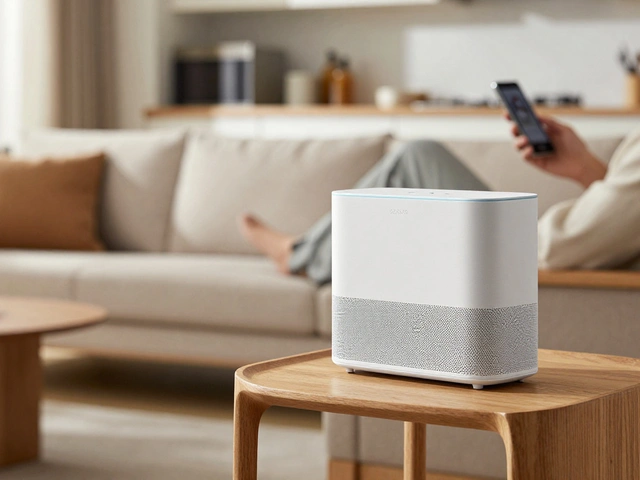
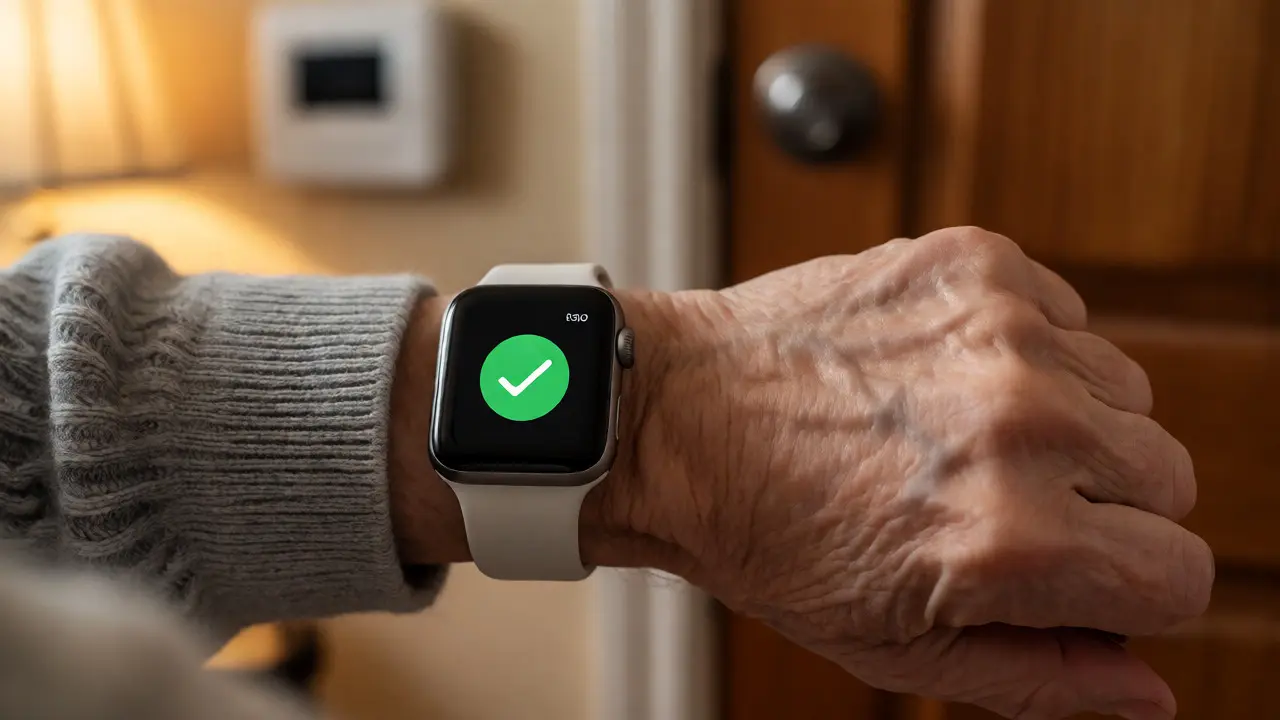
For elderly users or those with mobility issues, standard voice commands aren't enough. Consider integrating Wearable Tech, such as smartwatches or pendants that monitor health metrics and allow for voice activation with your home voice system.
Apple Watch Series 9 and later models can trigger Siri directly from the wrist. Configure "Fall Detection" to automatically call emergency services if no movement is detected after a fall. Pair this with a HomePod mini in the bathroom-a high-risk area-and set up a "Bathroom Help" command that turns on the fan (for privacy) and sends a text to caregivers.
For hearing-impaired users, visual feedback is crucial. When a voice command is recognized, ensure your smart lights flash green for success and red for failure. This provides immediate confirmation without audio, which might be masked by sirens or shouting.
Testing Your System: The Monthly Drill
Technology degrades. Microphones get clogged with dust. Software updates change behavior. Treat your emergency voice shortcuts like a fire extinguisher: check them monthly.
Here’s a simple drill:
- Stand in the farthest corner of your house from the nearest smart speaker.
- Say your emergency phrase at normal volume.
- Verify the correct action occurred (call initiated, lights turned on).
- Check battery levels on all wireless sensors and wearables.
- Update firmware on all smart hubs and speakers.
If a command fails, don’t just shrug. Fix it. Maybe you need to add another microphone, or maybe the phrase needs to be clearer. Consistency saves lives.
Future-Proofing: Matter and Thread Protocols
As we move deeper into 2026, the adoption of Matter, a universal smart home connectivity standard that enables interoperability between different brands and ecosystems is changing the game. Matter ensures that a light bulb bought today will still respond to your voice commands in five years, regardless of whether you switch from Alexa to Google.
When buying new devices, prioritize those with "Matter over Thread" certification. Thread creates a low-power mesh network that doesn’t rely on your Wi-Fi router. If your internet goes down, your voice commands to local devices (like unlocking doors or turning on lights) still work because the communication happens locally between devices. This resilience is vital for emergency scenarios where power grids or ISPs are compromised.
By focusing on local processing and standardized protocols, you reduce latency and increase reliability. Your voice assistant becomes less of a cloud-dependent gadget and more of a reliable household utility, like electricity or running water.
Do I need an active internet connection for emergency voice shortcuts?
It depends on the action. Making a cellular call via a smartphone works without Wi-Fi. However, controlling smart home devices (lights, locks) usually requires either Wi-Fi or a local hub like Thread/Matter. Cloud-based assistants (like Alexa) often fail without internet, whereas on-device processing (newer iPhones and Pixels) can handle basic commands offline.
Can voice assistants distinguish between my voice and others?
Yes, most modern assistants support Voice Match or Personalization. You can train the assistant to recognize specific voices. This is useful for preventing children from accidentally triggering emergency modes. However, in a panic, voice modulation changes. It’s safer to assume anyone in the house can trigger the alert rather than restricting it strictly to your voice profile.
What if my phone battery dies during an emergency?
This is why distributed voice assistants are critical. If your phone dies, you can still use smart speakers (Echo, Nest Hub) or tablets left charging in common areas. Wearables like the Apple Watch or Fitbit can also act as independent controllers if paired correctly. Always keep backup devices charged in accessible locations.
Are there privacy risks with always-listening microphones?
There are inherent privacy trade-offs. Most companies state that audio is processed locally until the wake word is detected, then sent to the cloud. To mitigate risk, use devices with physical mute buttons for bedrooms and bathrooms. Also, review data retention policies and delete voice history regularly in your account settings.
How do I prevent accidental emergency calls?
Use unique wake words or phrases that aren't used in daily conversation. For example, instead of "Help," use "Code Red" or "Alert Now." Additionally, configure your assistant to require a confirmation step for calls to non-emergency numbers, or set a short delay before dialing 911, allowing you to cancel if it was a mistake.