You know that feeling. You’re in the middle of a video call, or your smart thermostat just stopped responding, or your printer refuses to acknowledge the computer next to it. The connection didn’t die completely; it just... blinked. One second you’re online, the next you’re staring at a spinning wheel or a red error light. This is the nightmare of intermittent connectivity. It’s harder to fix than a total blackout because by the time you pick up your phone to troubleshoot, the problem has often "fixed" itself, leaving you with no evidence and a lot of frustration.
Most people blame their internet service provider immediately. And sure, sometimes it’s them. But nine times out of ten, especially if the issue is spotty rather than constant, the culprit is local interference, outdated firmware, or a misunderstood setting on your router or device. Let’s cut through the noise and look at how to actually stabilize your home or office network so these ghostly disconnects stop haunting your day.
Why Connections Drop When They Shouldn’t
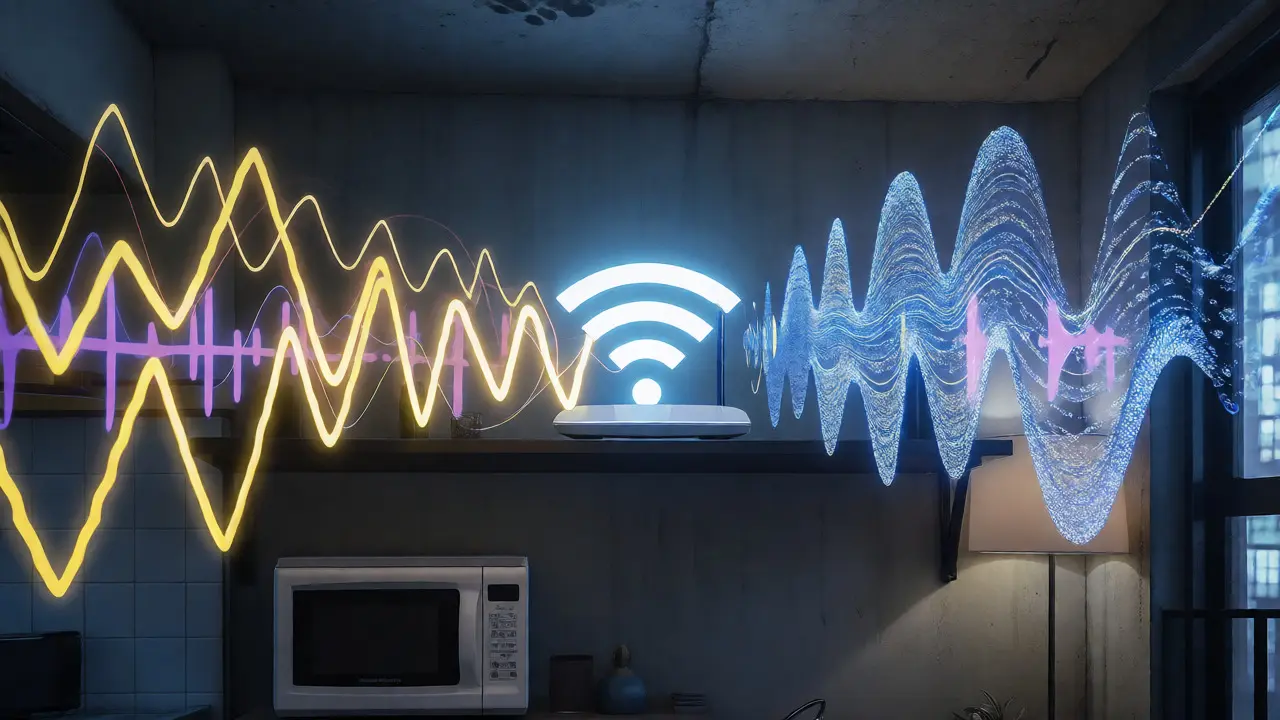
To fix the problem, you have to understand what’s breaking. A stable connection isn't magic; it's a handshake between two radios sending data packets back and forth. If even one packet gets lost repeatedly, the protocol assumes the link is bad and drops it to save resources. This is often triggered by Wi-Fi interference. Your neighbors' routers, microwave ovens, baby monitors, and even Bluetooth speakers all compete for the same airwaves.
Think of your Wi-Fi signal like a conversation in a crowded room. If everyone else starts shouting at the same volume, you can’t hear your friend. That’s exactly what happens on the 2.4 GHz band, which is crowded but long-range. Or maybe your device moves behind a concrete wall, causing signal attenuation. The device doesn’t say "I’m moving," it just stops hearing the router clearly enough to maintain the handshake. Understanding this helps you stop chasing ghosts and start managing the environment.
The Router: The Heartbeat of Your Network
Your router is usually the first place to look, not because it’s broken, but because it’s doing too much work. Modern routers are small computers. If they run old software, they have bugs. If they overheat, they throttle performance. If they’re placed poorly, they broadcast into dead zones.
Start with the basics that people skip. Update your router firmware. Manufacturers release patches specifically to handle memory leaks that cause devices to drop after being connected for more than 24 hours. Check your admin panel-usually accessible via 192.168.1.1 or similar-and look for an update button. If it says "up to date," great. If not, do it. Then, reboot the router. Not just unplug it for five seconds, but leave it off for thirty seconds to clear its cache fully.
Placement matters more than you think. If your router is tucked inside a metal cabinet or behind a TV, the signal bounces around uselessly. Metal blocks Wi-Fi. Water (like in fish tanks or human bodies) absorbs it. Put the router high up, central in your space, and away from other electronics. If you live in a multi-story home, a single router rarely cuts it anymore. Consider a mesh system or adding a dedicated access point on the floor where the drops happen most.
Device-Specific Troubleshooting
Sometimes the network is fine, but the device acting up is the problem. Smart bulbs, doorbells, and older laptops are notorious for poor radio implementations. They might support the latest Wi-Fi standard on paper, but their antennas are tiny and cheap.
If only one device keeps dropping, focus there. First, check the distance. Is it right next to the router? If yes, and it still drops, the issue might be driver-related. For computers, go to Device Manager (Windows) or System Information (Mac) and update your network adapter drivers. For IoT devices, factory reset them and re-pair them closer to the router initially. Once they connect, move them to their final spot. Sometimes the initial handshake fails due to weak signal strength during setup, leading to unstable behavior later.
Another sneaky culprit is IP address conflicts. If two devices try to claim the same local IP address, they’ll fight for dominance, causing both to lose connection intermittently. This often happens when you add a new static IP device to a network full of DHCP-assigned addresses. Log into your router and reserve IPs for critical devices, or ensure your DHCP pool is large enough to handle all your gadgets without overlap.
Interference and Bandwidth Management
We mentioned interference earlier, but let’s get specific about channels. Most routers default to "Auto" channel selection. Sounds convenient, right? Wrong. Auto-selection often changes channels dynamically, causing brief disconnects as devices resync. Worse, it might pick a channel that overlaps heavily with your neighbor’s strong signal.
Use a free app like WiFi Analyzer to see which channels are congested in your area. Manually set your router to the clearest channel. For 2.4 GHz, stick to channels 1, 6, or 11, as they don’t overlap. For 5 GHz, you have more options, but remember that 5 GHz has shorter range. If your device supports both, force it to connect to the 5 GHz band if it’s close to the router. If it’s far away, force it to 2.4 GHz. Don’t let the router decide; it’s often wrong.
| Feature | 2.4 GHz Band | 5 GHz Band | 6 GHz Band (Wi-Fi 6E) |
|---|---|---|---|
| Range | Longer, penetrates walls better | Shorter, struggles with obstacles | Shortest, requires line-of-sight |
| Speed | Slower, prone to congestion | Faster, less crowded | Fastest, virtually no legacy interference |
| Best For | Smart home devices, distant rooms | Streaming, gaming, laptops nearby | New high-bandwidth devices |
The Hidden Culprits: Power and Cables
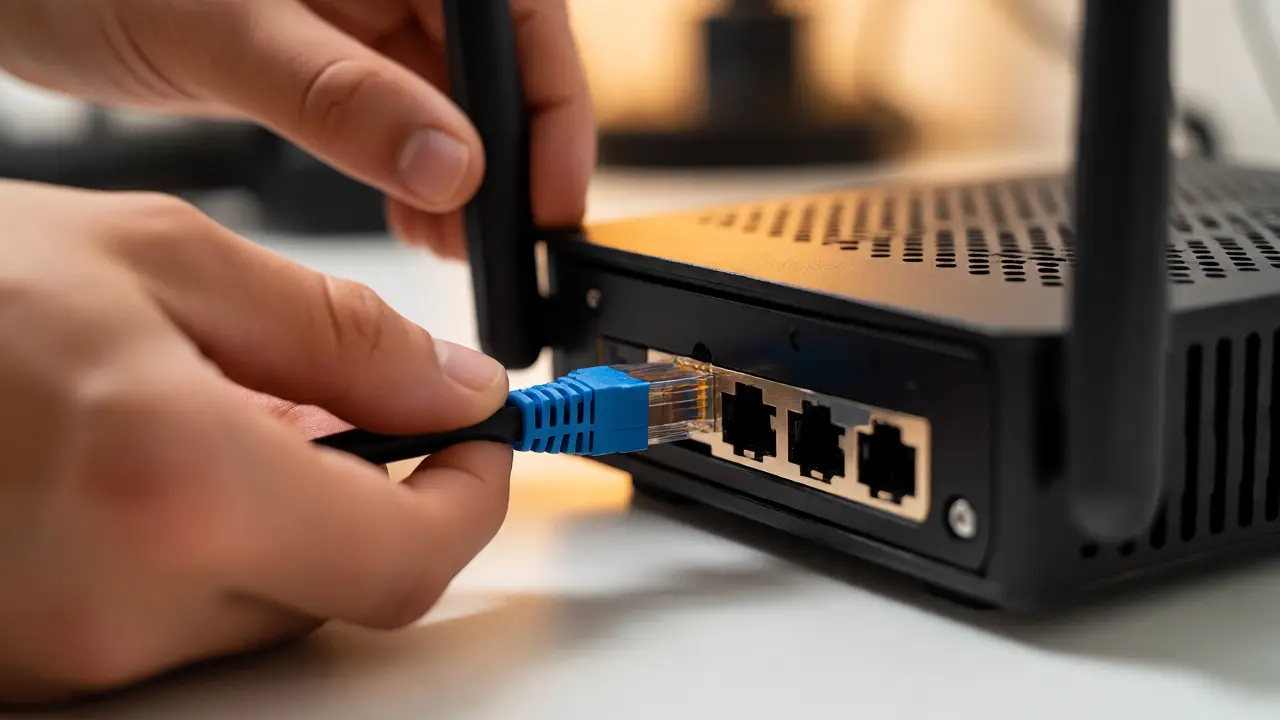
You’d be surprised how many "software" problems are actually hardware issues. Loose Ethernet cables can cause intermittent drops on wired connections. If a cable is partially unplugged or damaged internally, the link state flaps between up and down. Swap the cable. Use Cat6 or higher if possible. Ensure the clip clicks firmly into place.
For wireless devices, power supply instability can cause radio resets. Cheap USB chargers powering smart hubs or Raspberry Pi setups often provide inconsistent voltage. If the voltage dips, the Wi-Fi module might reboot briefly, dropping the connection. Use quality power adapters. If you’re using a power strip, make sure it’s not overloaded or faulty. Try plugging the problematic device directly into a wall outlet to rule out strip issues.
Advanced Fixes: QoS and Channel Width
If basic steps don’t work, dive into advanced settings. Quality of Service (QoS) allows you to prioritize traffic. If your family is streaming 4K video while you’re trying to game or work, the router might drop lower-priority packets to keep the video smooth. Enable QoS and mark your work laptop or gaming console as high priority. This prevents bandwidth hogs from starving your critical devices.
Also, check your channel width. Routers often default to 40 MHz on 2.4 GHz for speed, but this doubles the chance of interference. Switch it to 20 MHz. You’ll lose some peak throughput, but you gain massive stability in noisy environments. On 5 GHz, 80 MHz is usually fine, but if you live in an apartment complex with many neighbors, dropping to 40 MHz might reduce collisions and improve consistency.
When to Call Your ISP
If you’ve updated firmware, changed channels, moved the router, and checked cables, but the problem persists across multiple devices simultaneously, it might be your ISP. Request a log check from them. Ask if they see packet loss on your line. If they confirm issues on their end, push for a technician visit. However, if the problem is isolated to one device or one room, keep digging locally. The internet cloud is rarely the bottleneck for localized drops.
Why does my Wi-Fi drop every night?
This is often due to automatic maintenance tasks. Many ISPs perform network updates or firmware pushes overnight. Additionally, neighboring networks may become more active in the evening, increasing interference. Check your router logs for scheduled reboots or consider changing your Wi-Fi channel manually to avoid evening congestion spikes.
Does turning off 2.4 GHz help stability?
Not necessarily. Turning off 2.4 GHz forces all devices onto 5 GHz. While 5 GHz is faster, it has shorter range. If your devices are far from the router, they will struggle to maintain a connection, potentially causing *more* drops. Keep both bands enabled but separate them with different SSIDs (names) so you can control which band your devices use.
How do I know if it’s my router or my modem?
Connect a laptop directly to the modem via Ethernet. If the connection remains stable, the issue is likely with your router or Wi-Fi environment. If the direct connection also drops, the problem lies with the modem or the incoming line from your ISP. Contact your provider in the latter case.
Can microwaves really affect my Wi-Fi?
Yes. Microwaves operate at approximately 2.45 GHz, which overlaps with the 2.4 GHz Wi-Fi band. When the microwave runs, it emits significant electromagnetic radiation that can interfere with Wi-Fi signals passing through or near it. Moving your router away from the kitchen or switching devices to the 5 GHz band solves this instantly.
What is a DNS timeout and does it cause drops?
A DNS timeout means your device couldn't translate a website name into an IP address quickly. It feels like a connection drop because pages won't load, but your actual Wi-Fi link is intact. Changing your DNS server to a public one like Google (8.8.8.8) or Cloudflare (1.1.1.1) can resolve these "fake" connectivity issues.