
Your server crashed at 2:00 AM on a Tuesday. The database is corrupted, the email server is down, and your CEO is asking why customers can't check out online. In that moment, you don't need a plan; you need a copy of your data that works right now. That is the difference between a minor inconvenience and a business-ending event. Data backup isn't just about storing files somewhere safe; it's about guaranteeing that when things go wrong, you can get back to work fast.
Most small and mid-sized businesses treat backup as an afterthought until it becomes the main topic of their week. They assume that if they have a cloud drive or an external hard drive, they are covered. But what happens if the ransomware encrypts both your live system and your backup? Or if a human error deletes a critical folder three days ago? This guide breaks down how to build a backup strategy that actually holds up under pressure, focusing on realistic metrics, common pitfalls, and the specific technologies that keep businesses running in 2026.
Key Takeaways
- Data backup must be separated from your primary infrastructure to survive ransomware and hardware failure.
- You need two key metrics: RPO (Recovery Point Objective) defines how much data you can afford to lose, while RTO (Recovery Time Objective) defines how long you can stay offline.
- The 3-2-1 rule is the baseline: 3 copies of data, on 2 different media types, with 1 copy offsite or immutable.
- Automated testing is non-negotiable; an untested backup is not a backup, it's a hope.
- Managed IT services often provide faster recovery than in-house teams due to dedicated monitoring and specialized tooling.
Defining Your Recovery Goals: RPO and RTO
Before you buy any software or rent any storage space, you need to answer two simple questions. How much data can you afford to lose? And how long can you wait to get it back? These answers define your Recovery Point Objective (RPO) and Recovery Time Objective (RTO).
RPO is measured in time intervals. If your RPO is 24 hours, you agree that losing one day's worth of transactions is acceptable. If your RPO is 15 minutes, you need continuous replication. For most service-based businesses, an RPO of 4 to 24 hours is standard. For e-commerce or financial firms, it drops to minutes or even seconds.
RTO is the clock that starts ticking when the disaster hits. It includes the time to detect the issue, restore the data, verify integrity, and bring applications back online. A common mistake is confusing backup speed with recovery speed. You might back up 10TB of data in an hour, but restoring those 10TB over a slow internet connection could take three days. Your RTO depends heavily on your network bandwidth and the architecture of your recovery environment.
| Business Type | Recommended RPO | Recommended RTO | Primary Risk Factor |
|---|---|---|---|
| Professional Services | 24 Hours | 4-8 Hours | Email downtime |
| E-Commerce | 15 Minutes | 1-2 Hours | Lost sales revenue |
| Manufacturing | 4 Hours | 24 Hours | Production line stoppage |
| Healthcare | 1 Hour | 4 Hours | Patient record access |
The 3-2-1 Rule and Immutable Backups
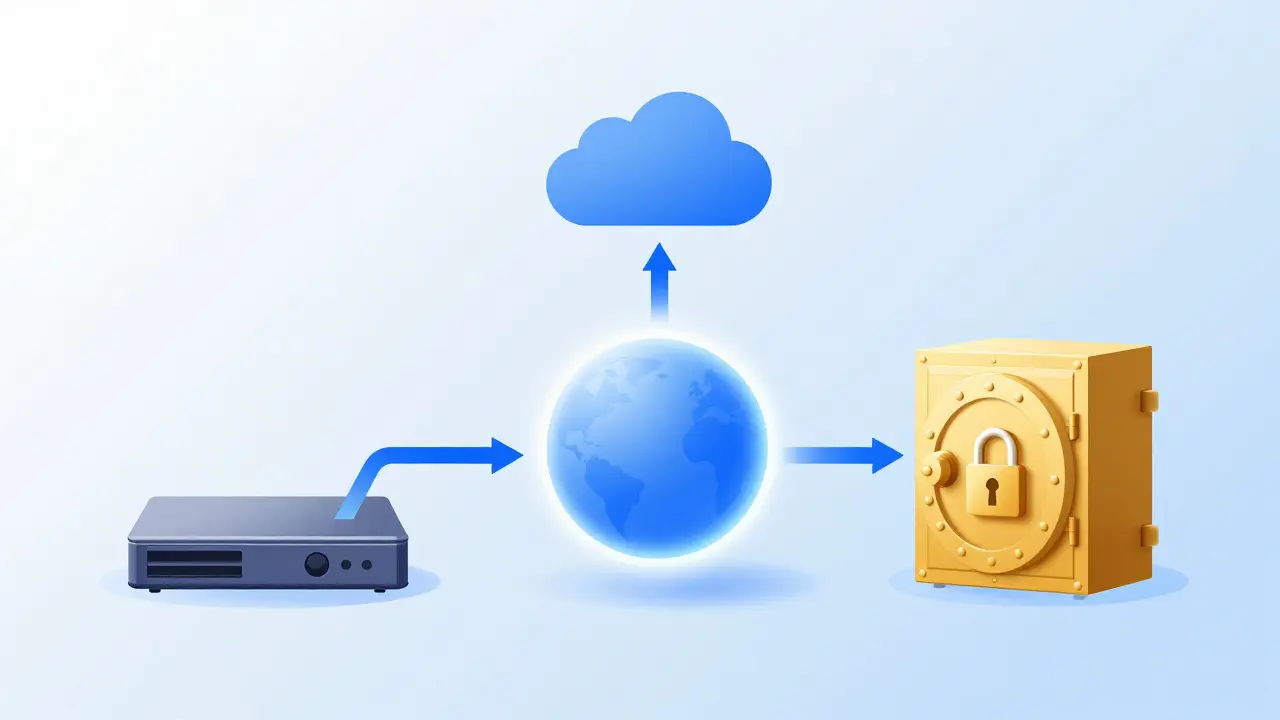
The industry standard for robust protection is the 3-2-1 rule. You keep three copies of your data. Two of those copies reside on different media types (for example, local NAS and cloud storage). One copy is stored offsite or in a separate location. This protects against local disasters like fire, flood, or theft.
In 2026, there is a critical addition to this rule: immutability. Traditional backups can be deleted or encrypted by ransomware if the attacker gains admin privileges. An immutable backup is a version of your data that cannot be changed or deleted for a set period, usually 7 to 30 days. Think of it as a write-once optical disc stored in the cloud. Even if hackers hold your entire network hostage, they cannot touch the immutable copy. Once the retention period expires, you can delete old versions to save space, but during that window, your data is safe.
Cloud providers like AWS S3 Glacier or Azure Blob Storage offer object lock features that enforce this immutability. Local solutions like Synology or QNAP also support snapshot immutability. The key is ensuring that the backup credentials are stored separately from your active directory or main user accounts. If the same password unlocks your office PC and your backup server, you haven't really secured anything.
Choosing Between On-Premise, Cloud, and Hybrid
Where should your backups live? The debate between on-premise and cloud has settled into a hybrid consensus for most businesses. Purely on-premise solutions are risky because they share the same fate as your primary servers if a physical disaster strikes. Purely cloud solutions can be expensive for large datasets and depend entirely on your internet speed for recovery.
A hybrid approach balances cost and speed. You keep a local backup (often on a Network Attached Storage device) for fast restores of individual files or quick VM snapshots. This handles the "oops, I deleted a file" scenario instantly. Simultaneously, you replicate that local backup to a cloud provider for long-term retention and disaster recovery. If your office burns down, you spin up virtual machines directly from the cloud in a new location, bypassing the need to ship physical drives.
Consider the bandwidth math. If you have 5TB of data and a 1Gbps internet connection, a full initial upload takes roughly 40 hours. After that, incremental backups only send changes, which might be 5% of the total data daily. This makes cloud feasible for ongoing operations, but the initial seed phase requires planning. Some companies use direct-to-cloud seeding services where the provider ships you a hard drive to fill locally, then they plug it into their data center. This cuts the initial setup time from weeks to days.
Common Pitfalls That Invalidate Backups
Many businesses believe they have a solid backup strategy, yet fail during actual incidents. Here are the most frequent reasons why:
- No Verification Process: Backups run silently in the background. If a job fails at 3:00 AM, no one knows until they try to restore a file six months later. Automated alerts and regular test restores are essential.
- Version Confusion: Users accidentally overwrite good files with bad ones. Without versioning, you might restore the corrupted file instead of the previous healthy one. Enable file versioning to keep the last 5-10 iterations of important documents.
- Ignoring Application Consistency: Backing up a SQL database while it's actively writing can result in a corrupt file. You need application-aware backups that quiesce the database before taking the snapshot. Tools like Veeam or Commvault handle this automatically for major enterprise apps.
- Single Point of Failure in Credentials: If the IT manager leaves the company and takes the encryption keys with them, your backups are useless. Store encryption keys in a secure, independent vault or HSM (Hardware Security Module).

The Role of Managed IT Services in Recovery
For many SMBs, maintaining complex backup infrastructure is too distracting from core business goals. This is where managed IT services come in. A managed service provider (MSP) doesn't just install backup software; they monitor its health 24/7. They know if a backup job failed, if disk space is running low, or if a restore test took longer than expected.
The advantage of using an MSP for backup and recovery is accountability. In-house teams often lack the time to perform quarterly restore drills. An MSP contract typically includes Service Level Agreements (SLAs) that guarantee response times. If your RTO is 4 hours, the MSP is contractually obligated to start the recovery process within that window. They also bring economies of scale, negotiating better rates with cloud providers and leveraging centralized dashboards to manage multiple clients' environments efficiently.
However, you still need to own your data sovereignty. Ensure your contract allows you to export your data in open formats if you ever decide to switch providers. Lock-in is a real risk if your backups are stored in a proprietary format that only the current vendor can read.
Testing Your Disaster Recovery Plan
A backup strategy is only as good as its last successful restore. Testing shouldn't be an annual event; it should be routine. Start with file-level restores. Pick a random document from last month and try to bring it back. Did it appear? Was it readable? Next, move to application-level tests. Restore a single user's mailbox or a specific database table. Finally, conduct a full disaster simulation once a year. Spin up a test environment in the cloud, restore your entire operating system and applications, and measure exactly how long it takes to reach a functional state. Compare that time to your RTO. If you missed the target, adjust your infrastructure or your expectations.
Document every step of these tests. When the real disaster happens, stress will impair decision-making. Having a written runbook with exact commands, IP addresses, and credential locations saves precious minutes. Assign roles clearly: who calls the MSP? Who communicates with stakeholders? Who verifies the restored data? Chaos thrives in ambiguity, so eliminate it before you need it.
Frequently Asked Questions
Is cloud backup safer than local backup?
Neither is inherently safer; they protect against different risks. Local backups are faster for small-scale recoveries but vulnerable to physical damage. Cloud backups protect against local disasters and ransomware if configured with immutability. The safest approach is a hybrid model combining both.
How often should we test our backups?
File-level restores should be tested monthly. Application-level restores should be tested quarterly. A full disaster recovery simulation should be performed annually. Automation helps, but manual verification ensures the data is actually usable.
What is the difference between backup and archiving?
Backup is for recent data needed for operational continuity, typically retained for 30-90 days. Archiving is for long-term compliance or historical reference, retained for years or decades. Archiving uses cheaper, slower storage tiers and is accessed infrequently.
Do we need to back up mobile devices?
Yes, if employees store company data on personal phones or tablets. Use Mobile Device Management (MDM) tools to ensure corporate data is synced to a central repository rather than staying siloed on the device. This prevents data loss if a phone is lost or stolen.
How much does a managed backup solution cost?
Costs vary based on data volume and RPO requirements. Typically, managed backup services range from $5 to $15 per user per month for standard file and email backup. Full disaster recovery as a Service (DRaaS) may cost more, depending on compute resources reserved for rapid restoration.