Trying to show your grandchildren a video of the grandkids’ first steps can be frustrating when the phone screen looks like a maze. You don’t need to become a tech expert; you just need tools that work the way you expect them to. The right senior friendly apps simplify how you watch movies and share memories with loved ones, removing the clutter and complexity that often leads to giving up on technology.
In this guide, we’ll look at specific streaming platforms and photo-sharing tools designed with older adults in mind. We will focus on features like large text, simple navigation, and one-tap sharing. By the end, you’ll know exactly which apps to install and how to set them up so you can stay connected without the stress.
Key Takeaways
- YouTube is the most accessible starting point for video content due to its familiar search bar and massive library of free clips.
- Google Photos offers the easiest method for automatic backup and family album sharing without complex manual uploads.
- Enable Accessibility Settings on your device before installing any app to ensure text and icons are visible from day one.
- Use Screen Mirroring or a smart TV connection to view content on larger screens, reducing eye strain.
- Limit notifications to only essential alerts to prevent digital overload and confusion.
Why Standard Apps Fail Seniors
Most modern applications are built for speed and multitasking, not clarity. They assume you know where settings are hidden and that you can navigate through multiple menus quickly. For many seniors, this creates a barrier. If an app requires three taps to find a single photo, it’s too complicated. The goal is simplicity: one tap, clear result.
The primary issues with standard apps include small font sizes, dark mode defaults that hide details, and aggressive update cycles that change the layout unexpectedly. When an app updates and moves the "Play" button, it breaks muscle memory. Senior-friendly alternatives prioritize stability and visual clarity over feature density.
Top Streaming Services for Easy Viewing
Streaming has changed how we consume entertainment, but the choice of platform matters. Not all streaming services are created equal when it comes to ease of use. Here are the top options that balance content variety with user-friendly interfaces.
| Platform | Interface Complexity | Content Type | Best Feature for Seniors |
|---|---|---|---|
| YouTube | Low | Videos, Music, Live Events | Search-first navigation; no subscription required |
| Netflix | Medium | Movies, Series, Documentaries | Profile-based recommendations reduce browsing time |
| Pluto TV | Low | Live Channels, On-Demand | Mimics traditional cable TV experience |
| Disney+ | Medium | Family Movies, Classics | Curation by genre makes finding favorites easier |
YouTube remains the gold standard for accessibility. It doesn’t require a monthly fee, and the search function is straightforward. If you want to see a cooking tutorial or a concert from the 1970s, you type it in, and it appears. The interface uses high-contrast colors and large thumbnails, making it easy to identify what you’re watching. Plus, subtitles are available for almost every video, which helps if hearing is a concern.
Pluto TV is another excellent option if you miss the feeling of channel surfing. It offers hundreds of live channels for free, supported by ads. The remote control experience feels familiar because it mirrors the structure of old-school cable television. You don’t have to dig through menus; you just pick a channel and press play. This reduces decision fatigue significantly.
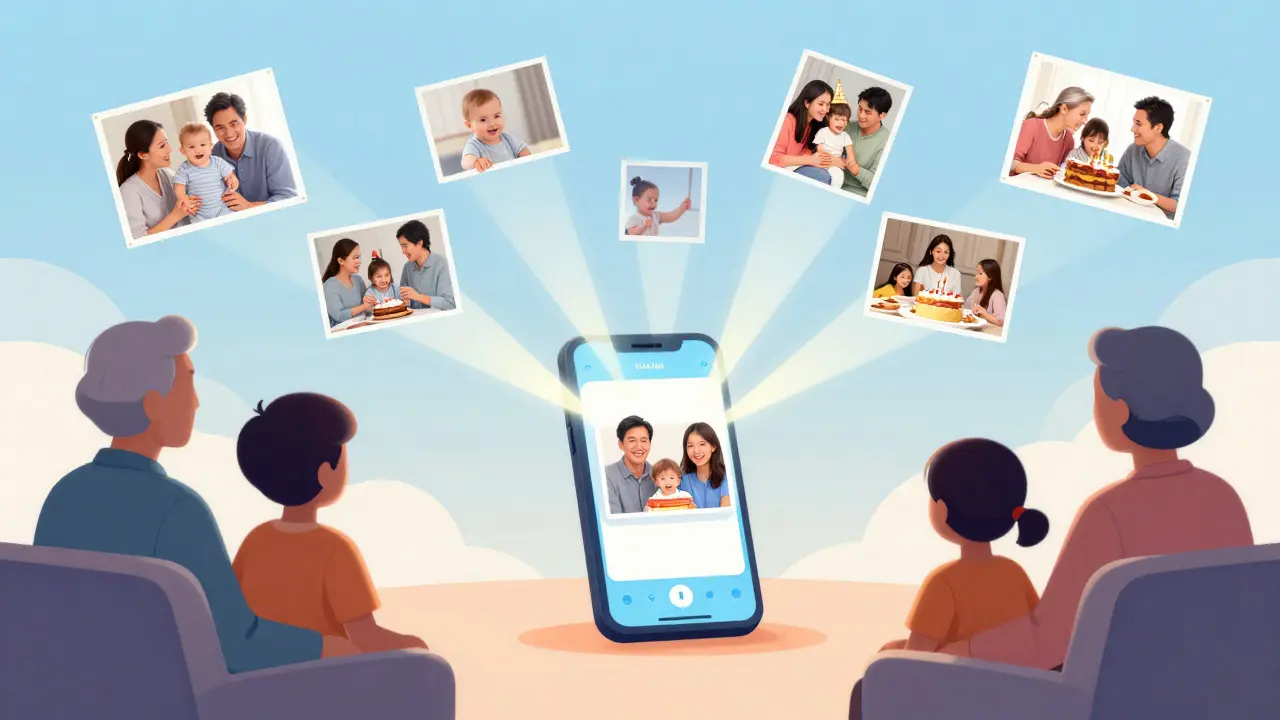
Photo Sharing Made Simple
Sharing photos used to mean emailing files back and forth or using social media feeds that scroll endlessly. Today, dedicated photo apps make this process seamless. The key is choosing an app that organizes photos automatically so you don’t have to sort them manually.
Google Photos is the leading recommendation for family sharing. It backs up your camera roll automatically to the cloud, meaning you never lose a picture if your phone breaks. More importantly, it allows you to create shared albums. You can invite family members with a single link, and they can add their own photos to the same album. This is perfect for events like birthdays or holidays where everyone contributes images.
Another strong contender is Apple iCloud Photos. If your family primarily uses iPhones, this service integrates deeply with the operating system. Shared Albums work similarly to Google’s, allowing group contributions. The advantage here is the privacy model; Apple processes much of the data locally, which appeals to those concerned about data tracking. However, it requires a paid storage plan for large libraries, whereas Google offers generous free tiers.
For those who prefer a more visual, less technical approach, Dropbox offers a simple folder structure. You can create a folder called "Family Memories," upload photos there, and share the folder link. It’s less automated than Google Photos but gives you full control over what goes where. This is ideal if you want to curate a specific collection rather than dumping everything into a shared space.
Setting Up Your Device for Success
Before you even open an app, you need to adjust your phone or tablet settings. This step is crucial because it ensures that the interface matches your visual needs. Most devices come with default settings optimized for younger users, which often means smaller text and faster animations.
- Increase Text Size: Go to Settings > Display > Font Size. Increase this until you can read comfortably without squinting. Most phones allow you to test the size immediately.
- Enable Dark Mode (Optional): Some people find dark backgrounds easier on the eyes at night. Others prefer light mode for better contrast. Choose what works for you and stick with it.
- Turn Off Auto-Lock Timeout Extensions: Set your screen timeout to 5 minutes or more. This prevents the screen from going black while you’re reading captions or selecting a movie.
- Enable Voice Control: Both iOS and Android have voice assistants. Saying "Open YouTube" is faster and less error-prone than tapping through menus. Practice this command until it feels natural.
Additionally, consider using a Bluetooth keyboard. Typing on a virtual keyboard can be difficult for those with limited finger dexterity. A physical keyboard connects via Bluetooth and provides tactile feedback, making typing emails or search queries much more accurate.
Troubleshooting Common Issues
Even with the best apps, problems arise. Here are the most common issues seniors face and how to fix them quickly.
Issue: The App Won’t Load. This usually indicates a slow internet connection. Check if other websites load. If yes, restart the app. If no, reboot your router. Streaming requires a stable connection of at least 5 Mbps for standard definition and 25 Mbps for high definition.
Issue: Photos Are Blurry or Low Quality. When sharing photos, ensure you are uploading the original file, not a compressed version. In Google Photos, check the upload settings to ensure "Original Quality" is selected. Also, make sure your camera lens is clean. Smudges cause blur that no amount of software processing can fix.
Issue: Notifications Are Overwhelming. Go to your phone’s Notification Settings for each app. Turn off "Promotional" or "Marketing" notifications. Keep only "New Message" or "Upload Complete" alerts on. This keeps your home screen calm and focused.
Frequently Asked Questions
Do I need a separate subscription for family sharing?
It depends on the service. For streaming, services like Netflix and Disney+ offer family plans that allow multiple profiles under one account. For photo storage, Google Photos includes 15GB of free storage for up to five family members. Apple iCloud requires a paid plan for shared albums beyond the basic free tier. Always check the current pricing page, as plans change frequently.
Can I use these apps on a tablet instead of a phone?
Yes, tablets are actually better for senior users. The larger screen makes text and icons easier to see and tap. Most apps mentioned here, including YouTube, Netflix, and Google Photos, have dedicated tablet versions with optimized layouts. If you have a budget, a mid-range tablet with a stylus support is a great investment for note-taking and photo viewing.
What if my family members don’t use the same apps?
You don’t need everyone to use the same app. For example, you can use Google Photos for your own backup and send links to family members who use iPhone. The link opens in their browser or default photo app. Similarly, you can stream on YouTube and share the video link via text message. Focus on the output (the video or photo) rather than the tool used to create it.
Is it safe to share photos online?
Generally, yes, if you use reputable services like Google or Apple. These companies encrypt your data during transfer and storage. To enhance safety, avoid posting sensitive information like addresses or school names directly in photo descriptions. Use the "Private" setting for shared albums so only invited family members can view them, rather than making them public.
How do I cancel a subscription I no longer want?
Cancellation policies vary. For app store subscriptions (like Netflix), go to your phone’s Settings > Subscriptions. Find the app and select "Cancel Subscription." Confirm the cancellation date. For web-based services, log in to the website, go to Account Settings, and look for "Manage Plan" or "Billing." Keep a record of the cancellation confirmation email for your records.