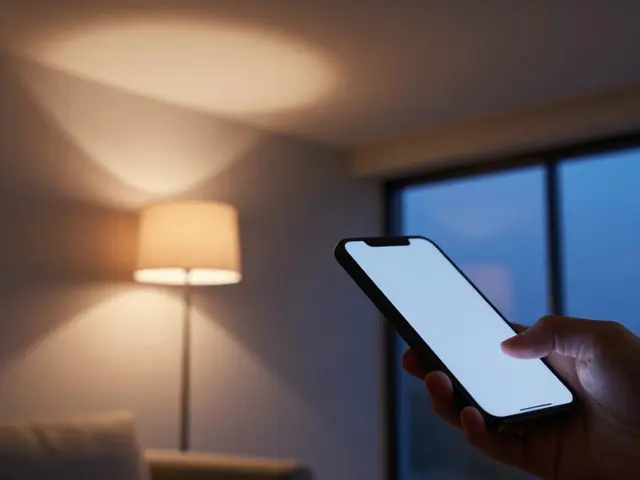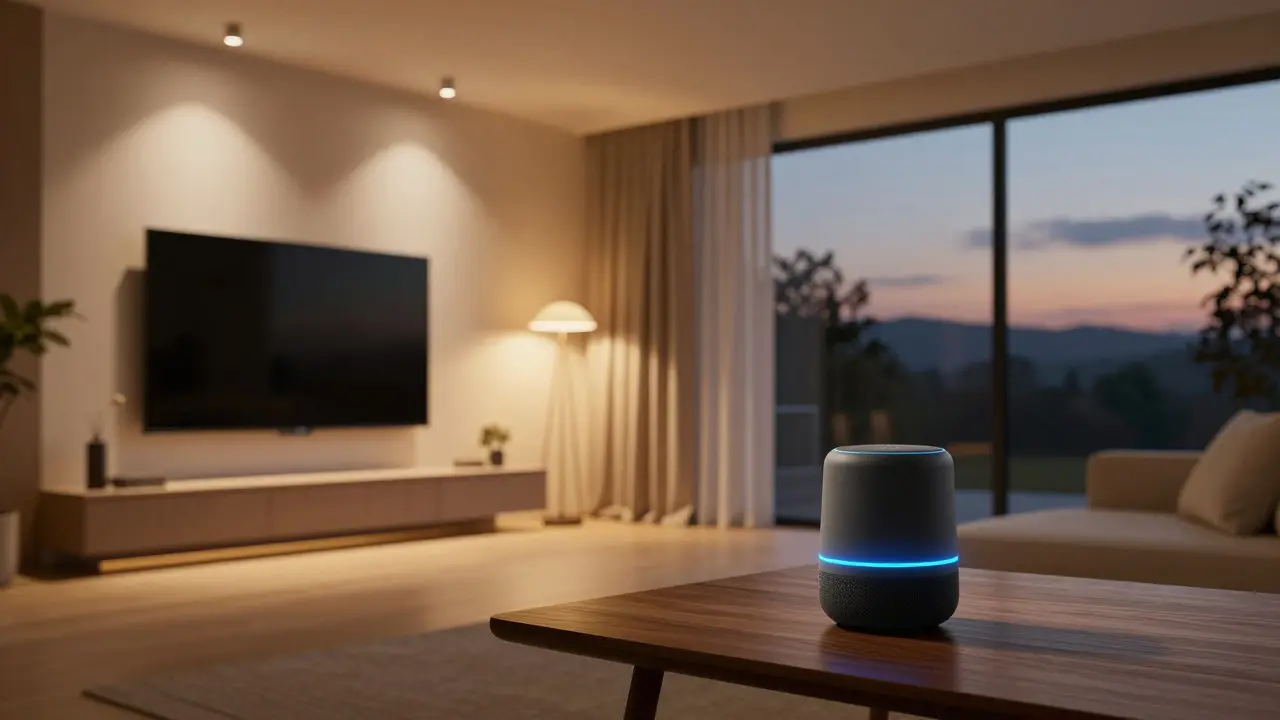
Imagine walking into your living room at 7:00 PM. The lights dim to a warm amber, the thermostat drops two degrees, and your favorite playlist starts playing softly in the background. You didn’t press a single button or open an app. This is the power of custom routines. Most people think setting up a smart home means buying gadgets and hoping they work together. But the real magic happens when you teach your devices to anticipate your needs through specific voice triggers.
Whether you use Amazon’s ecosystem or Google’s, the ability to create multi-step automations transforms your house from a collection of smart toys into a cohesive assistant. It saves time, reduces friction, and makes technology feel invisible. Here is how you build these systems without getting frustrated by compatibility issues or confusing interfaces.
Understanding the Difference Between Skills and Routines
Before you start building, it helps to understand the architecture behind your voice assistant. Many users confuse individual commands with complex routines, leading to setups that are fragile and hard to maintain. Knowing the distinction ensures you pick the right tool for the job.
- Voice Commands are single-action triggers. When you say "Turn on the kitchen light," the assistant sends one signal to one device. It is simple but limited.
- Routines (or Scenes) are sequences of actions triggered by a single phrase. Saying "Good morning" might turn on lights, play news, set the alarm, and adjust the blinds all at once.
- Skills (on Amazon) or Actions (on Google) are third-party apps that extend functionality. They allow your assistant to interact with services like Spotify, Nest, or Philips Hue beyond basic control.
The key takeaway? Use single commands for quick, one-off tasks. Use routines for repetitive daily patterns. Use skills when you need integration with external services that don’t have native support.
Setting Up Your First Routine on Amazon Alexa
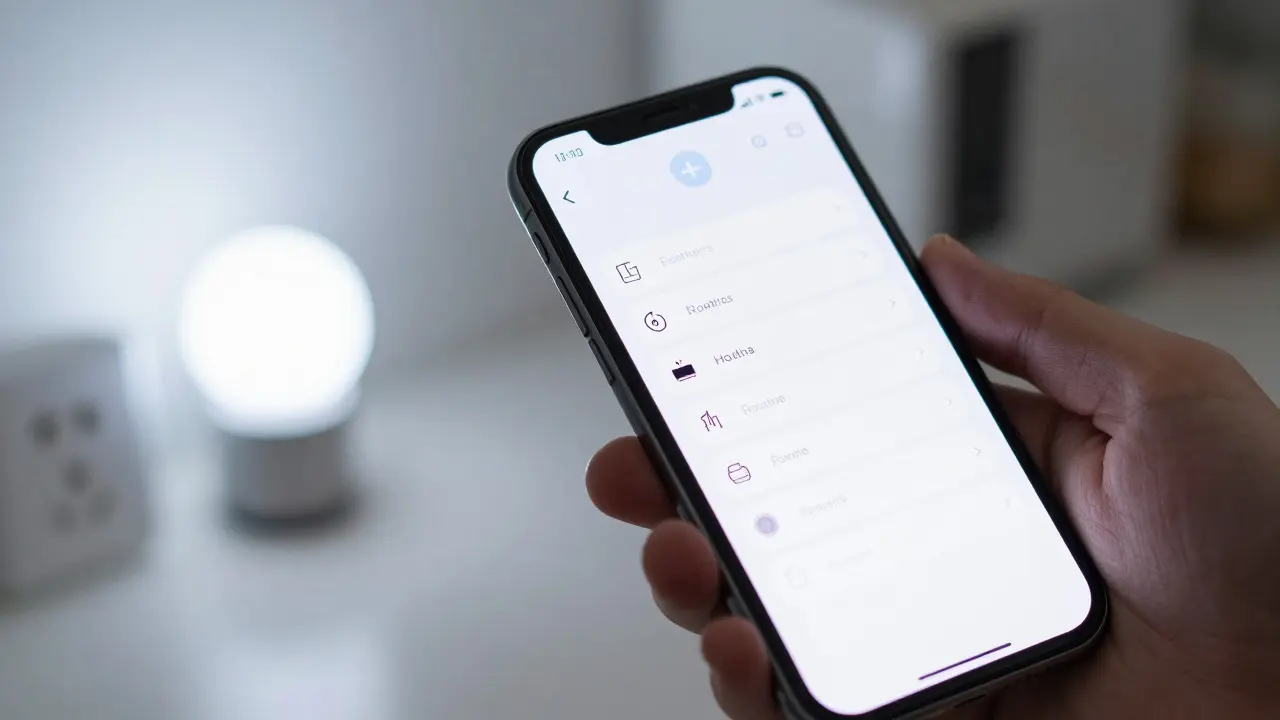
Amazon Alexa remains the most popular platform for home automation due to its vast library of compatible devices. Creating a routine here is straightforward if you follow a logical structure. Open the Alexa app on your phone, navigate to the menu, and select "Routines." Tap the plus icon to create a new one.
- Name your trigger: Choose a unique phrase that is easy to remember but distinct from other commands. Avoid words like "start" or "stop" unless necessary, as they can conflict with default behaviors. For example, "Movie Night" is better than "Start Movie."
- Add conditions (optional): You can set the routine to only run if certain criteria are met. For instance, "If it is after 8 PM" or "If I am at home." This prevents accidental triggers while you’re away.
- Add actions: This is where the heavy lifting happens. Add multiple steps. Turn off the main lights, turn on the floor lamp, set the TV to HDMI input 1, and lower the volume to 40%. Order matters. If you want the lights to fade before the TV turns on, list the light action first.
- Test it out: Save the routine and say the trigger phrase. Listen carefully. Does every device respond? If not, check the connection status of each device in the Alexa app.
A common pitfall is adding too many actions at once. Start with three or four core actions. Once that works smoothly, add more. Overloading a routine can cause delays between actions, making the experience feel sluggish rather than seamless.
Building Automations with Google Home Actions
If you prefer the Google ecosystem, the process is similar but uses different terminology. In the Google Home app, go to "Automations" and tap the plus sign. Google calls its multi-step sequences "Routines" as well, but the interface focuses heavily on location and time-based triggers.
Google Home excels at context-aware automation. You can create a routine that triggers automatically when you arrive home, detected via your smartphone’s GPS. For example, "When I get home, turn on the porch light and set the thermostat to 68 degrees." This removes the need for a voice command entirely, which is ideal for commuters who forget to speak to their phones.
| Feature | Amazon Alexa | Google Home |
|---|---|---|
| Primary Trigger Method | Voice phrases | Voice, Time, Location |
| Third-Party Integration | Skills (App Store) | Actions (Play Store) |
| Condition Complexity | High (Time, Device State, Location) | Medium (Time, Location, Weather) |
| Best For | Complex multi-device scenes | Location-based and time-based triggers |
One advantage of Google Home is its weather-based triggers. You can set a routine to turn on the heating system if the outdoor temperature drops below 50 degrees Fahrenheit. This level of environmental awareness is harder to replicate natively on Alexa without using third-party skills.
Choosing the Right Devices for Reliable Automation
Your routines are only as good as the devices they control. Not all smart plugs, bulbs, or sensors are created equal. Reliability is the number one factor. A routine that fails because a smart plug dropped offline ruins the trust you’ve built with the system.
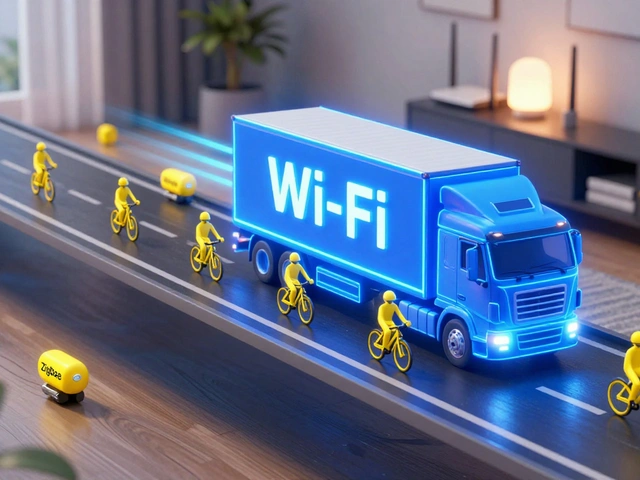
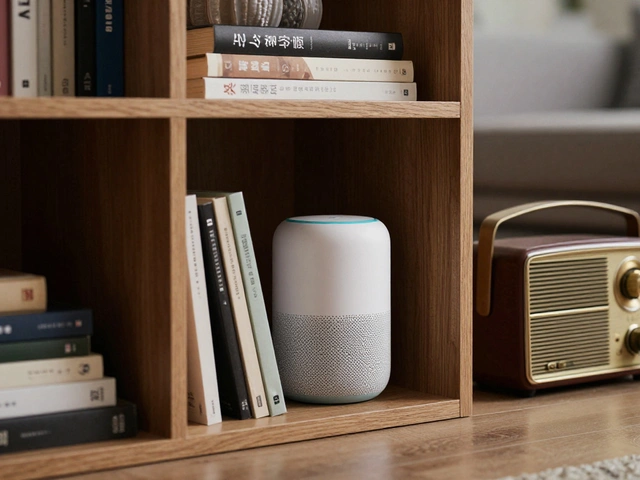
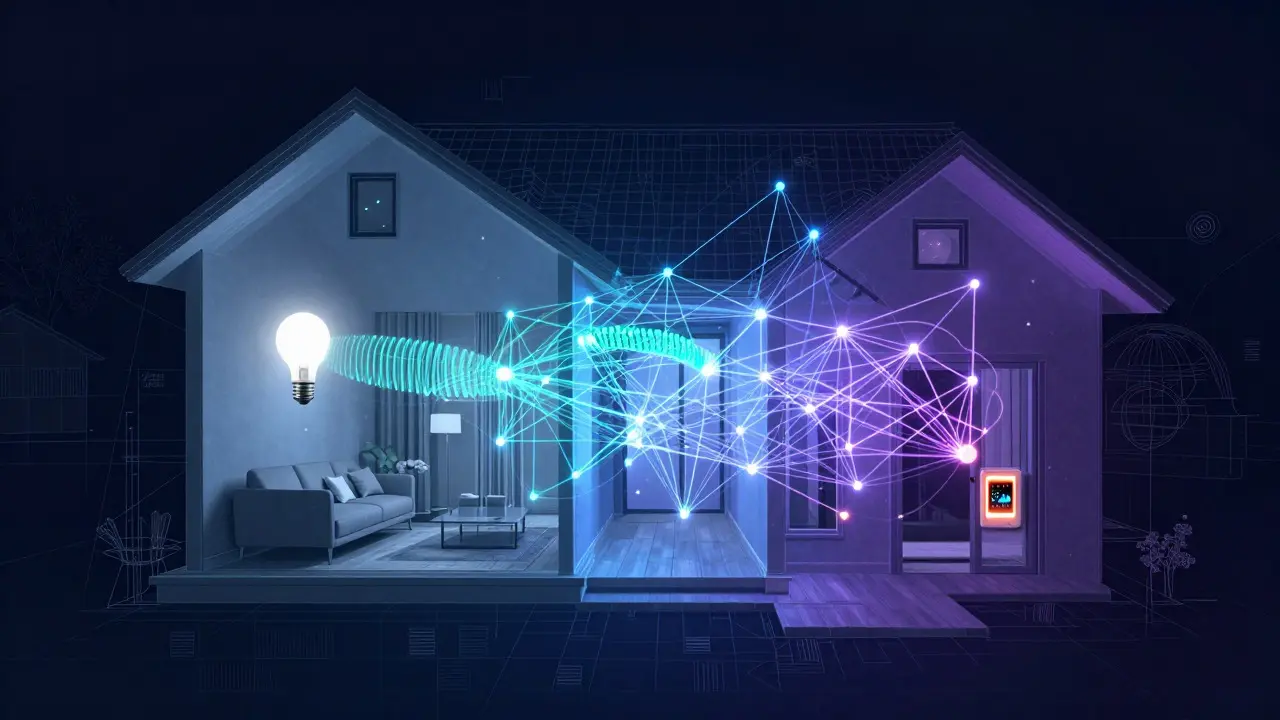
Look for devices that support both Wi-Fi and Thread or Zigbee protocols. Wi-Fi is convenient but can strain your router if you have dozens of devices. Zigbee and Thread create a mesh network where devices talk to each other directly, reducing load on your main internet connection. Brands like Philips Hue, Sonos, and Lutron have established reputations for stable connectivity. When selecting a smart speaker, ensure it has a strong microphone array. The Amazon Echo Dot 5 or Google Nest Hub Max are excellent choices because they can hear you clearly from across the room, reducing the need to repeat commands.
Also, consider the latency of your local network. If your internet connection is slow, cloud-based commands may take several seconds to execute. Local processing, available in newer hubs like the Apple HomePod mini or Amazon Echo Hub, processes commands locally, resulting in near-instant response times even if your internet goes down.
Troubleshooting Common Routine Failures
Even the best setups have hiccups. Here are the most frequent issues and how to fix them quickly.
- Device Not Responding: Check if the device is online in your app. Restart the device by unplugging it for 10 seconds. Ensure it is on the same Wi-Fi band (2.4 GHz vs 5 GHz) as your hub. Many older smart devices only support 2.4 GHz.
- Wrong Room Activation: If saying "Lights off" turns off the wrong lights, rename your rooms specifically. Instead of "Living Room Lights," use "Main Living Area Ceiling Light." Specificity reduces ambiguity.
- Delayed Execution: If actions happen out of order, check your internet speed. If it’s fine, try reordering the actions in the routine. Sometimes, adding a 2-second delay between critical actions helps synchronize hardware.
- False Triggers: If a routine starts when you didn’t ask for it, check for overlapping phrases. Avoid using common words like "yes" or "no" as part of your custom triggers.
Advanced Tips for Power Users
Once you have mastered the basics, you can push your smart home further. One powerful technique is creating "nested" routines. For example, create a routine called "Leaving House" that locks the doors, turns off all lights, and arms the security system. Then, create another routine called "Goodbye" that simply triggers the "Leaving House" routine. This allows you to update the underlying logic in one place without changing your primary trigger phrase.
You can also integrate calendar data. Using skills like IFTTT (If This Then That), you can connect your smart home to your digital life. For instance, if a meeting is scheduled for 9 AM, the routine could turn off the bedroom alarm and set the bathroom lights to bright white. This level of personalization makes the technology feel truly intelligent.
Finally, document your setup. Keep a simple text file on your phone listing all your routine names, triggers, and what they do. When you move houses or change devices, this cheat sheet will save you hours of reverse-engineering your old configurations.
Frequently Asked Questions
Do I need a separate hub for my smart home routines?
Not always. Modern smart speakers like the Amazon Echo or Google Nest Hub often act as central hubs themselves. However, if you use many Zigbee or Z-Wave devices, a dedicated hub like the Samsung SmartThings Station or Aeotec Smart Home Hub can improve reliability and range.
Can I use Alexa and Google Home in the same house?
Yes, but it requires careful planning. Assign specific rooms or functions to each platform to avoid confusion. For example, use Alexa for entertainment and lighting, and Google Home for climate control and security. Make sure your devices support both platforms or use bridges to connect them.
How many actions can I put in a single routine?
There is no strict limit, but performance degrades with more than 10-15 actions. Each action adds processing time. For the smoothest experience, keep routines under 10 actions. If you need more, split them into multiple linked routines.
What happens if my internet goes down during a routine?
Cloud-based commands will fail. However, if you use local processing hubs or devices that support local control (like some Philips Hue bulbs), basic actions like turning lights on or off will still work. Always test your critical routines during a brief internet outage to see what survives.
Are voice commands secure?
Generally yes, but privacy is a consideration. Data is processed in the cloud for most assistants. To enhance security, enable two-factor authentication on your accounts and review which skills have access to your data. Regularly update firmware on your devices to patch any vulnerabilities.