You bought a sleek new smart bulb or a security camera, spent twenty minutes syncing it to your Wi-Fi, and then-boom. It stops responding. Or maybe you’re moving into a new apartment and need to wipe the digital fingerprints of the previous owner’s smart devices from the network. Whatever the reason, knowing how to properly factory reset and re-provision your gadgets is a critical skill for any modern homeowner. It saves you from calling support lines on hold for an hour and keeps your home automation system running smoothly.
Most people think a factory reset just deletes settings. But in the world of Internet of Things (IoT), it’s more like performing a hard reboot of both the hardware state and the cloud handshake. If you do it wrong, you might end up with a "bricked" device that won’t connect even after hours of troubleshooting. This guide walks you through exactly how to reset your gear and get it back online, whether you’re dealing with a stubborn Zigbee lightbulb or a Wi-Fi thermostat.
Why You Actually Need a Factory Reset
It’s tempting to just unplug a device and plug it back in when things go sideways. That’s a soft reset, and while it fixes temporary glitches, it doesn’t clear out corrupted configuration files or old network credentials. You need a full factory reset when a device refuses to join a new Wi-Fi network, if you’re selling the gadget and want to protect your privacy, or if the firmware update failed halfway through and left the software in a weird limbo state.
Think of it this way: a soft reset is like restarting your computer. A factory reset is like wiping the hard drive and reinstalling Windows. The latter is drastic, but sometimes it’s the only way to fix deep-seated issues. For example, if you changed your router’s password last month and your smart plugs haven’t connected since, they are likely stuck trying to authenticate with the old credentials. They won’t ask for the new one until you force them to forget everything they know.
The Universal Methods: How to Trigger a Reset
Every manufacturer has its own quirky way of initiating a reset, but there are three main patterns you’ll encounter across most brands. Once you spot the pattern, you can handle almost any device without reading the manual.
- The Power Cycle Method: This is common for smart bulbs and plugs. You typically need to toggle the power switch on and off five to ten times in quick succession. Watch the LED indicator closely; it will usually blink rapidly or change color (like turning purple) to signal it’s ready to pair.
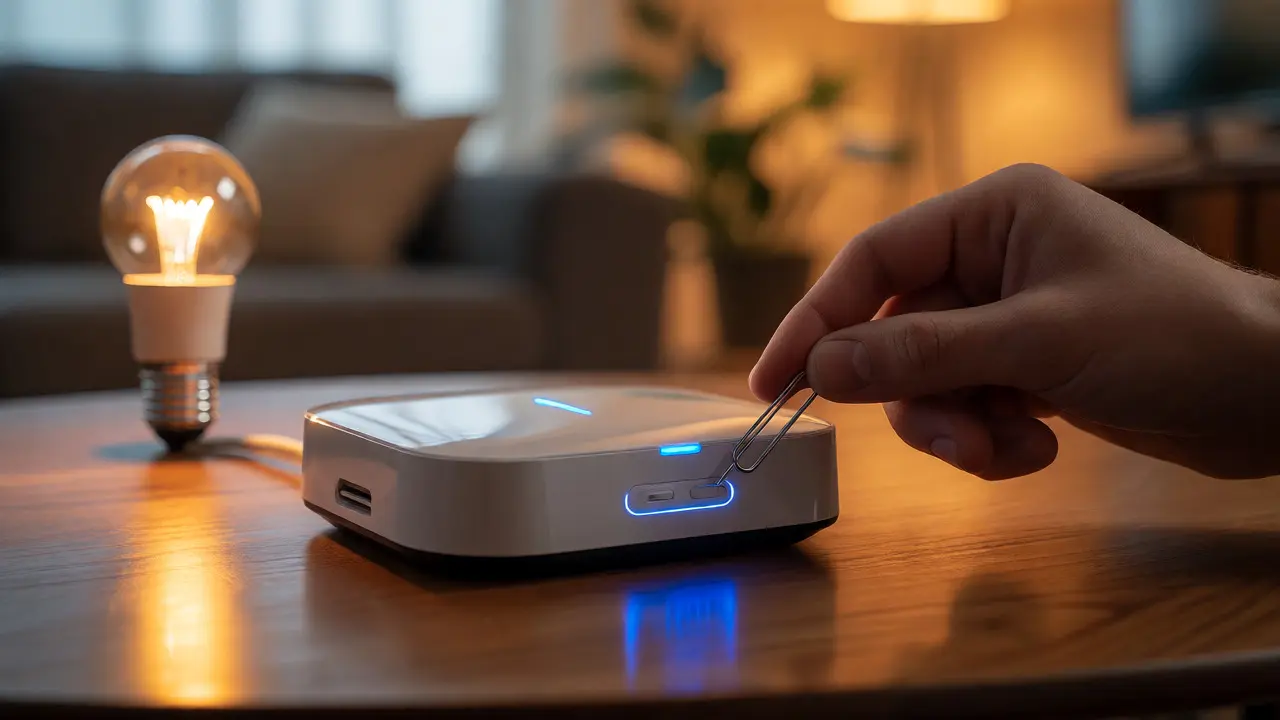
- The Pinhole Button: Many cameras, sensors, and hubs have a tiny recessed button labeled "Reset." You’ll need a paperclip or SIM tool to press and hold this for 10-30 seconds. Don’t rush it. If you let go too early, you might just reboot the device instead of resetting it.
- The App-First Approach: Some newer devices, particularly those using Matter or Thread protocols, allow you to trigger a factory reset directly from the companion app before removing the battery. This is cleaner because it also deregisters the device from your account on the server side.
A pro tip here: always check the physical device first. If there’s no visible button, look for a sequence involving the physical switch. For instance, Hue bulbs require you to cut power for 5 seconds, restore it, and repeat six times. Miss one step, and you’ll start over. Patience pays off here.
Re-Provisioning: Getting Back Online
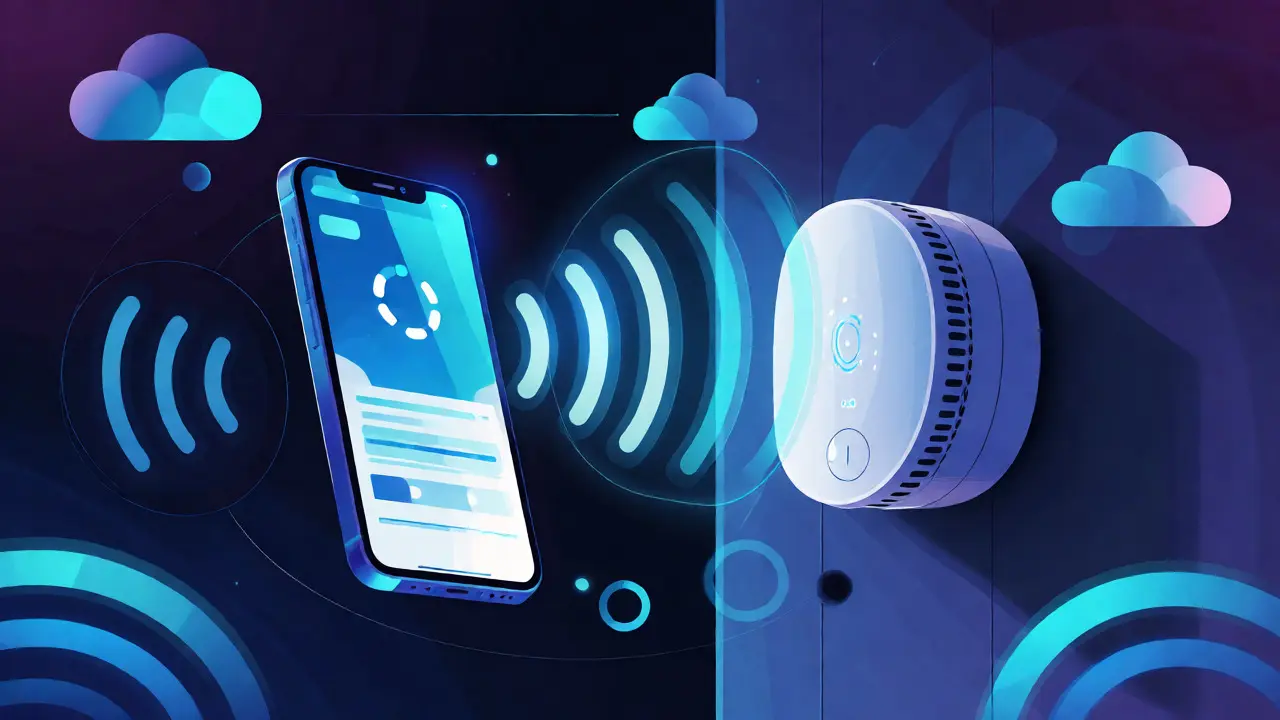
Once the lights blink their confirmation dance, you’ve cleared the slate. Now comes the second half of the job: re-provisioning. This is where many users hit a wall. Re-provisioning isn’t just about hitting "Add Device" in an app; it’s about ensuring the environment is ready for the handshake.
First, make sure your smartphone is connected to the same 2.4 GHz Wi-Fi band as the target device. Most smart gadgets still struggle with 5 GHz networks because the shorter range makes initial pairing difficult. If your router combines bands under one name (band steering), try temporarily disabling 5 GHz or moving closer to the router during setup. Distance matters more than you think; standing right next to the hub during provisioning reduces packet loss and speeds up the process significantly.
Second, check your phone’s permissions. iOS and Android now require explicit permission for local network access and Bluetooth scanning. If you denied these when you first installed the app, the discovery process will fail silently. Go into Settings > Apps > [Your Smart Home App] and ensure Local Network and Nearby Devices are toggled on.
| Protocol | Best Use Case | Provisioning Tip |
|---|---|---|
| Wi-Fi | High-bandwidth devices (Cameras, Hubs) | Ensure 2.4 GHz band is active; keep phone close to router. |
| Zigbee/Z-Wave | Lights, Sensors, Locks | Put hub in pairing mode first; remove from old mesh network. |
| Matter/Thread | Newer cross-platform devices | Use QR code scan; requires stable internet connection for certificate validation. |
Troubleshooting Common Post-Reset Issues
So you reset the device, opened the app, and... nothing happens. The spinner just goes round and round. Here’s what’s likely going wrong.
If the device never appears in the discovery list, it might not be in pairing mode. Double-check the LED status. A slow blue blink often means "waiting," while a rapid red blink could indicate a hardware error or low battery. Replace batteries immediately if you’re dealing with wireless sensors; weak voltage can cause erratic behavior that mimics software bugs.
If the device connects but shows as "Offline" shortly after, you might have a DHCP conflict. This happens if your router assigns the same IP address to two devices. Restarting your router after a batch of resets can help refresh the IP pool. Also, consider assigning static IPs for critical hubs within your router settings to prevent future conflicts.
Another sneaky culprit is firewall rules. If you’re using advanced router settings like AP isolation or strict firewalls, block ports used by the manufacturer’s cloud service. Most devices need outbound HTTPS (port 443) access. If you recently updated your router’s firmware, check if new default security settings are blocking local UDP broadcasts, which many discovery protocols rely on.
Data Privacy and Account Cleanup
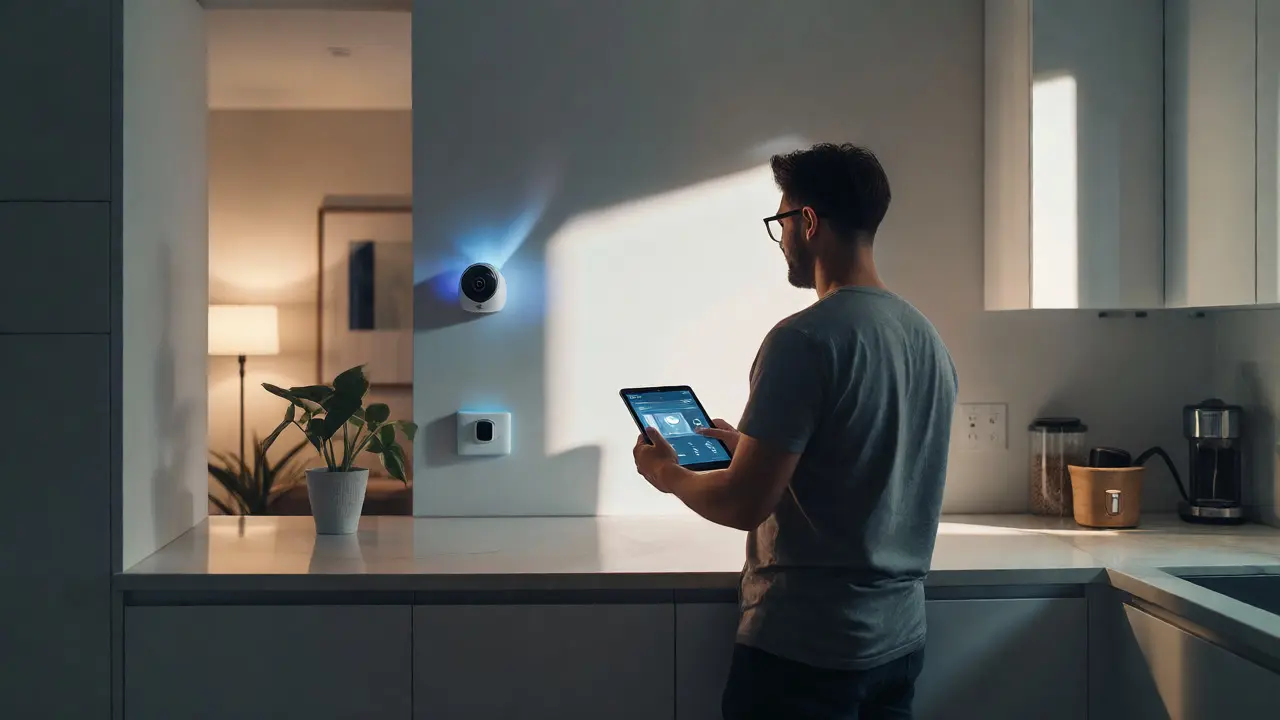
Resetting the hardware doesn’t automatically delete your data from the cloud. If you sold your smart lock or gave away a video doorbell, the previous owner’s face data or motion history might still linger on the manufacturer’s servers unless you explicitly remove the device from your account.
Always log into the companion app and select "Remove Device" or "Unlink" before physically resetting the unit. This sends a command to the cloud to revoke the device’s authentication token. Without this step, someone else could theoretically claim ownership of that unique device ID later, leading to messy access conflicts. For devices handling sensitive data, like cameras, also check if there’s an option to purge local SD card recordings or cloud storage history associated with that specific serial number.
When to Call Support vs. DIY
There’s a limit to DIY troubleshooting. If a factory reset fails repeatedly, or if the device draws excessive heat during the boot sequence, you might be looking at a hardware failure. However, before reaching for the warranty form, try one last hail-mary move: perform a factory reset while the device is plugged into a different outlet on a different circuit. Sometimes ground loops or noisy power sources interfere with the radio modules.
Also, verify your firmware version. Manufacturers sometimes release buggy updates that break connectivity. Check the support forum for your specific model. If others report similar issues, wait for a patch rather than fighting the current version. Keeping your hub’s firmware updated often resolves peripheral device drops without needing individual resets.
Does a factory reset delete my automation routines?
Usually, yes. Routines tied specifically to that device (e.g., "Turn off bedroom light at 10 PM") will stop working because the device identity changes. However, scenes or groups containing multiple devices may remain intact but inactive until the device is re-added and re-assigned to the group.
Can I factory reset a smart device without the app?
Yes, most devices support physical reset methods via buttons or power cycling. However, you cannot re-provision (set up) the device without the app or a compatible hub interface, so having the app installed and logged in is essential for the final step.
Why does my device keep disconnecting after a reset?
This is often due to Wi-Fi interference or distance. Move the device closer to the router or add a mesh node. Also, ensure your router isn't set to a very high channel width (like 80 MHz) on the 2.4 GHz band, as this can cause instability for older IoT chips.
Do I need to reset every device if I change my Wi-Fi router?
If you use the exact same SSID (network name) and password as your old router, most devices will reconnect automatically. If you changed either, you will need to re-provision each Wi-Fi-connected device individually. Zigbee and Z-Wave devices usually don't need resets unless the hub itself is replaced.
Is it safe to sell a smart device after a factory reset?
Generally, yes, provided you removed it from your cloud account first. For added security, especially with cameras or voice assistants, check the manufacturer's policy on data retention. Some companies retain anonymized usage data for analytics even after device removal.