You set up a routine to turn off the lights at sunset, but last night they stayed on. Or maybe your morning alarm didn't trigger because the coffee maker script failed silently. It’s frustrating when your smart home stops being "smart" and starts being a source of anxiety. The good news? Most automation failures aren't hardware defects; they are logic gaps, connectivity hiccups, or permission conflicts that you can fix in minutes.
Debugging isn't about guessing. It's about isolating variables. Whether you use Home Assistant, Apple HomeKit, Google Home, or IFTTT, the core principles remain the same. You need to verify triggers, check conditions, validate actions, and inspect logs. Let’s walk through exactly how to find the break in your chain.
The Anatomy of a Failed Automation
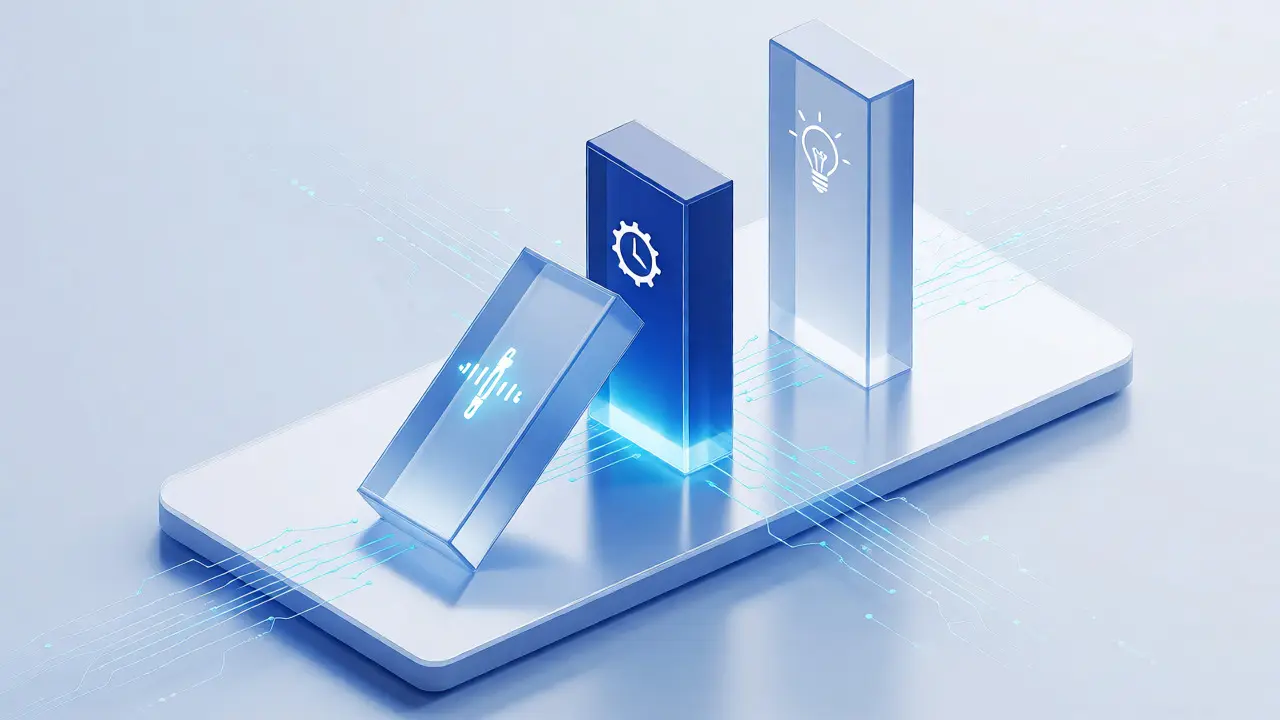
Before you start tweaking settings, understand why things break. An automation is a conditional statement: If [Trigger] happens, AND [Conditions] are met, THEN execute [Action]. If any part of this sentence fails, the whole routine dies. Most users blame the action (the light bulb), but the culprit is usually the trigger (the sensor) or the condition (the time window).
Think of it like a domino effect. If the first domino (trigger) doesn’t fall, nothing else moves. If the second domino (condition) blocks the path, the third one (action) never gets hit. Your job is to find which domino is stuck.
| Component | Role | Common Failure Reason |
|---|---|---|
| Trigger | Starts the process | Sensor offline, battery dead, event not recognized by hub. |
| Condition | Filters the trigger | Timezone mismatch, state conflict, overlapping rules. |
| Action | Executes the task | Device unreachable, API rate limit, invalid command syntax. |
Step 1: Verify Connectivity and Device Status
The most basic check is often the most overlooked. Is the device actually online? In ecosystems like Zigbee or Z-Wave, devices communicate via mesh networks. If a router or repeater goes down, half your bulbs might report as "unavailable" even if they have power.
Open your app dashboard. Does the status match reality? If your app says the light is "On" but it’s physically off, your state cache is corrupted. This happens frequently after Wi-Fi drops or power outages. Force a refresh by toggling the device manually or restarting the hub. For Wi-Fi devices, ensure they haven’t been assigned a new IP address that the controller can’t reach. Static IPs for critical hubs and sensors prevent this headache entirely.
Step 2: Audit Your Triggers
If the device is online, the next suspect is the trigger. Did the event actually fire? Many users assume a motion sensor triggered an automation, but the sensor might have been in "sleep mode" or its sensitivity was too low to detect movement in a dim room.
- Check Event History: Platforms like Home Assistant keep detailed logs. Look for the specific timestamp. If the trigger event isn't logged, the sensor didn't send the signal.
- Test Manually: Use the "Run Now" or "Test" button in your automation editor. This bypasses the trigger and runs the action immediately. If this works, your action is fine, and the problem is definitely the trigger.
- Verify Sensor Health: Replace batteries in wireless sensors. A dying battery often causes intermittent reporting before total failure.
Step 3: Scrutinize Conditions and Logic Conflicts
This is where most complex setups fail. Conditions act as gatekeepers. For example, you might have a rule: Turn on porch light IF motion detected AND time is after sunset. If your geolocation service reports you are "Away," but the condition requires "Home," the light won't turn on.
Time-based conditions are notorious for errors due to timezone mismatches. Ensure your hub’s system time matches your local zone. Daylight Saving Time changes can also shift sunrise/sunset calculations if the location coordinates in your app are outdated. Double-check that your latitude and longitude are precise enough for accurate astronomical events.
Another common issue is conflicting automations. Do you have two rules trying to control the same device simultaneously? One might say "Turn On" while another says "Turn Off." Without proper priority settings or mutual exclusion locks, these rules fight each other, resulting in flickering or no action at all.
Step 4: Validate Actions and API Limits
If the trigger fires and conditions pass, the action should execute. But sometimes, the command itself is rejected. Cloud-based services like Amazon Alexa or SmartThings impose API rate limits. If you trigger ten automations at once, some commands may be dropped to prevent server overload.
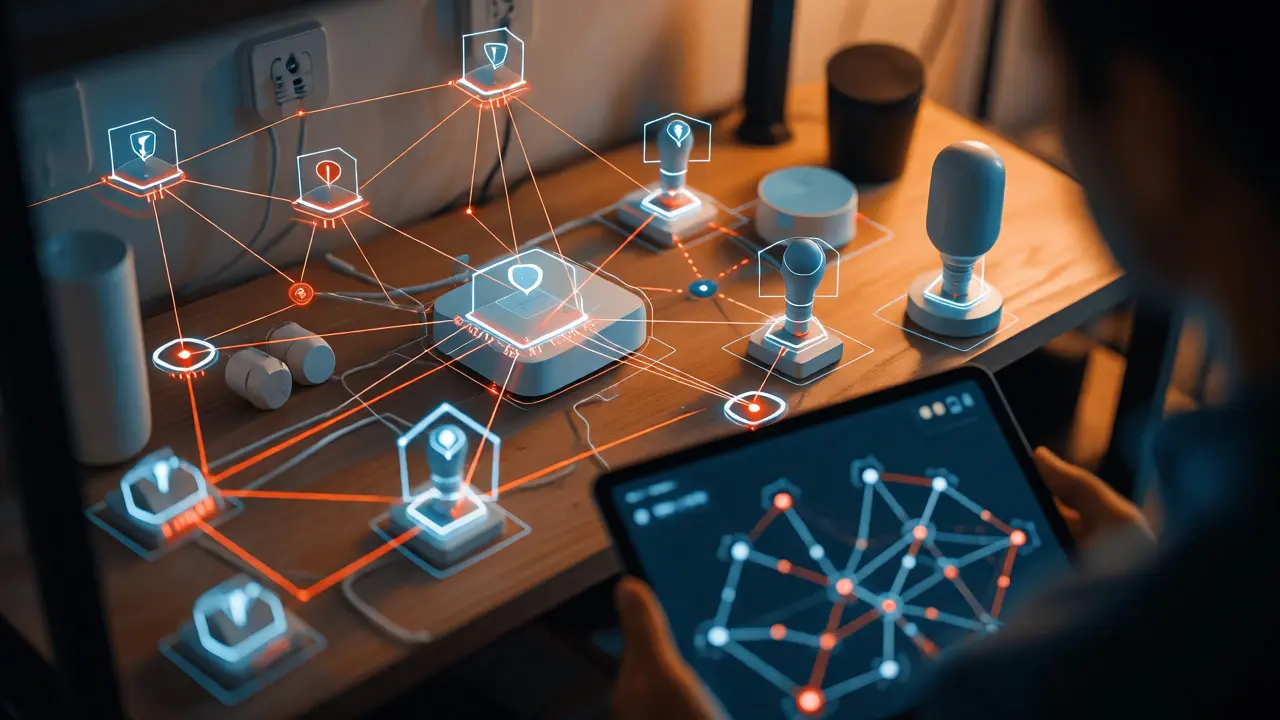
Look for error codes in the developer console or log files. Common messages include "Timeout," "Unauthorized," or "Invalid Payload." These indicate communication breakdowns between your controller and the cloud service. If you’re using local control (like Zigbee directly to a hub), timeouts suggest interference or distance issues. Move the device closer to the hub or add a repeater to strengthen the mesh network.
Pro Tips for Stable Automations
Once you’ve fixed the immediate bug, take steps to prevent future ones. Stability comes from simplicity and redundancy.
- Use Local Execution: Whenever possible, choose integrations that run locally rather than relying on the cloud. Local automations continue working even if your internet goes down.
- Avoid Overlapping Timers: Don’t stack multiple timers on the same device without clear end states. Use "state" based triggers (e.g., Light is Off) rather than just time delays, which can drift.
- Document Your Logic: Keep a simple text file explaining what each automation does. Future-you will thank present-you when debugging a complex scene six months later.
- Monitor Latency: If actions feel sluggish, measure the delay between trigger and response. High latency often points to network congestion or overloaded hubs.
When to Reset vs. Rebuild
Sometimes, fixing is harder than starting over. If an automation has been patched repeatedly with workarounds, consider rebuilding it from scratch. Delete the old rule, create a new one with minimal conditions, test it, and then add complexity back step-by-step. This isolates the problematic component quickly.
For stubborn integration issues, uninstalling and reinstalling the device driver or integration plugin can clear cached errors. Just remember to note your configuration details first so you don’t lose custom settings.
Why did my automation stop working after a software update?
Software updates often change API endpoints, deprecate older features, or alter default permissions. Check the release notes for breaking changes. You may need to re-authenticate accounts or update firmware on connected devices to restore compatibility.
How do I fix time-based automations that trigger at the wrong hour?
First, verify the timezone setting in your hub or app. Next, check the location coordinates used for sunrise/sunset calculations. If you recently moved, update the address. Finally, ensure daylight saving time adjustments are enabled automatically within the platform settings.
My motion sensor triggers the light, but it turns off too quickly. How do I fix this?
Adjust the "timeout" or "hold time" parameter in the sensor’s configuration. Many sensors have a built-in cooldown period. Increase this value in the device settings or adjust the automation’s delay action to keep the light on longer after motion ceases.
Can I debug automations without checking logs?
While you can try trial-and-error, logs provide concrete evidence of what happened. Without them, you’re guessing whether the trigger fired or if the condition blocked the action. Most modern platforms offer easy-to-read visual timelines or notification alerts that serve as lightweight logging.
What is the difference between a routine and an automation?
A routine is typically user-initiated (e.g., saying "Goodnight"), whereas an automation is system-triggered (e.g., motion detected). However, many platforms blur this line, allowing routines to be triggered by schedules or events. Technically, both follow the same trigger-condition-action logic.