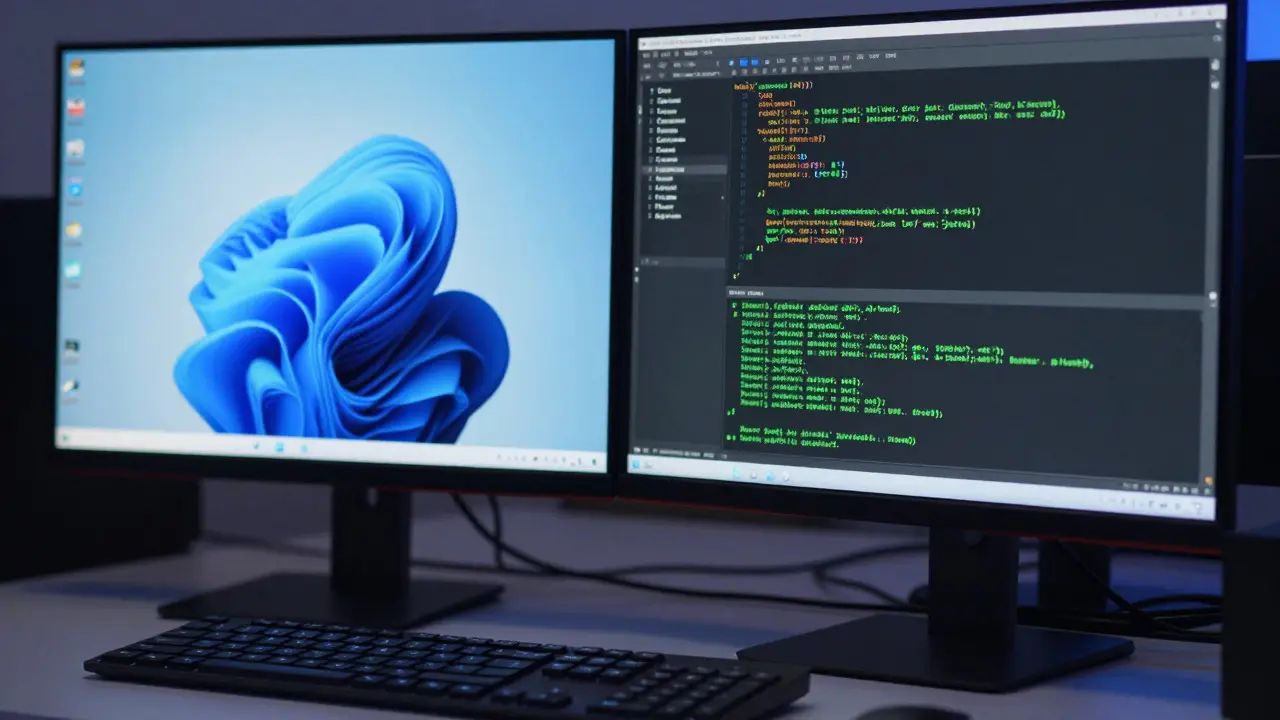
Ever wish you could run Windows and Linux on the same computer without rebooting? Or maybe you need to test a risky piece of software in a safe, isolated environment before letting it touch your main system. That’s exactly what virtual machines are for. They let you create a complete, self-contained computer inside your existing one, running its own operating system. Think of it as having multiple computers living under one roof, each doing its own thing without stepping on the other’s toes.
This guide walks you through setting up your first VM, choosing the right tools, and avoiding the common pitfalls that trip up beginners. Whether you’re a developer testing cross-platform apps or just curious about how different OSs work, getting this right saves time and headaches.
What Exactly Is a Virtual Machine?
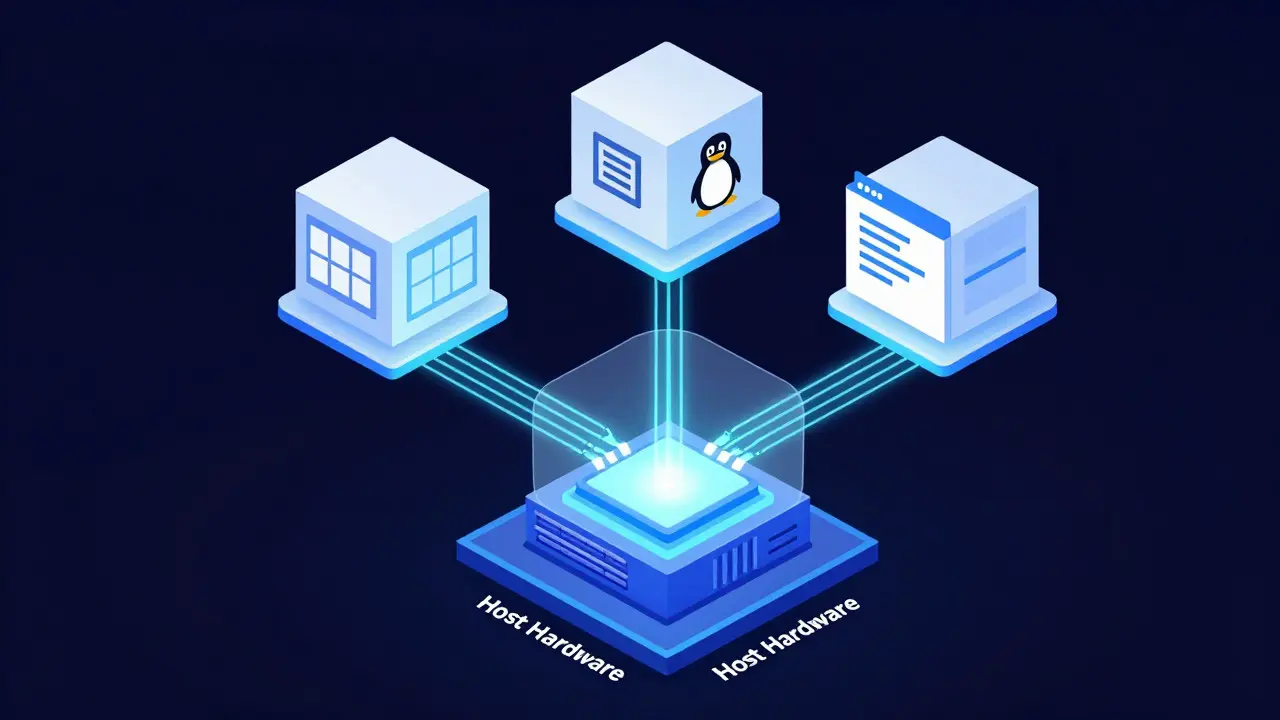
A virtual machine is a software emulation of a physical computer. It runs an operating system (like Windows, macOS, or Linux) on top of your host machine’s hardware, managed by a program called a hypervisor. The hypervisor acts like a traffic cop, allocating CPU cores, RAM, and disk space from your real computer to each virtual one.
Why bother with this complexity? Three big reasons:
- Isolation: If the VM crashes or gets infected with malware, your main system stays untouched.
- Compatibility: Run software designed for older or different OS versions without dual-booting.
- Experimentation: Try new configurations, break things, and reset easily.
Unlike containers (like Docker), which share the host kernel, a VM includes its own full kernel. This makes VMs heavier but more versatile for running entirely different operating systems.
Choosing Your Hypervisor: The Big Players
The hypervisor is the engine behind your VM. For desktop users, two names dominate: VirtualBox and VMware Workstation Player. Both are free for personal use, but they differ in performance and features.
| Feature | VirtualBox | VMware Workstation Player | Hyper-V (Windows) |
|---|---|---|---|
| Cost | Free & Open Source | Free for Personal Use | Built into Windows Pro/Enterprise |
| Performance | Good | Excellent (better 3D graphics support) | Very High (Type-1 style) |
| OS Support | Wide (Linux, Windows, macOS*) | Wide (Linux, Windows) | Windows, Linux |
| Ease of Use | Moderate | Easy | Integrated but less flexible |
*Note: Running macOS in a VM on non-Apple hardware violates Apple’s EULA, though technically possible.
If you’re on Windows 10 or 11 Pro, Hyper-V is already built-in. It’s fast and efficient but lacks some user-friendly features like easy USB passthrough compared to VirtualBox or VMware. For most beginners, I recommend starting with VirtualBox because it’s free, open-source, and works identically across Windows, Mac, and Linux.
Step-by-Step: Setting Up Your First VM
Let’s get hands-on. We’ll assume you’re using VirtualBox on a Windows host, but the steps are similar elsewhere.
1. Download the ISO Image
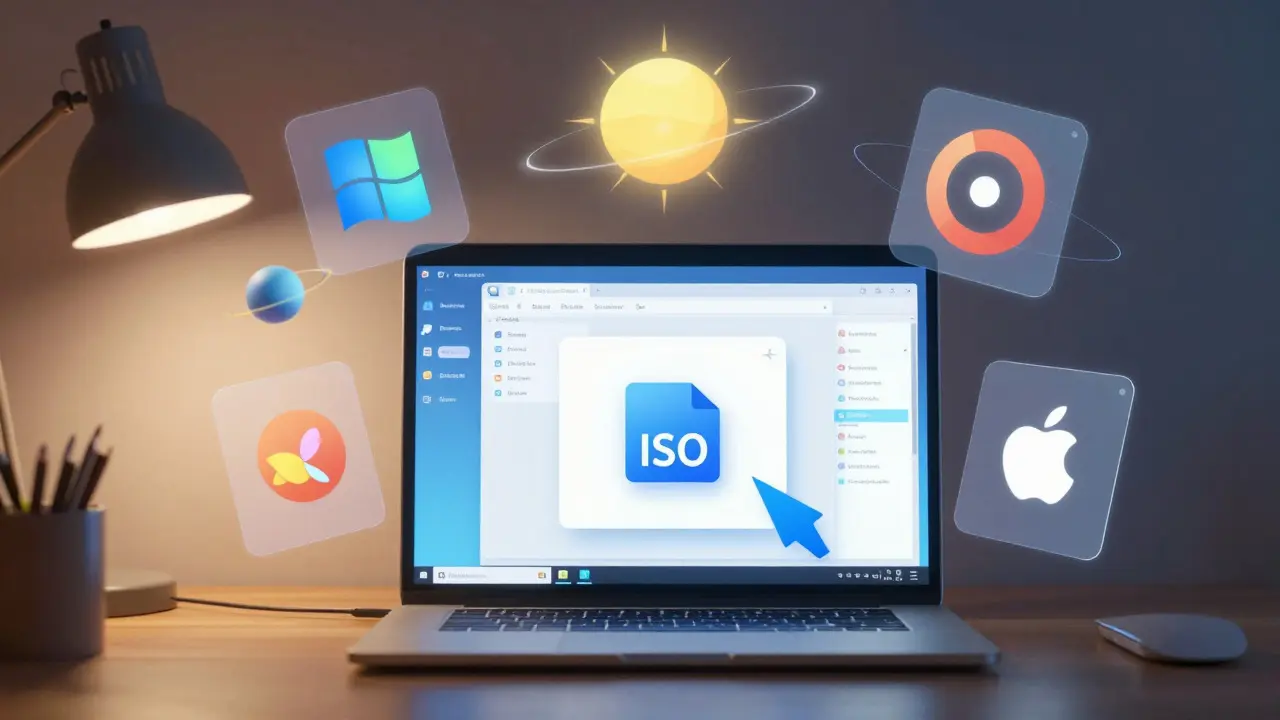
An ISO file is essentially a digital copy of an installation disc. You need one for the OS you want to install. For example, download the Ubuntu Desktop LTS ISO from the official Ubuntu website. It’s around 5GB, so grab a coffee while it downloads.
2. Create the Virtual Machine
Open VirtualBox and click “New.” Give your VM a name (e.g., “Ubuntu Test”). Select the type (Linux) and version (Ubuntu 64-bit). Now comes the resource allocation:
- RAM: Allocate at least 4GB if your host has 8GB+ total. Don’t starve your host OS!
- CPU: Assign 2 cores minimum. More helps with compilation tasks.
- Disk: Choose “Create a virtual hard disk now.” VDI format is fine for VirtualBox. Dynamically allocated saves space; fixed size offers slightly better performance.
3. Mount the ISO and Boot
In the VM settings, go to Storage. Click the empty CD icon under Controller: IDE. On the right, click the small disc icon and choose “Choose a disk file.” Select your downloaded ISO. Start the VM. It should boot into the installer just like a physical PC.
4. Install the Guest OS
Follow the on-screen prompts. Partitioning can be tricky. Since this is a fresh virtual disk, select “Erase disk and install Ubuntu” (or equivalent). It won’t touch your actual hard drive-just the virtual file we created earlier.
5. Install Guest Additions
This step is crucial. Once logged in, look for “Insert Guest Additions CD image” in the Devices menu. Run the installer. This adds drivers for better screen resolution, shared clipboards, and drag-and-drop between host and guest. Reboot after installation.
Networking Modes: How Your VM Talks to the World
By default, VirtualBox uses NAT (Network Address Translation). Your VM shares your host’s IP address externally. This means you can browse the web from the VM, but devices on your local network can’t easily reach it. Useful for basic internet access, but limited for testing servers.
Switch to Bridged Adapter mode in Network Settings if you want the VM to appear as a separate device on your LAN. It gets its own IP address from your router. Perfect for hosting a local web server accessible from your phone or other computers.
For advanced setups, consider Host-Only networking. This creates a private network between your host and VMs, isolated from the outside world. Great for security testing or multi-node clusters where you don’t want external interference.
Performance Tuning Tips
Running multiple OSs demands resources. Here’s how to keep things smooth:
- SSD is King: If your host uses an HDD, VMs will feel sluggish. An SSD drastically improves read/write speeds for virtual disks.
- Enable VT-x/AMD-V: Check your BIOS/UEFI settings. Hardware-assisted virtualization must be enabled. Without it, performance tanks.
- Don’t Overallocate: Giving a VM 16GB of RAM when your host only has 16GB total causes swapping. Leave headroom for the host OS.
- Use Lightweight Distros: If you’re just testing scripts, try Lubuntu or Xubuntu instead of full Ubuntu GNOME. Less overhead means faster boot times.
Pro tip: Snapshot feature. Before making major changes (like updating packages), take a snapshot. If something breaks, revert instantly. It’s like a save point in a video game.
Common Pitfalls and Fixes
Black Screen on Boot: Often caused by 3D acceleration issues. Disable 3D acceleration in Display settings temporarily to troubleshoot.
Slow File Transfers: Shared folders via Guest Additions can be slow. For large files, use a network share (Samba/NFS) or simply drag-and-drop if supported.
Time Sync Issues: In Linux guests, enable NTP synchronization. Sometimes the VM clock drifts when paused. Use `sudo timedatectl set-ntp true` to fix it.
USB Device Recognition: Ensure the Extension Pack is installed in VirtualBox. Then add your user to the vboxusers group on Linux hosts.
Can I run Windows games in a virtual machine?
It depends on the game and your hardware. Basic games might work, but demanding titles often suffer due to limited GPU passthrough capabilities in consumer hypervisors. NVIDIA vGPU technology exists but is expensive and complex. For serious gaming, stick to native installations or cloud gaming services.
Do I need a license for the guest operating system?
Yes. Microsoft requires a valid Windows license for each instance, even in a VM. However, many Linux distributions (like Ubuntu, Fedora, Debian) are free and open-source, requiring no licensing fees. Always check the specific EULA for commercial software you plan to install.
How much disk space does a typical VM require?
A minimal Linux install might use 10-15GB, while a full Windows 11 installation needs 30-40GB initially, growing over time. Dynamic disks grow as needed, so start with a reasonable size (e.g., 50GB) knowing you can expand later if necessary.
Is running a VM secure against malware?
Generally, yes. Malware inside the VM is contained within its virtual disk. However, vulnerabilities in the hypervisor itself (rare but possible) or misconfigured shared folders can allow escape. Keep your hypervisor updated and avoid sharing critical directories unless necessary.
Can I move my VM to another computer?
Yes, but compatibility matters. Exporting as an OVA file preserves settings and disk images. Moving between different hypervisors (e.g., VirtualBox to VMware) may require conversion tools or reinstallation of guest additions/drivers.
Next Steps for Power Users
Once comfortable with single VMs, explore automation. Tools like Vagrant let you define VM configurations in code (Vagrantfile), spinning up identical environments in seconds. This is standard practice in DevOps workflows. Alternatively, look into nested virtualization if you need to run VMs inside VMs, though performance penalties apply.