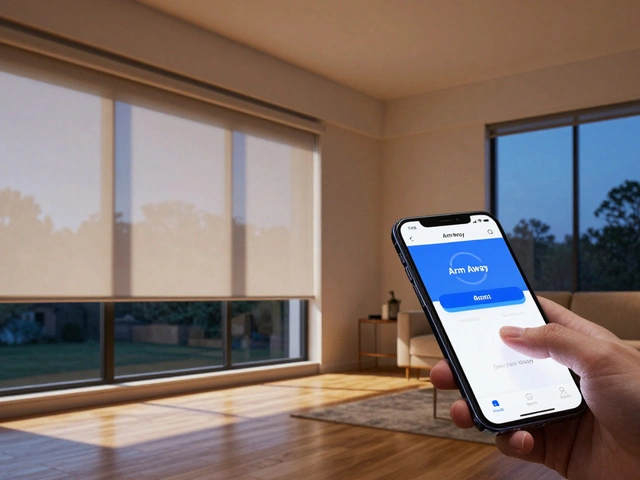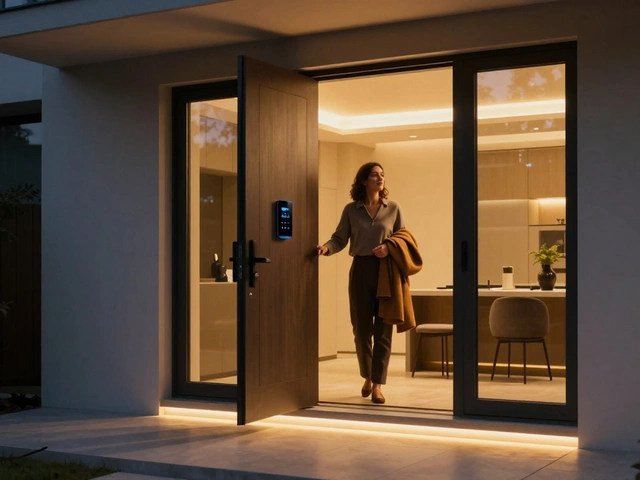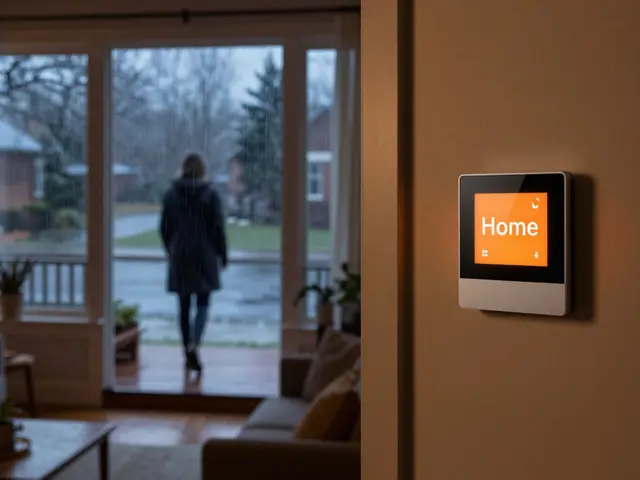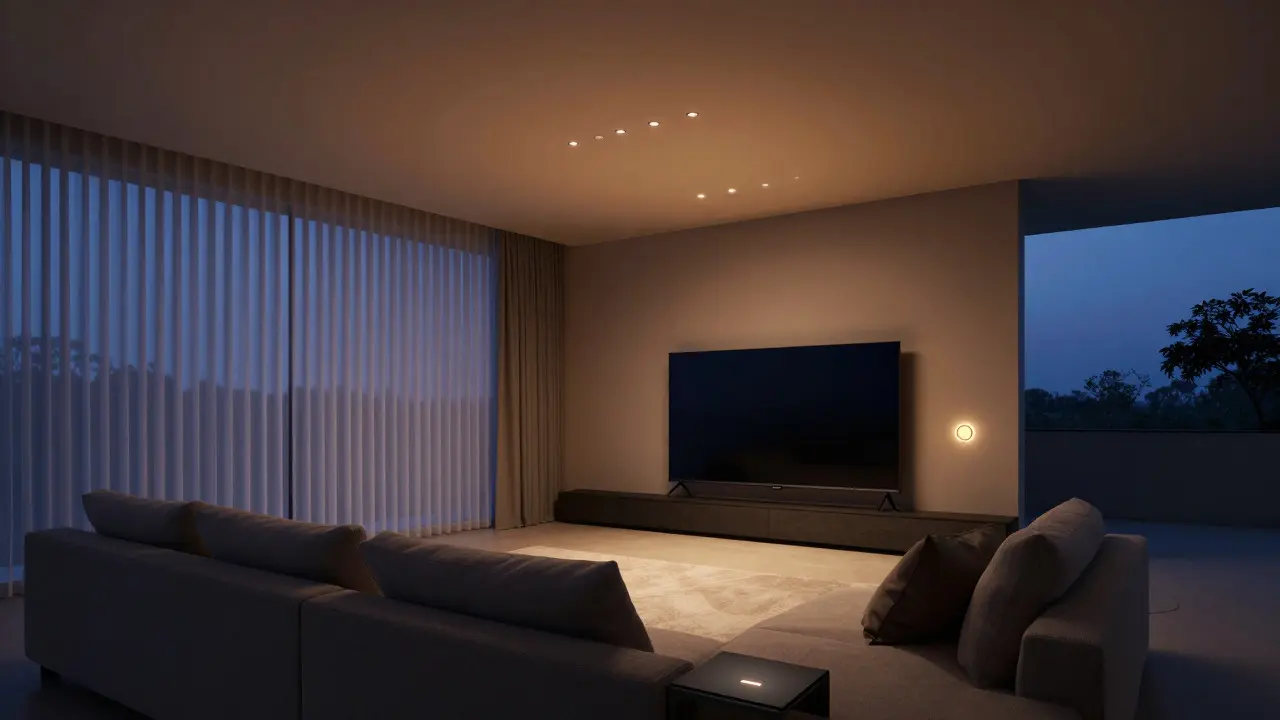
Imagine walking into your living room and having the lights dim to 20%, the thermostat drop by two degrees, and the smart TV switch on automatically. No apps, no clicking through menus, just a single trigger that handles everything. That is the power of a well-configured smart home scene a pre-set group of commands sent simultaneously to multiple connected devices. Instead of treating every bulb, plug, or lock as an isolated object, you bundle them into a logical unit that responds to one action.
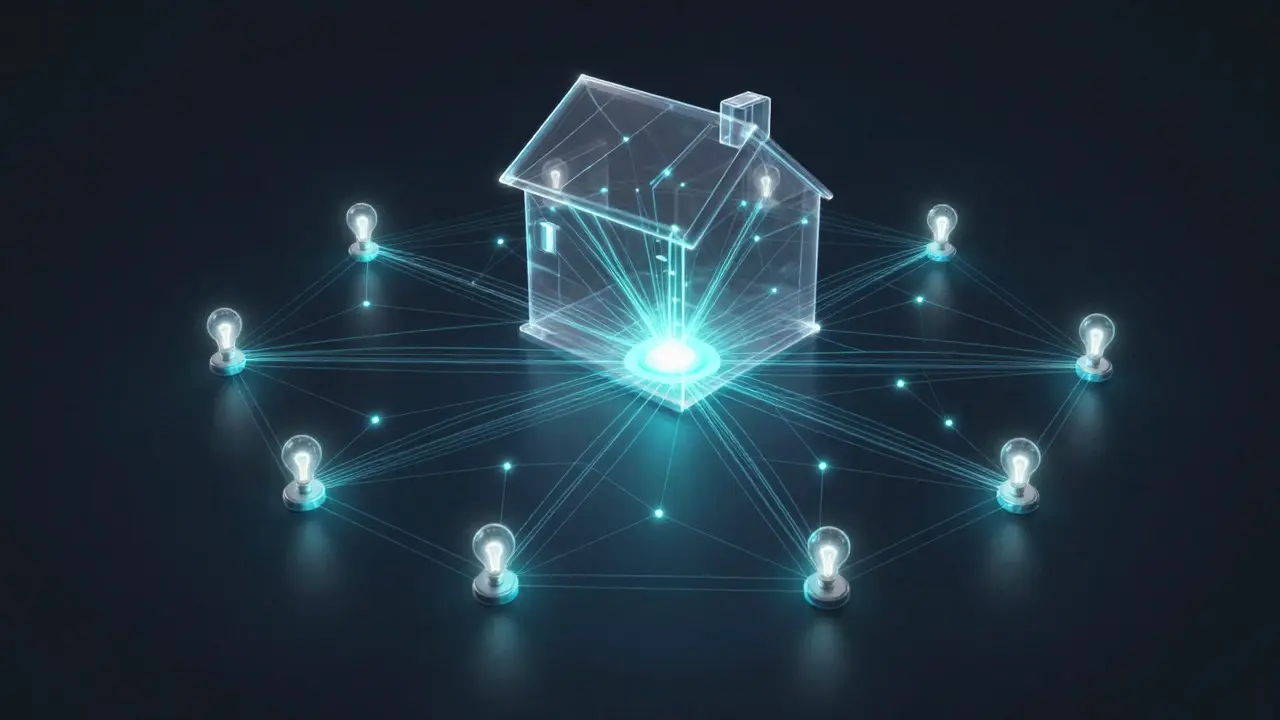
Most homeowners start with individual controls but quickly hit a wall. Managing twenty different devices via separate app tiles becomes tedious. Scenes solve this by reducing cognitive load. You define the state once, and the system executes it reliably. Whether you are using a proprietary ecosystem like Apple HomeKit or an open standard like Matter an industry-wide connectivity standard for smart home devices launched in 2022, the core logic remains the same: grouping devices for synchronized execution.
Why Grouping Devices Beats Individual Control
The primary benefit of scenes is speed and consistency. When you press a physical wall button or say "Good Night" to a voice assistant, you expect immediate feedback. If each device has to query its own status individually, latency creeps in. A scene sends a broadcast command to all grouped entities at once. This reduces network traffic and ensures that your floor lamp doesn't turn on three seconds after your ceiling light.
Consistency is another major factor. Human memory is fallible. Do you remember if you set the blinds to 50% or 75% last Tuesday? With a scene, the parameters are locked in code. Every time you trigger "Movie Mode," the blinds close to exactly 10%, the soundbar switches to cinema audio, and the lights fade out over ten seconds. It removes guesswork from daily routines.
- Reduced App Clutter: One button replaces five or six separate toggles.
- Faster Response Times: Broadcast protocols handle simultaneous commands more efficiently than sequential requests.
- Error Reduction: Eliminates the risk of forgetting to adjust one specific device in a sequence.
Choosing the Right Communication Protocol
Before building complex scenes, you need to understand how your devices talk to each other. The backbone of your smart home determines how reliable multi-device activation will be. Most modern setups rely on one of three main protocols: Wi-Fi, Zigbee, or Thread.
Zigbee a low-power wireless communication technology designed for short-range data transmission in home networks is often the gold standard for battery-powered sensors and bulbs. It uses mesh networking, meaning every device acts as a relay point. If you have 30 Zigbee devices, they help pass messages for each other, creating a robust network that rarely drops out. This makes it ideal for scenes involving many small devices like motion sensors and door contacts.
Wi-Fi is convenient because most phones and routers already support it, but it struggles with scale. If you try to control 20 Wi-Fi plugs simultaneously, your router might choke, leading to lag. For large-scale scenes, Wi-Fi is best reserved for high-bandwidth tasks like video cameras or smart TVs.
Thread is the newer contender. It combines the efficiency of Zigbee with the reliability of IPv6. Devices on a Thread network form their own self-healing mesh. While adoption is growing, many users still find Zigbee more mature for existing hardware libraries.
| Protocol | Best For | Network Type | Latency in Multi-Device Scenes |
|---|---|---|---|
| Zigbee | Battery sensors, bulbs, locks | Mesh | Very Low (<50ms) |
| Wi-Fi | Cameras, hubs, TVs | Star (Router-dependent) | Variable (100ms - 1s+) |
| Thread | Sensors, speakers, future-proofing | Mesh | Low (<50ms) |
Setting Up Your First Multi-Device Scene
Creating a scene is straightforward, but the details matter. Let’s walk through setting up a "Morning Routine" scene using a generic hub interface, which applies to platforms like Home Assistant, Samsung SmartThings, or Apple Home.
- Identify the Trigger: Is it a time-based event (e.g., 7:00 AM), a sensor change (motion detected), or a manual button press? Time-based triggers are the easiest starting point.
- Select Target Devices: Choose the specific entities involved. For a morning routine, this might include kitchen lights, the coffee maker smart plug, and the bedroom blinds.
- Define Actions: Set the exact state for each device. Lights should go to 80% brightness, not just "on." The plug should toggle to "active." Blinds should move to "open."
- Add Delays (Optional): Sometimes you want staggered actions. Maybe the lights come on first, then the coffee maker kicks in 30 seconds later to avoid tripping a circuit breaker. Most advanced hubs allow you to add delay timers between steps.
- Test the Scene: Run it manually before relying on the automatic trigger. Check if any device fails to respond. If a bulb flickers, check its firmware or signal strength.
A common pitfall here is assuming all devices share the same timezone settings. Ensure your hub's local time matches your actual location. If your hub thinks it's 6:59 AM when it's actually 7:00 AM, your scene might fire early or late.
Troubleshooting Common Scene Failures
Even the best setups have hiccups. When a scene fails, it usually comes down to one of three issues: connectivity, logic errors, or device compatibility.
Connectivity Issues: If only some devices respond, check the mesh network health. In Zigbee systems, ensure you have enough repeaters. A dead battery in a sensor can break the mesh path for other devices. Use your hub's diagnostic tools to see signal strength (RSSI) for each node. Aim for values stronger than -70 dBm for stable operation.
Logic Errors: Did you accidentally create conflicting rules? For example, if you have a rule that turns off lights after 10 PM, but your "Night Scene" tries to turn them on at 10:15 PM, you might get unexpected behavior. Audit your automation list for overlapping conditions.
Compatibility Gaps: Not all devices support the same commands. A cheap smart plug might only support "On/Off," while a premium one supports "Dimming" or "Power Monitoring." If your scene tries to send a "dim to 50%" command to a basic plug, it might ignore the command or reset to full power. Always verify device capabilities in the manufacturer's documentation before adding them to a complex scene.
Advanced Tips for Pro-Level Automation
Once you master the basics, you can elevate your experience with conditional logic and external integrations.
Day/Night Awareness: Use sun position data to adjust scenes dynamically. Your "Evening